Your Kia’s nav system is only as good as its last update. Outdated maps mean wrong turns, missing roads, and — if you drive an EV — slower charging sessions. This guide walks you through every method to update Kia navigation, from USB to wireless OTA updates. Stick around, because the EV section alone might save you hours at the charger.
Why You Need to Update Kia Navigation Regularly
Skipping updates isn’t just annoying — it’s a real problem. Road networks change constantly. New highways open, speed limits shift, and charging stations pop up everywhere. If your map database is stale, your nav doesn’t know any of that.
For Kia EV6 and EV9 owners, the stakes are higher. Your car’s battery preconditioning feature only kicks in when the built-in navigation system recognizes a DC fast charger as your destination. Use Apple CarPlay or Google Maps instead, and your battery stays cold — which can triple your charging time in winter.
Kia recommends checking for updates every April and October. That’s the cadence for major map and software releases.
Find Your System Before You Do Anything Else
Not all Kia infotainment systems update the same way. Using the wrong update file will trigger a hardware mismatch error. Worst case? You can’t complete the update at all.
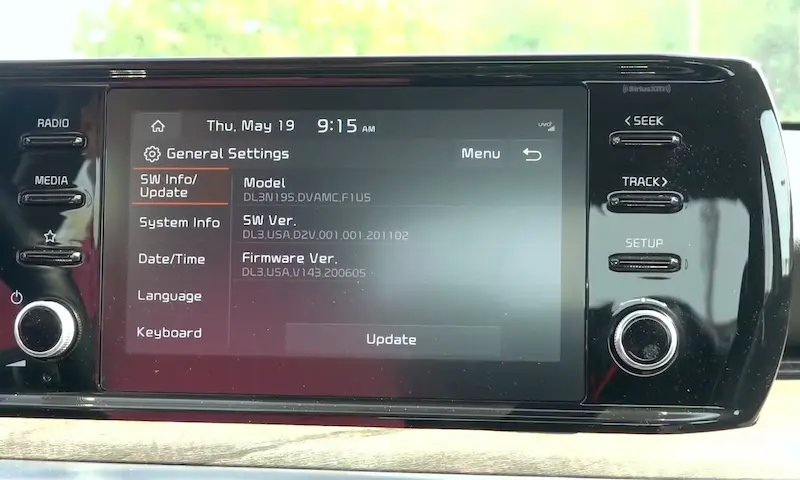
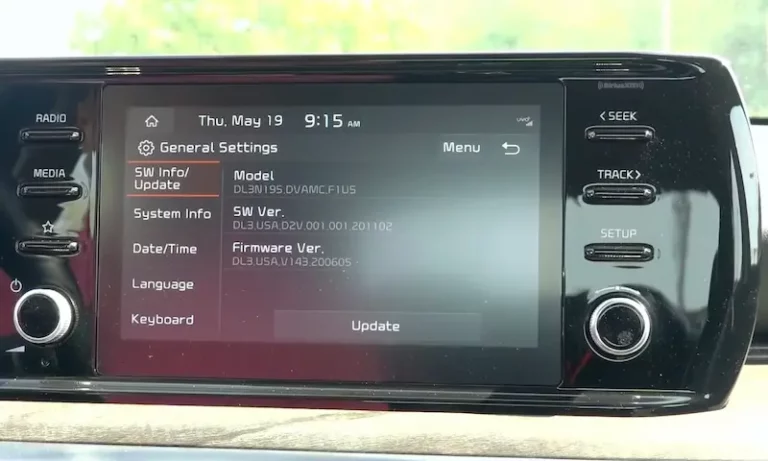
Here’s how to identify your system: Go to Settings → General → SW Info (or “Version Info” on newer models). The software version number tells you exactly which generation you’re running.
| System Generation | Update Media | Display Size | File System |
|---|---|---|---|
| Premium Gen2 | SD Card | Standard | FAT32 |
| Standard Gen4 | SD Card | 7–8 inch | FAT32 |
| Standard Gen5 | SD Card | 7–8 inch | FAT32 |
| Premium Gen5 | USB 2.0/3.0 | High-res | exFAT |
| Standard Gen5W | USB 2.0/3.0 | 10.25–12.3 inch | exFAT |
| ccNC (2022+) | USB-C / OTA | Dual 12.3 inch | exFAT |
Use this table to match your system before you download anything. An SD card update file won’t work on a USB-based Gen5W system — and vice versa.
Method 1: Manual Update via USB or SD Card
This is the most common method for most Kia owners. It takes more setup than wireless, but it works on virtually every Kia with a navigation system.
What You Need Before You Start
Your computer needs to handle this properly. Here’s what the Kia Navigation Updater requires:
- Windows: Intel i3 or AMD A4 processor, 4GB RAM minimum
- Mac: Intel i5 or Apple Silicon, macOS 10.10 or newer
- Hard drive space: At least 100GB free on your primary drive (this is for staging the files, not just the destination drive)
- Internet: Wired connection, 60 Mbps or faster recommended — update files can hit 34GB
For storage media:
- SD card systems: 32GB Class 10 UHS-1 card, formatted FAT32. Don’t use a micro-SD with an adapter — vibrations can cause disconnects mid-update.
- USB systems: 64GB drive, formatted exFAT. Don’t go bigger than 64GB — older firmware can’t address larger partitions, and you’ll get a “No supported files found” error.
Step-by-Step: Prepare Your Update Media
- Download and install the Kia Navigation Updater from the official Kia navigation update website
- Mac users: Go to Security & Privacy settings and allow the app to run — macOS will flag it as unverified
- Open the updater and enter your software version number (from your car’s SW Info menu)
- Let it download the full update package — don’t let your PC sleep during this step. Disable power-saving on USB ports and pause your antivirus temporarily, since encrypted Kia files sometimes get flagged
- Once the download completes, the updater runs a file integrity check automatically
- Copy the files to the root directory of your USB or SD card. Don’t put them in a subfolder — the car’s bootloader only looks at the top level
Step-by-Step: Install the Update in Your Car
Here’s the menu path for your specific system:
| System | Menu Path | Action |
|---|---|---|
| Premium Gen2 | Settings → General → SW Info/Update | Tap Update |
| Standard Gen4 | All Menus → Setup → General → SW Info | Tap Update |
| Standard Gen5 | All Menus → Setup → General → SW Info/Update | Tap Update |
| Standard Gen5W | Setup → General → Version Info/Update | Tap Update |
| ccNC | Setup → General → Software Info/Update | Tap Update |
Critical power rule: Keep your engine running the entire time. Don’t use ACC mode — the battery saver can shut the system down mid-flash, which can brick your head unit. For EVs, stay in “Ready” mode.
The installation process takes 30 to 90 minutes. During this time, your backup camera, climate display, and audio all go dark. That’s normal. Don’t touch anything.
Method 2: Over-the-Air (OTA) Wireless Update
If you own a 2022 or newer Kia with built-in connectivity, wireless updates are the easiest way to keep your nav current. Your car downloads the update in the background while you drive or park — no USB drives required.
Check If Your Car Supports OTA
Look at your VIN. The 10th digit tells you the model year. A letter “N” or later means your car is 2022 or newer and hardware-capable of receiving OTA updates.
You also need the right Kia Connect subscription. Here’s the breakdown:
| Plan | Monthly | Annual | OTA Updates Included? |
|---|---|---|---|
| Lite | Free | $0 | No |
| Care | $5.99 | $59 | No |
| Plus | $14.99 | $149 | No |
| Ultimate | $19.99 | $199 | ✅ Yes |
Most new Kias include a free one-year Ultimate trial. After that, you’ll need to pay for the subscription to keep OTA working. In the UK and Europe, a standalone OTA update subscription runs about £80 per year covering two major releases.
How OTA Installation Works
Once the download finishes in the background, a notification pops up on your screen. You can install immediately or schedule it later. The system won’t start the actual installation unless:
- The car is in Park
- The engine or EV power is off
- The parking brake is engaged
That’s a safety lock. It’s there to prevent any mid-flash interruptions. Learn more about the OTA process on the Kia Owners Portal.
Kia EV Navigation Updates: A Bigger Deal Than You Think
For EV6 and EV9 drivers, a navigation update isn’t just about maps. It’s about how your car manages energy.
Battery Preconditioning Needs Fresh Map Data
Kia’s battery preconditioning feature warms your lithium-ion battery before you arrive at a DC fast charger. Lithium cells charge best between 15°C and 35°C. A cold battery without preconditioning can take 3–4x longer to charge.
The system only triggers preconditioning if the built-in navigation “sees” a high-power charger as your destination. New charging stations won’t appear until you update. So if your map database is outdated, you might drive past newly installed chargers that the car simply doesn’t recognize — meaning no preconditioning, slower charging, and wasted time.
Recent EV Software Updates Worth Noting
Recent OTA packages for the EV6 and EV9 have included more than just maps:
| Update | Delivery | What It Does |
|---|---|---|
| ICCU Sleep Logic | OTA/Dealer | Prevents 12V battery drain |
| AC Water Pump Logic | OTA | Fixes charging interruptions in 2024 EV9 |
| NACS Handshake | OTA/USB | Improves Tesla Supercharger compatibility |
| Cluster Refresh Rate | OTA | Smoother display on EV6 |
Check the full EV9 software update history to see what’s changed for your model year.
After any major update, go back into your EV settings and confirm Battery Conditioning is still enabled. Major firmware flashes often reset it to off.
How to Fix Common Kia Navigation Update Errors
Things go wrong sometimes. Here’s what the error messages actually mean and how to fix them.
Errors During Media Preparation (On Your Computer)
Error 201–204 (ERRCOPY or ERRREMOVED_FLASH)
Your file transfer got cut off. Two common culprits: your PC’s USB ports went to sleep, or your antivirus quarantined the encrypted update files. Fix it by disabling USB power management and pausing your antivirus before you start. ERR_UNZIP (Decompression Failure)
Not enough staging space. Even if your USB drive is empty, the updater needs 100GB free on your PC’s main drive to decompress files temporarily. Clear space and try again.
Errors During In-Vehicle Installation
“No Supported Files Found”
This is the most common one. Check three things:
- Is your drive formatted correctly? (FAT32 for SD, exFAT for USB)
- Are the files in the root directory — not inside a folder?
- Did you accidentally download the update for the wrong region?
“Hardware Version Not Compatible”
You downloaded the wrong update file. A Gen5W update won’t install on a Gen5 Standard unit. Go back and match your software version number carefully.
“Check the SD Card”
Your card is failing or you’re using a micro-SD adapter. Get a full-size Class 10 UHS-1 card. Automotive update cycles are brutal on cheap NAND flash memory.
Regional Differences: Where to Get Your Update
United States and Canada
Updates are managed through update.kia.com in partnership with MapnSoft. Downloads are free. If you don’t have fast internet or the right hardware to prep your own drive, Kia offers a Shipping Order service — about $25 USD / $30 CAD — and they’ll mail you a pre-loaded, certified SD card or USB drive.
Europe and UK
The European update portal covers multiple languages and was one of the first regions to roll out OTA for Gen5W systems. You can browse the latest EU updates directly on the site.
Australia and Asia-Pacific
Australia’s update portal is active and follows a similar manual-update process. In markets like Singapore and Malaysia, dealer-led updates are more common while Kia Connect’s cellular rollout continues across vehicle trims.
What’s New in the Latest Kia Software Updates
The 2025 software release cycle isn’t just about adding new roads. The 2025 1st Software Update for ccNC models includes:
- Kia myQ Connected Garage: Open and close your garage door from the touchscreen or automatically via geofencing
- Google Search integration: Real-time POI ratings and brand searches built directly into native maps
- Fixed Media Home screen: App positions stay consistent so you build muscle memory instead of hunting around
- Expanded voice commands: Say “Redial” or “Call back” without touching the screen
The European September 2025 update brought similar improvements with region-specific map data.
Quick Checklist Before Every Update
- ✅ Identify your system generation (Settings → SW Info)
- ✅ Download the correct update for your region and system
- ✅ Verify 100GB free on your PC, not just the USB drive
- ✅ Format your media correctly (FAT32 or exFAT)
- ✅ Place files in the root directory only
- ✅ Run the car’s engine (or EV in Ready mode) for the full install
- ✅ Re-enable Battery Conditioning after the update (EV owners)
- ✅ Check again in April or October for the next major release