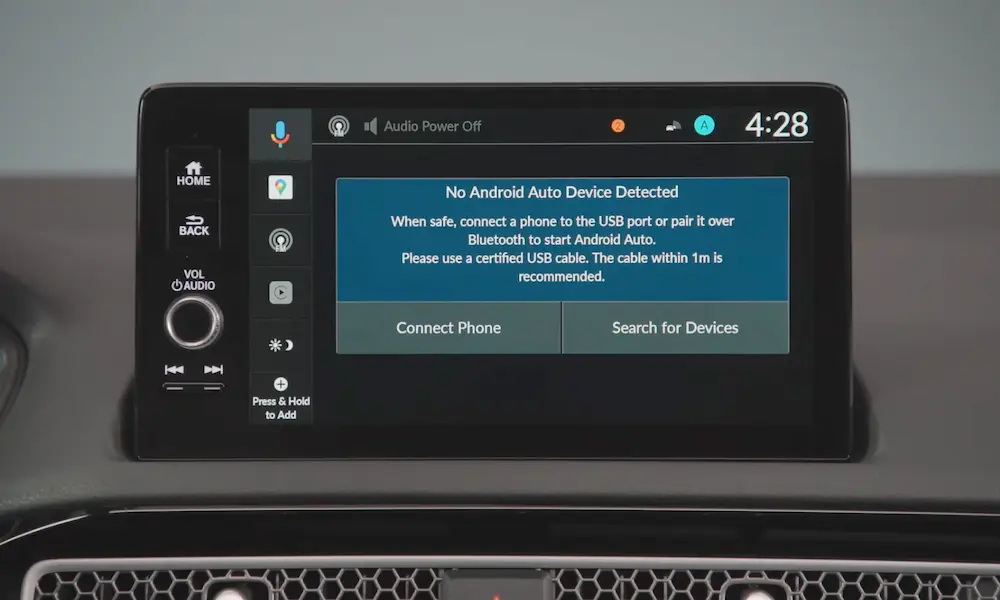
Your Kia’s screen is blank, your phone won’t connect, and you’re stuck staring at a useless infotainment system. Sound familiar? Kia Android Auto not working is one of the most common complaints from Kia owners — and the fix isn’t always obvious. Stick around, because this guide covers every real cause and every real solution, from bad cables to software bugs to regional quirks you’d never expect.
First, Know Your Kia’s Infotainment System
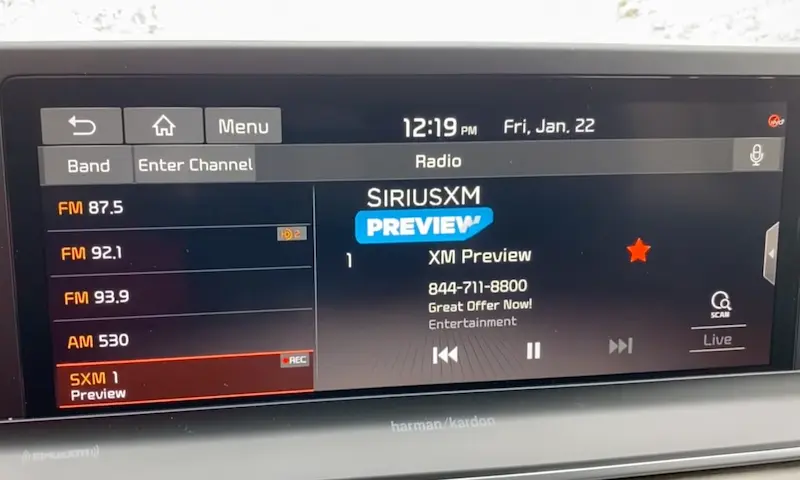
Not all Kia infotainment systems are the same. Before you troubleshoot, figure out which platform your car runs. The fix for a 2021 Telluride is completely different from what you’d do on a 2025 Sportage.
Here’s a quick breakdown:
| System Generation | Models & Years | Connection Type | Wireless Android Auto? |
|---|---|---|---|
| Early Gen (Standard) | Soul (2014+), Sedona (2015+) | Wired USB-A only | No |
| Standard Gen5W | Telluride (2020–2024), Sportage (2017–2022) | Wired USB-A | No (some via update) |
| ccNC (Connected Car) | EV9, 2024+ Sorento, 2025+ K5 | Wireless native | Yes |
| ccNC Lite | 2025+ entry trims | Wireless / USB-C | Yes |
The ccNC platform uses dual-band Wi-Fi to run wireless Android Auto over a 5GHz connection. Older Gen5W systems? Wired only — and sometimes not even that without a firmware update.
Knowing your system saves you a lot of wasted time.
You’re Probably Plugged Into the Wrong Port
This one trips up a lot of Kia owners, especially those with newer models. Not every USB port in your car supports Android Auto data transfer.
Here’s the real deal on Kia’s USB ports:
| Port Type | Location | Does It Support Android Auto? |
|---|---|---|
| USB-A (Multimedia) | Center dash / lower console left | ✅ Yes |
| USB-C (Power) | Center dash / console right | ❌ Charging only |
| USB-C (Seat-back) | Rear of front seats | ❌ No data |
| 12V Outlet | Front tray / cargo area | ❌ Requires adapter |
In the Kia EV6, the only port that works for Android Auto is the USB-A port on the left side of the lower console. Plug into the USB-C port and you’ll get a charge — but no Android Auto, ever.
If you’re on the right port and things still aren’t working, keep reading.
Your USB Cable Is Probably the Problem
A bad cable causes more Android Auto failures than anything else. Android Auto’s projection stream is sensitive. It needs a short, high-speed data cable — not the generic charger you grabbed off your desk.
Follow these rules:
- Keep it short. Use a cable no longer than 3 feet (1 meter). Longer cables pick up electromagnetic interference from your car’s alternator or electric drivetrain.
- Use the cable that came with your phone. Kia specifically recommends this.
- Avoid cheap third-party cables. They lack proper shielding and cause random disconnects.
- Check for damage. A slightly bent connector or frayed cable is enough to kill the connection.
If you need to charge your phone faster while running Android Auto, consider a wireless Android Auto adapter in the USB-A port. Then charge your phone separately via a higher-wattage USB-C port.
The “Blue Plug” Hardware Bug in EV6 and Sportage
Some 2022–2024 Kia models have a physical wiring defect. If you’ve tried three different cables and Android Auto still drops every time you hit a bump, this might be your problem.
A loose internal connector — a blue proprietary plug behind the dashboard — links the USB port to the head unit. Vibration from driving causes the pins to oxidize or unseat slightly. The result? Perfect connection in your driveway, constant disconnects on the highway.
What you can do:
- Take it to your dealer for a warranty fix — they’ll reseat or replace the connector.
- Some owners have DIY fixed it by removing the trim panel, disconnecting the blue terminal, firmly reseating it, and applying dielectric grease to prevent future oxidation.
This isn’t a cable issue. New cables won’t fix it. The 2023–2025 Sportage is particularly prone to this.
Android Software Settings That Break Everything
Even with a perfect cable and the right port, software settings on your phone can silently kill Android Auto.
Check these on your Android phone:
Battery optimization is a big offender. Your phone puts the Android Auto background service to sleep during long drives, especially when it heats up. Fix this by going to Settings > Apps > Android Auto > Battery > and setting it to Unrestricted. Do the same for Google Play Services and Google Maps.
Android version matters. Wired Android Auto needs Android 9.0 minimum. Wireless needs Android 11.0 or higher. If you just updated to Android 15 or 16, check if a Kia firmware update is available — new Android security protocols sometimes break older head units.
Google Play Services cache corruption is sneaky. Android Auto now runs through Google Play Services rather than as a standalone app. If Play Services is corrupted or outdated, your car’s “Phone Projection” button won’t respond. Clear the cache and data for Android Auto, the Google app, and Google Play Services, then restart everything.
You haven’t granted permissions. Check that Android Auto has permission to access your contacts, microphone, phone, and location. Missing even one permission can block the connection.
How to Update Your Kia’s Infotainment System
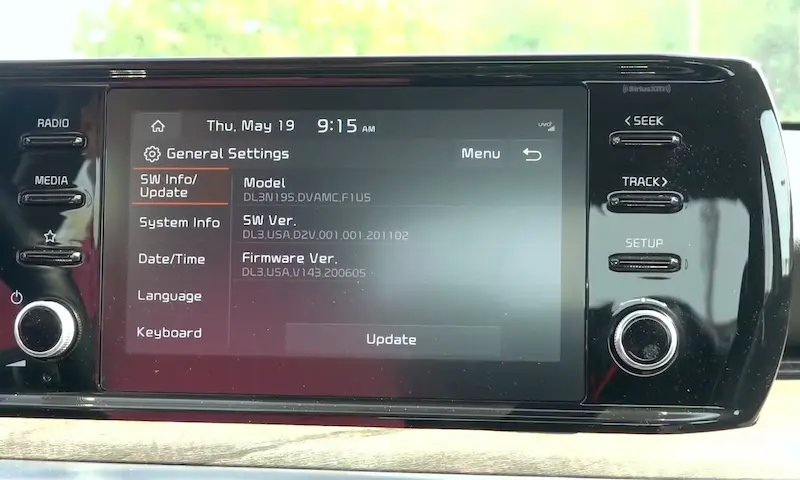
Outdated Kia firmware causes a surprising number of Android Auto issues. The 2021 Telluride needed a specific April 2022 update just to enable full-screen Android Auto. Without it, only two-thirds of the screen displayed the app.
Here’s how Kia updates work:
| Update Method | Eligible Models | Time Required |
|---|---|---|
| Over-the-Air (OTA) | 2022+ with Kia Connect | 10–20 minutes |
| Navigation Updater (USB) | All models 2014+ | 30–60 minutes |
| Dealer Service Update | Recalled/warranted models | 1–2 hours |
For OTA updates, check the Kia Owners Portal. For USB updates, download the tool from Kia’s navigation update site and use a 64GB USB drive.
One warning: Some updates get pulled for bugs. The Spring 2025 Gen5W update was temporarily unavailable due to reported issues. If the update tool says “no updates available” when you know there should be, check back in a few weeks.
Wireless Android Auto Keeps Disconnecting
If you’re on a ccNC system and wireless Android Auto keeps cutting out, the problem is usually 5GHz Wi-Fi interference — or a software handshake failure.
Here’s how the wireless connection works:
- Bluetooth pairs your phone to the car
- The car sends a Wi-Fi Direct invite over 5GHz
- Your phone switches to that network
- Projection starts
Any break in that chain kills the session.
Quick fixes:
- If your Bluetooth device list is full (max 6 devices), delete old pairings. A full list blocks the initial handshake.
- Go to the car’s Settings > Device Connections and select “Generate a New Wi-Fi Passkey” to clear stale credentials.
- In your phone’s Developer Options, disable Wi-Fi Scan Throttling to keep the 5GHz link stable.
- In Developer Options, set Default USB Configuration to “File Transfer / Android Auto” so the phone identifies the port correctly every time.
Geographic interference is real. Users in Golden, Colorado have documented specific intersections where industrial equipment overwhelms the 5GHz signal and drops wireless Android Auto entirely. If you hit the same dead zone every commute, switch to wired on that route.
Trying to Use Your Car’s Hotspot and Android Auto Together?
You can’t — at least not wirelessly. Your phone uses its Wi-Fi radio to connect to the car for wireless projection. It can’t simultaneously use that same radio to pull data from the car’s built-in hotspot.
The result is that frustrating “Connected to device. Can’t provide Internet” error.
Your phone’s cellular data connection handles Google Maps and Google Assistant when using wireless Android Auto. If data drops (say, in a dead zone), navigation continues on cached maps — but real-time traffic goes dark.
If you’re on Verizon and switching between 4G and 5G constantly, the brief handover gap can crash the Android Auto session. Force your phone to LTE only in network settings while driving to keep things stable.
How to Reset Your Kia’s Infotainment System
When nothing else works, reset the head unit. There are two ways to do it.
Soft Reset (Pinhole Reset)
Every Kia head unit has a small pinhole near the volume or tuning knob. This is your first move when the system freezes or won’t recognize your phone.
Here’s the process:
- Turn the car to accessory or on mode
- Insert a straightened paperclip into the pinhole and hold for 5–10 seconds
- Wait for the screen to go black, then watch for the Kia logo to reappear
This clears temporary memory without deleting your settings, paired phones, or radio presets. It reportedly reduces infotainment warranty claims by 30%.
Factory Reset (Hard Reset)
If the soft reset doesn’t help, go to Setup > General > Reset or Setup > System > Default (varies by model). This deletes everything — paired phones, nav history, presets. Start fresh. This is especially useful after a major firmware update from your dealer.
Massachusetts Owners: Your Features May Be Intentionally Disabled
If you bought a 2022 or newer Kia in Massachusetts and you can’t get OTA updates or Kia Connect features to work, there’s a specific reason — and it has nothing to do with your phone.
Kia disabled Kia Connect telematics for vehicles in Massachusetts due to the state’s Right to Repair law. The law requires automakers to open telematics data to independent repair shops. Kia argues it can’t do that safely under current federal standards, so it shut the system off entirely in that state.
Android Auto itself still works — it’s a projection service, not a telematics feature. But OTA updates are unavailable, meaning any software bugs affecting Android Auto have to be fixed with a USB update or a dealer visit. Many Massachusetts buyers weren’t told about this at purchase, so check your Kia Connect status if you live there.
The Full Kia Android Auto Troubleshooting Checklist
Run through this in order before calling your dealer:
- Confirm you’re plugged into the correct USB-A multimedia port
- Swap to a short (under 3 feet), manufacturer-approved USB cable
- Enable Android Auto and set it to start while locked (phone settings)
- Set Android Auto, Google Play Services, and Maps battery to Unrestricted
- Clear cache and data for Android Auto and Google Play Services
- Update Google Play Services and Android Auto to the latest version
- Check Android version (need 9.0+ wired, 11.0+ wireless)
- Delete old Bluetooth pairings on the car (keep list under 6 devices)
- Generate a new Wi-Fi passkey on the Kia head unit
- Perform a pinhole soft reset on the head unit
- Check for Kia firmware updates via OTA or Kia’s navigation updater
- For persistent disconnects on bumps — suspect the blue connector harness
If you’ve worked through this list and nothing sticks, the dealer is your next stop. Ask specifically about the USB harness connector if your car is a 2022–2024 EV6 or Sportage. That’s a known hardware issue, and your warranty should cover it.