Is your Chevy Malibu’s touchscreen acting up? Maybe it’s frozen, displaying strange lines, or just not responding like it should. No need to panic. Most infotainment system issues can be fixed with a proper reset, and you don’t need to be tech-savvy to do it.
Why Your Chevy Malibu Screen Might Need a Reset
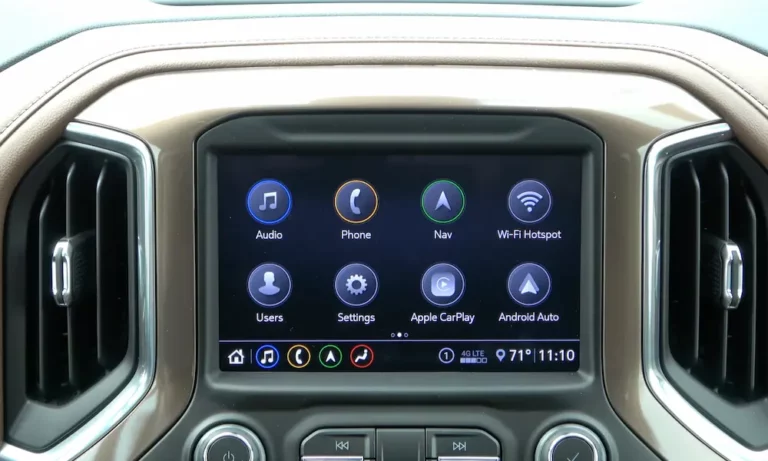
Your Malibu’s infotainment system handles everything from music and calls to navigation and vehicle settings. When things go wrong, it’s usually due to:
- Software glitches causing the screen to freeze
- Memory issues from Bluetooth connections
- Interrupted system updates
- Temperature changes affecting the touchscreen
- App crashes or corrupted data
Let’s fix your screen without a trip to the dealership.
Quick Soft Reset Methods for All Malibu Models
When your screen is being temperamental, start with these simple fixes:
The Power Cycle Method
This is your first line of defense against minor glitches:
- Put your car in Park with the parking brake engaged
- Turn the ignition completely OFF
- Open the driver’s door (this triggers the system to fully power down)
- Wait at least 2 minutes
- Close the door and restart your vehicle
This simple process clears the system’s temporary memory and resolves most common issues. It’s like restarting your smartphone when it acts up.
Hard Reset Button Combinations by Model Year
If the soft reset didn’t work, try these model-specific button combinations:
For 2014-2016 Malibu with MyLink 2.5
- Press and hold the Home and Fast-Forward buttons simultaneously
- Keep holding for 10 seconds until the screen restarts
- Wait for the system to completely reboot (about 30-45 seconds)
For 2017-2019 Malibu with Intellilink 3
- Locate the Phone Hang-Up button on your steering wheel
- Press and hold for 10 seconds
- The screen will go blank before restarting
For 2020-2023 Malibu with Infotainment 3+
- Locate the Power button and Volume Down button on your infotainment unit
- Press and hold both buttons simultaneously for 15 seconds
- The screen will display a boot animation as it restarts
For 2023+ Malibu with Google Built-In
- Find the Phone Hang-Up button on your steering wheel
- Press and hold for 10 seconds
- The Android Automotive system will restart
After any hard reset, allow about 10 minutes for the system to fully reconnect with the car’s network and restore your settings.
Factory Reset: The Nuclear Option for Persistent Problems
When nothing else works, a factory reset will return your system to its original state:
- Make sure your car is in Park
- Navigate to Settings → System → Reset Options
- You’ll see several options:
- Reset Radio Settings: Clears just your radio presets
- Clear Private Data: Removes call logs and navigation history
- Full Factory Reset: Complete system wipe (takes 7-12 minutes)
IMPORTANT: Before performing a factory reset:
- Back up your navigation favorites to a USB drive if possible
- Write down any custom settings you want to restore later
- Be prepared to reconnect your phone and reset your preferences
Advanced Reset Methods When Nothing Else Works
Bootloader Recovery Mode (2017-2023 Models)
If your system won’t even start normally:
- Turn the ignition to the ACC position
- Press and hold the Back, Nav, and Power buttons simultaneously
- When the bootloader menu appears, select “Safe Mode” using the volume knob
- This mode allows basic functionality until you can get a proper update
Battery Disconnect Method (Last Resort)
When all else fails, try this approach:
- Turn off the vehicle completely
- Disconnect the negative battery terminal
- Press and hold the brake pedal for 30 seconds to drain any remaining power
- Wait 10 minutes before reconnecting the battery
- After reconnection, you’ll need to reset your windows by using the auto up/down feature
Troubleshooting Common Screen Problems
Frozen or Unresponsive Screen
- Try the soft reset method first
- If unresponsive, use the appropriate hard reset button combination
- Check if the problem occurs only when using specific features (like CarPlay or Android Auto)
Lines or Distortion on Screen
- Complete a hard reset using the appropriate method for your model
- If lines persist, check for screen damage or delamination issues
- Test the touchscreen by drawing circles to check for dead spots
Apps Crashing or Not Loading
- Clear app caches through Settings → Storage → Cached Data
- Ensure your system software is up to date
- If problems persist, try a factory reset of just the app data
Preventing Future Screen Issues
Regular Maintenance Tips
- Manage Your Cache: Monthly, go to Settings → Storage and clear cached data
- Protect from Temperature Extremes: Use a sunshade when parked in hot weather
- Update Properly: Only install system updates when:
- Your battery is well-charged (above 12.4V)
- The parking brake is engaged
- You won’t need to drive immediately after
Best Practices for System Updates
- Never interrupt a system update in progress
- Always have your engine running during updates
- Keep your vehicle in Park until updates complete
- Wait five minutes after completion before driving
System Version Check and Updates
Keep your infotainment system current for best performance:
- Go to Settings → About to view your current software version
- Compare with the latest available version (as of 2024 Q3: MU5.0.6)
- If you’re more than 90 days behind, update via dealership or USB
Touchscreen Calibration After Reset
After any reset, confirm your touchscreen is working properly:
- Test all areas of the screen by swiping and tapping
- If some areas don’t respond, try this calibration check:
- Go to Settings → About
- Tap the Build Number 7 times quickly
- Enter the diagnostic mode and run the touch test
What Professional Help Can Fix
Some issues require dealer expertise. Visit your Chevy dealer if you experience:
- Error codes appearing on screen
- Multiple factory resets failing in a short time
- Touchscreen grid failure or partial responsiveness
- System crashes during normal operation
Dealership technicians have specialized equipment to:
- Flash new firmware to the infotainment module
- Replace faulty hardware components
- Perform advanced diagnostics unavailable to consumers
Model-Specific Troubleshooting Chart
| Model Year | Common Issues | Best Reset Method | Success Rate |
|---|---|---|---|
| 2014-2016 | Bluetooth drops, slow response | Home + Fast-Forward for 10s | 85% |
| 2017-2019 | Screen freezes, app crashes | Steering wheel Phone button for 10s | 78% |
| 2020-2022 | CarPlay/Android Auto disconnects | Power + Volume Down for 15s | 91% |
| 2023+ | Google app failures, black screen | Phone button (steering wheel) for 10s | 89% |
Reconnecting Your Phone After Reset
After resetting your Malibu’s screen, you’ll likely need to reconnect your devices:
- For Bluetooth:
- Go to Settings → Bluetooth → Pair New Device
- Enable Bluetooth on your phone and select your Malibu
- For Apple CarPlay:
- Connect your iPhone via USB
- Follow the prompts on both screens
- For wireless CarPlay, use Bluetooth pairing first
- For Android Auto:
- Connect your Android via USB
- Accept permissions on your phone
- Follow setup instructions on both screens
Remember that some settings may take time to fully restore, especially climate control and audio preferences that communicate through your car’s data network.
By understanding the right reset procedure for your specific Chevy Malibu, you can save time and money on unnecessary dealer visits. Most infotainment issues are easily fixable with the methods above, keeping you connected and on the road.