Is your Hyundai touchscreen frozen? Bluetooth connection on the fritz? Navigation system acting up? You’re just a few steps away from fixing these common infotainment headaches. Whether you drive a Tucson, Santa Fe, Elantra, or any other Hyundai model, this guide covers everything you need to know about resetting your vehicle’s infotainment system.
Why You Might Need to Reset Your Hyundai Infotainment System
Hyundai’s infotainment systems are packed with features, but they can occasionally run into problems. Here are common issues a reset might solve:
- Frozen or unresponsive touchscreen
- Bluetooth pairing failures
- Navigation system errors
- Audio system glitches
- Blank or black screen
- Slow performance or lag
Like your smartphone or computer, sometimes your car’s infotainment system just needs a fresh start.
Soft Reset vs. Factory Reset: Know the Difference
Before diving in, understand these two important reset types:
Soft Reset:
- Restarts the system without deleting your data
- Fixes minor glitches and freezes
- Keeps your settings, paired phones, and navigation favorites
- Similar to restarting your smartphone
Factory Reset:
- Wipes all personal data and restores factory settings
- Removes paired devices, saved destinations, preferences
- Solves more serious or persistent issues
- Think of it as the “nuclear option”
How to Perform a Soft Reset on Hyundai Infotainment
Method 1: Using the Reset Button
Most Hyundai vehicles have a small pinhole reset button that allows for a quick soft reboot:
- Locate the pinhole reset button (typically near the volume knob, “Setup” button, or main control panel)
- Insert a paperclip or similar thin object into the hole
- Press and hold for 1-2 seconds until the screen turns off
- Release the button and wait 10-30 seconds for the system to restart
This method is endorsed by many Hyundai owners as the quickest fix for minor glitches.
Method 2: Power Cycling
If you can’t find the reset button or it’s not working:
- Turn off your vehicle completely
- Open the driver’s door (this fully powers down the electrical systems)
- Wait 2-3 minutes
- Start the vehicle again
This approach allows the system’s capacitors to discharge fully, creating a clean restart.
How to Factory Reset Your Hyundai Infotainment System
When soft resets don’t work, a factory reset might be necessary:
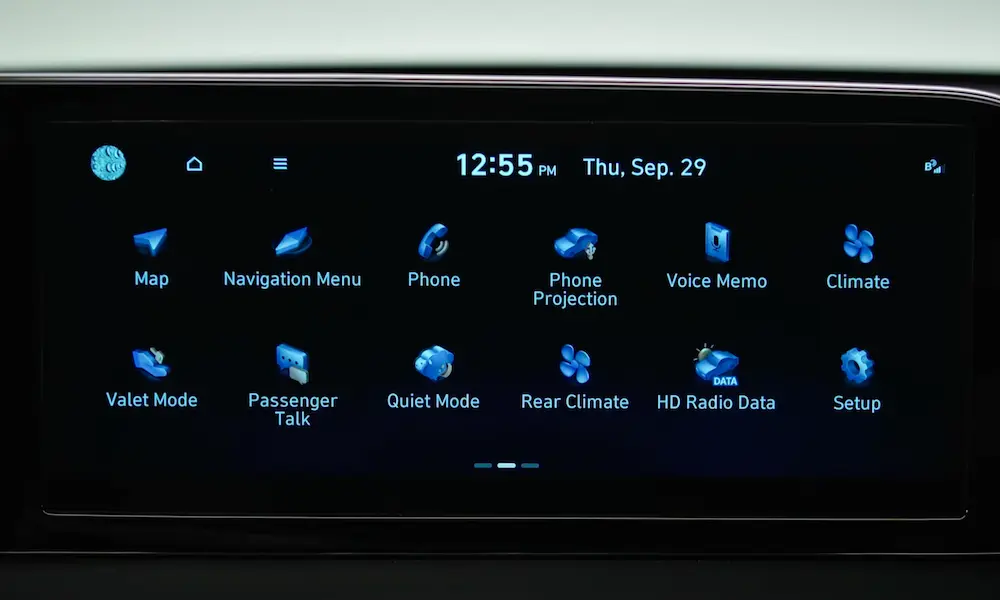
- Tap the “Setup” or “Settings” icon on your infotainment screen
- Navigate to “General” or “System” settings
- Select “Reset” or “Factory Reset”
- Confirm your choice when prompted
- Wait for the reset to complete (usually 1-5 minutes)
Important: Document all your settings before performing a factory reset, as you’ll need to reconfigure everything afterward.
Model-Specific Reset Instructions
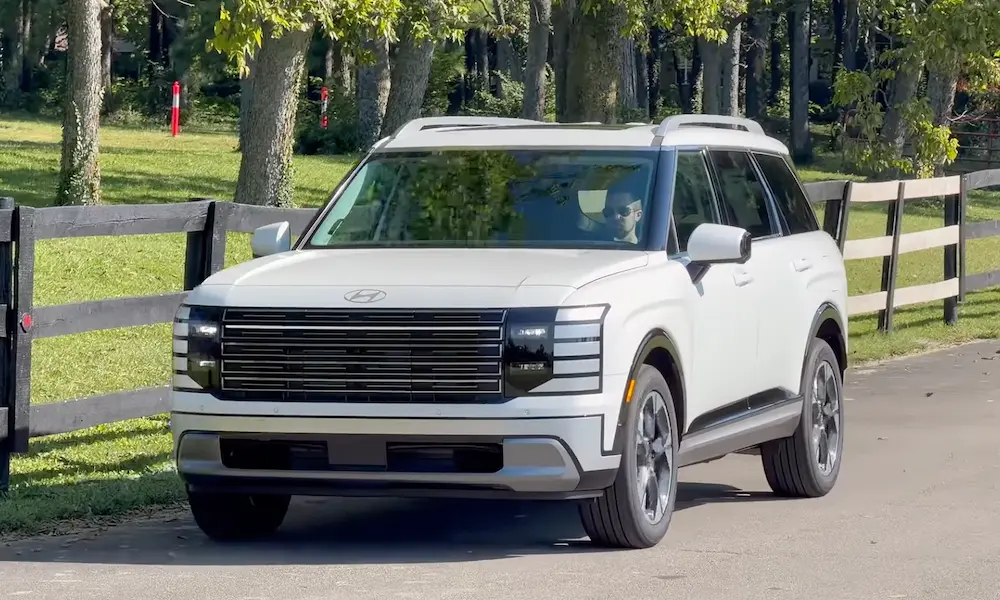
Tucson (2022-2025)
Tucson models have some unique characteristics:
- Reset Button Location: Found next to the volume knob on lower trims; near the climate controls on higher trims
- Warning: Some owners report that holding the reset button for more than 5 seconds can trigger a factory reset instead of a soft reboot
The reset button in newer Tucsons may be slightly recessed, so you’ll need a paperclip with good reach.
Santa Fe (2020-2025)
Santa Fe’s infotainment reset process has these distinctions:
- Hybrid/PHEV Models: The reset button may be located behind a removable panel in the cargo area
- Menu Navigation: Factory reset options are found under Vehicle > Advanced Settings > System Reset
- Wait Time: Allow 30 seconds for a complete restart after pressing the reset button
The official Santa Fe infotainment manual provides detailed instructions specific to this model.
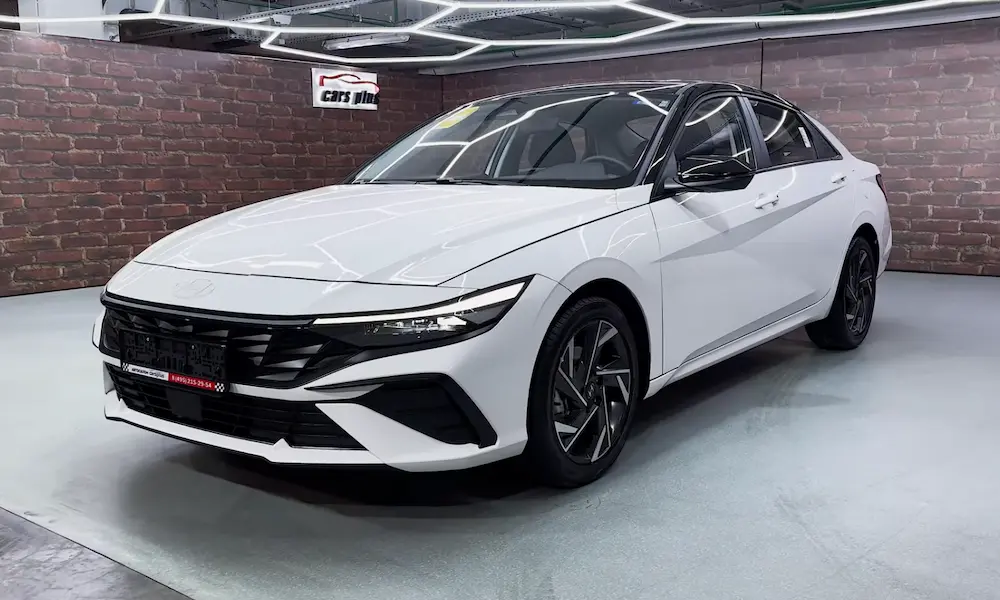
Elantra/Kona (2023-2025)
For Elantra and Kona models:
- Base Models: If your vehicle doesn’t have a touchscreen, press and hold both the “Setup” button and volume knob for 10 seconds
- Post-Reset Step: You may need to re-pair your steering wheel controls via the Device Connections menu
- Screen Calibration: Some users report needing to recalibrate the touchscreen after resetting
The Battery Disconnection Method (Hard Reset)
When all else fails, this last-resort method can solve deeper system issues:
- Ensure your vehicle is turned off
- Open the hood and locate the battery
- Disconnect the negative (black) terminal
- Wait 30 minutes for complete system discharge
- Reconnect the battery and start the vehicle
This approach resets all electronic control units (ECUs), not just the infotainment system. You’ll need to reconfigure window auto-up settings, radio presets, and other vehicle preferences afterward.
Troubleshooting Common Post-Reset Problems
System Won’t Boot or Shows Boot Loop
If your infotainment system fails to start properly after a reset:
- Check your vehicle’s 12V battery health (a weak battery can cause strange electrical issues)
- Look for available software updates through Hyundai’s update portal
- Try another soft reset, but hold the button slightly longer
- If all else fails, consider the battery disconnection method
Bluetooth Connectivity Issues After Reset
If devices won’t pair after a reset:
- Delete your vehicle from your phone’s Bluetooth devices list
- Restart your phone
- Try pairing again from scratch
- Ensure your infotainment system has the latest firmware
When Software Updates Might Help
Sometimes what seems like a system malfunction is actually fixed in a newer software version:
- Visit Hyundai’s official update portal
- Enter your Vehicle Identification Number (VIN)
- Check if updates are available for your infotainment system
- Follow the instructions to download and install (some updates can be done at home, others require dealer assistance)
Many users report that simply updating their system’s software resolves persistent issues without needing resets.
Data Backup Recommendations
Before performing any factory reset, take these precautions:
- Screenshot your settings screens
- Write down radio presets
- Note paired Bluetooth devices
- Save navigation favorites if possible
- Document any customized vehicle settings
This preparation will save you significant time when reconfiguring your system.
Infotainment System Reset Comparison Table
| Reset Type | When to Use | What You’ll Lose | Difficulty | Time Required |
|---|---|---|---|---|
| Soft Reset (Pinhole) | Frozen screens, minor glitches | Nothing | Easy | 30 seconds |
| Power Cycle | When reset button isn’t accessible | Nothing | Easy | 2-3 minutes |
| Menu Factory Reset | Persistent issues, major glitches | All settings and data | Medium | 5-10 minutes |
| Battery Disconnect | Severe system failures | All settings and data, plus vehicle preferences | Advanced | 30+ minutes |
Preventative Maintenance for Your Infotainment System
Keep your Hyundai infotainment running smoothly with these practices:
- Install software updates when available
- Don’t overload USB ports with high-power devices
- Avoid extreme temperature exposure when possible
- Keep the touchscreen clean (dust can affect responsiveness)
- Allow system startup to complete before pressing buttons
- Regularly unpair unused Bluetooth devices
The Latest in Hyundai Infotainment Technology
Newer Hyundai models feature more resilient systems with:
- Over-the-air update capability
- Enhanced processor speeds
- More intuitive reset procedures
- Better error handling
- Improved user interfaces
If you drive a 2023 or newer model, check your specific owner’s manual for the latest reset procedures, as they may differ slightly from older versions.
Understanding Your Hyundai Infotainment Architecture
Knowledge is power when troubleshooting. Modern Hyundai infotainment systems consist of:
- A main processor unit (the “brain”)
- Display screen (output)
- Touch sensors (input)
- Physical controls and buttons
- Connection modules (Bluetooth, WiFi, cellular)
- Storage memory
When you reset, you’re primarily clearing the temporary memory and restarting the processor—similar to rebooting a computer.
By understanding how to reset your Hyundai infotainment system properly, you can save yourself a trip to the dealership and get back to enjoying your vehicle’s technology features quickly. Remember to try the soft reset options first before moving on to more drastic measures.