Your Mercedes is telling you to “turn right” onto a road that’s been a roundabout for three years. Sound familiar? Outdated maps are more than annoying — they can mess with your safety systems too. This guide walks you through exactly how to update Mercedes navigation, step by step, no dealer required.
Why Keeping Your Maps Current Actually Matters
This isn’t just about finding the coffee shop. Your Mercedes navigation feeds data directly to its Advanced Driver Assistance Systems (ADAS).
Features like Distronic Plus use map data to anticipate road curves and speed changes before your sensors even detect them. Stale maps mean the system might brake or accelerate at the wrong moment.
For EQ electric vehicle owners, it’s even more critical. The “Electric Intelligence” routing system calculates charging stops based on elevation and traffic data. Wrong map = wrong range estimate = you stranded somewhere inconvenient.
The global navigation map market is projected to hit $37 billion by 2031 — and Mercedes is betting big on keeping its in-dash system relevant.
First: Figure Out Which System You Have
Before you do anything else, identify your NTG (Neue Telematik Generation) version. The update process differs significantly between systems.
Here’s a quick reference:
| NTG Version | Years | Key Identifiers | Storage |
|---|---|---|---|
| NTG 4.5 | 2012–2015 | Oval buttons, 7″ screen, SD slot | 80–100GB HDD |
| NTG 4.7 | 2013–2015 | Red UI, phone tethering | 100GB HDD |
| NTG 5.1 | 2015–2018 | Flat buttons, chrome dividers | Internal HDD |
| NTG 5.5 | 2016–2020 | 12.3″ widescreen, no keypad | SSD module |
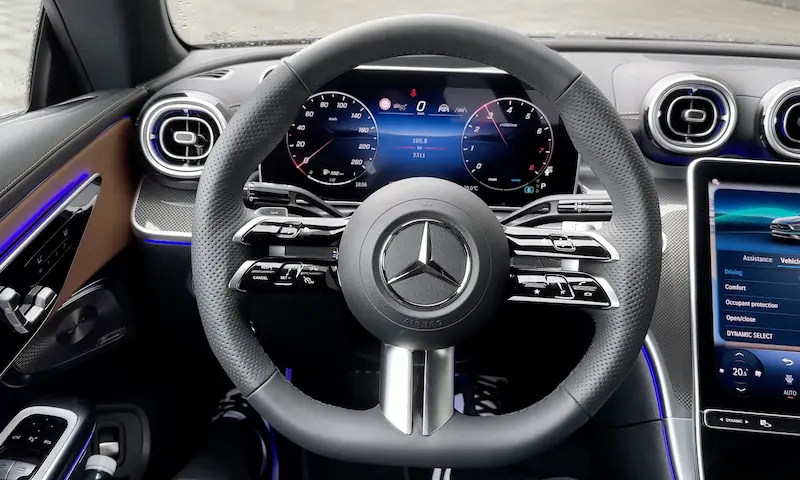
| MBUX (NTG 6/7) | 2018–present | AI assistant, AR navigation | Cloud + SSD |
Not sure which one you have? Check your Mercedes COMAND head unit guide for a visual comparison by model and year.
Method 1: Automatic Online Updates (MBUX Vehicles)
If your car runs MBUX and you have an active Mercedes me connect subscription, good news — your maps update themselves.
The system compares your current map version against Mercedes-Benz servers using the car’s built-in 4G LTE module. If there’s a newer version, it downloads quietly in the background while you drive.
What auto-updates cover:
- Road changes and new routes for your registered region
- Points of interest (restaurants, petrol stations, EV chargers)
- Live traffic data integration via Google
What auto-updates don’t cover:
- Voice recognition data (that needs a manual refresh)
- Regions outside your registered home territory
- Full continental map refreshes
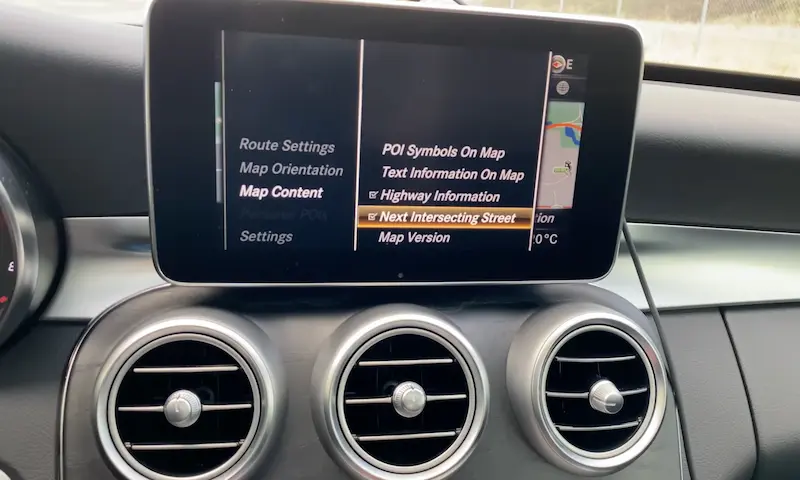
You can check your current map version through the settings menu under Navigation > Map Version.
Method 2: Manual Update via USB (COMAND Systems)
For NTG 4.5 through 5.5, you’ll do this manually. It takes about an hour but it’s straightforward once you know what to do.
Step 1: Set Up Your Mercedes Me Account
Head to the Mercedes me portal and log in. Go to Manage Digital Extras, then select Update regions manually. Choose your country or continent.
Step 2: Download the Mercedes me Download Manager
This is a Java-based app for Windows or macOS. Install it and connect your USB drive.
Mac users take note: macOS often blocks the installer with a “cannot check for malicious software” error. To fix this, right-click the app and select Open instead of double-clicking. This bypasses Gatekeeper verification.
Step 3: Format Your USB Drive Correctly
This step trips up more people than any other. Get it wrong and the car won’t read the drive at all.
| NTG Version | File System | Partition Scheme | Minimum Size |
|---|---|---|---|
| NTG 4.5 | FAT32 | MBR | 8GB (single country) |
| NTG 5.1 / 5.5 | NTFS or exFAT | MBR | 64GB (continental) |
| MBUX | exFAT | MBR | 64GB |
Mac users: Don’t use GUID Partition Map — your car’s head unit won’t recognize it. Use Master Boot Record in Disk Utility. This one detail causes most Mac-related failures.
The official Mercedes dealer USB stick is pre-formatted correctly if you want to skip the formatting step entirely.
Also: use a USB 2.0 drive if you have NTG 4.5 or early 5.x systems. USB 3.0 drives sometimes fail to handshake correctly with older head units.
Step 4: Download and Verify the Map Files
The Download Manager runs a checksum verification before writing the files. Don’t skip or interrupt this. A corrupted transfer means a system freeze mid-installation.
Step 5: Install in the Vehicle
This part is simple but the power rule is non-negotiable.
- Keep the engine running throughout the entire process
- Or connect a professional battery maintainer delivering at least 20A
- Do not turn off the car during installation
- Installation takes 30–60 minutes
If power drops below 12.5V during the write cycle, the head unit shuts down for safety. Partially written map data can corrupt the file structure and may require a dealer-level reset to fix.
The Activation PIN: What It Is and Why You Need It
Every Mercedes from 2012 onwards requires a 25-digit activation PIN to validate new map data. This isn’t optional — it’s how Mercedes locks the software to your specific vehicle.
The PIN is generated using:
- Your full 17-digit VIN (not the FIN abbreviation)
- Your NTG system version
- The specific map version and region you’re installing
A PIN for a 2025 North American map won’t work on a European update, even on the same car. And it won’t work on a different vehicle at all.
You get your PIN through the Mercedes me portal once you’ve purchased the update or have an active navigation subscription.
PIN entry tip: The letter “O” and the number “0” look almost identical on screen. So do “I” and “1”. Look at the code carefully on a high-resolution display before you start typing. One wrong character means the whole code fails.
Common Problems and How to Fix Them
USB Drive Not Recognized
Your car says “no data medium found” even though the drive is plugged in. Check these things in order:
- Is it formatted with MBR partition scheme?
- Does the computer see it as a “Removable Disk” (not “Local Disk”)?
- Are you using USB 2.0 on an NTG 4.5 or early 5.x system?
“Insert Data Medium” Loop After Update
The update finished but now your car keeps asking for the drive again. This usually means the head unit is looking for missing components — commonly the voice data files or 3D building maps that weren’t included in your download. Re-download the full update package including all regional extras and reinstall.
Installation Frozen Mid-Way
Don’t panic. Don’t unplug the USB. Don’t turn the car off. Wait at least 10 minutes — some head units pause during verification. If nothing moves after that, you may need a dealer diagnostic session.
Singapore and Parallel Import Vehicles: The Region Problem
If you bought a parallel import Mercedes in Singapore — sourced from the UK or Japan — your head unit is coded for that original market. It shows European or Japanese maps and may not accept a South East Asian update without a region conversion first.
This conversion requires dealer-level diagnostic tools (Xentry or Vediamo) to rewrite the head unit’s internal region code. Workshops in Singapore typically charge between S$200–S$400 for this service, depending on the NTG version.
Once converted, the SEA map package covers Singapore, Malaysia, Thailand, Indonesia (including Bali and Java), the Philippines, Vietnam, and Brunei — useful if you cross the Causeway regularly.
How Much Does a Mercedes Navigation Update Cost?
Costs vary significantly depending on where you get the update done:
| Source | Approx. Cost | What You Get |
|---|---|---|
| Official dealer (Cycle & Carriage SG) | S$300–S$750 | Full install, software check, warranty |
| Mercedes me Store (annual subscription) | S$150–S$250/year | OTA updates, live traffic, manual rights |
| Third-party specialist | S$80–S$150 (one-time) | PIN code + map files |
| DIY tools (MBTools etc.) | ~S$100 | Self-service PIN generation |
New vehicles typically include 3 years of free navigation updates as part of the purchase. After that, you’ll need to renew through the Mercedes me Store.
Built-In Navigation vs. Apple CarPlay: Which Should You Use?
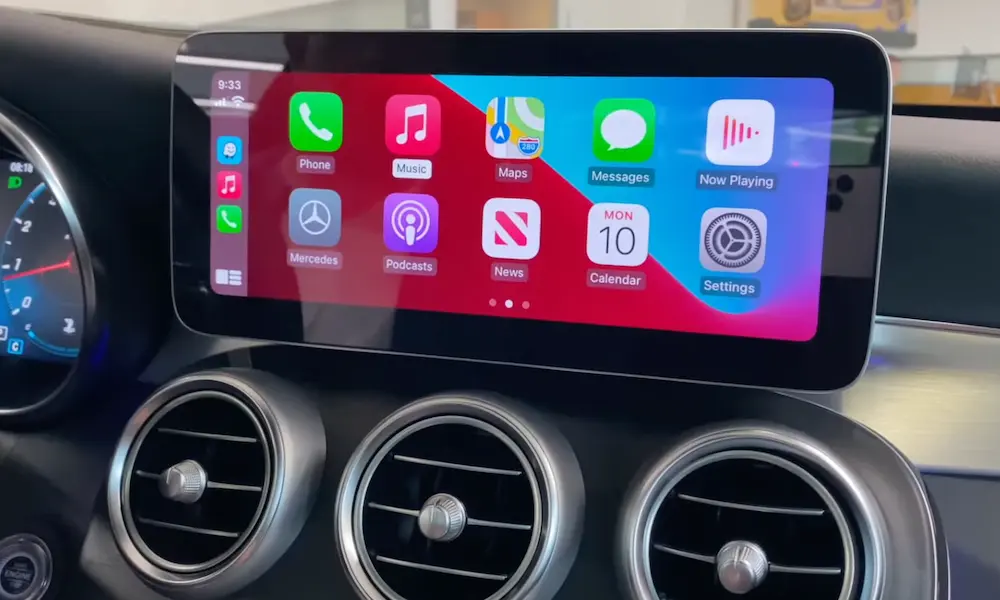
CarPlay and Android Auto give you current Google Maps with a familiar interface. But they don’t talk to your car’s safety systems.
The native Mercedes navigation connects to:
- Your Head-Up Display
- Distronic and lane assist for look-ahead road data
- EV range calculation (EQ series)
- Instrument cluster display
Google Maps on CarPlay is great for finding a restaurant. It won’t help your adaptive cruise control anticipate an upcoming sharp corner. For anything ADAS-related, the native system is still the one doing the work.
Mercedes has responded to the smartphone competition by building Google Place Details (photos, ratings, hours) directly into MBUX, while keeping HERE Maps for core routing and ADAS data. Best of both worlds, without giving up the safety integration.
What’s Coming Next
MBUX is moving toward Car-to-X communication — where vehicles share real-time hazard data, roadworks alerts, and weather conditions with each other and with the navigation network. Your car essentially becomes a sensor that feeds the map database for everyone else on the road.
Augmented Reality navigation, already available on newer MBUX models, overlays turn-by-turn arrows directly onto the live camera feed of the road ahead. It’s genuinely useful in complex intersections where a traditional arrow on a 2D map just doesn’t cut it.
The shift to subscription-based Digital Extras means you can unlock features like AR Navigation or AMG Track Pace as monthly add-ons or lifetime licenses — depending on how you use the car.
Keep your maps updated. Your navigation system is doing a lot more than telling you where to turn.