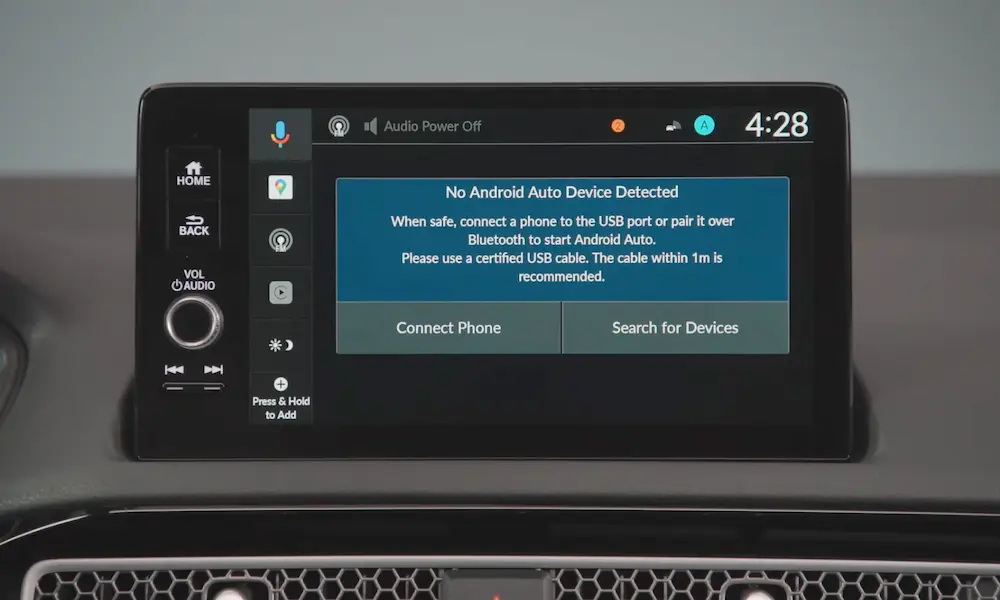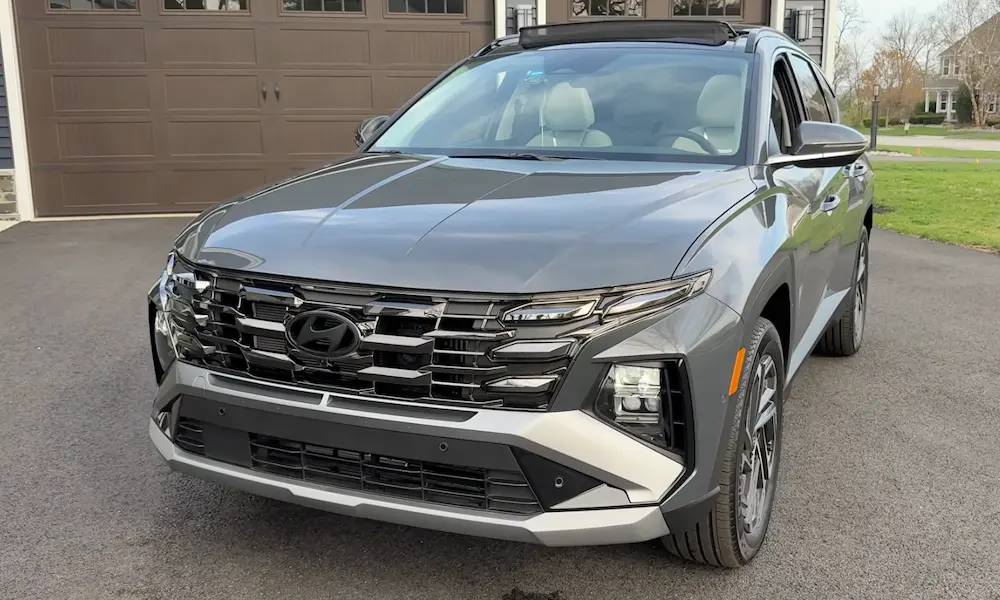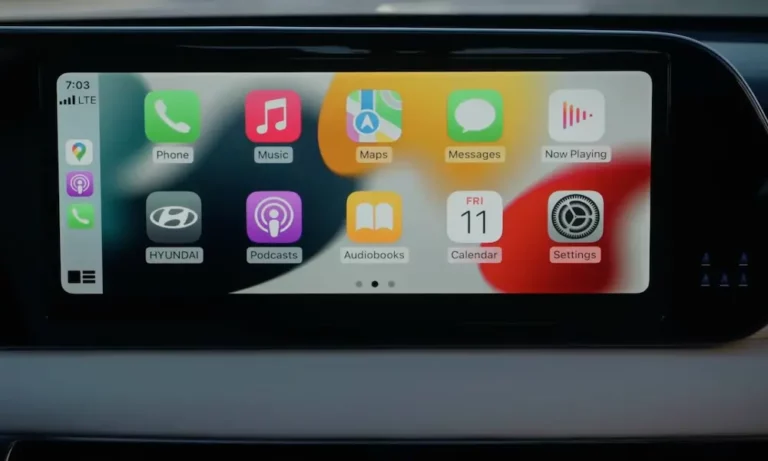
CarPlay’s supposed to just work, right? Plug in your iPhone, and boom—maps, music, messages on your car’s screen. But if you’re staring at a black screen or a “Phone Not Responding” error in your Hyundai, you’re dealing with one of the most frustrating tech problems on the road. Good news: most CarPlay issues aren’t mysterious—they’re fixable without a dealer visit.
Why Your Hyundai CarPlay Keeps Failing
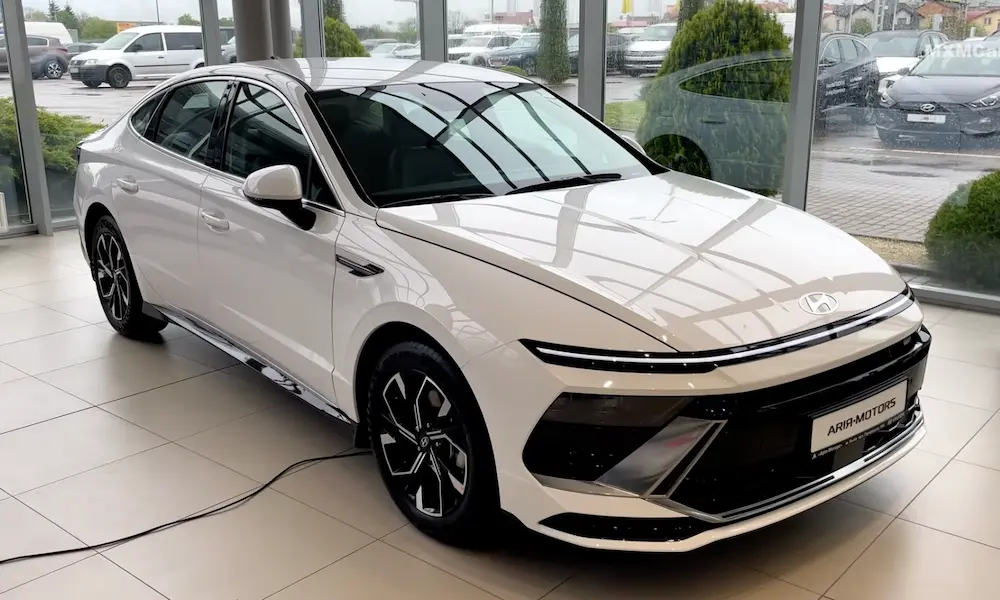
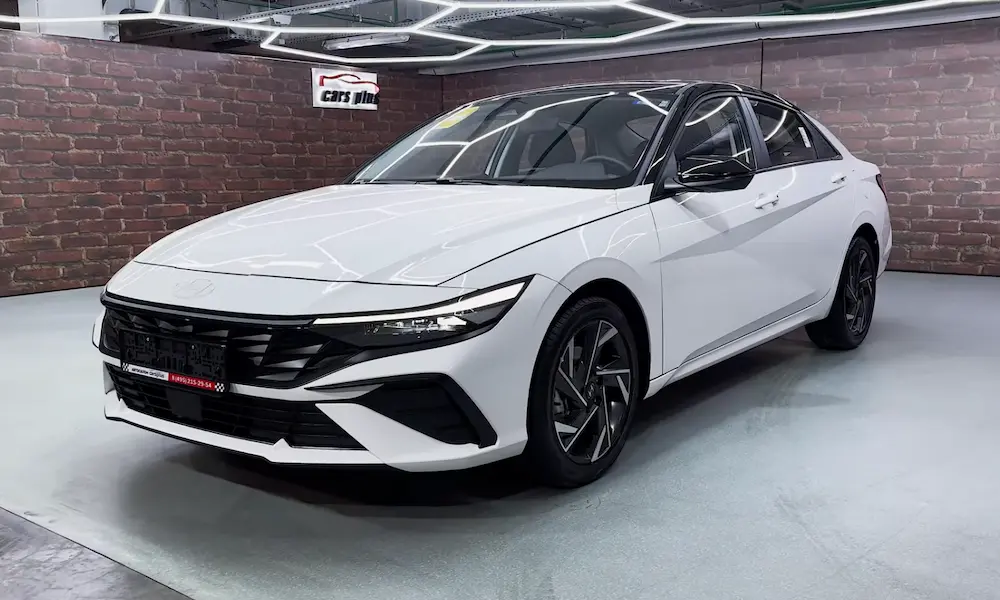
Before you start randomly unplugging cables, you need to understand what’s actually broken. CarPlay failures in 2024-2025 Hyundai models aren’t usually about your phone being defective or your car needing a $2,000 head unit replacement.
The problem’s almost always one of three things: you’re using the wrong cable, your car’s firmware is outdated, or your iPhone’s security settings are blocking the connection. If you’ve got a newer model like the Santa Fe or Kona with the new ccNC system, wireless CarPlay adds another layer of headaches—especially if a VPN’s running on your phone.
Here’s the reality: 92% of CarPlay failures in newer Hyundais come down to cable issues. Yeah, it sounds boring, but stick with me.
The Cable Trap That Gets Everyone
You wouldn’t believe how many “broken” CarPlay systems get fixed by swapping cables. But here’s what nobody tells you: not all USB cables are created equal.
Data Cables vs. Charging Cables
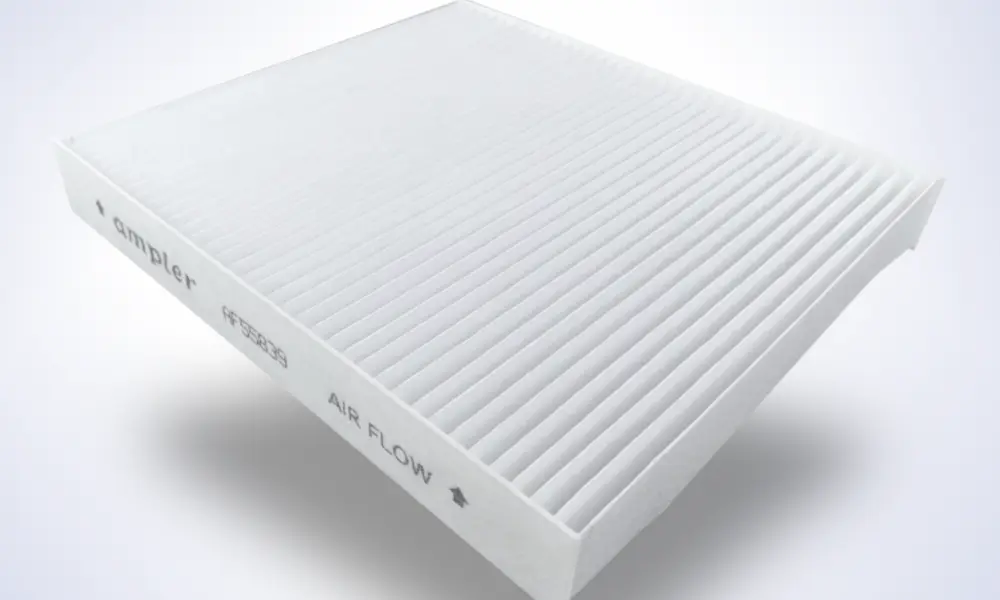
That $5 gas station cable? It’s probably charge-only. These cables literally don’t have the internal wiring (the data pins) needed for CarPlay to communicate with your car. Your phone charges perfectly, so you assume the cable’s fine. It’s not.
Grab an Apple-certified (MFi) cable. Ideally, use the one that came in your iPhone’s box. If you’ve got an iPhone 15 or newer with USB-C, make sure you’re not using a cheap adapter to connect to older USB-A ports in your Hyundai.
The Right Port Matters
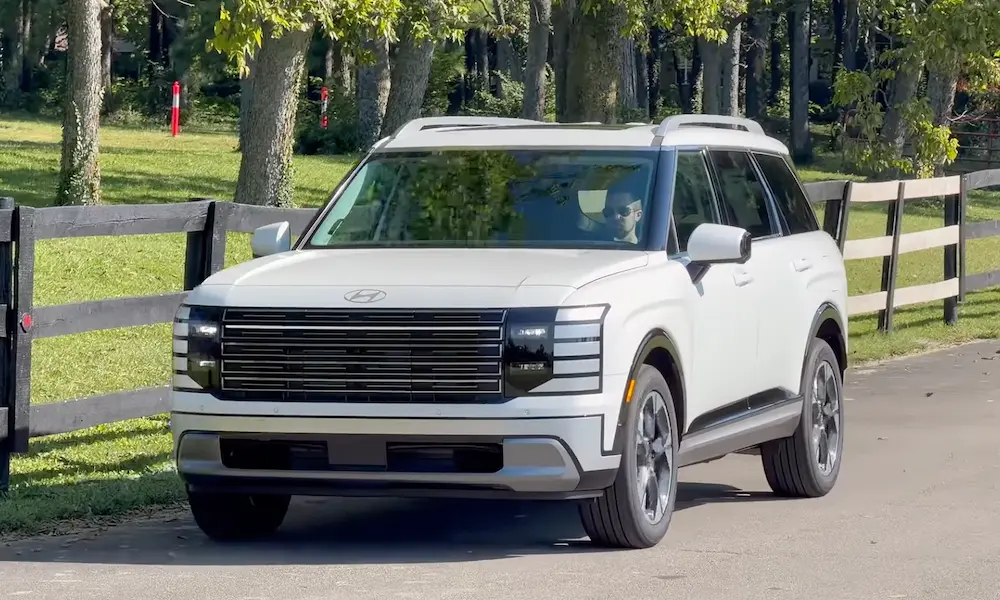
Your 2024 or 2025 Tucson, Kona, or Santa Fe has multiple USB ports. Only one works for CarPlay. The others? Just charging stations.
Look for the port marked with the USB symbol or the word “Multimedia.” Ports with a battery icon or lightning bolt won’t work—they’re power-delivery only, lacking the data connections CarPlay needs.
Some models have a button near the ports that switches between “Charge Only” and “Data & Charge” modes. If that’s toggled wrong, your car ignores your phone completely.
Quick Cable Test
- Plug your iPhone into the multimedia port with your current cable
- If nothing happens but the phone charges, swap cables immediately
- Use an MFi-certified cable and try again
- Still nothing? Check your iPhone’s charging port for packed-in lint—it prevents proper seating
iPhone Settings That Kill CarPlay
iOS isn’t just sitting there waiting to connect anymore. Apple’s cranked up security to the point where your iPhone actively blocks CarPlay unless you tell it not to.
The USB Accessories Lockout
If your phone’s been locked for over an hour, iOS shuts down the data pins on your charging port. It’s an anti-hacking feature, but it also means CarPlay won’t work when you plug in.
Fix it:
- Open Settings > Face ID & Passcode
- Scroll to “Allow Access When Locked”
- Toggle USB Accessories ON
Now your car can actually talk to your phone, even when it’s locked.
Siri Has to Be Enabled
CarPlay is basically Siri projected onto your car’s screen. No Siri = no CarPlay. And if Siri’s blocked when your phone’s locked, the whole thing crashes the moment you try to use voice commands.
Check this:
- Settings > Siri & Search
- Enable “Listen for ‘Hey Siri'”
- Enable “Allow Siri When Locked”
The iOS 18 VPN Problem
Here’s a weird one that started showing up with iOS 18: if you’ve got a VPN running—NordVPN, ExpressVPN, whatever—it can completely kill wireless CarPlay.
What’s happening: Your iPhone connects to your car’s Wi-Fi network to run wireless CarPlay. Your VPN sees a new network connection and tries to secure it. But the car’s Wi-Fi doesn’t have internet access—it’s just a local projection network. The VPN freaks out and blocks the connection.
The fix:
- Settings > VPN & Device Management
- Make sure your VPN shows “Not Connected”
- For stubborn cases, delete the VPN profile entirely or configure split tunneling to bypass local networks
Seriously, turn off your VPN before you drive.
Understanding Your Hyundai’s Infotainment System
Not all Hyundai screens are the same. If you’re following advice for the wrong system, you’re wasting your time.
Gen5W: The Older System (2020-2024)
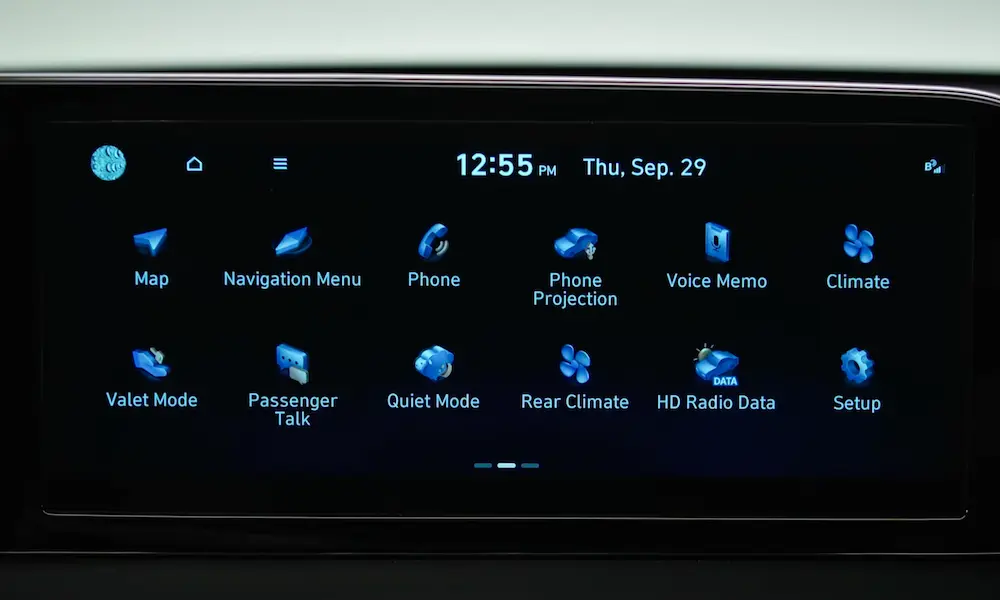
If you’ve got a 2023 Palisade or a pre-refresh 2024 Tucson, you’re probably running Gen5W. This system has a “tube” style radio interface and physical buttons alongside the touchscreen.
Key limitation: If your Gen5W model has built-in navigation (the 10.25″ or 12.3″ screen), it only supports wired CarPlay. Wireless was reserved for smaller, non-nav screens. This isn’t a bug—it’s a hardware limitation. No amount of troubleshooting will make wireless work on these models.
ccNC: The New System (2024-2025)
The 2024 Santa Fe, 2024 Kona, and refreshed Ioniq models use the ccNC platform. It’s got a flatter, more modern interface and was designed for wireless CarPlay from the start.
The catch: Early ccNC models shipped without wireless enabled in software. You need a specific firmware update from late 2023 to unlock it.
Quick ID Check
Not sure which system you have? Look at your screen:
- Gen5W: More physical buttons, older UI, separate radio “tubes” display
- ccNC: Cleaner interface, fewer buttons, unified widget-style layout
| System | Wireless CarPlay (Nav Models) | Update Method |
|---|---|---|
| Gen5W (2020-2024) | No—wired only | SD card/USB manual |
| ccNC (2024-2025) | Yes (after update) | OTA or USB |
The Three-Step Connection Reset
If your settings are right and your cable’s good but you’re still getting “Phone Not Responding,” the pairing data between your phone and car is corrupted. You need a full handshake reset.
This works for both wired and wireless connections:
Step 1: Delete from your car
- Go to Setup > Device Connections > Phone Projection (or Phone Connections on ccNC)
- Find your iPhone and delete it
Step 2: Forget the car on your iPhone (CarPlay)
- Settings > General > CarPlay
- Tap your Hyundai
- Select “Forget This Car”
Step 3: Forget the car on your iPhone (Bluetooth)
- Settings > Bluetooth
- Find your Hyundai connection (it might say “Hyundai” or your car’s name)
- Tap the “i” icon and select “Forget This Device”
Step 4: Full restart
- Restart your iPhone (not just lock it—actually power it off and back on)
- In your car, turn the engine completely off, open the door, close it, wait 30 seconds, then start again
This clears the cached pairing keys on both sides.
Resetting Your Hyundai’s Head Unit
When your screen’s frozen, black, or acting sluggish, the infotainment system itself needs a reboot. This is a soft reset—it doesn’t delete your radio presets or nav favorites.
Gen5W Reset
Look for a tiny pinhole button near the volume knob. Stick a paperclip in there, press and hold for 5 seconds until the screen goes black and reboots.
ccNC Reset
Newer models might not have a pinhole. Instead:
- Press and hold the Volume/Power knob and the Map button together
- Keep holding for 10+ seconds
- The screen will restart
On some 2025 models, just holding the volume knob alone works.
This fixes memory leaks that cause audio stuttering or video lag.
Firmware Updates and the Update Loop Problem
Your Hyundai’s software isn’t static. Updates fix bugs, add features, and sometimes introduce new problems.
How to Update (Safely)
For ccNC models, updates can happen over-the-air if you’re connected to Bluelink. But the more reliable method is manual via USB:
- Go to update.hyundai.com and download the latest map/firmware package
- Extract it to a FAT32-formatted USB drive (32GB or larger)
- Insert the drive with your car off
- Start the car—the update should auto-detect
- Follow the on-screen prompts (don’t turn off the car during installation)
The Dreaded Update Loop
Here’s a nasty bug affecting some 2025 Tucsons and Santa Fes: the system downloads an update, pretends to install it, then starts the whole process over again on the next startup. Your screen’s stuck in an infinite installation cycle.
What’s likely happening: The update file’s corrupted or incompatible with your current bootloader version.
Workaround attempts:
- Interrupt the cycle by pulling the MULTIMEDIA fuse (driver’s side kick panel) for 30 seconds
- Reinsert the fuse and try a manual USB update with a fresh download
- If it persists, you need dealer intervention—they can force-flash the system
Region Lock Nightmare
If you bought your Hyundai in the US but moved overseas (or vice versa), you might be locked out of updates entirely. The ccNC system is region-coded and won’t accept files from a different market. You also can’t get OTA updates because you’re not on the right Bluelink server.
There’s no consumer fix for this. It’s a design flaw.
Model-Specific Quirks
2024-2025 Santa Fe & Kona
These were the first ccNC rollouts. Early builds shipped without wireless CarPlay activated. If you bought one in late 2023 or early 2024, you need to apply the October 2023 update to enable it.
Also, owners report a 1.5 to 3 second audio delay on wireless CarPlay in the 2025 Santa Fe. This isn’t a bug—it’s how the Wi-Fi buffer works. The only fix is switching to wired.
Port confusion alert: The Kona’s center console has multiple USB-C ports. Only the one marked “Data” or “Multimedia” works for CarPlay. The rest are charge-only.
2024-2025 Tucson
Here’s where it gets messy. The 2024 Tucson uses Gen5W (wired only for nav trims), but the 2025 refresh switched to ccNC (wireless capable). People often read advice for the 2025 and try to apply it to a 2024, then wonder why wireless won’t work.
Check your model year carefully.
Ioniq 5 & Ioniq 6
Pre-2025 Ioniq models are Gen5W—wired only. Many owners use wireless adapters like Carlinkit or Ottocast to add wireless functionality. These plug into the USB port and bridge the connection.
The Carlinkit 5.0 (2air) is the recommended option for minimal audio compression, though there’s still slight latency versus native wired.
EV-specific issue: USB ports in EVs sometimes stay powered after you turn the car off, keeping the wireless adapter active. Your phone stays connected even when you’re inside your house, draining battery.
The Phone Projection Menu Setup
This is where a lot of people get stuck. Hyundai separates Bluetooth pairing from Phone Projection in the settings. Just because your phone’s connected for calls doesn’t mean CarPlay’s enabled.
Gen5W Setup
- Go to Setup > Device Connections > Phone Projection
- Make sure the toggle is ON
- Your iPhone should appear in the projection device list
- If it doesn’t, connect via USB and approve the pairing on your phone
ccNC Setup
The new system is pickier:
- Setup > Device Connections > Phone Projection
- Tap “Add New” under projection devices (don’t assume your Bluetooth-paired phone is automatically added)
- Make sure your iPhone is unlocked and connected (wired or wireless)
- Approve the pairing request on both screens
If you skip the “Add New” step, your car just ignores the phone.
Voice Commands and the Bluelink Confusion
Got a voice button on your steering wheel? It’s got two different functions depending on how you press it.
Short Press vs. Long Press
- Short press: Activates the car’s native voice assistant (needs active Bluelink subscription)
- Long press: Activates Siri through CarPlay (works without Bluelink)
When your Bluelink subscription expires, the short press stops working or gives you a “subscription expired” error. People panic and think their whole voice system’s broken.
Solution: Just use the long press to activate Siri. It works independently of Bluelink.
Quick Troubleshooting Table
| Problem | First Step | Second Step | Third Step |
|---|---|---|---|
| “Phone Not Responding” | Check cable (use MFi certified) | Soft reset head unit (pinhole) | Three-step connection reset |
| Black screen | Soft reset head unit | Disable iPhone VPN | Check multimedia fuse |
| Wireless won’t start | Verify “Phone Projection” menu | Check for firmware updates | Try wired connection |
| Audio lag (wireless) | Switch to wired | Close background apps | (No fix—system limitation) |
| Voice command fails | Use long press for Siri | Check Bluelink status | Enable Siri in iOS settings |
Advanced Diagnostics: Engineering Mode
If nothing’s working and you’re comfortable with hidden menus, you can access engineering mode to check hardware status.
Gen5W Engineering Mode
- Go to System Info
- Tap the area left of “Update” button 5 times, then right of it 1 time
- Enter password: usually 2603 or based on firmware date
- Check Wi-Fi module status
ccNC Engineering Mode
Method varies by model. Try:
- Volume knob sequence: Set to level 7, then 3, then 1
- Enter code: 20230411 (default), 19610505 (2025), or 2400
- Once in, navigate to WLAN/Wi-Fi status
- If it reads “Fail,” your hardware’s defective
Fuse Check
Pop open the fuse panel on the driver’s side kick panel. Make sure the MULTIMEDIA fuse (10A or 15A) is fully seated and not blown. Also check the MEMORY shunt switch—if it’s loose, your system loses settings.
What Actually Works: The Priority List
If you’re short on time, do these in order:
- Swap to an MFi-certified cable and use the multimedia port
- Disable any active VPN on your iPhone
- Enable USB Accessories in Face ID & Passcode settings
- Enable Siri and allow it when locked
- Three-step connection reset (forget on both car and phone)
- Soft reset the head unit (pinhole button or volume knob hold)
- Check for firmware updates via USB from update.hyundai.com
- Verify Phone Projection is enabled in car settings
That sequence fixes about 95% of issues without a dealer visit.
Final Thoughts
Hyundai CarPlay issues aren’t magic. They’re usually cables, settings, or firmware. The transition from Gen5W to ccNC created some confusion—especially around wireless support—but once you know which system you have, most problems are fixable at home.
If you’ve worked through this list and nothing’s changed, you’re looking at either a hardware failure (bad head unit, faulty USB port) or a regional lock issue. At that point, it’s dealer time.
But for most of you reading this? Swap the cable, disable your VPN, allow USB accessories in iOS settings, and do the three-step reset. You’ll be back to CarPlay in under 10 minutes.