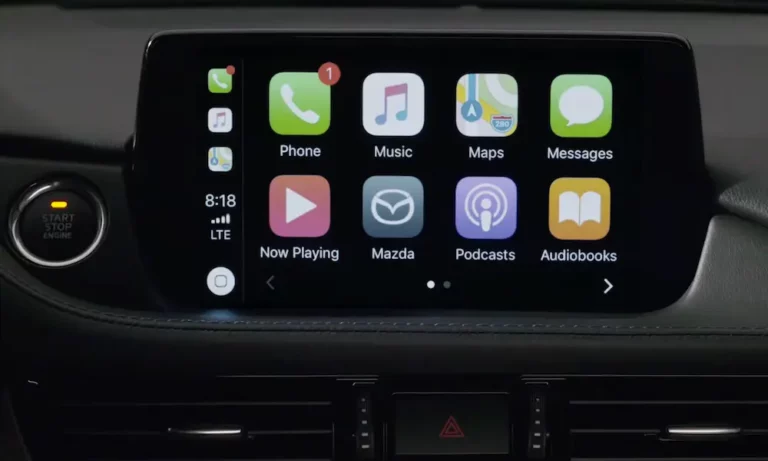
Your phone’s charged, the cable’s plugged in, but your Mazda’s screen just won’t cooperate with Apple CarPlay. It’s frustrating when you’re ready to hit the road and your tech decides to take a day off. The good news? Most CarPlay issues in Mazdas have straightforward fixes that don’t require a trip to the dealer. Let’s get you back to seamless navigation and music.
Why Your Mazda’s Generation Actually Matters
Before you start troubleshooting, you need to know which Mazda Connect system you’re working with. This isn’t just tech-nerd trivia—it’s the difference between a quick fix and making things worse.
Generation 1 (2014-2020 models) features that red-and-black interface you’ve probably grown used to. If you’ve got a 2014-2018 Mazda3, 2016-2021 Mazda6, or 2016-2020 CX-5, you’re in this camp. Here’s the kicker: these cars didn’t come with CarPlay from the factory. You need both a hardware upgrade and firmware update to make it work.
Generation 2 (2019-present) brings that sleek black-and-white minimalist look with wider screens. The 2019+ Mazda3, CX-30, CX-50, and CX-90 all fall here. CarPlay’s built-in from day one, though newer models add wireless capability that older Gen 2 cars don’t have.
You can tell which generation you’ve got by looking at your screen’s color scheme and checking if you can touch it while parked. Gen 1 locks the touchscreen above 5 mph. Many Gen 2 models started with no touch functionality at all, relying entirely on that Commander Knob.
The Cable Problem Everyone Overlooks
Let’s start with the most common culprit: your Lightning cable. Yeah, it seems obvious, but it’s the reason for probably half of all “CarPlay not working” complaints.
Your phone charges but CarPlay won’t launch? That’s the telltale sign of a bad cable. The charging pins work fine, but the data pins have given up. Those cheap gas station cables lack Apple’s MFi certification chip, and your iPhone eventually figures this out after an iOS update.
Stick with genuine Apple cables or quality brands like Anker or Belkin. It’ll save you hours of frustration.
Here’s something nobody thinks about: lint. Your iPhone’s charging port collects pocket debris like it’s getting paid for it. When lint compacts at the bottom, your cable doesn’t seat properly—you won’t hear that satisfying click. The connection becomes unstable, and every bump in the road disconnects CarPlay. Grab a wooden toothpick (not metal—you don’t want to short anything) and gently scrape out the port. You’d be shocked how much junk comes out.
If You’re Retrofitting CarPlay on Older Mazdas
Own a 2014-2018 Mazda? CarPlay didn’t exist in your car originally. Adding it requires specific hardware.
You can’t just update the software and call it done. The original USB hub physically can’t handle CarPlay. You need part number TK78-66-9U0C—the official Mazda retrofit hub. This isn’t optional. Without it, you’ll see “Device Not Recognized” errors all day long.
The installation order matters too. Update your firmware to version 70.00.100 or higher before you install the new hub. Do it backwards and your USB ports go completely dead. The system won’t recognize the new hardware running on old software.
Watch out for knockoff hubs flooding online marketplaces. They look identical but lack proper shielding. You’ll get random dropouts near power lines or when you shift the cable. Don’t learn this lesson the expensive way.
When Your Screen Has a Mind of Its Own
The “Ghost Touch” issue plagued thousands of 2014-2016 Mazda3s, 2016 CX-5s, and related models. Your screen starts selecting icons, zooming maps, or dialing contacts without you touching anything.
This happens when the capacitive touchscreen layer separates from the LCD underneath due to heat and UV exposure. The gap creates phantom touches that the system interprets as real. It makes CarPlay nearly impossible to use because the car keeps exiting the interface randomly.
Mazda acknowledged this defect through Special Service Program (SSP) A6, extending warranty coverage to 7 years with unlimited mileage for affected vehicles. If you’re within this window, get it replaced free.
Outside the warranty? There’s a DIY fix. Disconnect the 4-pin ribbon cable that sends touch data to the processor while leaving the video cable intact. This permanently disables the touchscreen but restores system stability. Since CarPlay works perfectly with the Commander Knob anyway, you won’t miss it.
The Boot Loop Nightmare
Your infotainment screen shows the Mazda logo, goes black, shows the logo again—over and over. You can’t access anything. This is the dreaded boot loop.
For Gen 1 systems, the Navigation SD card is usually the culprit. The system tries to load map data during startup, hits corrupted sectors on the card, panics, and restarts. Then it tries again. And again.
Pop out the SD card from its slot (usually behind a cover near the screen). If the system suddenly stabilizes and CarPlay starts working, you’ve found your problem. You can try repairing the card using Mazda Toolbox software, but replacing it is more reliable.
Here’s a secret: you don’t actually need the SD card if you use CarPlay for navigation. The car runs fine without it. Just don’t expect the built-in nav to work.
iPhone Settings That Silently Block CarPlay
Before you blame your Mazda, audit your iPhone settings. Apple’s security features sometimes strangle CarPlay without warning.
Siri must be enabled. If you’ve turned off Siri completely, CarPlay won’t connect. Period. The system requires Siri for voice control functionality.
Check Screen Time restrictions. Go to Settings > Screen Time > Content & Privacy Restrictions > Allowed Apps. Make sure CarPlay is toggled ON. Parents who set up restrictions for kids’ phones accidentally block this all the time.
USB Accessories need permission. iOS disables the Lightning port’s data pins if your phone’s been locked for over an hour—it’s an anti-hacking measure. Enable “Allow Access When Locked” under Face ID & Passcode settings. Otherwise, you’ll need to unlock your phone every time you plug it in.
Turn off your VPN. Virtual Private Networks mess with CarPlay’s connection by routing traffic away from the car’s local network. Disable your VPN before plugging in.
| iPhone Setting | Location | Required State |
|---|---|---|
| Siri | Settings > Siri & Search | ON |
| CarPlay Access | Settings > Screen Time > Content & Privacy > Allowed Apps | Allowed |
| USB Accessories | Settings > Face ID & Passcode | Allow When Locked |
| VPN | Settings > VPN | OFF |
Wireless CarPlay Issues in Newer Models
Got a CX-50, CX-90, or upper-trim Mazda3? Wireless CarPlay should work automatically, but it’s finicky about interference.
Wireless CarPlay uses Bluetooth for the initial handshake, then switches to a dedicated 5GHz Wi-Fi network for the actual data. If your iPhone’s Wi-Fi is disabled or connected to another network, CarPlay can’t launch.
Here’s where it gets weird. Modern dash cams broadcast their own 5GHz Wi-Fi networks. If your iPhone is set to “Auto-Join” your dash cam’s network, it’ll aggressively switch away from the Mazda’s network, killing CarPlay. Check your iPhone’s Wi-Fi settings and set the dash cam network to “Never” for auto-join.
Some users report CarPlay dropping at the same spot every commute. This happens near electronic toll plazas or traffic monitoring systems that saturate the 5GHz spectrum. The connection times out, and your audio pauses or the interface crashes.
There’s also an obscure iOS bug involving the “5G Auto” cellular setting. In areas with spotty 5G coverage, your iPhone’s constant switching between LTE and 5G disrupts the Wi-Fi stack. Force your phone to “LTE Only” in cellular settings if you’re experiencing frequent wireless dropouts.
The Dangerous Reset You Should Avoid
Earlier Mazda models used the “Back + Nav + Mute” button combo for system resets. Don’t use this on newer Gen 2 vehicles.
The CX-50 and similar models have a security fuse that counts diagnostic resets. After the 10th reset, the fuse blows permanently. The system interprets this as tampering and bricks itself—black screen, no recovery. You’re looking at $1,000+ for a new head unit, and warranty might not cover it because dealers cite “user error.”
For Gen 2 cars, use the “Sleep Cycle” method instead. Turn off the ignition, exit the car, lock it, and walk at least 20 feet away with your key fob. Wait 10-15 minutes. This lets the vehicle’s modules enter deep sleep mode, clearing volatile memory without triggering security counters.
Firmware Updates Matter More Than You Think
Running outdated software causes weird CarPlay behavior. Mazda releases firmware updates specifically to fix connection bugs.
For Gen 1 systems: Version 74.00.324A is the final release for North America. It fixes USB recognition errors and improves boot times. If you’re still on version 59 or 70, you’re missing critical stability improvements.
For Gen 2 systems: The CX-50 got updates v11012 and v11022 that specifically address screen freezing and wireless connection failures. The CX-90’s v10014NA fixed early production wireless issues.
Some newer Mazdas support over-the-air updates, but many require a USB drive. The process is straightforward but risky—if you lose power during the 45-minute update, you brick the system. Make sure your battery’s healthy before starting.
| System Generation | Latest Firmware | Key Improvements |
|---|---|---|
| Gen 1 (MZD Connect) | v74.00.324A | USB stability, faster boot, bug fixes |
| Gen 2 (CX-50) | v11022 | Wireless connection, screen freeze fixes |
| Gen 2 (CX-90) | v10014NA | Early wireless dropout resolution |
You Might Be Covered Under Legal Settlement
A class action lawsuit over Mazda Connect issues reached settlement recently. If you own a 2014-2020 model that experienced ghost touch or rebooting problems, you may qualify for reimbursement.
The settlement covers out-of-pocket repair costs for CMU, touchscreen, and SD card failures. You’ll need documentation showing the failure and repair invoices. Reimbursement is capped at dealership labor rates (around $167/hour).
Even if you haven’t repaired anything yet, the settlement extends warranty coverage for affected components. Check if your vehicle qualifies before paying for ghost touch repairs—you might be covered under this extension.
Your Diagnostic Checklist
Work through these steps in order:
Start with your iPhone: Clean the charging port with a wooden toothpick. Try a genuine Apple cable. Verify Siri is enabled and Screen Time isn’t blocking CarPlay. Disable your VPN.
Check your Mazda’s basics: For Gen 1 cars having boot loops, eject the Navigation SD card and test. Confirm you’ve got the TK78 USB hub installed if you retrofitted CarPlay.
Try a proper reset: Gen 1 vehicles can use the Back + Nav + Mute combo. Gen 2 vehicles should stick with the Sleep Cycle method to avoid security fuse issues.
Update firmware: Check your current version against the latest stable release. Gen 1 should be on v74.00.324A. Gen 2 models should have their latest over-the-air updates installed.
For wireless issues: Disable auto-join on non-Mazda Wi-Fi networks. Set your iPhone to LTE-only if you’re in marginal 5G areas. Check for dash cam interference.
Most Mazda Apple CarPlay problems trace back to cables, iPhone settings, or outdated firmware. The hardware issues—ghost touch, boot loops, bricked systems—are less common but more serious. Know which generation system you’ve got, respect the security limitations of newer models, and work through diagnostics methodically. You’ll be streaming your playlist and following CarPlay directions before you know it.