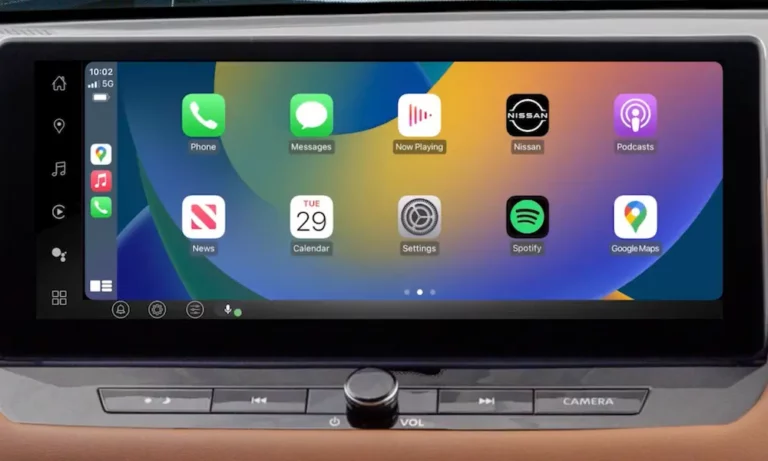
Having trouble with Apple CarPlay in your Nissan Altima? Nothing’s more frustrating than getting in your car, connecting your iPhone, and finding that CarPlay just won’t cooperate. Don’t worry – this guide walks you through every possible solution, from quick fixes to deeper troubleshooting steps that’ll get your infotainment system back on track.
Why Your Nissan Altima’s Apple CarPlay Might Not Be Working
Apple CarPlay issues in Nissan Altimas typically stem from one of several common problems: compatibility issues, connection problems, software glitches, or hardware failures. The good news? Most are fixable without a trip to the dealer.
Check Your Vehicle and iPhone Compatibility
Before diving into troubleshooting, let’s confirm your setup should actually work together.
Apple CarPlay is available on Nissan Altima models from 2018 and newer, though some base trims from early years might not include it. If you’re driving a 2017 or older Altima, your vehicle doesn’t support CarPlay.
For iPhones, you’ll need:
- iPhone 5 or newer
- iOS 7.1 or higher (though the latest iOS is always recommended)
If both your Altima and iPhone meet these requirements but CarPlay still isn’t working, let’s move on to the next steps.
Try the Quick Fixes First
These simple solutions solve about 80% of CarPlay connection problems:
- Restart everything: Turn your car off, wait 30 seconds, turn it back on. Then restart your iPhone by holding down the power button.
- Check your Lightning cable: Use a high-quality, Apple-certified cable. Many cheap cables only charge without transferring data. Shorter cables (1-3 feet) often provide more reliable connections than longer ones.
- Clean your connections: Dust and debris in your USB port or Lightning connector can prevent proper connection. Gently clean both with compressed air.
Verify Your iPhone Settings
Several iPhone settings can affect CarPlay functionality:
Check Restrictions Settings
- Go to Settings > Screen Time > Content & Privacy Restrictions > Allowed Apps
- Make sure CarPlay is enabled
Ensure Siri is Activated
CarPlay relies on Siri to function properly:
- Go to Settings > Siri & Search
- Make sure “Listen for ‘Hey Siri'” and “Press Side Button for Siri” are both turned on
Check CarPlay Settings
- Go to Settings > General > CarPlay
- Make sure your Altima appears in the list of available cars
Adjust Your Nissan Altima’s CarPlay Configuration
If your iPhone settings look good, let’s check your vehicle’s settings:
- On your Altima’s display, go to Settings > Apps & Connections > Smartphone Connection
- Find your iPhone in the list and make sure Apple CarPlay is enabled
- If “Don’t ask again” is selected, deselect it so the connection prompt appears each time
- Confirm the CarPlay icon appears on your car’s home screen
If you don’t see these exact menu options, your Altima might use slightly different naming. Look for similar options in the settings menu.
The “Forget and Reconnect” Method
This approach often fixes stubborn CarPlay connection issues:
On Your iPhone:
- Go to Settings > General > CarPlay
- Select your Nissan Altima
- Tap “Forget This Car”
In Your Altima:
- Navigate to connection settings
- Find your iPhone and remove/forget the connection
Reconnect from Scratch:
- Connect your iPhone via USB
- Follow the prompts on both devices to establish a fresh connection
- When prompted, allow CarPlay and make sure “Don’t ask again” isn’t selected
Update All Your Software
Outdated software is a common culprit for CarPlay problems:
Update Your iPhone
- Go to Settings > General > Software Update
- Download and install any available updates
- After updating, restart your iPhone
Update Your Nissan Infotainment System
Your Altima’s infotainment system may need updates:
- Connect to Wi-Fi in your Altima (if available)
- Check for system updates in the settings menu
- If no updates are available via Wi-Fi, contact your Nissan dealer as they can perform firmware updates that aren’t available over-the-air
Create a Dedicated Connection
Try establishing a dedicated CarPlay connection:
- Connect your iPhone to your Altima via USB
- On the infotainment screen, select “Apple CarPlay”
- On your iPhone, tap “Allow” when prompted
- Follow any additional on-screen instructions
Check USB Connections and Hardware
If you’ve tried everything above and CarPlay still doesn’t work:
Try Different USB Ports
Some Altimas have multiple USB ports, but only specific ones support CarPlay. Try each available port in your vehicle.
Test with Another iPhone
If possible, try connecting a different iPhone to determine whether the problem is with your phone or the car.
Test with Another Cable
Try multiple high-quality, Apple-certified Lightning cables to rule out cable issues.
Common Nissan Altima CarPlay Problems and Solutions
CarPlay Connects But Keeps Disconnecting
This frustrating issue typically points to one of three problems:
- Faulty cable connection: The Lightning cable may be damaged or loose. Try securing it better or replacing it with a new Apple-certified cable.
- Power management issues: Some iPhones disconnect from CarPlay to conserve battery. Go to Settings > Battery > Low Power Mode and turn it off while using CarPlay.
- Software conflicts: Certain apps might interfere with CarPlay. Try closing all background apps on your iPhone before connecting.
CarPlay Icon Missing on Altima’s Display
If the CarPlay icon doesn’t appear on your Altima’s screen:
- Make sure CarPlay is enabled in your car’s settings
- Verify your iPhone is properly connected via USB
- Try the “Forget and Reconnect” method described earlier
- Check if your Altima needs a firmware update
CarPlay Apps Not Working Properly
If CarPlay connects but specific apps don’t function correctly:
- Update the problematic apps on your iPhone
- Check if those apps have CarPlay permissions enabled
- Restart both your iPhone and your Altima’s infotainment system
- As a last resort, delete and reinstall the problematic apps
Advanced Troubleshooting: Hardware Issues
If you’ve tried everything above without success, the problem might be hardware-related. The most common hardware issues include:
USB Controller Problems
The Front Aux Jacks Input Control Unit (USB controller) in your Altima could be malfunctioning. If CarPlay fails regardless of which cable or phone you use, this is likely the culprit.
Damaged USB Port
Physical damage to the USB port can prevent proper connection. Inspect the port for bent pins or other visible damage.
AV Unit Failure
In rare cases, the entire AV unit (the brain of your infotainment system) might need replacement.
For hardware issues, you’ll need to consult a Nissan service technician for diagnosis and repair.
Tips for Keeping Your CarPlay Connection Reliable
Once you’ve fixed your CarPlay issues, follow these tips for ongoing reliability:
- Use only high-quality cables: Invest in genuine Apple or MFi-certified cables.
- Keep your iPhone updated: Install iOS updates promptly.
- Clean connections regularly: Use compressed air to keep USB ports and Lightning connectors free of dust and debris.
- Avoid extreme temperatures: Excessive heat or cold can affect electronics performance.
- Don’t disconnect while in use: Always exit CarPlay properly before unplugging your iPhone.
The “Hidden” System Reset Option
As a last resort before seeking professional help, try resetting your Altima’s infotainment system:
- With the vehicle on, press and hold the Volume knob and the “Back” button simultaneously for 10 seconds
- The system should reboot
- Once restarted, try connecting CarPlay again
This often-overlooked step has resolved mysterious CarPlay issues for many Nissan owners, according to user reports on Reddit.
Understand Your Nissan Altima’s CarPlay Integration
The table below outlines CarPlay functionality across different Altima model years:
| Model Year | CarPlay Support | USB Port Location | Notes |
|---|---|---|---|
| 2018-2019 | Yes (except base S trim) | Lower center console | May require firmware update |
| 2020-2021 | Standard on all trims | Lower center console | More reliable connection |
| 2022+ | Standard on all trims | Center console USB-C | Improved stability with latest ports |
CarPlay integration has improved with each model year, with the newest Altimas offering the most reliable experience.
By methodically working through these troubleshooting steps, you’ll likely resolve your Nissan Altima Apple CarPlay issues. Remember that patience is key—sometimes the simplest fix (like a system restart) is all that’s needed to get things working again.