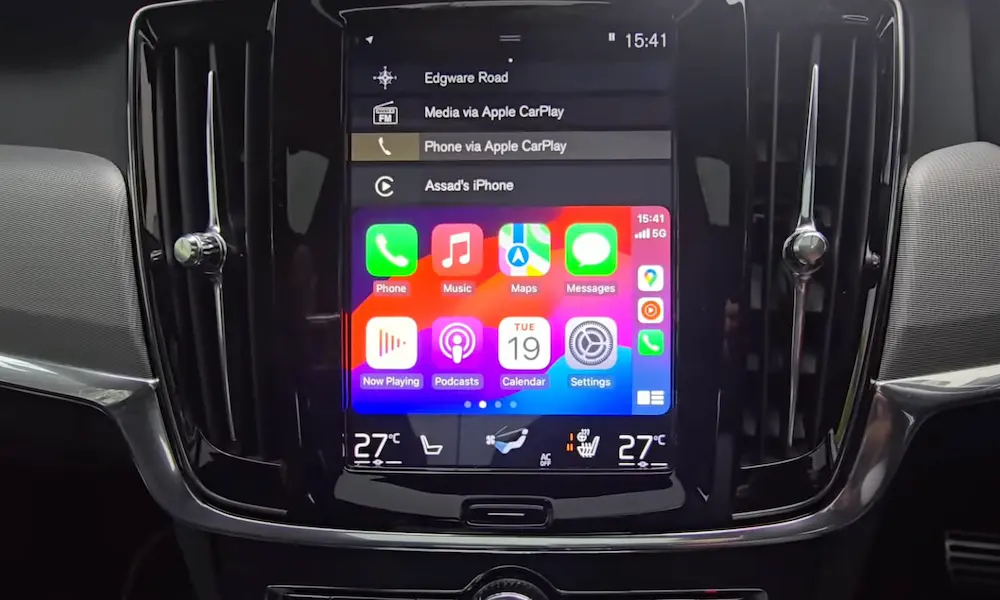
Is your Volvo’s touchscreen acting up? Music not playing? Navigation on the fritz? When your luxury car’s brain gets confused, you don’t need to panic or head straight to the dealer. A simple infotainment system reset might be all you need to get back on the road with full functionality.
This guide walks you through everything you need to know about resetting your Volvo’s infotainment system, whether you have the newer Google-based setup or the older Sensus platform.
What Causes Volvo Infotainment Problems?
Before reaching for the reset button, it helps to understand why these systems occasionally misbehave:
- Software bugs after updates
- Bluetooth connection conflicts
- Memory overload from too many apps running
- Temperature extremes affecting hardware
- Normal software aging over time
Most issues aren’t serious and can be fixed with a simple reset procedure that takes less than a minute.
Types of Volvo Infotainment Resets
Your Volvo offers two main reset options, depending on how serious your problem is:
Soft Reset: Quick Fix for Minor Issues
A soft reset is like restarting your smartphone – it clears temporary memory without deleting your personal settings. Think of it as the digital equivalent of turning it off and on again.
Factory Reset: The Nuclear Option
A factory reset wipes everything clean and returns your system to its original state. This is the option you’d use when selling your car or if you’re experiencing persistent issues that a soft reset won’t fix.
How to Perform a Soft Reset on Google Built-in Systems
If you have a newer Volvo (2022-2024 XC60, 2023-2024 XC90, EX30, EX90) with the Google Built-in system, follow these simple steps:
- Locate the physical Home button below your center display
- Press and hold it for 20-30 seconds
- Keep holding until the screen goes black and then shows the Volvo logo
- Release the button once you see the logo
- Wait for the system to complete its restart (usually takes 30-60 seconds)
This video tutorial demonstrates the exact process if you need a visual guide.
The beauty of this method is that you can perform it safely even while driving – it won’t affect critical systems like your speedometer or safety alerts.
How to Reset Older Sensus Infotainment Systems
If you have an older Volvo with the Sensus system (common in 2016-2021 models), the process works differently:
Sensus System Soft Reset
Unlike Google-based systems, Sensus doesn’t have a manual soft reset button. Instead, it relies on an automatic sleep mode:
- Turn off your car completely
- Lock the vehicle and walk away
- Wait at least 30 minutes (this allows the system to enter “sleep mode”)
- Return and start the car – the system will have automatically refreshed
For particularly stubborn issues, some Volvo owners report success with disconnecting the negative terminal of the battery for 15 minutes – but this should be a last resort as it will reset other vehicle systems too.
Performing a Factory Reset on Your Volvo Infotainment
When a soft reset doesn’t solve your problem – or when you’re preparing to sell your Volvo – a factory reset is your next step.
Factory Reset on Google Built-in Systems
- Tap the gear icon at the top of your center display to access Settings
- Select “System”
- Scroll down and tap “Factory Reset”
- Follow the on-screen prompts to confirm
- Wait for the system to complete the reset process
The official Volvo support page provides detailed instructions if you need additional guidance.
Factory Reset on Sensus Systems
- Press the MY CAR button on your center console
- Navigate to “Settings”
- Select “System”
- Choose “Reset to Factory Settings”
- Confirm your selection
For non-touchscreen models, you’ll use the center console knob to navigate through these menus instead.
What Gets Deleted During a Factory Reset?
Before you perform a factory reset, be aware that you’ll lose:
- All paired Bluetooth devices
- Saved navigation destinations and favorites
- Custom vehicle settings
- Connected apps and accounts
- Driver profiles
- Personalized sound settings
Essentially, your infotainment system will return to the same state it was in when your Volvo left the factory.
Model-Specific Reset Information
Different Volvo models have slight variations in their reset procedures. This table breaks down the specifics:
| Model | System Type | Soft Reset Method | Factory Reset Path |
|---|---|---|---|
| XC90 (2023-2024) | Google Built-in | Home button (20-30 sec) | Settings > System > Factory Reset |
| XC60 (2022-2024) | Google Built-in | Home button (20-30 sec) | Settings > System > Factory Reset |
| XC40 Recharge | Google Built-in | Home button (20-30 sec) | Settings > System > Factory Reset |
| XC90 (2016-2022) | Sensus | 30-min sleep mode | MY CAR > Settings > Factory Reset |
| XC60 (2018-2021) | Sensus | 30-min sleep mode | MY CAR > Settings > Factory Reset |
| S90 (2017-2021) | Sensus | 30-min sleep mode | MY CAR > Settings > Factory Reset |
Troubleshooting Before Resetting
Before you resort to resetting your system, try these simpler fixes:
For Bluetooth Audio Issues
If your music isn’t playing through Bluetooth:
- Try switching to another media source (like radio)
- Then switch back to Bluetooth
- Check if your phone’s volume is turned up
For Frozen Screens
- Check if the screen is in “cleaning mode” (which temporarily disables touch)
- Wait 2-3 minutes to see if it resolves itself
- Try using voice commands to see if the system is still responsive
For Navigation Problems
- Make sure you have a clear GPS signal (not in a tunnel or parking garage)
- Check if you have the latest maps installed
- Try entering a different destination to see if the problem is location-specific
Best Practices After Resetting Your System
Once you’ve reset your infotainment system, take these steps to optimize performance:
- Update to the latest software version (check Settings > System > Updates)
- Reconnect your smartphone and set up Bluetooth again
- Reconfigure your most important settings first (driver profile, sound, etc.)
- For Google systems, sign back into your Google account to restore compatible apps
- Test all major functions to ensure everything is working properly
Preventing Future Infotainment Problems
To keep your Volvo’s infotainment system running smoothly:
- Install system updates promptly when available
- Don’t overload the system with too many apps (for Google-based systems)
- Occasionally perform a soft reset as preventative maintenance
- Keep the interior of your car from getting extremely hot or cold when possible
- Disconnect unused Bluetooth devices from your paired list
When Hardware Issues Might Be to Blame
While most infotainment problems can be fixed with a reset, some symptoms point to hardware issues:
- Screen showing vertical lines or discoloration
- Persistent system crashes even after factory reset
- Physical damage to the screen
- Complete failure to power on
- Strange noises coming from behind the dashboard when using the system
If you experience these issues, it’s time to contact your Volvo dealer for professional diagnosis.
The Evolution of Volvo Infotainment
Volvo’s infotainment systems have evolved significantly over the years:
- Pre-2016 models used a more basic system with limited connectivity
- 2016-2021 models featured the Sensus platform with improved touch interface
- 2022 and newer models began transitioning to the Google Built-in platform
The newer Google-based systems offer advantages like:
- Built-in Google Maps
- Google Assistant voice control
- App store with expanding capabilities
- Over-the-air updates for continuous improvement
Understanding which system you have helps you apply the correct reset method.
Preparing Your Volvo for a New Owner
If you’re selling your Volvo, follow these steps to protect your data:
- Perform a complete factory reset of the infotainment system
- Remove the vehicle from your Volvo Cars app account
- Delete all paired phones from the Bluetooth device list
- Clear any saved addresses from the navigation system
- Sign out of all connected accounts
This ensures the new owner starts fresh and prevents them from accessing any of your personal information.
Keeping Your Volvo’s Technology Current
Volvo regularly releases software updates that improve functionality and fix bugs. To check for updates:
On Google Built-in systems:
- Go to Settings > System > Updates
- Tap “Check for Updates”
- If available, follow prompts to install
On Sensus systems:
- Visit your Volvo dealer for software updates
- Some later models can update over Wi-Fi – check your owner’s manual for details
Regular updates can prevent many of the issues that would otherwise require a reset.
By following this guide, you should be able to troubleshoot and resolve most Volvo infotainment system issues, keeping your driving experience as smooth and connected as the ride itself.