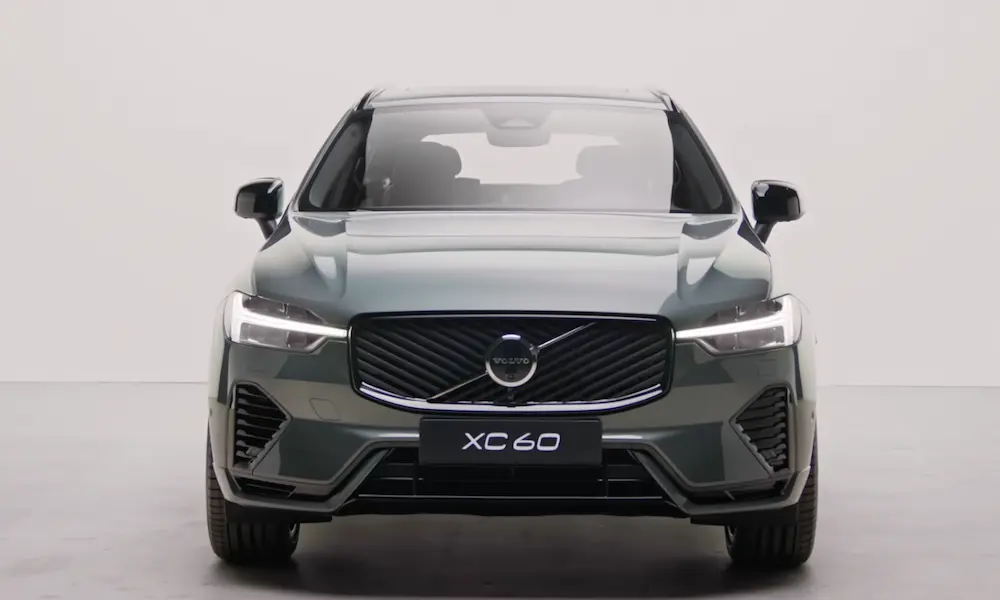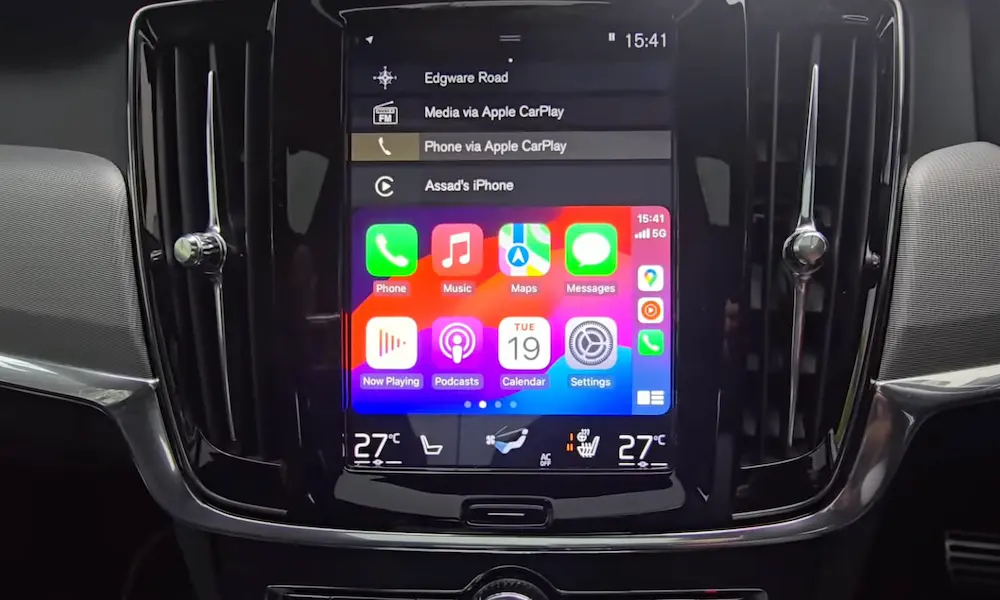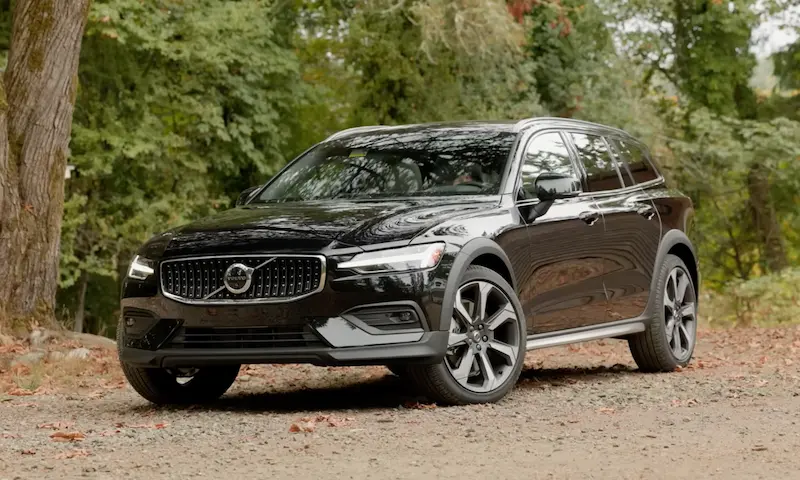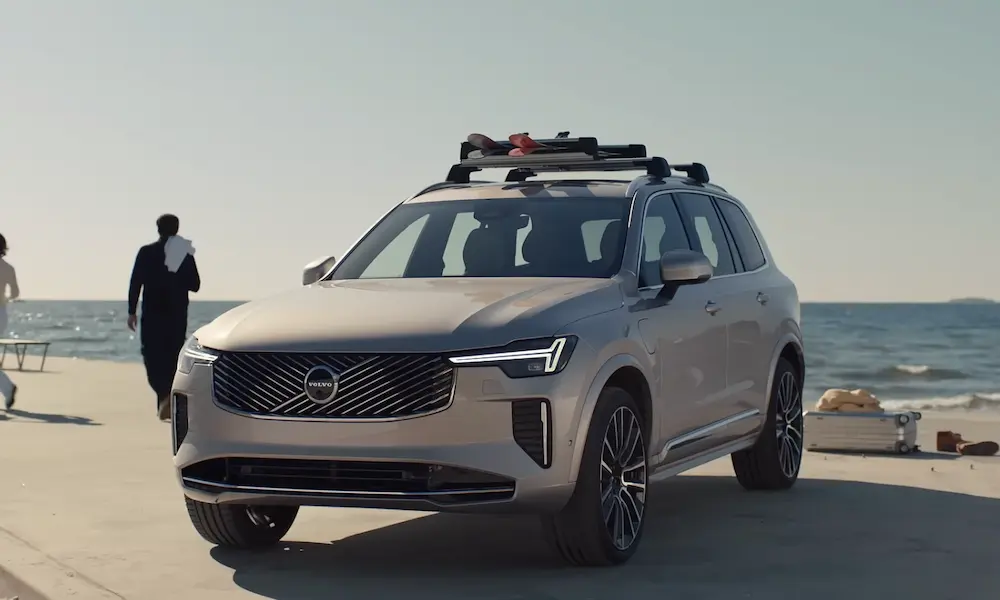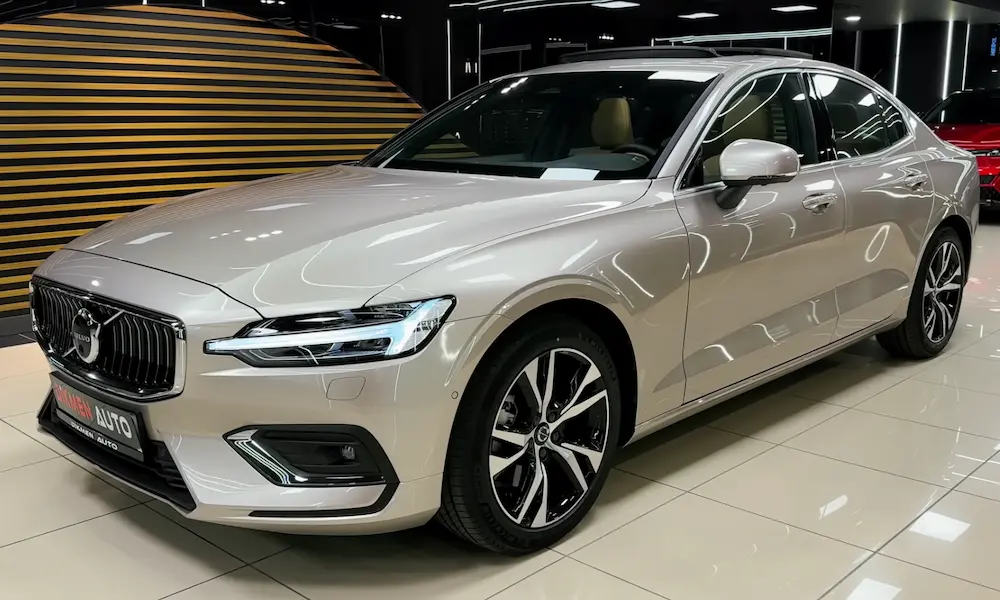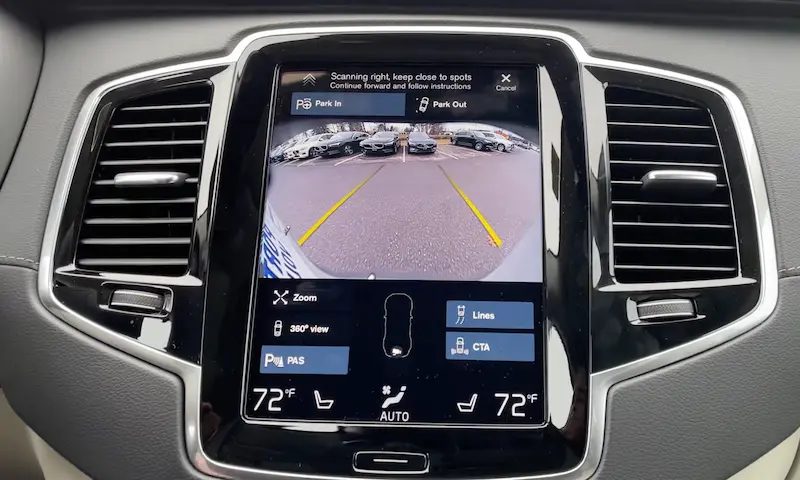
Got a Volvo and an iPhone? You’re probably wondering why CarPlay isn’t just… working. The answer usually comes down to one port, one cable, and knowing which system your car runs. This guide covers everything from first-time setup to fixing the weird stuff that breaks. Stick around — it gets straightforward fast.
Which Volvo Models Actually Have Apple CarPlay?
Not every Volvo shipped with CarPlay from day one. Here’s the quick history:
- 2016 XC90: First Volvo with CarPlay in North America
- 2018: S60, V60, and XC60 joined the party
- 2019 onward: CarPlay became standard across the entire lineup
So if your Volvo is a 2019 or newer, you’ve got it. Older models may need a software update or dealer visit to unlock it.
Two Systems, Two Experiences
Before you touch a cable, you need to know which infotainment platform your Volvo runs. It changes everything about how CarPlay looks and works.
| Platform | Years Active | CarPlay Display | Key Feature |
|---|---|---|---|
| Sensus Connect | 2016–2022 | Half-screen (lower tile) | Proprietary Volvo UI |
| Android Automotive (Google Built-in) | 2021–present | Full-screen | OTA updates, Google Assistant |
| Updated Volvo UX 5.0.5 | 2025–2026 | Full-screen (enhanced) | Snapdragon-powered |
Older Sensus systems show CarPlay in a small tile at the bottom of the screen. Newer Google Built-in systems give you the full display. Same iPhone, very different experience.
Find the Right USB Port First
This is where most people go wrong. Your Volvo has multiple USB ports in the cabin — but only one of them connects to the head unit for data.
Look for the white border. The CarPlay port has a white or light-colored frame around the USB socket. Plug into any other port and your phone charges, but CarPlay won’t launch.
- Pre-2021 models: White-framed USB-A port
- 2021 and newer: White-framed USB-C port
Don’t skip this step. Plugging into the wrong port is the number-one reason CarPlay doesn’t show up.
Use the Right Cable
A bad cable kills the connection. CarPlay streams video, audio, and touch input simultaneously — that’s a lot of data. Volvo recommends genuine Apple or MFi-certified cables.
Cheap third-party cables often lack proper shielding. The car’s electrical system generates interference, and that cheap cable can’t handle it. You’ll get random disconnects and “Device Not Responding” errors.
If you have an iPhone 15 or 16 with USB-C, use a quality USB-C to USB-C cable that supports data transfer — not just charging. Many long cables prioritize power delivery over data speed, which adds lag to the CarPlay interface.
How to Set Up Apple CarPlay in a Sensus Volvo (2016–2022)
If your Volvo runs Sensus Connect, follow these steps for your first connection:
Before you plug anything in, check Siri. CarPlay won’t initialize without it. On your iPhone, go to Settings → Siri & Search and make sure both “Listen for ‘Hey Siri'” and “Allow Siri When Locked” are turned on.
Then connect:
- Park the car and unlock your iPhone
- Plug the MFi cable into the white-framed USB port
- The Sensus screen shows a terms of service prompt — accept it
- Your iPhone shows a CarPlay permission prompt — allow it
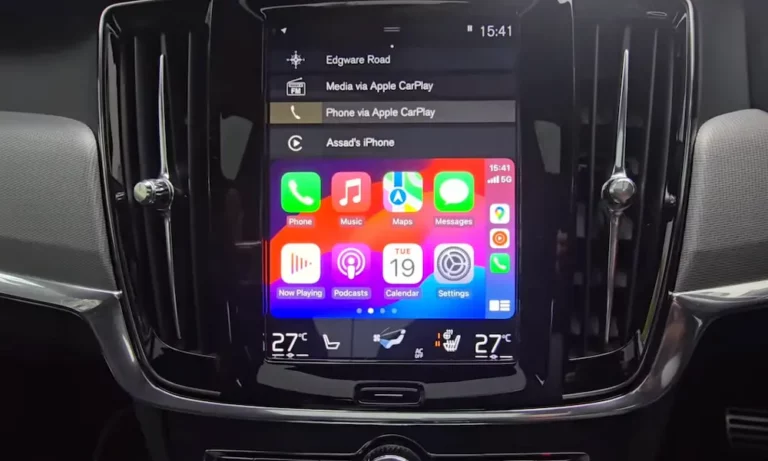
- CarPlay loads in the bottom tile of the screen
One thing to know: when CarPlay is active, Bluetooth disconnects for that device. That’s intentional. Audio routes through the wired connection for better quality. Your Volvo’s native phone book and media player go offline until you end the CarPlay session.
How to Set Up Apple CarPlay in Google Built-In Volvos (2023–2026)
Newer Volvos run Android Automotive OS, which treats CarPlay as an app rather than a system overlay. The result? Full-screen projection and a much cleaner look.
Wired setup:
- Plug your iPhone into the white-framed USB-C port
- Tap the App Library icon (the grid) at the bottom of the screen
- Select Apple CarPlay
- Follow the on-screen prompts to authorize the connection
CarPlay now fills most or all of the display. In 2025–2026 models with Qualcomm Snapdragon Cockpit, the interface runs smoother and at higher pixel density. The 2022 software update also added Apple Maps to the driver’s instrument cluster — so turn-by-turn directions show up right behind the steering wheel.
How to Set Up Wireless Apple CarPlay in Volvo
Wireless CarPlay is standard on the EX30, EX90, and updated XC40. No cable needed.
Setup steps for EX30 and similar models:
- If your iPhone is already paired via Bluetooth, forget the car in your phone’s Bluetooth settings
- Open the Apple CarPlay app from the car’s app library
- Accept the request to add a new Bluetooth device
- On your iPhone, go to Settings → Bluetooth and select the vehicle’s ID
- Follow the prompts on both screens to authorize the wireless link
After the initial Bluetooth handshake, the system switches to an internal Wi-Fi connection for streaming. That’s why the first setup takes a few extra steps.
A heads-up on wireless CarPlay: it drains your iPhone battery faster and can make it warm. Volvo includes a wireless charging pad in these models for exactly that reason. On long trips, a wired connection is still the better call if you need a full battery at your destination.
What the Software Update 5.0.5 Changed for CarPlay Users
In early 2025, Volvo pushed its largest OTA update ever — version 5.0.5 — to vehicles built as far back as 2020.
The update added a permanent contextual bar at the bottom of the screen for quick app switching. For CarPlay users, this shrunk the active CarPlay window by roughly 20%. Some owners love the faster responsiveness. Others find the screen feels cluttered with multiple toolbars stacked at the bottom.
The update also expanded the map view in the instrument cluster to full-screen between the gauges — a genuine improvement for following directions without looking away from the road. Bug fixes for the backup camera and better speed-limit recognition came along for the ride too.
Google Maps vs. Apple Maps: Which One Should You Use?
Modern Volvos run Google Maps natively. For EV drivers, that matters. Native Google Maps connects to the car’s battery management system — it predicts your state of charge on arrival and suggests charging stops automatically. Apple Maps via CarPlay can’t access that data.
For daily commuting in a gas or hybrid Volvo? Apple Maps through CarPlay is perfectly fine. Your saved favorites and contacts sync seamlessly, and the familiar interface makes short trips easy.
Voice assistant tip: In Google Built-in Volvos, you’ve got both assistants available. A long press on the steering wheel voice button activates Siri. A short press or “Hey Google” activates Google Assistant. Use Google to adjust climate and seat heaters. Use Siri for texts and calls. They don’t fight each other — they each handle what they’re best at.
CarPlay Not Working? Fix It Here
| Symptom | Likely Cause | Fix |
|---|---|---|
| Black screen / no launch | Wrong USB port or Siri disabled | Switch to white-bordered port; enable Siri |
| Keeps disconnecting | Damaged port or active VPN | Inspect port; disable VPN in iPhone settings |
| Audio only, no video | Charging-only cable | Replace with MFi-certified data cable |
| “Device Not Supported” | Charging-only USB port | Move to white-framed data port |
| Laggy or frozen interface | Processor overload | Perform soft reset (below) |
The Soft Reset Fix
If your screen freezes or CarPlay stops responding, the soft reset solves it without erasing your settings.
- Find the physical home button below the center screen
- Press and hold for 20–25 seconds
- Ignore the “cleaning mode” screen that appears
- Keep holding until the screen goes dark and the Volvo logo appears
- Once it reboots, reconnect your iPhone
The VPN Bug
Running iOS 18 with a VPN? A known bug blocks the CarPlay handshake in about 30% of cases. Temporarily disable your VPN profile in Settings before connecting.
The “Forget This Car” Reset
If nothing else works, clear the pairing entirely:
- On your iPhone: Settings → General → CarPlay → [Your Volvo] → Forget This Car
- In the car: delete your phone from the vehicle’s device list
- Reconnect from scratch using the setup steps above
Does CarPlay Work Without a Volvo Data Subscription?
Yes — and this matters for older cars. New Volvos include a four-year Digital Services subscription that powers Google Maps, Google Assistant, and OTA updates. When it expires, the native Google features need either a renewal or a phone hotspot to keep working.
Apple CarPlay doesn’t need the car’s data plan at all. It runs entirely on your iPhone’s data. So even if you let the Volvo subscription lapse, CarPlay keeps working — navigation, music, messages, all of it.
Keep Your Data Port Healthy
The white-framed USB port is your most important piece of hardware for CarPlay. It wears out with repeated use. Avoid heavy or bulky adapters that stress the connector pins. If the port feels loose or gives you intermittent connections, try two or three high-quality cables first before assuming the port itself has failed. If it has, it’s typically a modular replacement a dealer can handle.