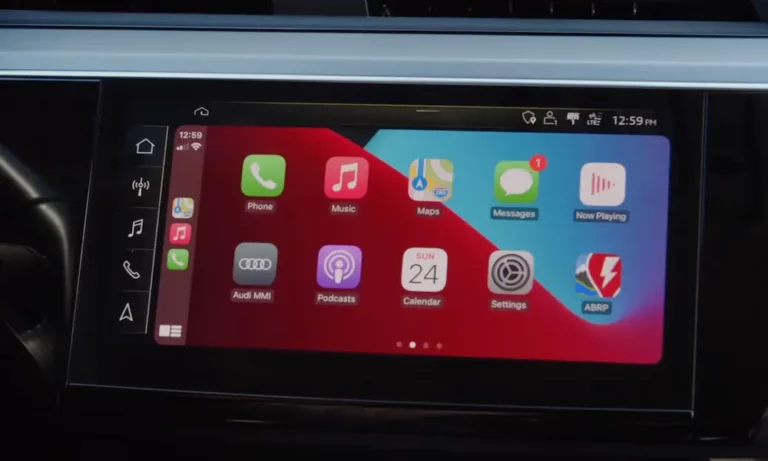
Your iPhone’s plugged in, but CarPlay won’t launch. Or it connects for a minute, then drops. Frustrating, right? The good news: most Audi CarPlay problems aren’t expensive hardware failures. They’re fixable glitches you can tackle yourself in under 10 minutes. Let’s get you back to navigation and music.
Why Your Audi CarPlay Stops Working
CarPlay isn’t just plug-and-play magic. It’s a handshake between your iPhone and your Audi’s MMI system—and that handshake can fail at multiple points.
The most common culprits? A dodgy cable, outdated software, or iOS security settings blocking the connection. Sometimes it’s the USB port itself. Other times, your phone’s VPN is interfering with the wireless signal.
Here’s the thing: Audi’s MMI system has three main generations (MIB2, MIB2+, and MIB3), and each one fails differently. MIB2 units in 2016-2020 models often need firmware updates. MIB3 systems in 2021+ cars sometimes freeze their wireless module. Knowing which you have matters.
Start Here: The 5-Minute Fix Checklist
Before you dive deep, try these quick resets. They solve 80% of Audi CarPlay issues.
Step 1: Restart Both Devices
Your iPhone first. Press Volume Up, then Volume Down, then hold the Power button until the Apple logo appears.
Now the MMI. This varies by model:
- A4, A5, Q5, Q7 (2016-2020): Push the Nav/Map button forward AND the Radio/Media button forward simultaneously. While holding both, press the main rotary knob down. Hold for 5 seconds until the screen goes black.
- A3, Q4, e-tron, newer touch models: Press and hold the volume knob straight down for 15 seconds. Don’t let go when it mutes—keep holding until the screen blacks out.
Step 2: Swap Your Cable
This matters more than you think. CarPlay needs a genuine Apple cable or one that’s MFi-certified (Made for iPhone). That cheap gas station cable might charge your phone but fails the security handshake CarPlay requires.
Cables degrade. The data pins wear out before the charging pins. Even if your phone charges fine, the cable could be dead for CarPlay.
Step 3: Check Your USB Port
Not all USB ports in your Audi support CarPlay. Some are charge-only.
The data-capable ports are usually in the front center console (under climate controls) or inside the armrest. Rear seat ports? Almost always charge-only.
Look for a smartphone icon next to the port. If you don’t see one, try a different port.
Pro tip: Clean the port. Lint from your pocket compacts inside, preventing a solid connection. Use a wooden toothpick and compressed air—never metal.
Fix iPhone Settings That Block CarPlay
iOS has security features that silently kill CarPlay connections. Here’s what to check.
Allow CarPlay While Locked
Go to Settings > General > CarPlay > [Your Car’s Name]. Toggle “Allow CarPlay While Locked” to ON.
If this is off, your Audi detects the phone but shows “Unlock your mobile device to start CarPlay.” It won’t auto-launch.
Enable Siri
CarPlay won’t work without Siri. Apple mandates it for the voice interface.
Check Settings > Siri & Search. Turn on “Listen for Hey Siri” or “Press Side Button for Siri.”
If Siri’s language doesn’t match your MMI’s voice control language (like English US vs. English UK), you’ll get weird disconnects. Sync them.
Disable Your VPN
This is a sneaky one. VPNs break wireless CarPlay constantly.
Here’s why: Wireless CarPlay uses a local Wi-Fi network between your phone and car. Your VPN sees that connection, thinks it’s a public hotspot, and tries to route traffic through its encrypted tunnel. This breaks the peer-to-peer link Apple’s system needs.
Turn off the VPN before driving. Or configure “Split Tunneling” in your VPN app to bypass the Audi Wi-Fi network.
Check Screen Time Restrictions
Go to Settings > Screen Time > Content & Privacy Restrictions > Allowed Apps. Make sure CarPlay is toggled ON.
If it’s accidentally disabled—maybe by a Downtime schedule—your car won’t detect the phone. No error message. Just silence.
When Wireless CarPlay Won’t Connect
Wireless is convenient until it isn’t. The Bluetooth-to-Wi-Fi handover is where most failures happen.
Delete and Re-Pair Everything
This is the nuclear option, but it works.
- On your iPhone: Go to Settings > Bluetooth. Find your Audi, tap the “i” icon, select Forget This Device.
- Do the same in Settings > Wi-Fi if you see your Audi’s network listed. Forget it.
- On your MMI: Go to Settings > Connection Manager. Delete your iPhone from both Bluetooth and Wi-Fi lists.
- Optional but recommended: Reset Network Settings on your iPhone (Settings > General > Transfer or Reset > Reset > Reset Network Settings). This clears cached Wi-Fi certificates.
- Restart both devices (see Step 1 above).
- Start fresh: Enable Bluetooth on your phone. On the MMI, go to Settings > Smartphone Interface > Connect Device. When your iPhone appears, tap it. Accept all prompts on your phone immediately—”Pair,” “Sync Contacts,” “Use CarPlay.”
The 5GHz Wi-Fi Problem
Wireless CarPlay uses the 5GHz band for speed. If your iPhone connects to the car’s 2.4GHz network instead (longer range, slower speed), the video stream won’t work.
Don’t manually connect to your Audi’s Wi-Fi. Let the automated CarPlay handshake do it invisibly. If you’ve joined manually in the past, forget that network in your iPhone settings.
Wi-Fi Assist and Low Data Mode
Your iPhone gets confused when connected to Wi-Fi without internet (the car’s local network). It tries to switch back to cellular, breaking CarPlay.
Check Settings > Cellular. Scroll to the bottom and verify Wi-Fi Assist isn’t fighting the connection. More importantly, if your phone lists the Audi Wi-Fi network under Settings > Wi-Fi, tap the “i” icon and make sure Low Data Mode is OFF.
The Digital Key Conflict (2024-2025 Models)
If you’ve got a 2024 or 2025 Audi (Q6 e-tron, new A5, refreshed Q5), there’s a known issue: the Audi Digital Key and wireless CarPlay don’t play nice together.
The Digital Key uses NFC and Ultra-Wideband (UWB) for passive entry. During startup, the MMI prioritizes the “key” handshake over the “CarPlay” handshake. If the key authentication hangs, CarPlay gets blocked.
Symptoms: Bluetooth connects for calls and music, but CarPlay won’t launch. Your phone shows as an “Accessory” instead of a CarPlay device.
Fix:
- Remove the Digital Key from Apple Wallet.
- Delete all pairings (phone and car).
- Reset network settings on your iPhone.
- Restart the MMI (15-second volume knob hold).
- Re-pair Bluetooth and set up CarPlay first.
- Only after CarPlay is stable, re-add the Digital Key.
Some users find they must unlock the car with the physical key fob (pressing the button) instead of passive entry (touching the handle) to avoid the conflict.
Check Your Audi’s Firmware Version
Old firmware = bad CarPlay. Especially on 2016-2018 models.
Go to Settings > Version Information on your MMI. You’ll see a string like MHI2QERAUG22_P5092.
| Firmware Code | What It Means | CarPlay Status |
|---|---|---|
| MHI2 / MHI2Q | MIB2 system (2016-2020) | Wired CarPlay. Update needed if version starts with P3xxx. |
| MH2p | MIB2+ (2019-2020 e-tron, Q8) | Wireless CarPlay supported. Update if unstable. |
| MHI3 | MIB3 (2021+) | Wireless CarPlay standard. Check for ConBox freezes. |
Early versions (like P3638) had notorious CarPlay bugs—random disconnects, black screens, lost profiles. Later versions (P5092 or K5512) fix most of these. Updating requires an SD card flash, usually done by a dealer or specialist.
When the USB Port Is Dead
If your port doesn’t charge the phone at all, it’s a hardware issue.
Check the Fuses
The MMI and USB hubs are protected by fuses. A blown fuse kills the port completely.
On B9-platform Audis (A4, A5, Q5 from 2016+), check these:
| Component | Fuse Location | Fuse Number | Amperage |
|---|---|---|---|
| MMI Screen / Electronics | Left Cockpit (Driver Side) | Fuse 5 (Brown Row) | 5A |
| Multimedia System | Left Cockpit (Driver Side) | Fuse 10 (Red Row) | 10A |
| Center Console USB | Luggage Compartment (Trunk) | Fuse C2 | 15A / 20A |
| Rear Seat USB | Luggage Compartment (Trunk) | Fuse D4 | 15A / 20A |
Pull the fuse. If the metal strip inside is broken, replace it. Use the exact amperage listed.
The USB-C Flip Trick
With iPhone 15/16 and USB-C ports, try flipping the cable 180 degrees. USB-C is reversible, but wear on specific pins inside the car’s port can cause one-sided failures. One orientation works, the other doesn’t.
Advanced Fix: Reset the MMI to Factory Settings
If soft reboots don’t work, nuke the configuration files.
Go to Settings > System Maintenance > Restore Factory Settings. Select only:
- Smartphone Interface
- Telephone
- Bluetooth
This clears the Bluetooth whitelist and Wi-Fi bonding table without wiping your navigation favorites or radio presets. It forces a clean slate for the connection protocol.
After the reset, re-pair from scratch.
The Hidden Green Menu (For Advanced Users)
Audi’s MMI has a hidden engineering menu—the “Green Menu”—that lets you verify if CarPlay is actually enabled in the system kernel.
Enabling it requires VCDS or OBDeleven coding. You’d adapt Module 5F (Information Electronics), Channel 006, and change the value from 0 to 1 (Developer Mode ON).
Once enabled, access it by holding Nav/Map + Media buttons for 5-10 seconds (MIB2) or through specific button combos on MIB3.
Inside, navigate to diagnose > coding > internalmodules1+2. Verify “Smartphone Interface” is checked. If it’s not, CarPlay won’t launch even if the hardware supports it.
Warning: This menu can brick your unit if you change the wrong setting. Only modify what you understand.
Aftermarket Solutions: Dongles and Retrofits
If your Audi’s too old (pre-2016 MMI 3G) or the wireless module is dead, aftermarket adapters work.
Wireless CarPlay Adapters
If you have wired CarPlay but want wireless, USB dongles bridge the gap. They plug into your data port, emulate a wired iPhone, and create a Wi-Fi link to your actual phone.
Best options:
- Carlinkit 4.0 / 5.0: Most stable for Audi MMI. The 5.0 supports native pass-through (faster). High compatibility with rotary controls.
- Ottocast: Boots faster but reports of audio stuttering in some Audi models. Firmware updates critical.
Look for adapters with 5.8GHz Wi-Fi support (less interference) and online update portals (access via 192.168.50.2 in your browser).
Full Retrofit Kits
For 2010-2015 Audis with MMI 3G (no native CarPlay), “piggyback” boxes like RSNAV or Andream work. They intercept the video cable between the MMI and screen, injecting their own CarPlay interface. Audio routes through the AUX input.
Your Step-by-Step Troubleshooting Workflow
Here’s the order to attack this problem:
Phase 1: Quick Fixes (5 minutes)
- Restart iPhone (Volume Up, Volume Down, hold Power).
- Restart MMI (button combo or 15-second volume hold).
- Swap to a genuine Apple cable.
- Check iPhone settings: CarPlay While Locked, Siri, Screen Time, VPN.
Phase 2: Clean Slate (10 minutes)
- Forget device on both phone and MMI.
- Reset Network Settings on iPhone (optional but effective).
- Clean USB port of lint.
- Re-pair from scratch. Accept all prompts immediately.
Phase 3: Hardware Checks (15 minutes)
- Verify you’re using a data port (not charge-only).
- Check fuses: Left Cockpit Fuse 5/10, Trunk Fuse C2/D4.
- Try USB-C cable flipped 180 degrees.
Phase 4: Firmware and Resets (20 minutes)
- Check MMI firmware version. Update if P3xxx or older.
- Factory reset Smartphone Interface settings.
- If 2024+ model, remove Digital Key temporarily.
Phase 5: Component Replacement
If nothing works, the USB hub or ConBox module may be defective. This requires dealer service or a specialist with diagnostic tools.
What About Software Updates?
Keep both devices current.
iPhone: Go to Settings > General > Software Update. CarPlay compatibility improves with each iOS release, but sometimes new versions introduce bugs. If CarPlay broke immediately after an iOS update, wait a few days—Apple often issues rapid patches.
MMI: Audi releases firmware updates to fix connectivity issues. Dealers can flash these via SD card. Ask your service center if an update is available for your model year. Some users report that updates from early P3000-series to P5000-series or K5000-series resolve chronic disconnects.
The Battery Disconnect Nuclear Option
For persistent freezes—especially ConBox High crashes in MIB3 systems—disconnect the car’s 12V battery.
Remove the negative terminal. Wait 15-30 minutes. This drains the capacitors in the control modules, forcing a true cold boot. It’s the only fix for some deep logic locks.
Caution: This resets your radio presets, clock, and seat memory. Write down your settings first.
Why Audi CarPlay Fails More Than Other Brands
Audi’s MMI is a complex networked computer running QNX or Linux kernels. Unlike simpler head units, it manages navigation, telematics, and media through separate subsystems.
The MIB2+ and MIB3 systems use a separate ConBox (Connectivity Box) for Wi-Fi and Bluetooth. If that module crashes, all connectivity dies—Bluetooth, Wi-Fi, LTE, even emergency SOS. A frozen ConBox won’t broadcast the Bluetooth advertisement needed to start the CarPlay session.
Add in the rapid pace of iOS updates (Apple’s Silicon Valley speed) versus Audi’s extended automotive development cycles (Ingolstadt’s caution), and you get friction. A feature that worked perfectly in iOS 16 might break in iOS 17 because Apple changed the handshake protocol, and Audi’s firmware hasn’t caught up.
One Last Thing: The Cable Really Matters
I know I said it earlier, but it’s worth repeating because it’s the most common fix.
CarPlay isn’t like charging. Charging tolerates resistance. Data transmission doesn’t. A cable with frayed wires, cheap shielding, or fake MFi chips will charge your phone beautifully but fail the iAP2 authentication handshake every time.
Buy a fresh cable. Genuine Apple. 1 meter length (longer cables suffer signal attenuation in the noisy automotive electrical environment). It’s $19 that saves hours of frustration.
The Bottom Line
Most Audi CarPlay problems aren’t mechanical failures. They’re software hiccups, dirty ports, bad cables, or iOS security settings doing exactly what they’re designed to do—block suspicious connections.
Start with the simple stuff: restart both devices, swap the cable, check your settings. If that doesn’t work, delete and re-pair. If you’re still stuck, check your firmware version and fuses.
The fix is usually closer than you think. And cheaper.