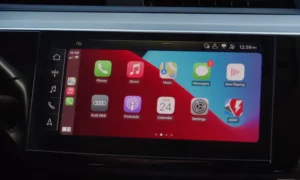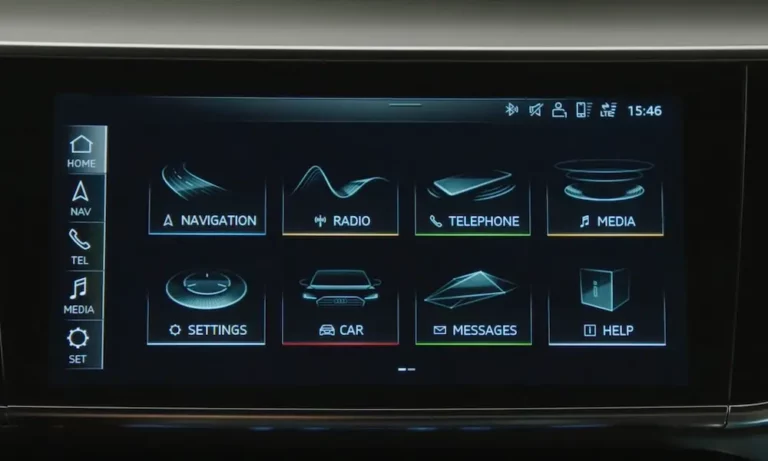
Your Audi’s MMI system isn’t just a fancy screen — it’s the brain behind your navigation, entertainment, and connected features. When it’s outdated, things get annoying fast. This guide walks you through exactly how to update your Audi MMI system, step by step, no dealership required (mostly).
First, Figure Out Which MMI System You Have
Before you download anything or buy an SD card, you need to know what MMI generation is sitting in your dashboard. Installing the wrong update is a great way to brick your system.
Here’s how to check:
- Press the Menu or Setup button on your console or touchscreen
- Go to Settings
- Scroll to Version Information
- Look at the software prefix — that code tells you everything
Here’s a quick reference for all MMI generations and their software prefixes:
| MMI Model | Software Prefix | Update Method | Typical Model Year (US) |
|---|---|---|---|
| MMI 2G High | SW: XX-XX XX.X.X | CD/DVD | 2005–2009 |
| MMI 3G Low/Basic | BNav_XX_XXXXX | SD Card / CD | 2010–2013 |
| MMI 3G High | HNav_XX_XXXXX | Internal HDD / DVD | 2010–2013 |
| MMI 3G+ (Plus) | HN+_XX_XXXXX | SD Card / SIM | 2011–2018 |
| MMI RMC | RMC_XX_XXXXX | SD Card | 2011–2018 |
| MIB1 High | MHIG_XX_XXXX | SD Card | 2013–2017 |
| MIB2 Standard | MHS2_XX_XXXX | SD Card | 2017–2019 |
| MIB2 High | MHI2_XX_XXXX | SD Card / USB / OTA | 2016–2020 |
| MIB2+ (Premium) | MH2P_XX_XXXX | USB-C / OTA | 2019–2021 |
| MIB3 | MHI3_XX_XXXX | USB-C / OTA | 2021–Present |
Once you’ve got your prefix, you’re ready to move forward.
Set Up Your myAudi Account First
If you want OTA updates or access to the latest navigation data, your myAudi account isn’t optional — it’s the foundation of everything.
Become a Verified Key User
Here’s where most people get stuck. Just creating an account isn’t enough. You need Key User status, which gives you control over security-sensitive operations like remote features and software updates.
The process works like this:
- Enter your 17-digit VIN in the myAudi app or portal
- Complete the Key User agreement in your digital profile
- Visit an authorized Audi dealership to verify your identity and confirm your Contract ID
- Enter the 10-digit vehicle code (found under the opaque security film on the plastic tag that came with your keys)
It sounds like a lot, but you only do it once. After that, your vehicle and account are linked for OTA updates and real-time traffic data.
How OTA Updates Work (2018 and Newer)
If your Audi is a 2018 or newer model — and some 2017 models qualify too — you’re in luck. Over-the-Air updates let your car update its maps without you touching a single SD card.
The system automatically detects new releases through its onboard modem. You can also check manually:
- MIB2: Go to Audi connect → Online map update → Start map update now
- MIB2+ and MIB3: Go to Settings → System maintenance → Software update
A couple of things worth knowing:
- OTA data doesn’t count against your monthly Wi-Fi hotspot allowance — it runs on a separate data channel
- For MIB2 systems, OTA only handles regional updates (individual states or groups of states). A full North American database still needs the SD card method
- If you lose signal mid-download, the system pauses and picks up where it left off
During installation, you’ll see a progress bar and a file transfer icon on your MMI screen. Your system may feel slightly sluggish while it processes the update in the background — that’s normal.
How to Update Audi MMI Manually (SD Card or USB)
When OTA isn’t available or you need a full North American database replacement, you’ll do this manually. It takes more steps, but it’s completely doable at home.
Step 1: Get the Right Storage Media
Use the wrong storage format and your MMI won’t recognize the drive at all. Here’s what each generation needs:
| Hardware Generation | Interface | File System | Recommended Size |
|---|---|---|---|
| MMI 3G / 3G+ | SD Slot (Glovebox) | FAT32 | 32 GB |
| MIB1 / MIB2 | SD Slot (Glovebox) | FAT32 / exFAT | 32 GB |
| MIB3 | USB-C (Center Console) | NTFS | 32–64 GB |
For MIB3 owners: don’t use USB-A to USB-C adapters or SD-to-USB adapters. Audi officially discourages these because they can cause data corruption during the high-speed transfer the MIB3 hardware requires.
Step 2: Download the Update on Your PC
Head to the myAudi portal and download your North American Region (NAR) package. Fair warning — these files are large. MIB systems run 14–16 GB, and MIB3 databases can hit 29 GB.
The download manager uses a Java-based .jnlp file. Java version 8 is the most compatible version. Newer versions often fail to launch the downloader entirely. If you don’t have Java 8 installed, grab it before you start.
Step 3: Extract Files to the Root Directory
This step trips up a lot of people. You must place the extracted files at the root level of your drive — not inside any folder.
Your drive should look like this directly when you open it:
metainfo2.txtMib1folder (orMib2, depending on your system)
If those files sit inside a subfolder like “AudiMaps2026,” your vehicle won’t find them. The MMI looks for metainfo2.txt at the top level as its verification manifest.
Step 4: Insert the Media and Start the Update
- For MMI 3G / 3G+: Insert the SD card into the glovebox slot
- For MIB2: Same glovebox SD slot
- For MIB3: Plug the USB-C drive into the center console
The system will detect the update automatically. Follow the on-screen prompts to begin installation.
Step 5: Keep the Engine Running
An MMI update takes 45 to 90 minutes depending on your system and data volume. The infotainment hardware pulls significant electrical load during this time.
Keep the engine running throughout. If you’re in a garage, connect a high-amperage battery maintainer instead. A dead battery mid-update can corrupt your system — and that’s an expensive fix.
If the ignition turns off, the system will continue for about 30 minutes before shutting down. It’s designed to resume on the next ignition cycle, but older systems like MMI 3G can fail at this step. Don’t risk it.
Troubleshooting: “No Valid Update Source Found”
If your MMI doesn’t recognize your SD card or USB drive, work through this checklist before assuming the files are wrong:
- Card too large? MMI 3G units max out at 32 GB SDHC. Using a 64 GB card won’t work
- Wrong partition scheme? Your drive needs a single MBR partition, not GPT. Modern Macs and Windows PCs often default to GPT — reformat it manually
- Missing metainfo2.txt? If this file is absent, corrupted, or renamed, the update won’t start
- Wrong port? On MIB2 and MIB3 vehicles with multiple USB ports, try a different port
Most errors trace back to one of these four things.
What the Red Engineering Menu Can Tell You
For those who want to go deeper, the Audi MMI includes a hidden Red Engineering Menu (REM) that shows detailed system information.
To access it:
- Older models with physical buttons: Hold the Nav or Setup button with another toggle (varies by model)
- MIB2+ and MIB3 touchscreen models: Press two fingers in the upper-right corner of the display and hold for about 60 seconds
Inside, you can:
- Verify your exact software version — useful before downloading any update files
- Check FEC/SWaP codes — these digital keys unlock features like Apple CarPlay, Android Auto, and specific map versions. If the code for your map version isn’t listed, the system won’t load the update even if the files are physically on the drive
- Trigger firmware updates from the Update sub-menu
Use the REM for verification purposes only unless you’re following a specific technical service bulletin. Changing the wrong setting here can cause serious system failure.
When Your Dealer Needs to Step In
Some updates need ODIS diagnostic equipment and a direct connection to Audi’s Software Version Management (SVM) database. You’ll need dealership help if:
- A manual update failed and triggered a Component Protection lock
- Your system needs a firmware bridge update to become compatible with modern map data
- You want to activate a Function on Demand that wasn’t included with your vehicle
During the initial three-year ownership window, map data is typically free. After that, you’ll need an active Audi connect Navigation and Infotainment subscription to keep receiving updates. Dealers can charge labor for performing the update, even within the free period — so it’s worth doing it yourself when possible.
What’s Coming in the 2026 MMI
The 2026 Audi A5 and Q5 introduce a completely redesigned MMI built on the new E3 electronic architecture. Key features include:
- Independent Bluetooth zones — passengers can stream video audio through a headset while you listen to something different through the main speakers
- Integrated dashcam support — managed directly through the MMI and myAudi app
- Predictive navigation — requires high-frequency map updates, handled almost entirely OTA
- Audi Signature Care — covers software updates for the first three years at no extra cost
These systems move almost entirely to OTA updates, with dealer visits reserved for architecture-level changes only.
Your Audi MMI Update Checklist
Before you start any update, run through this:
| Phase | What to Do | Why It Matters |
|---|---|---|
| Verify | Check software version prefix in Version Info | Prevents installing the wrong firmware |
| Authenticate | Confirm Key User status via dealer | Required for OTA and connected services |
| Prepare | Use Java 8 for downloads; format media correctly | Ensures MMI can read and verify update files |
| Execute | Keep engine running; don’t remove media | Prevents corruption from power failure |
| Confirm | Check new map version in settings; remove media | Confirms successful installation |
Knowing how to update your Audi MMI system yourself saves time, money, and the headache of unnecessary dealer visits. Get your system version, prep the right media, and follow the steps — your navigation and software will thank you.