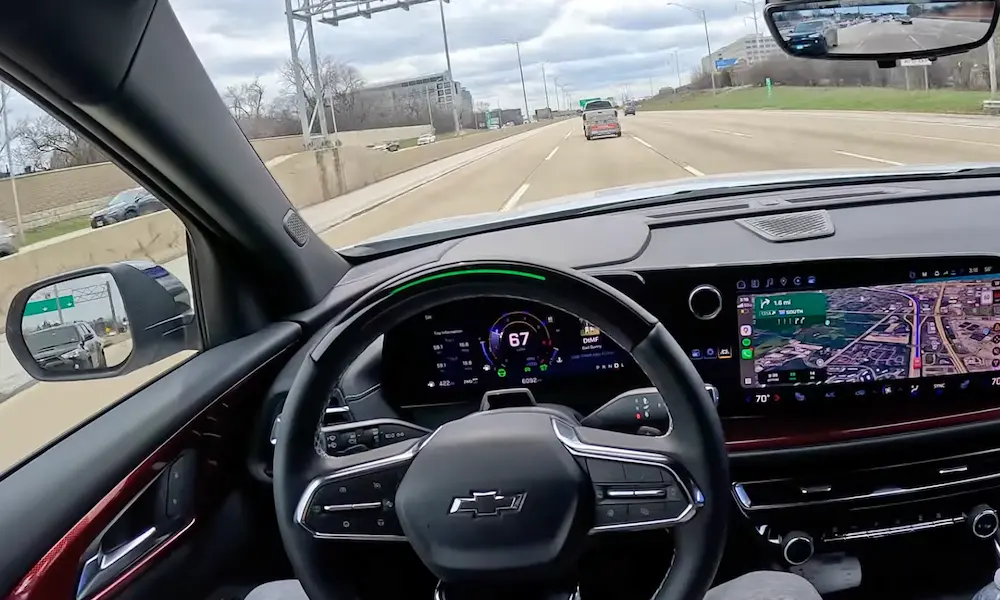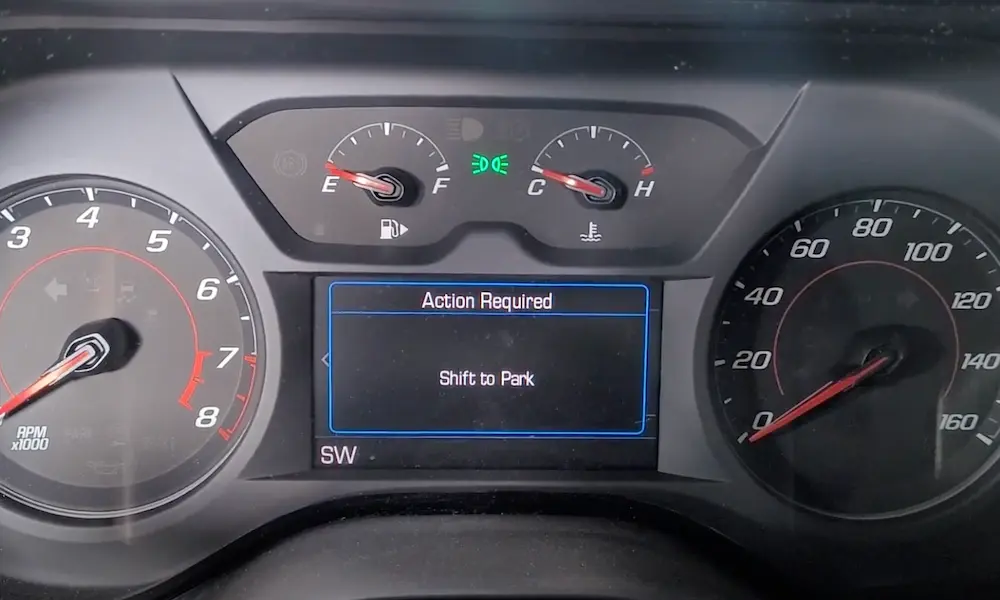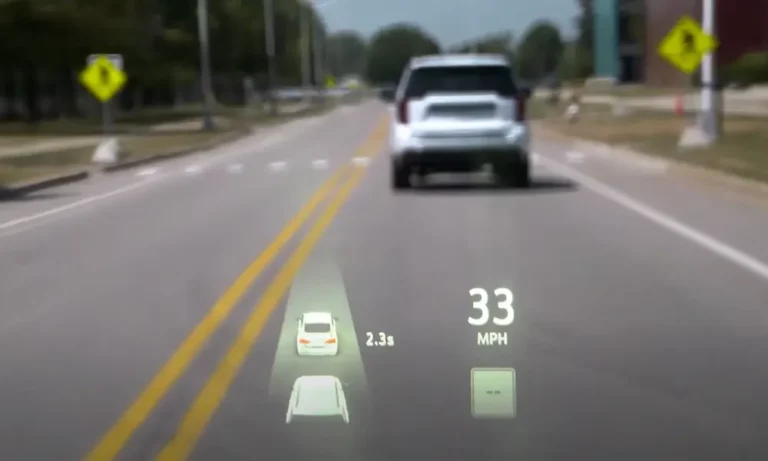
You glance down at your Chevy’s dashboard, expecting to see the posted speed limit, but instead, you’re greeted with blank dashes or nothing at all. Frustrating, right? The speed limit display feature has become a common headache for many Chevy owners across models like the Silverado, Tahoe, Equinox, and Blazer. The good news? You can likely fix this issue yourself in under 30 minutes without visiting a dealership.
How Chevy’s Speed Limit Display Actually Works
Chevrolet’s Traffic Sign Recognition doesn’t work the way most people think. Rather than primarily using cameras to read road signs, most Chevy vehicles rely on navigation database information through Google Maps.
This system requires two critical components:
- An active eligible OnStar subscription
- Proper connection to Google’s mapping data
Higher-trim vehicles might have cameras that read actual signs, but the majority depend on Google Maps data integrated with your navigation system. The information then appears in your Driver Information Center (DIC), heads-up display (HUD), or centerstack display.
Main Reasons Your Speed Limit Display Isn’t Working
1. Your OnStar Subscription Expired
This is the #1 culprit most owners overlook. When your initial trial period ends (typically 3 months to 3 years depending on model year), the speed limit display stops working and shows dashes (–) instead of numbers.
Many owners don’t realize that Traffic Sign Recognition requires an active OnStar plan to function properly. It’s not just a built-in feature that works forever.
2. Google Maps Cache Problems
The second most common issue involves Google Maps cache corruption or connectivity problems. When your vehicle’s Google Maps application encounters cache issues, the speed limit display shows blank or dashed lines instead of values.
This happens particularly often with the newer Google Built-in infotainment systems in 2022+ models.
3. Infotainment System Glitches
Software bugs, system freezes, and communication errors between vehicle modules can all cause your speed limit display to stop working correctly. These glitches often happen after software updates or when the system becomes unresponsive.
Quick Fixes to Try First (In Order of Effectiveness)
1. Verify Your Display Settings
First, check that the feature is actually turned on:
- Navigate to Settings > Display > Instrument Cluster
- Ensure Traffic Sign Recognition is enabled
- Use the steering wheel controls to access Info Page Options
- Confirm the speed limit box is checked
This basic step resolves about 10% of issues, as the setting can be accidentally turned off.
2. Clear Your Google Maps Cache (Most Effective Fix)
This solves the problem for around 60% of Chevy owners with speed limit display issues:
- Go to Settings > Apps & Permissions
- Select Show All Apps
- Scroll to Maps
- Tap Storage & Cache
- Select Clear Cache (don’t clear storage)
- Tap Force Stop
- Restart the Maps application
This process fixes cache corruption issues that prevent proper communication between Google Maps and your display system.
3. Perform a Soft Reset of the Infotainment System
If clearing the cache doesn’t work, try this 15-second fix:
For vehicles with Google Built-in:
- Put your vehicle in PARK
- Press and hold the END CALL button on your steering wheel for 15-20 seconds
- Keep holding until the center display turns black
- Wait for the welcome screen to appear (5-10 seconds)
For older GM infotainment systems, press and hold the mute button for about 10 seconds until the system restarts.
4. Check Your OnStar Subscription Status
If the above steps don’t work, verify your OnStar plan is active and eligible. Current OnStar pricing options that support the speed limit display include:
| Plan | Monthly Cost | Includes Speed Limit Display |
|---|---|---|
| OnStar One | $34.99 | Yes |
| Safety & Security | $22.99 | Yes |
| Connect Plus | $19.99 | Yes |
| Connect | $9.99 | Yes |
Contact OnStar directly to confirm your subscription status and eligibility for the Traffic Sign Recognition feature.
Advanced Troubleshooting When Basic Fixes Fail
Try a Factory Reset of the Infotainment System
If the simpler solutions don’t work, you can try a more comprehensive reset:
- Navigate to Settings > System > Reset Options
- Choose one of these options:
- Reset Vehicle Settings: Resets infotainment settings only
- Erase Infotainment Data: Wipes all user profiles and personal information
- Reset App Preferences: Restores app settings to defaults
Remember that a factory reset will erase your customized settings and may require reconfiguration of preferences.
Check Your Network Connectivity
Ensure your vehicle has proper network connectivity through either:
- The built-in OnStar connection
- Your smartphone as a mobile hotspot
Some users report success by connecting their vehicle to their phone’s WiFi hotspot as a temporary workaround when OnStar connectivity is spotty.
When Is Hardware Actually the Problem?
In about 15% of cases, the issue might be hardware-related. Consider professional diagnosis if you’ve tried all software troubleshooting methods and:
- The problem persists after multiple system resets
- You’ve verified your OnStar subscription is active
- Other connected features are also malfunctioning
Hardware-related causes can include:
- Corrupted SD card in the navigation system
- Faulty instrument cluster requiring replacement
- Communication module failures between infotainment and OnStar
The Cost of Professional Repairs
If you do need professional help, here’s what to expect:
| Service | Typical Cost |
|---|---|
| Dealership diagnostic fee | $100-$225 |
| Instrument cluster replacement | $650-$900 plus labor |
| Infotainment system module | $400-$800 depending on model |
| Speed sensor replacement | $134-$266 |
Warranty Coverage for Speed Limit Display Issues
Your repair might be covered if:
- Your vehicle is under the 3-year/36,000-mile bumper-to-bumper warranty
- You have a GM Certified Pre-Owned vehicle with extended coverage
- You purchased an extended warranty that covers infotainment systems
Temporary Workarounds While You Fix the Issue
If you need speed limit information while troubleshooting:
- Use Android Auto or Apple CarPlay with Google Maps or Waze
- These apps display speed limits on your main infotainment screen
- Consider an aftermarket heads-up display that works independently
Preventing Future Speed Limit Display Problems
To avoid this issue recurring:
- Keep your infotainment system updated with the latest software
- Monitor your OnStar subscription status and renewal dates
- Allow your infotainment system to properly shut down when turning off your vehicle
- Periodically clear your Google Maps cache as preventative maintenance
The Bottom Line on Fixing Your Chevy’s Speed Limit Display
In most cases, your Chevy’s speed limit display problem isn’t a serious mechanical issue—it’s usually just a software glitch or subscription problem. By following the troubleshooting steps above in order, you’ll likely have your speed limit display working again in under 30 minutes.
The most successful fix is clearing the Google Maps cache, which resolves around 60% of cases. If that doesn’t work, a system reset combined with verifying your OnStar subscription status handles most of the remaining issues.
Only after exhausting these software solutions should you consider professional diagnosis for potential hardware problems—saving yourself hundreds in unnecessary repair costs.