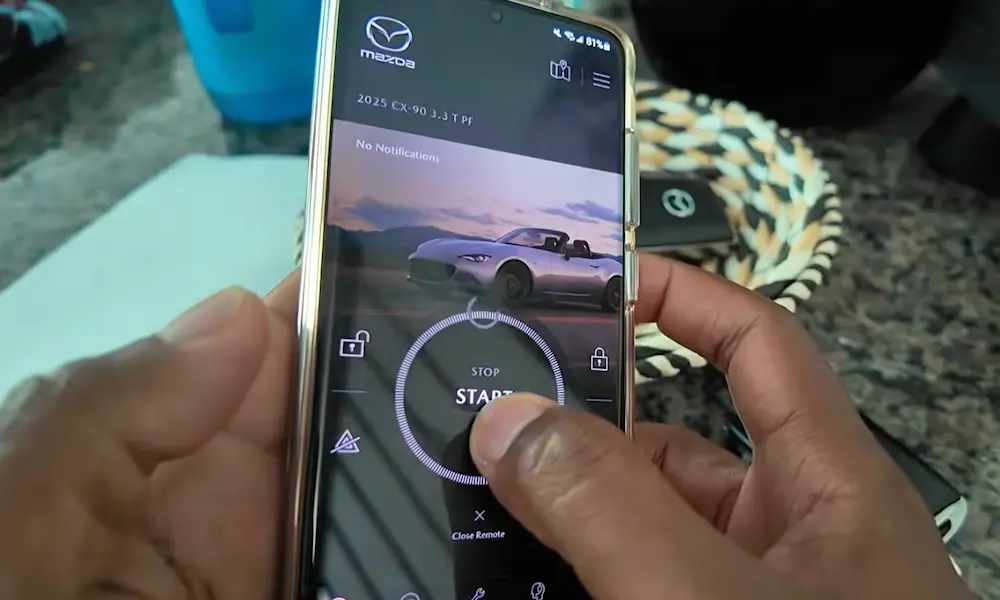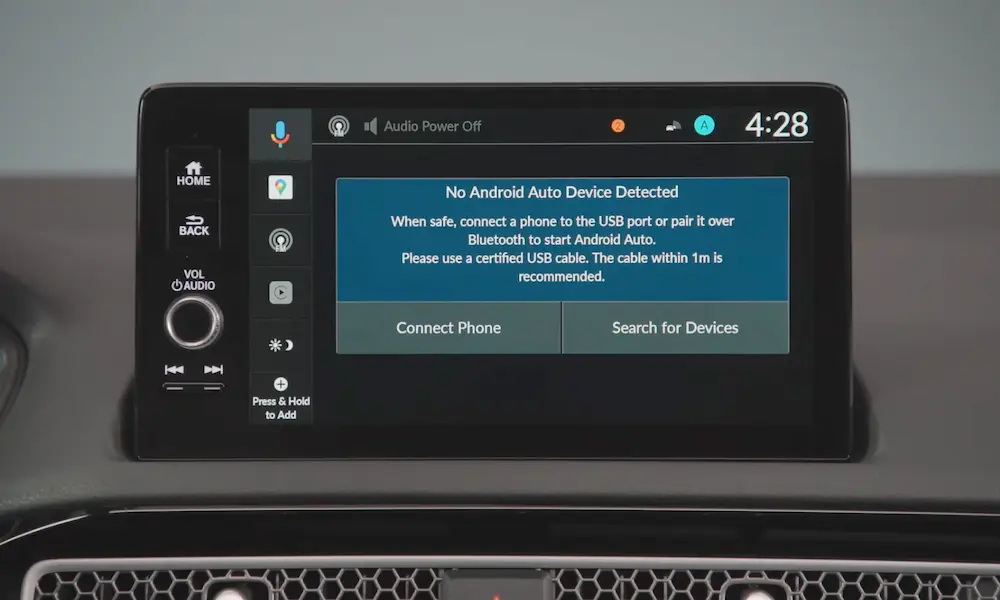
Trying to figure out how to connect Apple CarPlay to your Mazda? Whether you’ve got a brand-new CX-90 or a 2016 CX-5 you’re thinking about upgrading, this guide covers everything — wired, wireless, retrofits, and fixes. Stick around to the end, because the troubleshooting section alone might save you a dealership visit.
First, Check If Your Mazda Actually Supports CarPlay
Not every Mazda has Apple CarPlay out of the box. Before you do anything else, check this compatibility table:
| Mazda Model | Standard CarPlay From | Wireless Available | Retrofit Option |
|---|---|---|---|
| Mazda3 | 2019 | 2024+ | Yes (2014–2018) |
| Mazda6 | 2018 | No | Yes (2014–2017) |
| CX-5 | 2019 | 2023+ (select trims) | Yes (2014–2018) |
| CX-30 | 2020 | 2024+ | No (standard from launch) |
| CX-50 | 2022 | 2022+ | No (standard from launch) |
| CX-9 | 2019 | No | Yes (2016–2018) |
| CX-90 | 2024 | 2024+ | No (standard from launch) |
| MX-5 Miata | 2019 | 2021+ (Club/Grand Touring) | Yes (2016–2018) |
The 2019 model year was the big turning point. That’s when Mazda made CarPlay standard across nearly all trim levels — not just a premium add-on.
If your Mazda is a 2014–2018, don’t panic. You’ve got retrofit options, and we’ll get to those.
What You Need Before You Connect
You don’t need much, but these details matter.
The Right USB Port
Your Mazda has more than one USB port — but not all of them carry data. The CarPlay-ready port is marked with a small smartphone icon. Other ports in the cabin? They’re for charging only. Plug into the wrong one and CarPlay won’t launch.
Here’s how the ports have evolved:
| Port Type | What It Does | Model Years |
|---|---|---|
| USB-A (1.0 Amp) | Basic charging, no CarPlay | 2014–2017 |
| USB-A (2.1 Amp) | Wired CarPlay + fast charging | 2018–2023 |
| USB-C (High Output) | Modern devices, full CarPlay | 2024–2026 |
In the Mazda3 and CX-30, the port is usually inside the center console bin. In the CX-5 and CX-50, it sits at the base of the center stack — easier to reach.
Use a Genuine Apple Cable
This sounds obvious, but it’s the number-one fix for CarPlay problems. Around 90% of wired CarPlay issues reported to Mazda service centers are solved by switching to a genuine Apple Lightning or USB-C cable. Cheap third-party cables don’t have the right authentication chips, and they can’t handle the data load.
iOS Version
You need iOS 13 or later for the best performance. iOS 13 introduced stability improvements and the modern CarPlay dashboard layout. If you’re still on something older, update your phone first.
How to Connect Apple CarPlay to Mazda via Wired Connection
This is the most reliable method — best audio quality, fastest data transfer, most consistent connection.
Here’s how to do it step by step:
- Park the car and engage the parking brake. Some Mazda models require this for initial setup.
- Plug your iPhone into the smartphone-icon USB port using a genuine Apple cable.
- Watch the Mazda Connect screen. It’ll detect your iPhone automatically.
- Select “Always Enable” when the CarPlay prompt appears on the display. This saves you from clicking through the same prompt every time.
- On your iPhone, tap “Allow” when it asks for permission to use CarPlay while locked.
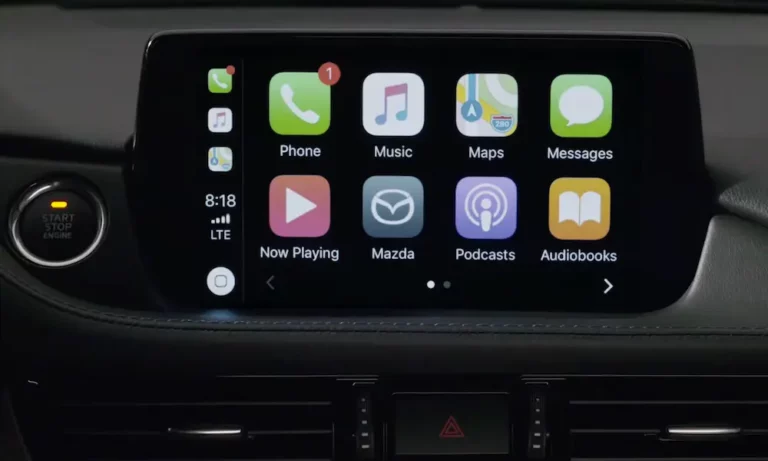
That’s it. CarPlay launches, Siri takes over from Mazda’s native voice system, and you’re good to go.
Navigating CarPlay with the Commander Knob
Most Mazda models don’t have a touchscreen — or they disable touch while moving. So you’ll use the rotary Commander Control knob to navigate the interface. Here’s what each input does:
| Input | What It Does |
|---|---|
| Rotate knob | Cycles through apps or highlights menu items |
| Press knob | Selects or launches the highlighted item |
| Tilt left/right | Moves between CarPlay home screen pages |
| Home button | Returns to CarPlay dashboard |
| Nav button | Opens your primary navigation app |
| Entertainment button | Returns to “Now Playing” audio |
Source: Mazda Connect Owner’s Manual
Once you build muscle memory with the knob, you’ll rarely need to look down at the console. That’s the whole point of Mazda’s design.
How to Set Up Wireless Apple CarPlay in Mazda
Wireless CarPlay is available on select models from 2021 onward — starting with the MX-5 Miata, then rolling into the CX-5, CX-30, CX-50, CX-90, and others.
Wireless CarPlay uses two signals working together: Bluetooth handles the initial handshake, then Wi-Fi takes over to carry the actual video and audio stream. Both need to be active on your iPhone. If Wi-Fi is turned off, CarPlay drops immediately.
Step-by-Step Wireless Pairing (2024–2026 Models)
For newer models like the CX-90 and CX-70, here’s the process:
- On the Mazda screen, go to Communication → Connect New Device.
- Open the Bluetooth menu on your iPhone.
- Select the Mazda vehicle name from your iPhone’s Bluetooth list.
- A six-digit code appears on both screens — confirm they match.
- Tap “Pair” on your iPhone and select “Allow” for contact syncing.
- When prompted: “Use Wireless Apple CarPlay with Mazda?” — tap “Enable Wireless CarPlay.”
After this, your Mazda will automatically connect to your iPhone every time you start the car — as long as your phone is in the vehicle.
One Thing to Know About Wireless
Wireless CarPlay puts more strain on your iPhone’s battery and can cause your phone to run warm on longer drives. If that bothers you, use a wired connection. You get better audio quality and you’re charging your phone at the same time.
Also — and this trips a lot of people up — wireless CarPlay doesn’t need a Verizon hotspot subscription. The car creates its own dedicated Wi-Fi signal just for the CarPlay data bridge. That’s completely separate from the paid in-car Wi-Fi hotspot. Even if you skip the $20/month Verizon plan, wireless CarPlay keeps working fine.
Retrofit: Adding CarPlay to a 2014–2018 Mazda
If you’ve got an older Mazda, you can still get Apple CarPlay — but it’s not a simple plug-and-play upgrade.
What the Retrofit Involves
The factory-sanctioned retrofit kit includes a high-output USB hub and two specialized cables built to handle the authentication and data load that modern iPhones demand. The original hub in pre-2019 Mazdas simply wasn’t built for this — it lacks the right chips and doesn’t deliver enough power.
Before any hardware goes in, the Mazda Connect system needs a firmware update to version 70.00.100A or higher. That’s the software threshold that allows the head unit to communicate with Apple’s protocols.
The technician will partially disassemble the dashboard and center console to route new wiring. The total cost is around $499, covering both parts and labor.
Is it worth it? If you’re planning to keep the car for a few more years, yes. You get the full CarPlay experience — Siri, Google Maps, Waze, Spotify — on your existing Mazda screen. It also improves resale value on pre-owned Mazda vehicles more than almost any other upgrade you can add at that price point.
iPhone Settings You Must Get Right
Your iPhone’s settings matter just as much as the car’s hardware. These are the ones that cause the most trouble.
Siri Settings
Siri is the engine behind CarPlay. If it’s not set up correctly, commands won’t work and your session may drop when the phone screen locks.
Go to Settings → Siri & Search and turn on all three of these:
- “Listen for ‘Hey Siri'”
- “Press Side Button for Siri”
- “Allow Siri When Locked” ← this one is the most important
Without “Allow Siri When Locked,” CarPlay cuts out the moment your phone screen times out. You’d have to manually unlock it every time — not exactly safe or practical.
Low Power Mode
Low Power Mode keeps CarPlay running, but you’ll notice slower map rendering and sluggish Siri responses. If you’re on a long drive, either keep the phone plugged in or turn off Low Power Mode before connecting.
Customizing Your CarPlay Layout
You don’t have to live with the default app arrangement on your Mazda’s screen. Go to iPhone Settings → General → CarPlay → [Your Mazda] and drag the icons into whatever order works for you. Hide apps you never use in the car. Put navigation, music, and phone at the front.
Your custom layout follows your iPhone profile, so if you ever drive a different Mazda — a loaner or a rental — your preferred setup shows up automatically.
How to Enable the Touchscreen While Driving (Newer Models)
For years, Mazda disabled touchscreen input above 5 mph. That policy has changed on newer models. The CX-50, CX-90, and 2026 CX-5 now support a “Touchscreen in Motion” feature — but it’s off by default and needs to be enabled per device.
Here’s how to turn it on:
- Go to Settings on the Mazda Connect home screen.
- Select Connectivity Settings.
- Choose Bluetooth/Phone Connectivity Settings.
- Select your iPhone from the registered device list.
- Scroll down and check “Touchscreen in Motion.”
Source: Mazda Connect Owner’s Manual
Once it’s on, pinch-to-zoom on maps and scrolling through playlists all work at speed. The rotary knob still handles basic tasks — the touchscreen is there when you want it.
Troubleshooting: When Apple CarPlay Won’t Connect
| Symptom | Likely Cause | Fix |
|---|---|---|
| CarPlay icon is greyed out | Non-data cable or “Never Enable” setting | Swap cable; check connectivity settings |
| Keeps disconnecting | Damaged cable or dirty port | Inspect cable for kinks; clean ports with compressed air |
| Siri won’t respond | “Allow Siri When Locked” is off | Enable it in iPhone’s Siri & Search settings |
| Wireless CarPlay won’t connect | Wi-Fi is off on the iPhone | Turn on both Bluetooth and Wi-Fi |
| System frozen or lagging | Head unit cache overflow | Hard reboot: hold Back + Nav + Mute knob for 20 seconds |
How to Reset CarPlay on Your iPhone
If the hardware checks out but CarPlay still won’t behave, try a fresh pairing:
- On your iPhone: Settings → General → CarPlay → select your Mazda → Forget This Car
- On the Mazda: Hold the Back button + Nav button + Mute/Volume knob simultaneously for about 20 seconds. The head unit reboots and clears its cache.
After both resets, reconnect from scratch. This resolves most cases where CarPlay launches but immediately disconnects or shows a blank screen.
Checking Your Connectivity Settings
If you accidentally hit “Never Enable” during your first setup, CarPlay won’t launch — even with a perfect cable. To fix it, go to Mazda Connect’s connectivity settings, find your device in the Apple CarPlay settings, and switch the status from “Disabled” to “Always Enable.”
Using Siri While You Drive
Once CarPlay is active, press the Talk button on your steering wheel to activate Siri directly — bypassing Mazda’s native voice system entirely. You don’t even have to say “Hey Siri.”
Some commands that work great in the car:
- “Navigate to the nearest gas station.”
- “Text [name] that I’ll be home in 20 minutes.”
- “Play my Road Trip playlist on Spotify.”
- “What’s my next meeting?”
If you’re listening to a podcast and a text comes in, Siri pauses the audio automatically, reads the message, and waits for your reply — all hands-free. It’s one of those features that feels like a genuine quality-of-life upgrade once you use it daily.
What’s Coming: 2026 Mazda and Bigger Screens
The 2026 Mazda CX-5 raises the bar with standard 12.9-inch screens and an available 15.6-inch display. Apple CarPlay remains standard — Mazda confirmed it’s not going anywhere for iOS users. The larger screens allow for a split-screen view, where CarPlay takes up most of the display while climate controls and camera feeds stay visible in a sidebar.
Mazda is also introducing Google Built-in as a native OS feature for the first time, meaning Google Maps and Google Assistant live in the car even without a connected phone. But if you’re an iPhone user, CarPlay still runs the show the way you’re used to.
The interaction model for 2026 is built around Voice + Touch + Rotary — three ways to control things depending on the situation. Voice on the highway, touch at a red light, knob for muscle-memory basics. It’s a smart approach that doesn’t force you to relearn how you drive.