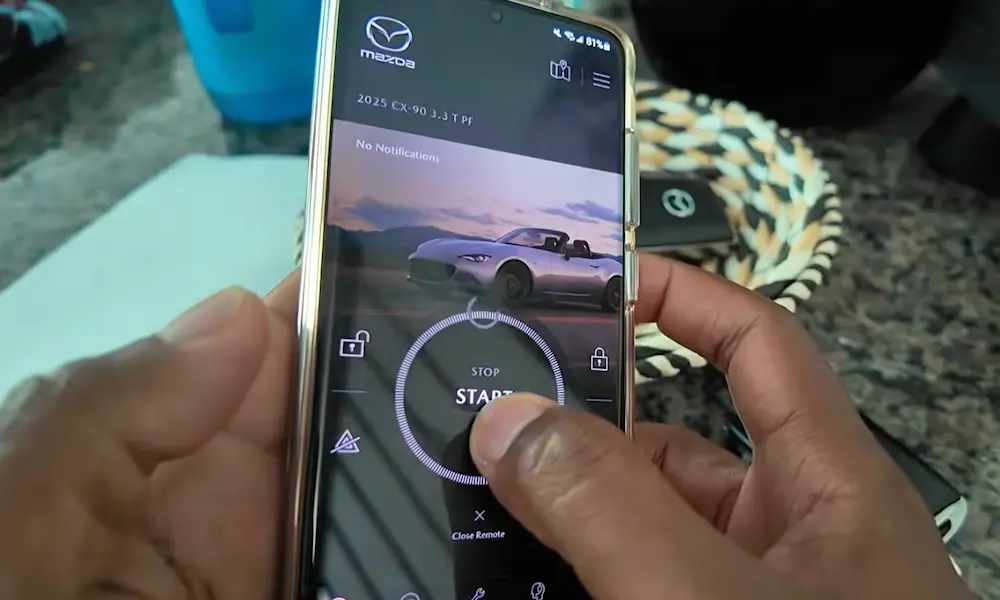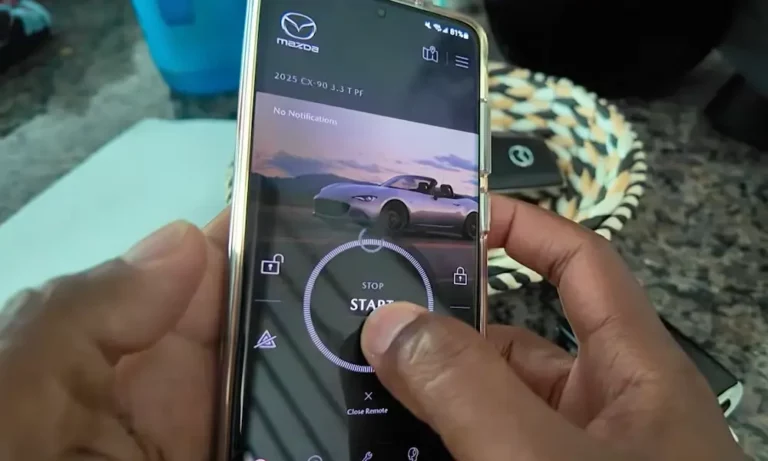
The MyMazda app not working is one of those problems that feels simple but turns out to be surprisingly layered. The fix might live in your phone settings, your car’s battery, or your subscription status. This guide walks you through every real cause and every real fix — so read to the end before you do anything drastic.
What’s Actually Happening When the MyMazda App Fails
The MyMazda app doesn’t just talk to your car directly. It runs through a chain: your phone → Mazda’s servers → a cellular network → your car’s onboard Telematics Control Unit (TCU). If any link in that chain breaks, the whole thing fails.
That’s why “the app isn’t working” can mean a dozen different things. The problem might be your phone permissions, a dead car battery, an expired subscription, or a cellular signal issue inside the vehicle itself.
Let’s break it down layer by layer.
Check Your Car’s Signal Strength First
Your Mazda’s infotainment screen shows a cellular signal icon, usually in the bottom right corner. This is your first diagnostic clue.
| Connection Status Icon | What It Means | What to Do |
|---|---|---|
| Three or more bars | Strong signal — all good | Commands should work fine |
| One to two bars | Weak signal — packet loss likely | Move to an open area, retry |
| Icon with “X” mark | No data connection at all | Registration or hardware reset needed |
| Flashing bars | System updating | Wait it out |
| Wrench icon | Hardware fault detected | Book a dealer appointment |
If you see that “X” on a brand-new vehicle, it often means the dealer skipped the pre-delivery activation process. That’s on them, not you — go back and make them sort it.
Your Car Might Be Asleep (No, Really)
This one catches people off guard. If your car sits parked for 9 to 14 consecutive days, it enters a “Deep Sleep” mode. The cellular modem shuts off completely to protect the battery. When that happens, the MyMazda app can’t reach your car — and remote commands will fail.
| Power State Variable | Threshold | Effect on the App |
|---|---|---|
| Inactivity duration | 9–14 consecutive days | Modem shuts off; remote commands fail |
| Battery voltage | Below 9.5–10.7 volts | Telematics disabled to protect ignition |
| Temperature extremes | Severe freeze or heat | May trigger false “awake” states |
| Door cycles without ignition | 6–7 cycles | Increases drain; may accelerate sleep mode |
The fix: Get in the car and start it manually with the push button. One drive wakes the system back up. Also, don’t leave your key fob hanging near the garage door — keeping it close to the car can stop the systems from sleeping properly and quietly drain the battery overnight.
Did Your Subscription Expire?
This is the most common reason the MyMazda app stops working out of nowhere. Mazda Connected Services is a subscription. When your trial ends, remote features vanish.
| Vehicle Model Year | Free Trial Length | Plan After Trial |
|---|---|---|
| 2019–2024 models | 3 years | Preferred ($10/month) |
| 2025 models (except CX-70) | 1 year | Preferred ($10/month) |
| 2025 CX-70 | 3 years | Preferred ($10/month) |
| 2026 CX-5 (Premium Plan) | 1 year | Premium ($15/month) |
| 2026 CX-5 (Basic Plan) | Up to 10 years | Included (free) |
To check your trial status, go to Menu → MyMazda → Connected Services in the app. If it’s expired, log in at owners.mymazda.com as the Primary Driver and enroll in a paid plan to restore access.
Phone Permissions Are Quietly Killing the App
Your phone’s operating system might be the real culprit. iOS and Android both throttle background app activity to save battery. If MyMazda doesn’t have the right permissions, it can’t maintain a stable connection to Mazda’s servers.
| Permission | Required Setting | Why It Matters |
|---|---|---|
| Location Services | Always Allow | Powers vehicle finder and geofencing |
| Background App Refresh | Enabled | Lets the app update status when closed |
| Notifications | All Alerts On | Confirms remote commands worked |
| Cellular Data | Enabled | Works when you’re off Wi-Fi |
| Face ID / Biometrics | Re-verify after updates | Prevents login loops |
Android users: If the app freezes or throws “Internal Usher SDK” errors, clear the app cache through Settings → Apps → MyMazda → Storage → Clear Cache.
iPhone users: There’s no standard cache button. Use Offload App under Settings → General → iPhone Storage, then reinstall it fresh.
Also — turn off any VPN on your device. VPNs mask your location and Mazda’s servers often read that as a security threat, resulting in immediate disconnection or Bad Gateway errors.
The Authorization Code Problem Nobody Warns You About
When you first pair the MyMazda app to your vehicle, the car displays a one-time authorization code on the center screen. It does not come by email or text. Many people wait at their inbox and miss the code entirely.
Two things commonly block this code from appearing:
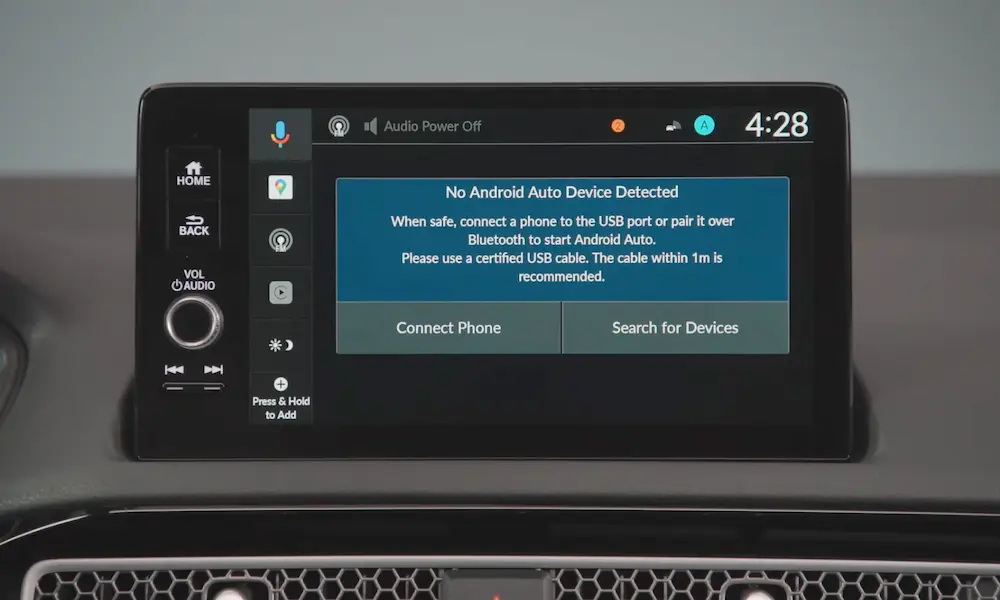
- Apple CarPlay or Android Auto is active. These integrations act as a gatekeeper and block the telematics system from displaying the pairing screen. Unpair your phone completely and clear all devices from the vehicle’s Bluetooth memory before you start the process.
- The code expires in 4–5 minutes. If your car has poor cellular signal during enrollment, the code may never arrive. Find a spot with strong signal before you begin.
What Those Error Codes Actually Mean
When the MyMazda app fails, it usually tells you why — if you know the language. Here’s a plain-English breakdown of the most common codes:
| Error Code | Plain English | Fix |
|---|---|---|
| 400C00 | You submitted invalid or missing info | Re-enter your profile details |
| 400C04 | VIN not found on the network | Move to better signal, re-verify VIN |
| 400S11 | Remote start limit hit (2 starts max) | Drive the car at least 1 mile |
| 400S16 | Battery too low to accept a remote command | Manually start the car, idle 10–15 minutes |
| 400S19 | No connectivity established | Contact your dealer for TCU activation |
| 500C01 | Server-side database error | Wait 30 minutes, try again |
| 502 Bad Gateway | Mazda’s backend is down | Monitor for recovery — nothing you can do |
Error 400S11 is especially frustrating because it catches people off guard. The system only allows two consecutive remote starts before it requires you to physically drive the car. After one mile, the counter resets.
How to Reset Your System (Two Ways)
Soft Reset — Try This First
Hold the Volume/Mute knob + Navigation button + Back button simultaneously for 10–20 seconds. This reboots the Mazda Connect computer without wiping your settings. It fixes frozen screens, stuck telematics icons, and most minor glitches.
Hard Reset — For Stubborn Problems
Disconnect the negative terminal of the 12-volt battery for 30 minutes. This forces every computer in the car — including the TCU — to cold-boot and clear its memory buffers. Fair warning: you’ll lose clock settings and radio presets. After reconnecting, take a short drive to let the GPS and telematics systems re-sync.
This is one of the most effective fixes for persistent communication errors, as documented in Mazda’s own service alerts.
The 2026 Models Have a New Problem
If you own a 2026 CX-5, you’re dealing with a new layer of complexity. These vehicles run Google Built-in services, including Google Maps and Google Assistant powered by the car’s own data connection. If Google Assistant shows as dead on delivery, it’s usually a stalled background update or a failed account sync during the dealer’s setup process.
Fix: Remove your Google account from Mazda Connect completely, then add it back. This triggers a fresh sync and usually resolves the issue.
Symptoms That Need a Dealer Visit
Some MyMazda app problems aren’t fixable at home. Watch for these:
- Diagnostic code U2050:55 — The TCU isn’t authorized to communicate with the ignition system. This needs dealer-level diagnostic software, as outlined in this NHTSA service bulletin.
- Boot loops or logo freeze — The infotainment module’s internal storage may be corrupted. It may need replacement.
- Faulty thermostat triggering app failure — Technical service bulletin SA-023/25 covers a known issue where a bad engine thermostat causes the car’s computer to shut down telematics. “Remote Start Failed” errors despite a healthy battery? This might be why.
- Ghost touches on older models — 2014–2018 Mazda3 and CX-5 screens can develop phantom inputs that silently disable connected services or change privacy settings.
The Full Reset Sequence (If Everything Has Failed)
Work through these three layers in order before you give up and call the dealer:
Layer 1 — Virtual Audit
Check that no VPN is active. Confirm your subscription is current. Log out of the app, restart your phone, log back in.
Layer 2 — Physical Reset
Drive the car at least one mile. This wakes Deep Sleep mode, resets the remote start counter, and recharges a marginally low battery.
Layer 3 — Connection Purge
Delete the vehicle from the MyMazda app. Log out completely. On the car’s infotainment screen, run Restore Factory Settings to wipe corrupted pairing data. Then restart the phone and re-enroll the vehicle from scratch. For 2025 and 2026 models, this clean-slate approach has the highest success rate of any non-dealer fix.
Keeping the App Working Long-Term
Prevention beats troubleshooting every time. Here’s what keeps the MyMazda app running smoothly:
- Drive regularly. Even a short weekly drive prevents Deep Sleep and keeps the battery above the critical voltage threshold.
- Keep the battery healthy. The app monitors battery health and will disable remote features below ~10.7 volts to protect your ability to start the car manually.
- Reset the maintenance monitor after service. The technician must manually reset the monitor through the infotainment screen. If they skip this step, your Vehicle Health Report will show stale data forever.
- Update the app when prompted. Skipping updates creates version mismatches between your phone and Mazda’s servers — a quiet killer of app stability.
- Check your subscription renewal date. Set a calendar reminder before your trial ends so you’re not surprised when remote features disappear.
The MyMazda app not working is almost always fixable without a tow truck. The key is knowing which layer broke — and now you do.