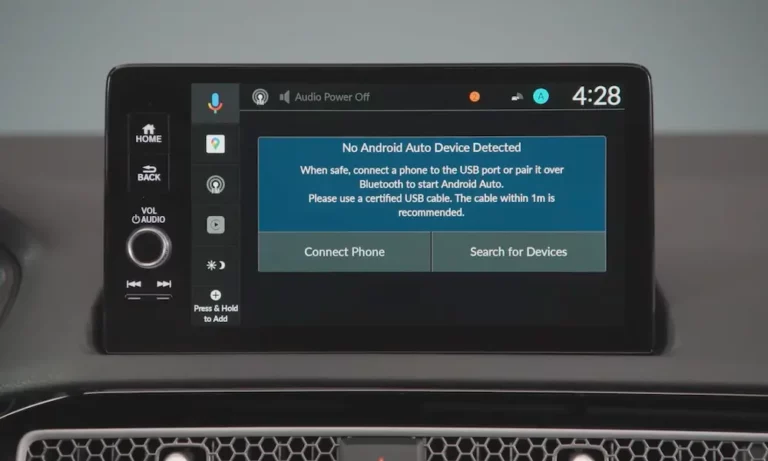
Your Mazda’s screen is staring back at you, and Android Auto refuses to launch. Again. It’s frustrating, especially when you just want your maps and music to work. The good news? Most of these failures have a specific cause — and a specific fix. Read on, because the answer is probably closer than you think.
First, Know Which Mazda System You Have
Before you troubleshoot anything, figure out which generation of Mazda Connect you’re dealing with. This matters more than most people realize.
First-generation Mazda Connect (2014–2018): Built around a Connectivity Master Unit (CMU). It struggles with bandwidth limits and aging USB hardware. Think of it as an older laptop trying to run modern software.
Second-generation Mazda Connect (2019+): Bigger screen, more restricted operating system. No touchscreen while driving. Relies on a rotary dial. More prone to software handshake errors, especially with wireless Android Auto.
Here’s a quick model reference:
| Model Year | Android Auto Status | System Generation |
|---|---|---|
| 2014–2017 | Not factory-available (retrofit required) | Mazda Connect v1 |
| 2018 | Standard on Mazda 6 Touring+; retrofit for others | Mazda Connect v1 |
| 2019 | Standard on CX-5, CX-9, Mazda 3 | Transition to v2 |
| 2020–2022 | Standard on most models | Mazda Connect v1 & v2 |
| 2023–2024 | Standard; wireless on higher trims | Mazda Connect v2 |
If you own a 2014–2018 model and Mazda Android Auto is not working, there’s a good chance the retrofit was never done — or was done incorrectly.
Start Here: Check the USB Cable and Port
This is the number one cause of Mazda Android Auto not working. Not the car. Not your phone. The cable.
Android Auto needs a high-speed, bi-directional data connection. A cheap charging cable can’t deliver that. Common Mazda infotainment issues almost always trace back to cable problems before anything else.
Are You Using the Right Port?
Most Mazda models have two USB ports. Only one of them actually connects to the Connectivity Master Unit for data transfer. The correct port usually has a small smartphone icon next to it. Plug into the wrong port, and your phone charges — but Mazda Connect never sees it.
Newer models like the 2024 CX-90 use USB-C ports. If you’re using a USB-A to USB-C adapter, that’s likely your problem right there. Adapters often skip the data pins entirely.
What Kind of Cable Do You Need?
Google recommends using the original cable that came with your phone. If you need a third-party option, it must meet these requirements:
| Cable Attribute | Requirement | Why It Matters |
|---|---|---|
| Length | Under 1 meter (3 feet) | Longer cables cause signal loss |
| Certification | USB-IF certified | Non-certified cables often lack data pins |
| Condition | No kinks or visible damage | Internal wire breaks cause random drops |
| Type | Data-capable (not power-only) | Charging-only cables have no data wiring |
Also worth noting: cables pinched under a CX-5 or CX-9 console lid can fracture internally over time. The car hits a bump, and Android Auto crashes. Swap the cable first. Always.
The Retrofit Problem (2014–2018 Owners)
If you drive an older Mazda, the factory retrofit program is likely the issue. This upgrade requires two specific components for the North American market:
- USB Hub Module: Part Number TK78-66-9U0C
- Cable Set: Part Number C922-V6-605A
Here’s the critical part most people miss: the firmware must be updated to version 70.00.21 or later before installing the new hardware. If a technician skipped that step, your system may show a black screen or fail to recognize Android Auto entirely. The old hub has to go back in, firmware gets updated, then the new hub goes in. Order matters.
Also check the hub revision. Earlier “A” and “B” versions had stability issues with high-draw phones like the Samsung Galaxy Ultra or Google Pixel. If you see a frequent “Android Auto ended due to a Bluetooth communication error,” a faulty older revision hub is often the real culprit — not Bluetooth at all.
The Navigation SD Card Nobody Tells You About
Here’s something surprising: your navigation SD card might be killing Android Auto.
The CMU reads map data from the SD card on startup. If that card is corrupted or dirty, the system gets overwhelmed, generates constant errors, and restarts itself. This is the infamous “bootloop” problem — and it wipes out any chance of Android Auto launching.
Try this: eject the navigation SD card from the center console slot and then try connecting Android Auto. You’ll lose the built-in GPS, but if Android Auto suddenly works, the SD card is your problem.
Many owners buy cheap cloned SD cards from Amazon ($20–$50) because official Mazda cards cost $400+ at dealers. Those discount cards fail fast under heat. When they start failing, they flood the CMU with thousands of error lines per second. Android Auto stutters, lags, or won’t open. Worse, Mazda’s firmware can detect counterfeit cards and lock the VIN, making it impossible to use a real card later without a dealer unlock procedure.
Stick with a genuine card or update map data using the Mazda Update Toolbox on your computer.
Bluetooth Pairing Is Part of the Equation
A lot of people think Android Auto is purely a USB connection. It’s not. Even wired connections need a Bluetooth handshake to initialize.
When you plug in, Mazda Connect pairs your phone via Bluetooth simultaneously. Bluetooth handles phone calls while USB handles video and audio. If that handshake fails, Android Auto fails.
A few common culprits:
- Full pairing list: Mazda Connect stores up to 7 devices. If the list is full, new connections fail. Delete old devices you no longer use.
- Vehicle not in Park: Mazda requires Park with the parking brake engaged for the initial setup. This isn’t optional — it’s a safety requirement so you can respond to permission prompts.
- Android Auto set to “Never Enable”: Check your Connectivity Settings and make sure the device is set to “Always Enable.”
| Symptom | Probable Cause | Fix |
|---|---|---|
| “Mobile Device Error” | Bluetooth collision with another paired device | Disconnect others, retry |
| App launches but no sound | Audio routing stuck in Bluetooth mode | Cycle “Source” button or restart phone |
| Screen stays black | Permission prompt waiting on phone | Unlock phone and accept all prompts |
| Android Auto icon greyed out | Device set to “Never Enable” | Change to “Always Enable” in Connectivity Settings |
Check Your Phone Settings Too
Sometimes the Mazda’s system is fine. The phone is the problem.
Android Version
Android Auto requires Android 9.0 (Pie) or later. Android 11 or higher works best. Older versions cause stability issues, especially during long drives.
Battery Optimization (The Silent Killer)
Android aggressively kills background apps to save battery. If Android Auto is “Optimized,” your phone may cut the connection after a few minutes without warning. Fix it like this:
- Go to Settings > Apps > Android Auto
- Tap Battery
- Select Unrestricted
USB Debugging
If you’ve enabled USB Debugging in Developer Options, turn it off. It interferes with how Mazda Connect mounts your phone as a secure data device. Also set your default USB connection to File Transfer (MTP), not charging mode. This alone solves plenty of “Device Not Recognized” errors.
Three Levels of System Reset
When Android Auto stops working and nothing else helps, resets are your next move. Mazda gives you three levels.
Tier 1: Soft Reset
This clears temporary memory without deleting your settings. Try this first for any frozen or laggy screen.
- With ignition in ON or ACC position, press and hold the Volume/Mute knob, the NAV button, and the Back button simultaneously
- Hold for 10–20 seconds
- The screen goes black, then reboots
Tier 2: Hard Reset
Use this when the soft reset doesn’t bring back a black screen. Press Volume + Favorites + Nav simultaneously. This forces the CMU to reinitialize its hardware drivers and can restore USB ports that stopped providing data.
Tier 3: Factory Reset
This erases everything — Bluetooth pairings, home addresses, audio settings.
- Go to Settings
- Select System
- Choose Restore Factory Settings and confirm
After the reboot, set up Android Auto from scratch. It’s the nuclear option, but it works for corrupted settings and bloated pairing lists.
Check Your Firmware Version
Outdated firmware is a major reason Mazda Android Auto keeps not working. Here’s how to check yours:
Settings > System > About > Version Information
If your firmware is older than version 70.00.00, Android Auto won’t run reliably. For Gen 2 systems, TSB SA-006/24 identifies that 2021–2022 CX-5 and CX-9 models specifically need version 7000C0A-NA03_11040 to resolve screen blackouts and connectivity drops.
Most Mazdas need a dealer visit for firmware updates via a specialized USB flash drive. Only 2023+ models like the CX-50 and CX-90 support over-the-air updates via Wi-Fi.
You May Be Owed a Free Repair
Here’s something most owners don’t know. A class-action lawsuit — Duffy, et al. v. Mazda Motor of America, Inc. — established that Mazda Connect systems were defective across multiple models due to CMU hardware failures.
As part of the settlement, Mazda extended the CMU warranty by 24 months for these vehicles:
- Mazda 2: 2016–2022
- Mazda 3: 2014–2018
- Mazda 6: 2016–2021
- CX-3: 2016–2021
- CX-5: 2016–2020
- CX-9: 2016–2020
- MX-5 Miata: 2016–2023
If your Mazda Android Auto is not working because of a hardware fault in the CMU, you may qualify for a free replacement — even if your standard warranty expired. Check your eligibility at the settlement website before paying for any infotainment repair.
Wireless Android Auto: Extra Complications
Wireless Android Auto uses Bluetooth for the initial connection, then switches to 5GHz Wi-Fi Direct for data. That extra step creates extra problems.
Wireless Android Auto is trim-level specific. In the 2024 CX-5, for example, only Premium Plus and Turbo trims support wireless. Lower trims need a cable. Many drivers upgrade trims and assume wireless works automatically — it doesn’t if the trim doesn’t support it.
The 5GHz signal is also vulnerable to interference near airports, high-voltage power lines, and toll booths. If wireless Android Auto drops in the same locations consistently, RF interference is probably why — not a faulty system.
Your Step-by-Step Fix Checklist
Work through these in order. Don’t skip ahead.
- Replace the USB cable with the original phone cable or a USB-IF certified cable under 3 feet
- Confirm you’re using the correct USB port — look for the smartphone icon
- Eject the navigation SD card and test Android Auto without it
- Delete old Bluetooth pairings to make room for a fresh connection
- Set Android Auto to Unrestricted battery mode on your phone
- Disable USB Debugging in Developer Options
- Perform a soft reset (Volume + NAV + Back, hold 10–20 seconds)
- Check firmware version — if it’s below 70.00.00, visit a dealer
- Run a factory reset if nothing else works
- Check the Duffy settlement if the CMU itself appears faulty — you may get a free fix
Most Mazda Android Auto problems land somewhere in steps 1 through 4. The cable and port issues alone account for the majority of “it’s just not working” complaints. Start simple, stay methodical, and you’ll likely find the fix before you ever need to book a dealer appointment.