Your phone isn’t connecting to Uconnect, and you’re about ready to throw your key fob into a river. Whether you’ve got a basic 5-inch screen or a shiny 12-inch display, this guide walks you through every step. Stick around — the fix you need is probably three scrolls away.
First, Figure Out Which Uconnect You Have
Before you do anything, you need to know your system. The steps differ depending on which generation you’re working with.
| System | Screen Size | What It Supports |
|---|---|---|
| Uconnect 3 | 5-inch | Bluetooth calls and audio only |
| Uconnect 4 / 4C | 7-inch or 8.4-inch | Wired CarPlay and Android Auto |
| Uconnect 5 | 8.4, 10.1, or 12-inch | Wireless CarPlay and Android Auto |
Check your screen size and match it to the table. That tells you exactly what’s possible — and what’s not. You can also confirm your system on the official Uconnect FAQ page.
How to Connect Phone to Jeep Uconnect via Bluetooth
This works on every Uconnect generation. Bluetooth is the foundation. Even wireless CarPlay runs on a Bluetooth handshake first.
Put the car in Park first. Jeep locks certain setup features while you’re moving — it’s a driver distraction safety measure, not a glitch.
Step-by-Step Pairing on Uconnect 4 and 5
- Tap the Phone icon on the Uconnect home screen
- Select Add Device (or Pair a Phone if it’s your first time)
- Uconnect starts broadcasting — your phone needs to find it
- On your phone, go to Settings > Bluetooth
- Turn Bluetooth on and tap Uconnect in the list
- A six-digit passkey appears on both screens — confirm it matches
- Tap Yes or Pair on both devices
Once paired, Uconnect saves your phone profile. It reconnects automatically next time you start the car.
Pairing on Uconnect 3 (5-inch Screen)
Uconnect 3 uses a slightly older method. Instead of a six-digit passkey, it may show a four-digit PIN like “0000”. Type that into your phone when prompted. Some versions let you create your own PIN on the screen — just enter the same number on your phone.
Using Voice Commands to Pair
Don’t want to tap through menus? Use the steering wheel voice button instead.
- Press the voice command button on the steering wheel
- Say “Setup”
- Say “Phone Pairing”
- Say “Pair a Phone”
The system walks you through the rest with audio prompts. You can even give your phone a custom name so Uconnect tells paired devices apart. This is handy if multiple people share the Jeep.
Find the full Mopar smartphone pairing guide here.
How to Connect iPhone to Jeep Uconnect with CarPlay
CarPlay goes way beyond Bluetooth. It mirrors your iPhone’s interface — Maps, Messages, Spotify, all of it — directly on the Uconnect screen.
What you need before starting:
- Siri enabled on your iPhone (Settings > Siri & Search)
- A certified Lightning or USB-C cable (cheap cables kill the connection)
- Uconnect 4 or newer
Wired CarPlay on Uconnect 4
- Plug your iPhone into the USB port in the center stack — not the rear console port, which is usually power only
- Uconnect shows a “Start CarPlay” prompt — tap it
- CarPlay replaces the Phone icon on the app ribbon
That’s it. If nothing happens, check that you’re using a data-capable USB port. Rear ports and some secondary ports only charge — they don’t transmit data.
Wireless CarPlay on Uconnect 5
No cable needed here. Uconnect 5 uses Bluetooth plus Wi-Fi Direct to stream your iPhone’s screen wirelessly. This is the setup guide for Uconnect 5 wireless connectivity.
- Turn on both Bluetooth and Wi-Fi on your iPhone
- On the Uconnect 5 screen, tap Add Device
- Find and tap Uconnect in your iPhone’s Bluetooth menu
- Confirm the six-digit passkey on both screens
- When Uconnect asks “Do you want to use Apple CarPlay?” — tap Yes
After the first setup, your iPhone connects automatically every time you get in the car. No tapping required.
One thing to watch: Don’t manually connect your iPhone to the Jeep’s Wi-Fi hotspot at the same time. That creates a conflict. Let the system handle the Wi-Fi Direct connection on its own.
How to Connect Android Phone to Jeep Uconnect
Android Auto works the same way as CarPlay — wired on Uconnect 4, wireless on Uconnect 5.
Before you start:
- Android 10 or newer has Android Auto built-in
- Android 9 or older: download Android Auto from the Google Play Store first
Wired Android Auto on Uconnect 4
- Plug your Android phone into the center stack USB port
- Accept the “Enable Android Auto” prompt on the Uconnect screen
- Accept all permission requests on your phone (contacts, messages, microphone)
If you skip those permissions, Android Auto won’t load properly. Go back to Settings > Apps > Android Auto on your phone and check permissions manually.
Wireless Android Auto on Uconnect 5
Same steps as wireless CarPlay:
- Enable Bluetooth and Wi-Fi on your Android phone
- Tap Add Device on the Uconnect 5 screen
- Select Uconnect from your phone’s Bluetooth list
- Confirm the passkey
- Accept the “Enable Android Auto” prompt
Once it’s set up, the connection is automatic.
Navigating the Screen: Where Settings Actually Live
The menus look different depending on your screen size. Here’s where to find what you need:
| Screen Size | How to Access Bluetooth Settings |
|---|---|
| 5-inch (Uconnect 3) | Physical buttons on the faceplate |
| 7-inch / 8.4-inch (Uconnect 4) | Phone icon in the bottom ribbon |
| 10.1-inch (Uconnect 5) | Phone icon + Settings in the ribbon |
| 12-inch (Uconnect 5) | Vehicle button > Settings tab |
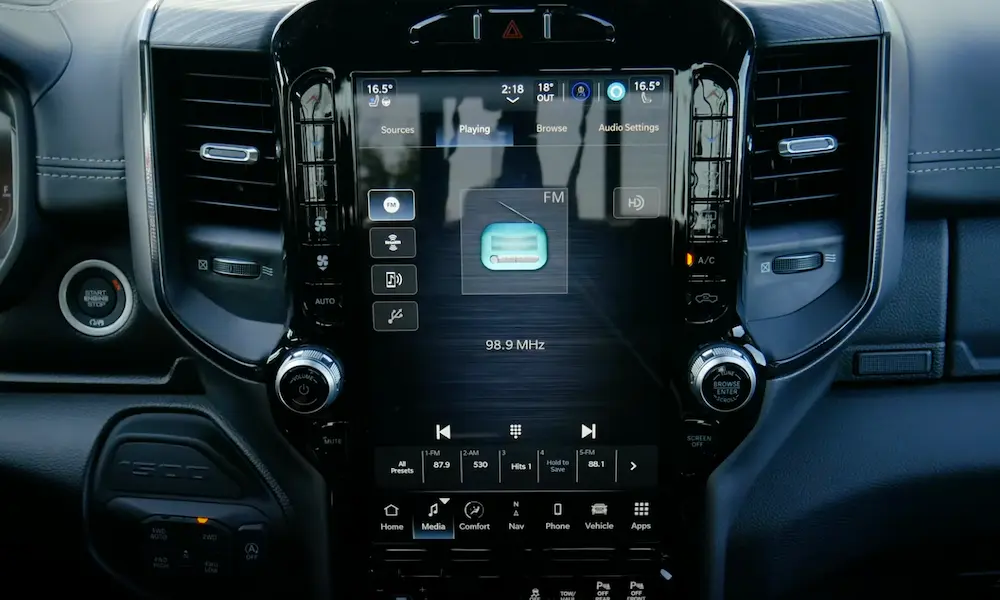
The 12-inch vertical screen also supports split-screen — navigation on top, phone info on the bottom. To reach Bluetooth settings, tap Vehicle at the bottom of the screen, then Settings at the top of the display. It’s a two-step path that trips up a lot of people.
Physical knobs and buttons sit on both sides of the screen on most models. Use them. They’re faster than the touchscreen for volume and climate, and they work even when the screen lags.
How to Set Up the Jeep App for Remote Features
Connecting your phone to Uconnect inside the car is one thing. The Jeep app takes it further — you can start the engine, lock the doors, or send a destination to your nav system from anywhere.
To set it up:
- Download the Jeep app from the App Store or Google Play
- Create an account with your email and a password
- Add your vehicle using the VIN
- Sit in the car with the ignition in Run and the app open
- Follow the in-app prompts to complete the pairing
The app requires a separate four-digit Security PIN for every remote command. This PIN is different from the Bluetooth passkey. Set it during registration and don’t forget it — you’ll use it every time you start the engine remotely or unlock the doors from your phone.
SiriusXM Guardian handles the telematics layer. If you need to change your Security PIN, contact a Guardian agent through the Assist button on your rearview mirror.
Managing Paired Devices
Uconnect stores up to 10 phone profiles. Uconnect 5 can run two simultaneously. Here’s how to keep things clean.
Disconnecting vs. Deleting — Know the Difference
- Disconnect = breaks the active connection, but saves the profile for next time
- Delete = removes the phone completely from Uconnect’s memory
Use Disconnect when you’re temporarily switching devices. Use Delete when you’re selling the car or troubleshooting a stubborn connection issue.
How to Delete a Phone on Uconnect 5
- Open Device Manager from the Phone menu
- Tap the gear icon next to the phone’s name
- Scroll to Delete Device
- Confirm on the pop-up
On Uconnect 4, go to Paired Phones, select the device, and tap the X or Delete Device button.
When the Connection Breaks: How to Fix It
Try a Soft Reset First
A soft reset reboots Uconnect without wiping anything. It fixes frozen screens, audio glitches, and most pairing failures.
- Put the car in Park, ignition in Run or Accessory
- Press and hold the volume knob and the tuner knob at the same time
- Hold for 10 to 20 seconds
- Let go when the screen goes dark or the Jeep logo appears
- Wait for the system to restart
No data gets deleted. Your stations, pairings, and settings stay intact.
Factory Reset (Use This as a Last Resort)
This wipes everything — paired phones, saved stations, navigation favorites, climate presets. Do this only if the system is seriously broken or you’re handing the car off.
- Press and hold the Temperature Up and Temperature Down buttons simultaneously for about 5 seconds
- A service menu appears on the screen
- Select Reset to Factory Settings
- Confirm and wait 30 to 60 seconds for the reboot
The “Forget and Re-Pair” Fix
If a specific phone keeps failing, do a full clean slate on both ends:
- On your phone: Go to Bluetooth settings, find Uconnect, tap Forget This Device. For CarPlay users: Settings > General > CarPlay > Forget This Car
- On Uconnect: Go to Device Manager or Paired Phones and Delete the profile
- Soft reset Uconnect, then restart your phone
- Re-pair from scratch, and accept every permission your phone asks for
This fixes the majority of stubborn connection problems. Skipping permissions — especially for contacts and messages — is one of the most common reasons Android Auto and CarPlay fail to launch properly.
Wireless CarPlay/Android Auto Not Working?
Check these things on Uconnect 5:
- Wi-Fi and Bluetooth must both be On on your phone — but don’t manually connect to the Jeep’s hotspot
- Disable your VPN — VPNs block the background processes CarPlay and Android Auto need
- Turn off battery saver mode — aggressive power settings cut wireless background activity
- Make sure you’re not plugged in via USB at the same time you’re trying to go wireless — some systems get confused by both signals at once
Cable Issues on Wired Systems
For Uconnect 4, most wired connection problems come down to the cable. A cable that charges fine can still have broken data pins inside.
- Use only OEM-certified cables — cheap ones lack proper shielding for automotive data transfer
- Clean your phone’s charging port with compressed air — lint is a real culprit
- Try a full restart of your phone before replugging — this clears the USB and Bluetooth cache
Keep Software Current
Major iOS and Android updates sometimes break existing Bluetooth pairings. Uconnect 5 gets over-the-air firmware updates automatically through the vehicle’s modem. Uconnect 4 and 3 need updates via USB drive from the Mopar website or through a dealer visit. Jeep’s phone features page lists compatible versions and what’s supported on each system.
If you’ve tried everything and Uconnect still won’t cooperate, hit the Assist button on your rearview mirror. It connects you directly to a live agent who can dig into your vehicle’s telematics and verify your subscription status.