Is your Tesla acting up or are you getting ready to sell it? A factory reset might be just what you need. This comprehensive guide walks you through every step of resetting your Tesla—whether you’re troubleshooting glitches or wiping personal data before a sale. I’ll cover everything from simple screen reboots to complete factory resets with all the essential details Tesla owners need.
Understanding Tesla Reset Options
Tesla vehicles offer three main types of resets, each serving different purposes. Before diving into a full factory reset, it’s important to understand which option best addresses your specific situation.
Soft Reboot: Quick Fix for Minor Glitches
A soft reboot is your first line of defense against minor software hiccups. This resets just the touchscreen and infotainment system without affecting critical driving functions.
To perform a soft reboot:
- Press and hold both scroll wheels on your steering wheel
- Keep them pressed for 10-15 seconds until the screen goes black
- Release the buttons and wait 30-45 seconds until the Tesla logo appears
You can do this while driving, but be aware that some features like Autopilot and speed display will temporarily turn off during the reboot.
Hard Reboot: When You Need More Power
For more persistent problems, a hard reboot power-cycles the entire vehicle’s electrical systems:
- Put your Tesla in Park
- Tap Controls → Safety & Security → Power Off
- Exit the vehicle completely and close all doors
- Wait 2-5 minutes without interacting with the car
- Press the brake pedal or open a door to wake up the system
This more thorough reset clears cached data and resets subsystems like climate control and charging interfaces.
How to Factory Reset Tesla: Complete Process
A factory reset is the nuclear option—it erases all personal data and restores your Tesla to its original settings. This is essential when selling your vehicle or transferring ownership.
Preparation Before Factory Reset
Before proceeding with a factory reset:
- Back up important data—there’s no recovery option after reset
- Connect to Wi-Fi for system stability during the reset process
- Ensure your vehicle has adequate charge (at least 20%)
- Document your settings if you want to quickly reconfigure later
Step-by-Step Factory Reset Instructions
Follow these precise steps to perform a complete factory reset:
- Park your Tesla in a secure location
- Ensure your vehicle is connected to a stable Wi-Fi network
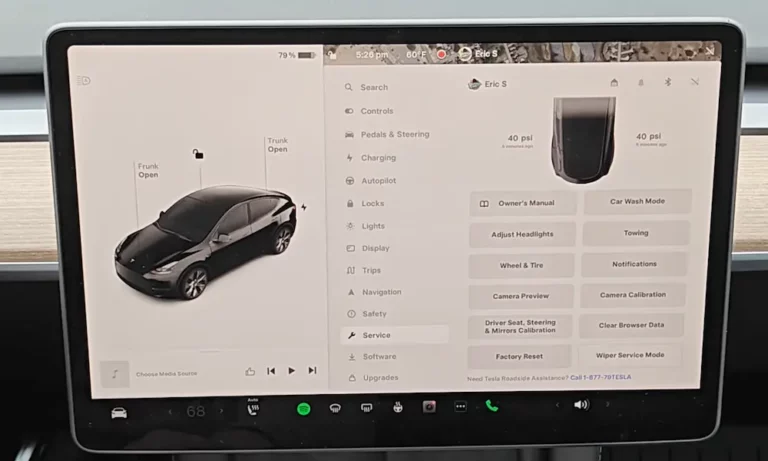
- On the touchscreen, tap Controls → Service → Factory Reset
- Enter your Tesla account credentials when prompted
- Confirm your decision to reset (consider this carefully—it’s irreversible)
- Wait 10-15 minutes for the process to complete
- The screen will display the Tesla logo followed by initial setup prompts
| What Gets Erased During Factory Reset | What Remains After Reset |
|---|---|
| Driver profiles and preferences | Vehicle firmware |
| Navigation history | Factory settings |
| Homelink configurations | VIN and vehicle registration |
| Bluetooth pairings | Hardware configurations |
| Wi-Fi connections | Service history records |
| Media settings | Supercharger access |
| App connections | Basic vehicle functions |
Finalizing Ownership Transfer
If you’re selling your Tesla, complete these additional steps:
- Remove the vehicle from your Tesla account through the mobile app or website
- Sign out of any Tesla accounts on the vehicle
- Provide new owner with necessary documents and key cards
- Remove personal items from all storage compartments
When to Use Different Reset Options
Knowing when to use each reset type saves time and prevents unnecessary data loss:
Use a Soft Reboot When:
- The touchscreen becomes unresponsive
- Music or media apps freeze
- Navigation system acts glitchy
- Climate controls aren’t responding
Use a Hard Reboot When:
- Soft reboot doesn’t resolve issues
- Multiple vehicle systems are malfunctioning
- Charging features aren’t working properly
- Vehicle software is behaving erratically
Perform a Factory Reset When:
- Selling or transferring ownership of your Tesla
- Trading in your vehicle at a dealership
- Persistent software corruption remains after other reset methods
- You want to completely start fresh with all settings
Troubleshooting Common Reset Issues
Even the reset process can sometimes encounter problems. Here’s how to address common issues:
Screen Remains Black After Reset
If your screen stays black after a reset attempt:
- Wait at least 5 minutes—sometimes the system takes longer than expected
- Try pressing the brake pedal to wake the system
- Perform a hard reboot by disconnecting and reconnecting the 12V battery (as a last resort)
Reset Option Unavailable
If you can’t access reset options:
- Ensure your vehicle is in Park
- Check that you’re using the correct menu path for your Tesla model and software version
- Make sure you have adequate battery charge (at least 10%)
Post-Reset Configuration
After a factory reset, you’ll need to reconfigure:
- Driver profiles and seat positions
- Bluetooth connections for your devices
- Wi-Fi network connections
- Navigation favorites and preferences
- Homelink garage door opener settings
- Display and comfort preferences
Resetting When Touchscreen is Unresponsive
If your touchscreen is completely frozen and you can’t access reset options, try these alternative approaches:
- Use the Tesla mobile app to schedule service or contact roadside assistance
- For emergency situations, remember Tesla vehicles have manual door releases and can be put into tow mode without touchscreen access
- As a last resort, disconnecting and reconnecting the 12V battery can force a hard restart
Software Updates After Reset
After completing a factory reset, your Tesla may need to reinstall the latest software:
- Connect to a strong Wi-Fi network
- Navigate to Software → Check for Updates
- Allow sufficient time for the download and installation process
- Keep the vehicle plugged in during updates if possible
Safety Considerations During Resets
Keep these important safety factors in mind:
- While soft reboots can be performed while driving, they temporarily disable some safety features
- Never attempt hard resets or factory resets while the vehicle is in motion
- Ensure the 12V battery is functioning properly before attempting any resets
- After resetting, verify that all safety systems are operating normally before driving
Model-Specific Reset Variations
While the core reset process is similar across Tesla models, there are some key differences:
Model 3/Y Reset Specifics
The scroll wheel reset on Model 3 and Y involves pressing both thumbscrolls on the steering wheel simultaneously.
Model S/X Reset Specifics
On older Model S and X vehicles, you may need to press both scroll wheels plus both steering wheel buttons simultaneously for a soft reboot.
Cybertruck Reset Process
As Tesla’s newest vehicle, the Cybertruck follows similar reset procedures to the Model 3/Y, but with interface variations specific to its software version.
Protecting Your Data When Selling Your Tesla
When preparing your Tesla for sale, follow these data security best practices:
- Perform a complete factory reset using the steps outlined above
- Remove the vehicle from your Tesla account through the app or website
- Ensure all key cards and fobs are reset and ready for transfer
- Verify no personal accounts remain connected to the vehicle
- Double-check storage compartments for personal items
- Remove any saved addresses from navigation
- Sign out of media streaming accounts
Tesla Reset vs. Regular Maintenance
Understanding when to reset versus when to seek service is important:
| Issues Solved by Resets | Issues Requiring Professional Service |
|---|---|
| Unresponsive touchscreen | Physical damage to components |
| Software glitches | Battery degradation issues |
| Bluetooth connection problems | Drivetrain mechanical problems |
| Climate control errors | Airbag or safety system malfunctions |
| Navigation system freezes | Structural or chassis issues |
Maintaining Tesla Performance After Reset
To keep your Tesla running optimally after a reset:
- Keep software updated to the latest version
- Regularly perform soft reboots to clear minor glitches
- Monitor battery health through the Tesla app
- Schedule periodic service checks according to Tesla’s recommendations
- Connect to Wi-Fi regularly to ensure software updates are received promptly
By understanding how to factory reset your Tesla properly, you’ll be able to maintain your vehicle’s performance, protect your personal data, and ensure a smooth ownership experience—whether you’re troubleshooting problems or preparing to sell your electric vehicle.