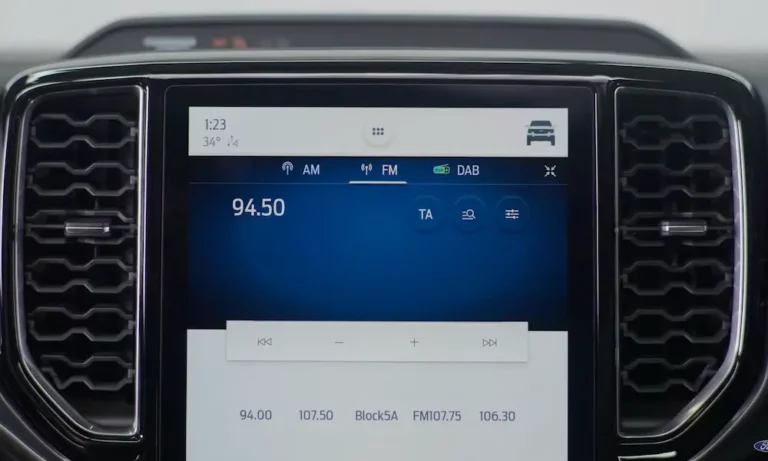
Your Ford Explorer screen just froze — again. Maybe it’s showing a black screen, stuck on the logo, or your CarPlay stopped working mid-drive. The good news? You can fix most of these issues yourself in under five minutes. Read through to find the exact reset method for your Explorer’s year.
First, Figure Out Which SYNC System You Have
The right reset method depends on your SYNC generation. Here’s a quick way to identify yours:
| SYNC Generation | Your Explorer Year | What It Looks Like |
|---|---|---|
| Gen 1 / 1.1 | 2008–2012 | Small text screen, no touch |
| Gen 2 (MyFord Touch) | 2011–2015 | Four-corner quadrant touch interface |
| SYNC 3 | 2016–2020 | Flat blue icons, CarPlay/Android Auto |
| SYNC 4 / 4A | 2021–2024 | Large screen, cloud-based search |
| Ford Digital Experience | 2025–Present | 13.2-inch screen, Google Play Store |
Not sure which version you have? Ford’s support page can help you identify your SYNC version.
How to Reset Ford Explorer Screen: The Soft Reset (Start Here)
A soft reset is your first move for almost every screen issue. It restarts the infotainment computer — called the APIM (Accessory Protocol Interface Module) — without wiping your saved data. Your radio presets, paired phones, and navigation history all stay put.
Use a soft reset when your screen:
- Freezes or stops responding to touch
- Shows a blank or stuck screen
- Loses Bluetooth or CarPlay connection
- Loads slowly or shows a spinning icon
Soft Reset for 2011–2024 Ford Explorers (SYNC 2, 3, and 4)
This button combination works on the vast majority of Ford Explorers. Follow these steps exactly:
- Turn your car on or switch to accessory mode
- Find the Power button — it’s in the center of your volume knob
- Find the Seek Right button — it looks like “>>|”
- Press and hold both buttons together for 10 seconds
- Watch the screen go dark, then release both buttons
- Wait for the Ford logo to reappear — that means it worked
The whole process takes about 30 seconds. Ford’s official support page confirms this soft reset process for SYNC-equipped vehicles.
Soft Reset Using Steering Wheel Controls
Some Explorer trims have minimal dashboard buttons. In that case, use your steering wheel instead:
- Find the Volume Down and Seek Right buttons on your steering wheel
- Press and hold both for 10 seconds
- The screen will go black and reboot
This sends the exact same signal to the APIM as the dashboard method.
Soft Reset for 2025 Ford Explorer (Ford Digital Experience)
The 2025 Explorer runs Android Automotive, so its reset works differently. You’ve got two options:
- Quick press method: Press the audio Power button five times rapidly
- Hold method: Press and hold the audio Power button for 10 full seconds
You might hear an audible pop from the speakers during the hold method. That’s completely normal — it just means the audio processor is resetting. Ford’s SYNC reset guide covers both of these approaches.
How to Do a Master Reset on a Ford Explorer Screen
A master reset wipes everything back to factory settings. It clears saved phones, navigation history, call logs, and subscription tokens stored on the unit.
Do a master reset when:
- You’re selling your Explorer or returning a lease
- A new phone won’t pair properly
- Soft resets don’t fix persistent lag or crashes
- A software update left the system unstable
Here’s the menu path for each SYNC version, based on Ford’s official master reset instructions:
| SYNC Version | Menu Path | Final Step |
|---|---|---|
| SYNC 1 / 1.1 | Menu → SYNC Settings → OK → Master Reset | Press “Yes” |
| MyFord Touch | Settings → System → Master Reset | Press “Yes” |
| SYNC 3 | Settings → General → Master Reset | Press “Continue” |
| SYNC 4 | Settings → System → Master Reset | Press “Yes” |
| Digital Experience (2025) | Apps/Vehicle → Settings → System → Reset Options → Factory Reset | Enter PIN (default: 0000) |
After a Master Reset: Re-Pair Your Phone Correctly
Here’s where most people run into trouble after a reset. Your phone still remembers the old connection. That causes a pairing loop — your phone tries to connect with an expired security token and fails every time.
Fix it like this:
- Go into your phone’s Bluetooth settings
- Find “Ford SYNC” or your Explorer’s name
- Select “Forget this device”
- Then re-pair fresh from scratch
For Android users: when the system asks for contact access permissions, check “Do Not Ask Again.” Otherwise, it’ll ask every single time you start the car.
Hard Reset Methods: When the Screen Won’t Respond At All
Sometimes the screen is completely dead — no touch response, no button response, nothing. These methods force a power cycle at the hardware level.
The Key Cycle Method (Try This First)
Your Explorer uses a system called Retained Accessory Power (RAP). This keeps the screen running for several minutes after you turn off the ignition. A standard key-off doesn’t fully cut power, which is why a specific sequence matters.
Here’s what Ford recommends if your SYNC screen isn’t responding:
- Turn the vehicle fully off
- Open the driver’s door — this cuts the RAP signal
- Lock the car and move the key fob at least 5 feet away
- Wait a full two minutes — don’t rush this step
- Start the car again
That two-minute window lets the APIM and Gateway Module fully power down and enter sleep mode. Skip it and you’re just restarting a system that hasn’t actually shut off.
Pull the Fuse for a Forced Restart
If the key cycle doesn’t work, pulling the infotainment fuse forces the module to restart without touching the battery.
2011–2019 Ford Explorer fuse locations:
The secondary fuse box sits under the steering column on the driver’s side. You’ll likely need to remove a panel secured with a 7mm screw to access it.
- Fuse 29 (20A): Primary power to the radio and SYNC module
- Fuse F67 or F68: Isolates the APIM from the rest of the electrical system
2020–2025 Ford Explorer fuse locations:
The interior fuse box is behind the glove compartment. The engine compartment fuses are under the driver-side leaf screen.
- Fuse F20: Constant power line
- Fuse F50: Accessory power line
Pull the relevant fuse, wait 30 seconds, reinsert it, and start the car. You can watch a visual walkthrough for 2011–2019 Explorer fuse access here.
Battery Disconnect: The Nuclear Option
Disconnecting the negative battery terminal clears the Keep Alive Memory (KAM) for all modules in the vehicle. This is your last resort for a screen that refuses to respond to anything else.
- Turn the engine off and remove the key
- Disconnect the negative (black) cable from the battery
- Wait at least two minutes
- Reconnect the cable
- Start the car — the SYNC system will do a full cold-start initialization
Note: this resets more than just the screen. Your radio presets and other module memories will clear too.
Fixing a Black Screen on a Ford Explorer
A black screen isn’t always a software glitch. It’s sometimes a sign of something more serious.
Quick Software Fixes First
Before assuming hardware failure, Ford’s SYNC 3 blank screen guide suggests working through the soft reset and key cycle steps above. Most black screen issues resolve at this stage.
Signs Your APIM Is Actually Failing
If resets don’t help, the problem might be the APIM hardware itself — specifically the eMMC memory chip inside the unit. SYNC 3 units from 2016–2018 are particularly known for eMMC degradation.
Watch for these warning signs:
- Maps show your car in the wrong state — or in the ocean
- The screen freezes on “Loading” and never moves
- Random reboots happen constantly
- GPS accuracy is way off
- An OBD-II scanner shows code U0253 (Lost Communication with APIM)
If you see U0253, that’s a hardware-level failure. A reset won’t fix it — the module needs inspection or replacement.
Water Damage and Weak Batteries
Two other culprits worth checking: water intrusion from the A-pillar can short out APIM connectors behind the dashboard. And a weak 12V battery that drops voltage during engine crank can prevent the APIM from booting, showing a black screen that mysteriously clears after a manual reset.
Fixing Blank Screen Errors After a Software Update
Update errors cause some of the most frustrating black screen situations. Here’s what the error codes mean and what to do:
| Error Code | What It Means | Fix |
|---|---|---|
| PKG_ERR03 | Corrupted download files | Delete files, re-download fresh, re-extract to USB |
| mem_003 | Not enough system memory | Do a master reset + key cycle, then retry USB |
| U0253 | Lost communication with APIM | Check wiring or replace APIM module |
| U0184 | Lost communication with radio | Check radio/ACM fuse |
For SYNC 3 updates via USB, format your drive to exFAT. Older Gen 1 and Gen 2 systems need FAT32. Using the wrong format is a very common reason updates fail.
CarPlay and Android Auto Freezing? Here’s Why Resetting the Screen Might Not Be Enough
If your screen freezes specifically when using CarPlay or Android Auto, the screen itself might be fine. The issue is often the phone connection.
Check Your USB Cable and Port
A bad cable causes more “infotainment problems” than most people realize. Use a certified cable and plug into the port closest to the SYNC screen — that’s typically the primary data port. Rear console ports often only deliver charging power, not data.
If you have a 2016 Explorer and CarPlay has never worked, there’s a hardware reason. Enabling CarPlay on the 2016 model requires replacing the factory USB hub with an Apple-certified unit (part number HC3Z-19A387-F). No amount of resetting will enable it without that hardware upgrade.
Reset Your Phone Too
Sometimes the Explorer’s screen is fine and your phone is the actual problem. Try this:
- iPhone (11–16): Hold Volume Down + Sleep/Wake button to force restart
- Android: Hold Power + Volume Down
- Also: Go into your phone’s Bluetooth settings and clear the Bluetooth cache, or delete the Explorer from your “Known Devices” list before reconnecting
Ford’s support pages walk through both Apple CarPlay troubleshooting and Android Auto issues in detail.
2025 Ford Explorer Screen Issues: Special Cases
The 2025 Explorer’s Android-based Ford Digital Experience adds a layer of cloud complexity that older models don’t have.
Google Account Freezing
If your 13.2-inch screen freezes while you’re trying to link a Google account, it’s probably a connectivity issue — not a screen issue. Google account syncing requires an active Ford Connectivity Package. Activate it through the Ford app on your phone first, then try again on the screen.
Factory Reset Delays Subscriptions
One important heads-up for 2025 owners: doing a factory reset can make paid features like Navigation or BlueCruise unavailable for up to 10 business days while the vehicle re-authenticates with Ford’s servers. Plan around that if you need those features regularly.
Keeping Your Screen Healthy Long-Term
Prevention beats troubleshooting every time. A few habits that keep Explorer screens running smoothly:
- Keep software updated via Wi-Fi OTA updates (SYNC 4 and Digital Experience) or USB for older versions. Check Ford’s software update FAQ for the process
- Check your 12V battery — a weak battery causes more screen issues than most people expect
- Use quality cables — cheap cables cause phantom connectivity problems
- Do a master reset when switching phones — it prevents pairing conflicts before they start
- Watch for water intrusion near the A-pillar, especially after heavy rain