Can’t get into your Tesla because your key card isn’t responding? You’re probably feeling a mix of frustration and confusion right now. Tesla’s key card system seems simple, but when it fails, it can leave you stranded in a parking lot wondering what went wrong. The good news is that most key card issues have straightforward fixes you can try yourself.
Why Tesla Key Cards Sometimes Fail
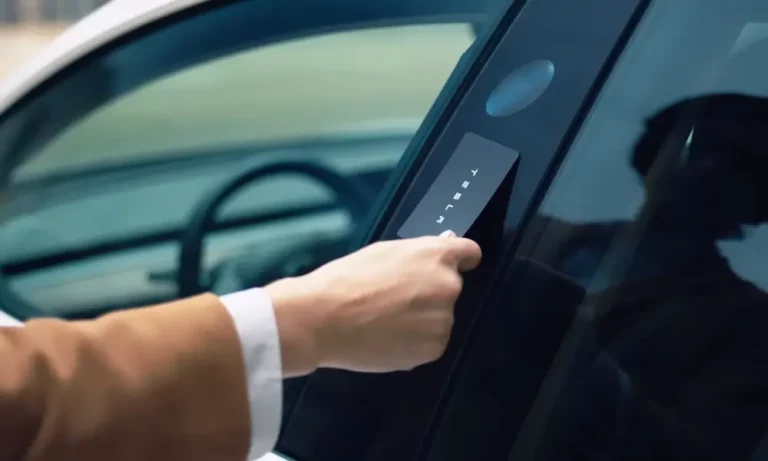
Tesla key cards use Near-Field Communication (NFC) technology to authenticate you as the rightful owner. This technology requires the card to be placed at the right spot on your car – typically on the driver’s side B-pillar for unlocking and on the center console for starting the vehicle.
Several factors can cause your Tesla key card to stop working:
Physical Damage to the Card
Your Tesla key card might look sturdy, but it contains sensitive technology inside that can be damaged. Common physical issues include:
- Bent or cracked cards
- Water damage (though some have survived washing machines when in silicone covers)
- Scratches over the NFC chip area
- Exposure to extreme temperatures
When examining your card, look for visible damage that might explain why it’s not working. Even minor bends can disrupt the internal components.
Improper Scanning Technique
Many Tesla owners don’t realize that proper scanning technique matters. The key card needs to:
- Make direct contact with the reader
- Be properly aligned with the sensor
- Remain in place for a second or two
If you’re quickly tapping the card or placing it at an angle, the car might not register it properly.
Software and Firmware Issues
Tesla regularly updates vehicle software, and sometimes these updates can temporarily affect key card functionality. For example, some users reported key card failures after installing version 2024.45.32.10, which was resolved by reinstalling the Tesla app and rebooting the vehicle.
Environmental Interference
Metal objects and electronic devices can disrupt NFC signals. If your key card is stored next to your phone, credit cards with chips, or other electronic devices, it might not work properly when you need it.
Quick Fixes for Tesla Key Card Problems
When your Tesla key card stops working, try these troubleshooting steps in order:
1. Check Your Technique
First, make sure you’re using the card correctly:
- For Model 3/Y: Place the card flat against the B-pillar (the post between front and rear doors) on the driver’s side
- For unlocking: Hold the card for 1-2 seconds until you hear the unlock sound
- For starting: Place the card in the center console cup holder area
- Remove any case or cover that might be blocking the signal
2. Clean Both the Card and Reader
Dirt and debris can block NFC signals:
- Gently clean your key card with a dry cloth
- Check the vehicle’s reader area for dirt or obstructions
- Avoid using liquid cleaners on either the card or the reader as they might damage the electronics
3. Reboot Your Tesla
Just like your smartphone, sometimes your Tesla needs a restart:
- Go to Controls > Safety > Power Off
- Wait at least two minutes without touching anything (including the brake pedal)
- Press the brake pedal or touch the screen to wake the car
- Try your key card again
This soft reset often resolves temporary glitches without affecting any of your settings.
4. Check for Software Updates
Outdated software can cause authentication errors:
- Make sure your Tesla app is version 4.29.0 or newer
- Check that your vehicle is running software version 2022.40 or newer
- If updates are available, install them and try your key card again
You can check for updates in your Tesla by tapping Controls > Software.
Re-pairing Your Key Card
If basic troubleshooting doesn’t work, you may need to re-pair your key card:
How to Re-pair a Tesla Key Card
- Sit in your Tesla with an already working key (phone key or another card)
- Go to Controls > Locks > Keys
- Delete the malfunctioning key card by tapping the trash icon
- Select “Add Key Card”
- Scan your key card on the designated reader:
- For Model 3/Y: on the center console
- For Model S/X: on the left phone charger
- The screen will confirm successful pairing
If you don’t have any working keys, you’ll need to contact Tesla service, as the system requires authentication from a trusted device to add new keys.
Security Considerations
When troubleshooting key card issues, keep security in mind:
Enable PIN-to-Drive as Backup
Security researchers have identified vulnerabilities in Tesla’s key card system. To protect yourself:
- Enable PIN-to-Drive through Controls > Safety > PIN to Drive
- This adds a second layer of security so that even if someone has your card, they can’t drive off without the PIN
- Regularly check your list of paired keys in the Tesla app to ensure no unauthorized devices are added
Check for Unauthorized Pairings
In 2022, researcher Martin Herfurt demonstrated that attackers could pair malicious key cards within two minutes of initial unlock. To protect yourself:
- Periodically review paired keys in your Tesla app
- Remove any devices you don’t recognize
- Be vigilant about who has access to your car, especially right after you’ve unlocked it
When to Replace Your Key Card
Some signs that your key card needs replacement include:
- Visible physical damage
- Inconsistent performance even after trying all troubleshooting steps
- Complete failure to respond after multiple attempts
Where to Get Replacement Cards
Tesla key cards typically cost between $35-$75 each. You can order them from:
- Tesla’s online shop
- Tesla service centers
- The Tesla mobile app (Service section)
When ordering new cards, you’ll need to have them programmed to your vehicle, which requires at least one functioning key.
Checking Your Vehicle’s NFC Readers
If multiple key cards fail to work, the problem might be with your Tesla’s NFC readers:
Reader Locations by Model
| Tesla Model | Main Card Reader Location | Secondary Reader Location |
|---|---|---|
| Model 3/Y | Driver’s side B-pillar | Center console cup area |
| Model S/X | Driver’s side B-pillar | Left side of phone charger |
| Cybertruck | Driver’s side B-pillar | Center console |
Signs of a Faulty Reader
- Multiple cards fail at the same location
- Cards work inconsistently at a specific reader
- Reader works only when card is positioned in a particular way
If you suspect a reader problem, schedule service through the Tesla app. The technicians can diagnose and repair the NFC reader system.
Alternative Access Methods
While troubleshooting your key card, remember you have other options to access your Tesla:
Phone as Key
The Tesla app on your smartphone can serve as a key through Bluetooth. To set this up:
- Download the official Tesla app
- Log in with your Tesla account
- Select your vehicle
- Go to Keys > Add Phone Key
- Follow the on-screen instructions
Key Fob Option
For those who prefer a traditional key experience, Tesla offers key fobs for most models:
- More expensive than key cards ($150+)
- Offers passive entry (no need to take it out of your pocket)
- Available through Tesla’s online shop or service centers
Keeping Your Key Card Safe
To prevent future problems with your Tesla key card:
- Store it in a protective sleeve or case
- Keep it away from other electronic devices and magnets
- Avoid extreme temperatures
- Don’t bend or flex the card
- Have a backup access method ready (phone key or spare card)
Real-World Experiences
Many Tesla owners have shared their key card troubleshooting success stories:
A Model Y owner reported that after delivery, their new key cards failed immediately. Tesla service identified improper pairing during pre-delivery setup and fixed the issue by manually reprogramming the cards.
Another Model 3 owner experienced key card and app failures after a software update in 2024. They resolved the issue by reinstalling the Tesla app, removing the phone key, and rebooting the vehicle’s infotainment system.
Understanding NFC Technology
Your Tesla key card relies on Near-Field Communication (NFC) technology, which works through electromagnetic induction between two antenna coils. This technology:
- Works only at very short distances (typically 4cm or less)
- Requires no battery in the key card
- Uses encryption to securely authenticate with your vehicle
- Can be disrupted by metal objects or electronic interference
Understanding how NFC works helps explain why proper placement against the reader is so critical for your key card to function correctly.
Keeping Your Tesla Secure
While fixing your key card issues, take this opportunity to enhance your Tesla’s security:
Security Best Practices
- Regularly update your Tesla’s software
- Enable PIN-to-Drive
- Periodically audit paired keys
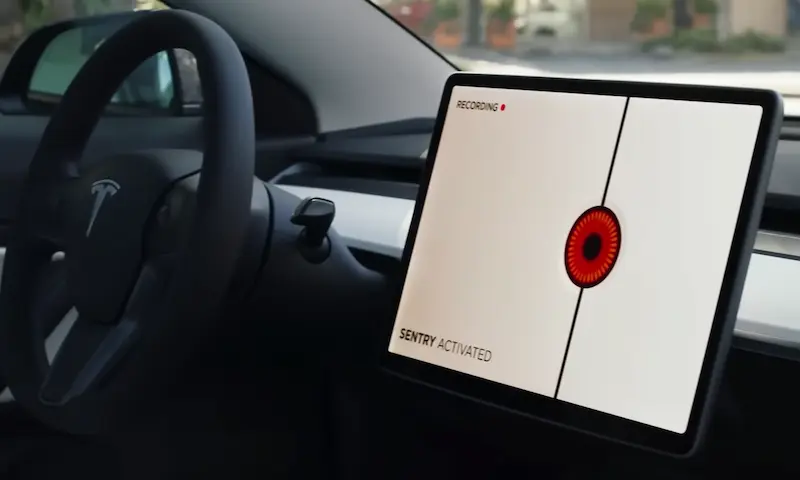
- Consider using Sentry Mode when parked
- Store your spare key card in a secure location (not in the vehicle)
- Use a Faraday pouch for your spare key to prevent relay attacks
Following these practices will ensure that your Tesla remains secure even if your key card experiences issues.
By understanding how Tesla key cards work and following these troubleshooting steps, you can resolve most key card issues quickly and get back on the road. Remember to maintain multiple access methods to your vehicle and keep your software updated for the best experience.