Is your Tesla showing “no traffic data” or refusing to stream your favorite shows? You’re dealing with a Premium Connectivity issue that’s keeping you from enjoying the features you’re paying for. Let’s get you back online with this straightforward guide to fixing connectivity problems in your Tesla.
What is Tesla Premium Connectivity?
Tesla Premium Connectivity is a subscription service ($9.99/month or $99/year) that powers your vehicle’s data-hungry features through cellular networks. While Standard Connectivity (free for eight years) limits you to Wi-Fi for most features, Premium gives you on-the-go access to:
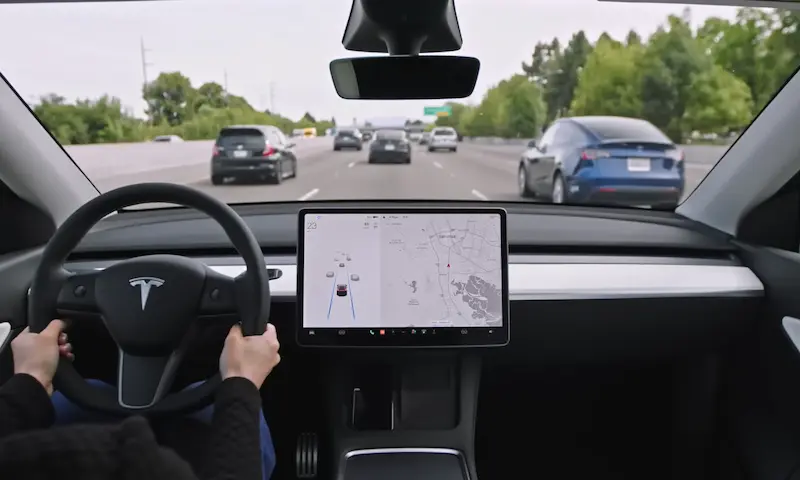
- Live traffic visualization
- Satellite maps view
- Video streaming (Netflix, YouTube)
- Music streaming services
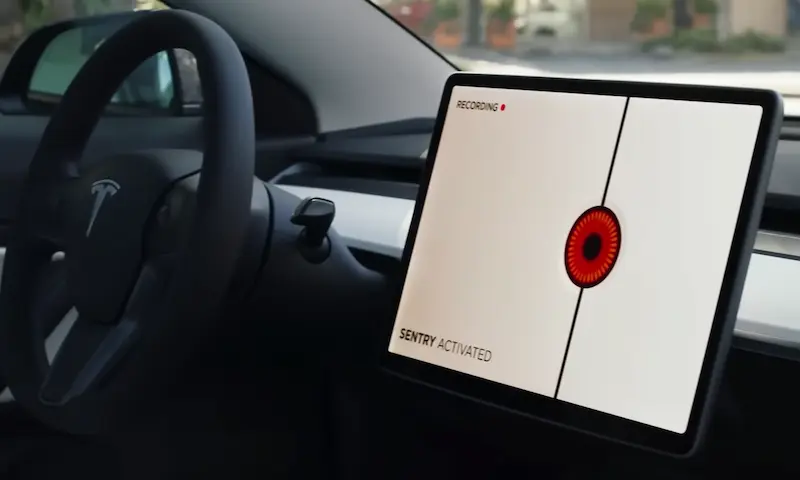
- Sentry Mode live camera viewing
- Web browser functionality
Tesla vehicles ordered before June 2018 include lifetime Premium Connectivity, while newer models typically get a trial period ranging from 30 days to one year.
Common Reasons Your Tesla Premium Connectivity Isn’t Working
Subscription Issues
The most common reason for connectivity problems is an expired subscription. Tesla doesn’t always send clear notifications when your Premium service lapses.
To check your subscription status:
- Open the Tesla app
- Navigate to “Upgrades > Manage”
- Verify your Premium Connectivity status is active
- Check for any payment method issues
For company-owned Teslas, you might need administrator approval to activate or renew subscriptions.
Cellular Network Problems
Your Tesla uses specific carrier networks (AT&T in the US, Telus in Canada) to provide Premium Connectivity services. Issues with these networks can cause outages.
Common network-related problems include:
- Driving in areas with poor cell coverage
- Network outages (like the 2024 Telus outage in Western Canada)
- Underground parking garages or buildings that block signals
- Congested network towers in crowded areas
Software Glitches
Tesla’s over-the-air updates occasionally introduce bugs that affect connectivity. Your vehicle might show “connected” status but fail to load data-dependent features like traffic visualization or streaming services.
Hardware Malfunctions
Though less common, hardware issues can cause persistent connectivity problems:
- Faulty LTE modem
- Damaged antenna
- Interference from aftermarket accessories
- Failed connectivity module
How to Fix Tesla Premium Connectivity Problems
Step 1: Verify Your Subscription
Before troubleshooting technical issues, make sure your subscription is active:
- Open the Tesla app on your phone
- Go to “Upgrades” and then “Manage”
- Check that Premium Connectivity shows as active
- If expired, renew your subscription
- Wait 15-30 minutes for activation to complete
Step 2: Check for Network Outages
Tesla’s servers or your carrier’s network might be experiencing problems.
- Check Downdetector’s Tesla page for reported issues
- Look for carrier outages (AT&T, Telus, etc.) in your area
- Try connecting to services again in different locations
Step 3: Perform a Soft Reboot
Rebooting your Tesla’s infotainment system often resolves temporary connectivity issues:
- Put your car in Park
- Press and hold both scroll wheels on the steering wheel
- Continue holding for 10-15 seconds until the screen turns black
- Wait for the Tesla logo to appear and the system to restart
For more persistent issues, try a deeper reboot:
- Put the car in Park
- Press and hold both scroll wheels AND the brake pedal
- Hold for about 20 seconds until the screen reboots
Step 4: Toggle Between Wi-Fi and Cellular
Sometimes your Tesla gets stuck trying to use Wi-Fi even when the signal is poor.
To force cellular reconnection:
- Go to Controls > Wi-Fi
- Toggle Wi-Fi off
- Drive to an area with good cellular coverage
- Wait 2-3 minutes for cellular connection to establish
If you’re at home:
- Connect to your home Wi-Fi
- Let the car fully connect
- Then disconnect from Wi-Fi manually
- This can trigger a fresh cellular connection attempt
Step 5: Update Your Vehicle Software
Outdated software can cause connectivity problems. Make sure your Tesla has the latest updates:
- Connect to Wi-Fi for faster downloads
- Go to Controls > Software
- Check for and install any pending updates
- After updating, perform a soft reboot as described earlier
Staying on the latest software version ensures you have the most recent connectivity bug fixes from Tesla.
Step 6: Check for Hardware Interference
Some items can interfere with your Tesla’s connectivity:
- Remove USB drives from the glovebox USB ports
- Disconnect any aftermarket devices that might cause interference
- Check for physical damage to the area where antennas are located (usually in the roof area)
Step 7: Try a Different Location
Cell service varies by location. If you’re in a parking garage or rural area, try:
- Drive to an open area with fewer obstructions
- Wait 5-10 minutes in a new location to allow reconnection
- Check if Premium Connectivity features become available
Advanced Troubleshooting for Persistent Issues
Network Reset Procedure
For stubborn connectivity problems, try this deeper reset:
- Go to Controls > Service > Reset
- Select “Reset Connectivity” (if available in your software version)
- Allow the car to restart its networking systems
- Wait 5-10 minutes before testing connectivity
Check Vehicle Diagnostics
Tesla provides some diagnostic information you can access:
- Go to Controls > Software > Additional Vehicle Information
- Look for modem connection status and signal strength
- Note any error codes to share with Tesla Support
Alternative Connectivity Solutions
When Premium Connectivity isn’t working, you can still access some features:
- Use your phone as a hotspot
- Enable “Remain Connected in Drive” in your Wi-Fi settings
- This keeps navigation and streaming working without Premium Connectivity
- Pre-download content when on Wi-Fi
- Save navigation routes while connected to Wi-Fi
- Download music playlists in advance
When to Schedule Service
If you’ve tried all troubleshooting steps and your Premium Connectivity is still not working, it’s time to contact Tesla:
- Schedule a service appointment through the Tesla app
- Describe all troubleshooting steps you’ve already attempted
- Mention any error messages you’ve seen
- Share when the problem started (especially if after a software update)
Service technicians can perform deeper diagnostics and may need to replace the LTE modem or antenna if they find hardware failures.
Regional Considerations
Premium Connectivity performance varies by region due to different carrier partnerships and regulations:
United States
- Uses AT&T network primarily
- Coverage is strongest in urban and suburban areas
- AT&T outages in early 2024 affected Tesla connectivity nationwide
Canada
- Relies on Telus network infrastructure
- Western Canada experienced major disruptions during a 2024 Telus outage
- Coverage may be limited in remote provinces
Europe
- Uses different carriers depending on country
- Roaming between countries may affect connectivity quality
- Check local Tesla support for region-specific troubleshooting
Understanding Premium vs. Standard Connectivity
When troubleshooting, it helps to know which features require Premium Connectivity and which work with Standard Connectivity:
| Feature | Premium Connectivity | Standard Connectivity |
|---|---|---|
| Navigation | ✓ | ✓ (basic maps only) |
| Live Traffic | ✓ | ✗ (Wi-Fi only) |
| Satellite View | ✓ | ✗ (Wi-Fi only) |
| Music Streaming | ✓ | ✓ (Bluetooth from phone) |
| Video Streaming | ✓ | ✗ (Wi-Fi only) |
| Web Browser | ✓ | ✗ (Wi-Fi only) |
| Sentry Mode Live View | ✓ | ✗ (Wi-Fi only) |
| Software Updates | ✓ (cellular) | ✓ (Wi-Fi only) |
Understanding this difference helps determine whether you’re experiencing a Premium Connectivity issue or a more general connectivity problem.
Future Developments for Tesla Connectivity
Tesla is working on improving connectivity reliability:
- Potential Starlink integration could provide satellite-based connectivity
- Multi-carrier support may be implemented to improve reliability
- Enhanced diagnostics in the Tesla app could help troubleshoot issues faster
Until these improvements arrive, the troubleshooting steps above should resolve most Premium Connectivity issues you encounter.
By systematically working through these solutions, most Tesla owners can restore their Premium Connectivity features without a service appointment. Remember that cellular service varies by location, network conditions, and vehicle hardware generation.