Is your Ford SYNC frozen, black, or acting like it’s completely given up? Before you book a dealer appointment, there’s a good chance you can fix this yourself. This guide walks you through every proven fix — from a quick soft reset to checking fuses — based on your specific SYNC generation. Stick around, because the solution is probably simpler than you think.
First, Know Which SYNC You Have
Not all Ford SYNC systems are the same. The fix that works on a 2015 Escape won’t necessarily work on a 2022 F-150. Your troubleshooting needs to match your system’s generation.
Here’s a quick breakdown:
| System Generation | Key Features | Update Method |
|---|---|---|
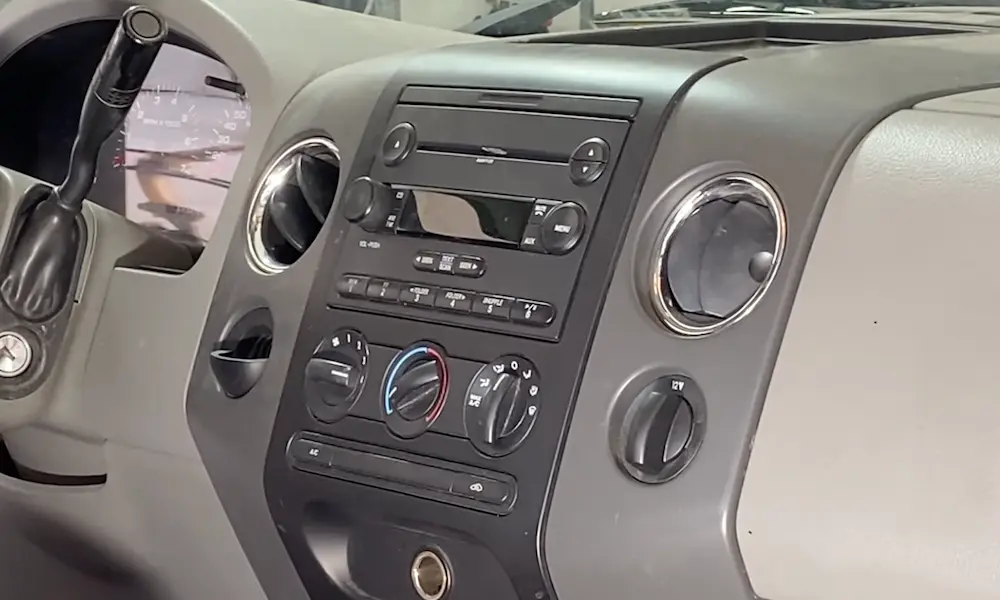
| SYNC Gen 1 / 1.1 | Physical buttons, text-based | USB (FAT32) |
| SYNC 2 (MyFord Touch) | 8-inch resistive touchscreen, SD card nav | USB (FAT32) |
| SYNC 3 | Capacitive touch, wired CarPlay/Android Auto | USB (exFAT) or Wi-Fi |
| SYNC 4 / 4A | Wireless CarPlay, 8–15.5-inch screen | Over-the-air (OTA) |
| Digital Experience | Panoramic display, full wireless | Over-the-air (OTA) |
Check your screen size, whether you have physical buttons, and your model year. That’ll tell you which generation you’re working with before you try any fix.
Start Here: The Soft Reset
When Ford SYNC is not working — frozen menus, laggy touch response, stuck navigation — the soft reset is your first move. It reboots the system without erasing your settings, presets, or paired phones.
If your vehicle has a physical Power/Volume knob:
- Press and hold the Power button + Seek Right (Forward) button simultaneously
- Hold for 10–15 seconds until the screen goes dark
- Release and wait for the system to reboot
If your vehicle has no physical power button (newer integrated cockpits):
- Use your steering wheel controls instead
- Hold Volume Down + Seek Right for 10–15 seconds
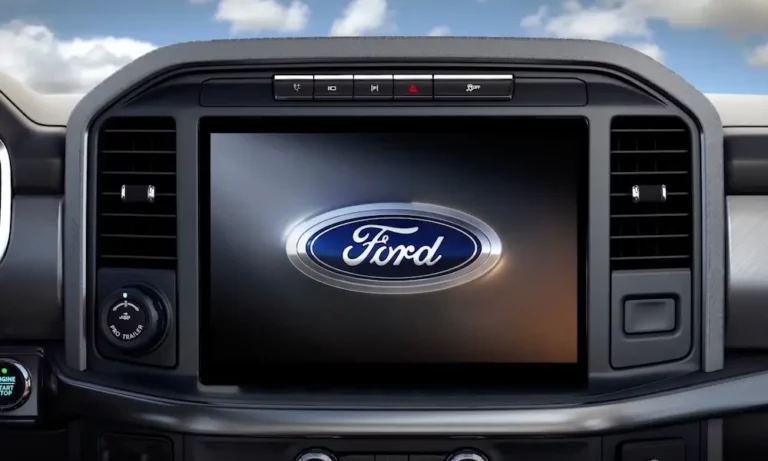
The Ford logo should appear as the system restarts. That’s your sign it worked. If SYNC is still not working after this, move to the next step.
Do a Proper Key Cycle (It’s Not Just Turning the Car Off)
Most people think turning the ignition off resets everything. It doesn’t. Modern Fords keep the infotainment module in standby mode, so a quick off-on cycle doesn’t fully cut the power.
Here’s how to do a proper key cycle:
- Turn the engine off completely — don’t leave it in accessory mode
- Open the driver’s door, lock it, and close it
- Wait at least two full minutes — this lets the modules fully power down
- Get back in and start the vehicle
You should see a “Welcome” animation when the system boots. That means it did a proper cold start rather than waking from standby. If Ford SYNC is still not working, it’s time to go deeper.
The Master Reset: When Nothing Else Works
A Master Reset wipes the system clean — back to factory settings. It resolves persistent Bluetooth failures, corrupted navigation, and stubborn menu errors.
What you’ll lose:
- All paired phones and Bluetooth devices
- Saved addresses (home, work, favorites)
- Call history and text logs
- Custom settings like ambient lighting or audio preferences
Before you start, unplug all USB devices and disconnect any Bluetooth connections to avoid conflicts during the reset.
How to reach the Master Reset menu by generation:
- SYNC 3: Settings → General → Master Reset (scroll to the bottom)
- SYNC 4: Settings → System → Reset
- MyFord Touch (SYNC 2): Press the Gear icon → System → Master Reset
After you confirm, the screen goes blank for several minutes. Don’t touch it. Don’t turn the car off. Interrupting this process can corrupt the firmware and turn a simple fix into an expensive repair.
Is It a Software Problem or a Hardware Problem?
If resets don’t fix Ford SYNC, the issue might be hardware. The system has two main components that fail in different ways:
- Accessory Protocol Interface Module (APIM) — the brain of the system
- Front Display Interface Module (FDIM) — the physical screen and touch layer
Knowing which one is failing saves you time and money.
| Symptom | Likely Culprit | What’s Happening |
|---|---|---|
| Black screen but audio still works | APIM | Processor crash or internal board failure |
| Screen “bubbling” or peeling | FDIM | Digitizer delamination |
| Bluetooth keeps dropping | APIM | Firmware corruption or connectivity chip issue |
| Stuck on Ford logo | APIM | Boot-loader failure or corrupted OS |
| Touch doesn’t respond | FDIM | Digitizer failure or loose ribbon cable |
| Backup camera shows blue or black | APIM / Software | Signal interrupt or communication bug |
A black screen with audio still playing is one of the clearest signs your APIM is failing. Replacing this module isn’t plug-and-play — it has to be programmed with your vehicle’s VIN and its specific “As-Built” configuration data. That’s typically a dealer job or requires specialized software.
Check for Recalls and Service Bulletins First
Before spending money on repairs, check if Ford already has a fix documented.
Ford released TSB 20-2363 and TSB 20-2255 to address frozen touchscreens, solid blue screens, and voice prompt failures on SYNC 3 across the F-150, Escape, and Mustang. These bulletins explicitly state that many modules were being swapped out unnecessarily when a software update was the right fix.
There’s also a significant safety recall worth knowing about. NHTSA recall 23V-342 covered over one million vehicles with SYNC 4, including 2023–2024 Super Duty trucks. A software bug caused the rearview camera image to freeze or disappear entirely during reversing — a real safety risk. The fix is a software reprogram of the APIM, done at the dealer.
Check your VIN at NHTSA’s recall database before doing anything else. Your fix might be free.
Fixing Bluetooth, CarPlay, and Android Auto
Connectivity issues often look like Ford SYNC not working — but the real problem is the phone, the cable, or the pairing itself.
Bluetooth Keeps Dropping
Do a “clean pairing” rather than just re-pairing:
- Delete the vehicle from your phone’s Bluetooth settings
- Delete your phone from SYNC’s device list
- Restart both devices
- Pair fresh
This clears corrupted security keys that prevent a stable connection. It’s the fastest fix for persistent Bluetooth dropouts.
Wired CarPlay or Android Auto Not Connecting
The cable is usually the problem. Generic cables often lack the shielding needed for the high-bandwidth data that screen mirroring requires. Use the cable that came with your phone. Also, plug into the USB port closest to the SYNC screen to minimize signal loss.
Wireless Projection Failing (SYNC 4 / 4A)
Wireless CarPlay and Android Auto use Bluetooth to connect, then a 5 GHz Wi-Fi channel for actual data streaming. If it’s not working:
- Check that “Wireless App Projection” is enabled in your connectivity settings
- Make sure your phone’s battery saver mode isn’t blocking the connection
- Try switching to a wired USB connection to rule out a hardware issue with the vehicle’s wireless chip
How to Update Your SYNC Software
Outdated software causes more SYNC problems than most people realize. Regular updates fix bugs, improve device compatibility, and patch security vulnerabilities.
| Generation | Update Method | USB Format | Drive Size |
|---|---|---|---|
| SYNC Gen 1 / 1.1 | USB drive | FAT32 | 4–32 GB |
| SYNC 2 (MyFord Touch) | USB drive | FAT32 | 8–32 GB |
| SYNC 3 | USB drive or Wi-Fi | exFAT | 16 or 32 GB |
| SYNC 4 / 4A | Wi-Fi / Over-the-Air | N/A | Fast Wi-Fi required |
For USB-based updates, format the drive correctly and make sure it’s completely empty. Download the update file using your VIN, then extract the files directly to the root of the USB drive — not inside a folder. If files sit inside a subfolder, SYNC won’t find them and you’ll get a “File Not Found” error.
The update takes 30–45 minutes. Keep the engine running in a ventilated space and don’t remove the USB drive until it’s done. If the update gets interrupted, you may see a MEM_003 error. The fix is to do a Master Reset and a full key cycle, then start the update process over from scratch.
Check the Fuses
If your SYNC screen is completely dead — no backlight, no audio, nothing — it’s probably not a software issue. Check the fuses.
Ford vehicles use two fuse panels:
- Power Distribution Box — in the engine compartment, handles high-current systems
- Passenger Compartment Fuse Panel — behind a panel near the passenger footwell, covers infotainment and USB
The SYNC module fuse is typically 7.5 or 10 amps, labeled “SYNC,” “Multifunction Display,” or “APIM” in your owner’s manual. A blown fuse here is often caused by a cheap USB charger or a short in something plugged into your car’s power outlets.
Replace it with the exact same amperage. Going higher to “prevent it from blowing again” can permanently fry your module.
The Battery Reset (For Persistent Module Errors)
If your SYNC keeps rebooting randomly or won’t turn on during cold starts, your 12-volt battery might be the cause. As batteries age, they shed voltage under load — and your car’s computer often cuts power to the infotainment system first to protect the starter.
A full hard reset of the vehicle’s electrical network sometimes clears stubborn communication errors between modules:
- Disconnect the negative battery terminal
- Wait 15–30 minutes — this lets capacitors inside the control modules fully discharge
- Reconnect the positive terminal first, then the negative
- Start the car and check if SYNC boots normally
This full discharge forces the vehicle’s CAN bus to re-poll all connected modules from scratch. If SYNC was stuck in a bad communication loop, this often clears it.
MyFord Touch (SYNC 2) SD Card Issues
If you’re on a MyFord Touch system and you see a “Navigation SD Card Fault” message, the fix is usually simple:
- Turn the ignition off
- Remove the SD card and firmly reinsert it until it clicks
- Restart the vehicle
If the fault persists, the card itself is likely corrupted and needs replacement through Ford’s navigation store.
Also worth knowing: older SYNC 2 systems struggle with large phonebooks. If your system lags badly for the first few minutes of every drive, it’s probably indexing thousands of contacts for voice recognition. Turn off Automatic Phonebook Download in your Bluetooth settings and do a clean pairing. It makes a noticeable difference on older hardware.