Paying for Tesla Premium Connectivity but not getting your money’s worth? Whether you’re looking to save on monthly expenses or simply don’t use the premium features enough, canceling your subscription is straightforward—once you know where to look. This guide walks you through exactly how to cancel your Tesla Premium Connectivity subscription across different platforms, what happens after cancellation, and smart alternatives to consider.
What Is Tesla Premium Connectivity?
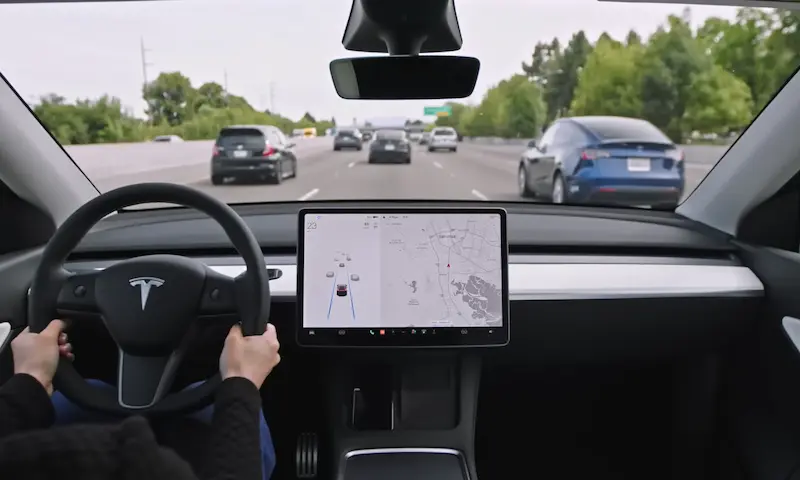
Tesla Premium Connectivity gives you cellular-based features that enhance your Tesla experience. For $9.99 monthly in the US (with different pricing in other regions like €9.99 in Germany or HK$68 in Hong Kong), you get:
- Live traffic visualization on your navigation maps
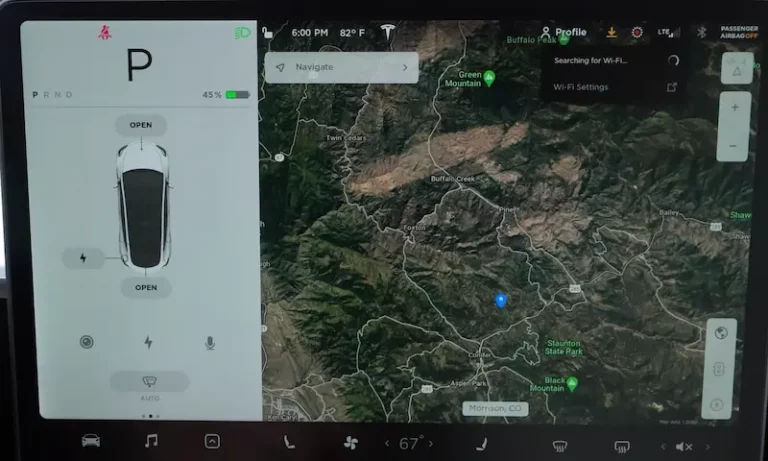
- Satellite-view maps with detailed terrain
- Video streaming apps (Netflix, YouTube) while parked
- Music streaming services
- Karaoke mode
- Internet browsing
When you first purchased your Tesla, you likely received a free trial period. After that ended, Tesla automatically enrolled you in the paid subscription unless you canceled.
How to Cancel Premium Connectivity Through the Tesla App
The mobile app is usually the quickest way to cancel your subscription:
- Open the Tesla app on your smartphone
- Make sure the correct vehicle is selected
- Tap on “Upgrades” at the bottom of the screen
- Select “Manage Upgrades”
- Find “Premium Connectivity” under your active subscriptions
- Tap “Cancel Subscription”
- Confirm your cancellation when prompted
Some users have reported that the cancel option only appears after tapping on billing details first. If you don’t see the cancellation option immediately, try editing your payment method first, then look for the cancel option.
How to Cancel Through Your Tesla’s Touchscreen
You can also cancel directly from your vehicle:
- Tap the car icon on your Tesla touchscreen
- Select “Software” from the menu
- Look for “Premium Connectivity” option
- Select “Cancel Subscription”
- Confirm your cancellation
This method works identically across all Tesla models, though the exact menu placement might vary slightly depending on your vehicle’s software version.
Troubleshooting Missing Cancel Options
Can’t find the cancel button? Here are common causes and solutions:
- App not updated: Make sure you’re running the latest Tesla app version
- Regional differences: The menu layout might differ slightly based on your country
- Fleet vehicle: If your Tesla is part of a company fleet, an administrator may need to make changes
- Account permissions: Ensure you’re signed in with the account that purchased the subscription
If you still can’t find the cancellation option, contact Tesla Support through the app’s “Service” section for direct assistance.
What Happens After You Cancel Premium Connectivity?
After cancellation, here’s what to expect:
- Your Premium Connectivity features remain active until the end of your current billing cycle
- Tesla doesn’t offer prorated refunds for partial months
- Your car automatically switches to Standard Connectivity after the paid period ends
Features You’ll Keep with Standard Connectivity
- Basic navigation
- Traffic-based navigation routing
- Bluetooth media streaming
- Over-the-air software updates
- Any features accessed over Wi-Fi when connected
Features You’ll Lose Without Premium Connectivity
- Live traffic visualization
- Satellite-view maps
- Video streaming apps (Netflix, YouTube, etc.)
- Music streaming services via cellular
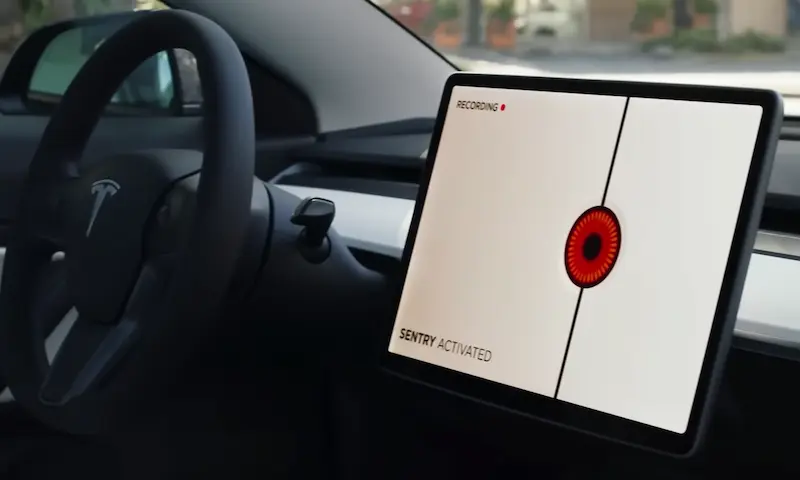
- Live Sentry Mode camera views through the app
- Internet browser (unless connected to Wi-Fi)
Smart Alternatives to Premium Connectivity
Using Your Phone as a Wi-Fi Hotspot
The most popular workaround is connecting your Tesla to your smartphone’s hotspot:
- Enable the hotspot feature on your smartphone
- Connect your Tesla to this hotspot via the car’s Wi-Fi settings
- Enjoy most Premium features when connected
This method gives you access to streaming services and browser functionality but won’t restore live traffic visualization or satellite maps, which require Tesla’s direct cellular connection.
Data Usage Concerns
When using a hotspot, be mindful of data consumption:
- Video streaming can use 1-3GB per hour
- Music streaming uses approximately 150MB per hour
- Maps and navigation use minimal data (unless downloading map updates)
Consider using an unlimited data plan or setting usage alerts if data caps are a concern.
Regional Differences in Cancellation
The cancellation process is largely identical worldwide, but pricing varies:
| Region | Monthly Price | Cancellation Method |
|---|---|---|
| United States | $9.99 | App or touchscreen |
| Europe | €9.99 | App or touchscreen |
| Hong Kong | HK$68 | App or touchscreen |
| UAE/Saudi Arabia | Local currency equivalent | App only |
All regions follow the same basic cancellation steps, though some markets might have slight variations in the user interface.
Things to Remember When Canceling
Billing and Refund Policies
- Tesla doesn’t prorate subscriptions—you’ll have access until the end of your billing cycle
- No refunds are issued for partial months
- You can resubscribe at any time if you change your mind
Selling Your Tesla?
If you’re selling your Tesla, take these important steps:
- Cancel Premium Connectivity manually before transferring ownership
- Perform a factory reset to unlink the vehicle from your Tesla account
- Confirm cancellation by checking your “Active Subscriptions” section in the app
Skipping these steps could result in continued charges after the sale.
Is Canceling Premium Connectivity Worth It?
Consider these factors when deciding:
- Do you regularly use satellite maps and live traffic visualization?
- How often do you use streaming services in your car?
- Are you usually parked in areas with reliable Wi-Fi?
- Would using your phone’s hotspot be more economical?
For daily commuters who rely on traffic data and satellite navigation, the $9.99 monthly fee might be worthwhile. However, if you primarily use your Tesla for short trips or have ready access to Wi-Fi, canceling could save you about $120 annually without significantly impacting your experience.
Monitoring Your Subscription Status
After cancellation, verify that your subscription has been properly terminated:
- Check the “Active Subscriptions” section in your Tesla account
- Monitor your credit card or bank statement for the next billing cycle
- Look for confirmation emails from Tesla regarding your cancellation
If charges continue after cancellation, contact Tesla Customer Support immediately.
By following these steps, you can easily cancel your Tesla Premium Connectivity subscription and make an informed decision about whether the service is worth the cost for your specific needs.