Getting the Toyota app talking to your car sounds simple — but there are a few steps that trip people up. This guide walks you through the whole process, from checking compatibility to scanning QR codes and fixing common issues. Stick around to the end, because the troubleshooting section alone could save you a frustrating afternoon.
Does Your Car and Phone Actually Support the Toyota App?
Before you download anything, check that your setup qualifies. Not every Toyota unlocks every feature.
Vehicle Compatibility
Toyota’s Connected Services work with most models from 2010 onward, but the features you get depend heavily on your model year.
| Model Year | What You Get |
|---|---|
| 2010 – 2017 | Basic app access, service history |
| 2018 – 2021 | Safety Connect, Remote Connect, Service Connect |
| 2022 – Present | Drive Connect, Digital Key, QR code pairing |
The big jump happens at 2022. That’s when Toyota switched to its new Multimedia platform, which makes the whole setup process faster and cleaner.
Phone Requirements
Toyota updated its minimum OS requirements in 2024. Here’s what you need:
- iPhone: iOS 17.0 or later
- Android: Android 10.0 or later (recommended)
- iPad: iPadOS 17.0 or later
If your phone runs iOS 16 or older, you’ll need to update before the app works properly. This catches a lot of people off guard.
Step 1: Create Your Toyota Account
Download the Toyota app from the App Store or Google Play. When you open it, you’ll need to register a new account or sign in if you already have one.
Registration asks for:
- A valid email address
- A mobile phone number
Toyota sends a six-digit verification code to your email or phone. Enter it within the time limit to confirm your identity. This step matters — your account will eventually control remote access to a physical vehicle, so the security check is worth it.
Set Up Your Security PIN
After your account is verified, you’ll create a six-digit security PIN. This is separate from your password. You’ll use it inside the car when the multimedia system asks you to confirm your identity.
One thing to know: if you enter the wrong PIN three times in the vehicle, the system locks you out for a minute. After more failed attempts, you’ll need to type your full email and password directly on the car’s screen to get back in. Don’t pick something you’ll forget.
Step 2: Add Your Vehicle Using the VIN
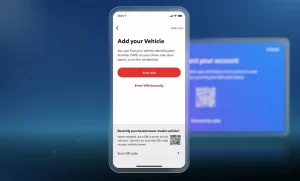
Now you link your car to your account. The app needs your 17-digit Vehicle Identification Number (VIN) to pull up your car’s exact configuration.
You can find your VIN in several places:
| Location | How to Find It |
|---|---|
| Dashboard | Look through the lower-left corner of the windshield |
| Driver’s door jamb | On the label near the door latch |
| Insurance card | Usually the easiest option |
| Registration document | Printed on state-issued paperwork |
The app lets you scan the VIN with your phone’s camera instead of typing it manually. Use the scan option — typos here cause failed setups and wasted time.
Once the VIN is validated, Toyota’s servers pull your car’s configuration and display the correct model and trim. You can then give your car a nickname and select your preferred dealership for future service.
Step 3: Activate Your Connected Services Trial
After your car appears in the app, you’ll see the Connected Services available for your specific model. New Toyota vehicles in the US come with complimentary trial periods — up to 10 years for Safety Connect and Service Connect, and 1 year for Remote Connect.
To activate them, you need to:
- Tap the service you want to enable
- Accept the Master Data Consent
- Accept the Connected Services Terms of Use
You won’t get auto-charged when trials end. The services just stop working unless you actively renew them. So there’s no risk in opting in now.
Step 4: Sync the App to Your Car’s Multimedia System
This is where the process splits depending on your model year.
2022 and Newer: QR Code Pairing
This is the easiest method. Here’s how it works:
- Start your car and go to the multimedia screen
- Select “Add Vehicle” or “Pair Phone”
- A QR code appears on the screen
- Open the Toyota app on your phone and scan the code
That’s it. The scan confirms your phone is physically in the car, which binds your profile to the head unit. Your navigation favorites and audio settings can then sync to the vehicle.
If the QR code just spins and never loads, try this fix: go to Settings → Apps → Reinstall All Apps on the multimedia screen. This refreshes the system’s connection to Toyota’s servers. Restart the screen afterward and the code should appear. This trick works for most QR code failures.
2018–2021 Models: Authorization Code
Older systems use an email-based code instead of a QR scan. After you enable Remote Connect in the app, Toyota emails you a six-digit authorization code. It’s valid for 72 hours.
To enter it:
- Get in your car and open the multimedia screen
- Go to the Apps menu
- Select Remote Authorization or Toyota App Suite
- Type in the six-digit code from your email
- Submit it
If the email never arrives, check your spam folder first. If it’s not there, call Toyota support at 1-800-331-4331 or press the SOS button in your car to speak with a live agent — they can trigger a new code for you.
What You Can Do Once You’re Connected
Once the app is linked to your car, here’s what you’re working with across the main service tiers.
Safety Connect
Safety Connect runs on the car’s own cellular hardware — it doesn’t need your phone. Key features include:
- SOS button: One press connects you to a 24/7 emergency response center
- Automatic collision notification: If airbags deploy, the system calls for help automatically and shares your GPS location with emergency services
- Stolen vehicle locator: With a police report and case number, Toyota’s response center can help track your car
- Enhanced roadside assistance: Request fuel, a tire change, or a tow — your coordinates go to the agent automatically
Service Connect
Service Connect gives your car a way to tell you what it needs before something breaks.
| Feature | What It Shows |
|---|---|
| Vehicle Health Report | Oil levels, battery status, tire pressure |
| Maintenance Alerts | Upcoming service intervals |
| Vehicle Alerts | Plain-English explanations of dashboard warning lights |
These show up as cards in the app. If something’s wrong, you can book a service appointment directly from the alert — and the dealership already has your diagnostic data before you arrive.
Remote Connect
Remote Connect turns your phone into a long-range remote. Because commands go through cellular data, distance doesn’t matter — you can lock your car from another city as long as both your phone and car have signal.
What you can do:
- Remote start/stop: Pre-heat or cool the cabin before you get in. The engine runs for 10 minutes then shuts off automatically
- Lock/unlock doors: Useful if you forgot, or if you need to let someone else in
- Vehicle finder: See where you parked on a map
- Guest driver alerts: Set speed limits, geofence boundaries, and curfew times — great for teen drivers or valet situations
Drive Connect (2022+ Models)
Drive Connect is the top tier, focused on navigation and voice control:
- Cloud Navigation: Real-time maps and traffic data, no SD card updates needed
- Intelligent Assistant: Say “Hey Toyota” to control climate, audio, or search for destinations hands-free
- Destination Assist: A live agent finds your destination and sends the coordinates directly to your nav system while you’re driving
Setting Up Apple CarPlay or Android Auto
The Toyota app handles your car’s native features, but you can also run CarPlay or Android Auto alongside it. Most 2022+ models support wireless projection.
To set it up wirelessly:
- Put the car in Park with the ignition on
- Enable Bluetooth and Wi-Fi on your phone
- On the multimedia screen, go to Settings → Bluetooth & devices
- Select Add another device and choose your phone
- Confirm the pairing code on both screens
- When prompted, select Yes to enable CarPlay or Android Auto
After the first pairing, your phone connects automatically every time you get in. CarPlay/Android Auto and the Toyota app run in parallel — you can switch between them anytime.
Fixing Common Connection Problems
Most issues fall into one of three categories.
App-level fixes:
- Update the Toyota app — manufacturers push fixes for new OS versions regularly
- Check cellular signal on both your phone and the car (underground parking kills remote commands)
- On Android, clear the app cache in system settings
- On iPhone, use “Offload App” to reinstall without losing your saved data
- If nothing else works, delete and reinstall the app completely
Multimedia screen issues:
- QR code not loading → use the “Reinstall All Apps” fix described above
- Authorization code not working → confirm it’s within the 72-hour window and check for typos
DCM (telematics module) issues:
If your car has been parked for several weeks, the Data Communication Module may have gone into sleep mode to protect the battery. Start the car and drive for a few minutes — that usually wakes it up. If the module stays unresponsive after that, a Toyota dealership can run a re-initialization using their diagnostic tools. That’s a last resort, but it works.
Managing Subscriptions and Costs
You handle everything through the app. Here’s what to expect after trials end:
| Service | Trial Period | Post-Trial Cost |
|---|---|---|
| Safety Connect | Up to 10 years | App-based renewal |
| Service Connect | Up to 10 years | Included with Safety Connect |
| Remote Connect | 1 year | ~$8–$15/month |
| Drive Connect | 1–3 years | ~$15/month |
If you buy a used Toyota, any remaining trial time transfers to you — but you still need to go through the “Add Vehicle” process to set up your own profile. And if you decide not to renew Remote Connect, your car still works perfectly. You just lose the app-based remote start and locking features.
A Note on Privacy
The Toyota app lets you manage your data settings under Privacy Settings in the account menu. You can opt out of programs that share driving behavior data with insurers. Just know that turning off all data transmission also disables Safety Connect and Remote Connect — those features need an active data link to function. It’s your call, but it’s worth understanding the tradeoff before you toggle anything off.