Your Toyota’s infotainment system is only as smart as the data behind it. If your music library looks like a mess, album art won’t show, or voice commands keep failing — a Toyota Gracenote database update might be exactly what you need. This guide covers everything from what Gracenote actually does to how you update it step-by-step, no matter which Toyota you drive.
What Is the Gracenote Database and Why Does It Matter?
Gracenote is the brain behind your Toyota’s music experience. It’s not just one file — it’s a massive repository of track metadata, artist names, album art, and genre tags for millions of songs.
Here’s what it does in your car every day:
- Playlist Plus — Normalizes inconsistent artist names across your USB or iPod library so everything indexes correctly
- MediaVOCS — Maps phonetic voice commands to the right tracks so “Play The Beatles” actually works
- Album Art Display — Pulls the correct cover image for whatever’s playing, including SiriusXM channels
- Genre and Era Tagging — Powers the “Play More Like This” feature by grouping tracks by cultural and chronological markers
- Nickname Mapping — Recognizes artist aliases so saying “Snoop” finds the right artist
Without an updated database, these features degrade over time as new music, artist names, and metadata formats evolve beyond what the old database recognizes.
| Metadata Feature | What It Does | User Impact |
|---|---|---|
| Playlist Plus | Normalizes artist name variations | Cleaner, consistent music library |
| MediaVOCS | Phonetic voice command mapping | Hands-free controls that actually work |
| Album Cover Art | Delivers visual assets to the head unit | Better-looking dashboard experience |
| Genre/Era Tagging | Classifies tracks contextually | Powers smart playlist discovery |
| Nickname Mapping | Recognizes artist aliases | Natural voice interaction |
Which Toyota System Do You Have?
Before you do anything, you need to know your infotainment generation. Toyota has used three distinct systems over the years, and each one updates differently.
Premium HDD Navigation (Pre-2011)
These older units used mechanical hard drives. Gracenote updates on these systems were typically handled by dealership technicians with specialized tools. If you’re still running one of these, a dealer visit is your best bet.
Toyota Entune (2011–2021)
Entune was Toyota’s infotainment platform for nearly a decade. It introduced app-based connectivity and made Gracenote updates accessible to regular owners via USB. The Entune 3.0 system, found in many 2018–2021 models, is the most polished version of this era and is still the most common system owners update manually today.
Toyota Audio Multimedia System (2022+)
Starting with the 2022 model year, Toyota moved to a cloud-native platform with Over-the-Air (OTA) update capability. The system handles most updates in the background automatically. You still benefit from a local Gracenote database as a fallback when you’re out of cellular range.
How to Do a Manual USB Toyota Gracenote Database Update (Entune Systems)
This is the method most Toyota owners use. Follow these steps carefully — skipping even one can cause the update to fail.
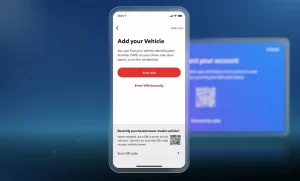
Step 1: Get Your Vehicle’s Identification Info
You need one of the following:
- VIN — Found on your driver-side doorjamb, lower dashboard corner, or registration documents
- Face Plate Number — On the bottom-right corner of the head unit’s plastic trim (non-Entune vehicles)
- DCU Part Number — For Entune 3.0 vehicles, go to Setup → General → Software Update → Model Info
The DCU Part Number is important because a Camry and a RAV4 from the same model year can use different hardware from different manufacturers like Pioneer or Denso. Using the wrong update package triggers an Incompatible Software error.
| Identifier | Where to Find It | Used For |
|---|---|---|
| VIN | Dashboard or doorjamb | All US vehicles |
| Face Plate Number | Physical unit trim | Non-Entune units |
| DCU Part Number | Software Update menu | Entune 3.0 units |
| Model Code | System information screen | Multimedia 2022+ units |
Step 2: Prepare Your USB Drive Correctly
This is where most people go wrong. Your head unit is picky about hardware.
Use the right drive:
- Legacy Entune systems work best with a USB 2.0 drive. USB 3.0 drives can fail to communicate with older head units during the update process
- Stick to 16GB or smaller for older systems. Drives over 32GB create formatting headaches
- The drive must be completely blank — hidden system files or leftover data can interfere with the indexing process
Format it correctly:
- The file system must be FAT32. Your head unit won’t recognize exFAT or NTFS
- Windows limits FAT32 formatting to drives 32GB and under through its standard interface. If you’re using a larger drive, you’ll need a third-party partition tool — or just use a smaller drive and skip the hassle
| Hardware Parameter | Legacy Systems | Modern Systems |
|---|---|---|
| USB Standard | USB 2.0 preferred | USB 2.0 or 3.0 |
| Capacity | 2GB to 4GB | 8GB to 32GB |
| File System | FAT32 | FAT32 |
| File Placement | Root directory only | Root directory only |
Step 3: Download and Transfer the Update Files
Go to the Toyota Software Updates portal and enter your DCU Part Number or VIN. Download the correct package for your system.
The download usually comes as a ZIP file. Extract it on your computer first, then move the files to your USB drive. Here’s the critical part: place the extracted files directly in the root directory — the top level of the drive — not inside any folder.
The head unit scans for files with specific extensions like .kwi or .mcg at the root level. If those files are inside a folder, the system returns a “No new software found” message and the update won’t run.
Step 4: Run the Update in Your Vehicle
Safety and power stability matter here:
- Start your engine before beginning the update. Toyota specifically recommends the engine be running throughout the process to maintain stable 12V power to the infotainment system
- Hybrid or EV owners: put the vehicle in “READY” mode
- Park in a well-ventilated outdoor area — the update can take 10 to 45 minutes depending on your system, and you don’t want exhaust buildup in an enclosed garage
- Do not turn the vehicle off during the update. If the system loses power mid-update, you risk unrecoverable software corruption that requires dealer intervention
Once the progress bar hits 100%, leave the ignition off for at least five minutes to let the system fully commit the changes to memory.
| Phase | Task | Why It Matters |
|---|---|---|
| Preparation | Verify VIN and Part Number | Gets you the correct software package |
| Media creation | Format 16GB USB 2.0 to FAT32 | Prevents recognition failures |
| File transfer | Move .kwi/.mcg files to root directory | Allows system to locate the update |
| Execution | Engine running, parked outdoors | Maintains power and prevents fume buildup |
| Finalization | Five-minute ignition cycle after 100% | Commits all changes to memory |
How OTA Updates Work on 2022+ Toyota Systems
If you drive a newer Toyota, the process is mostly hands-off. The Toyota Audio Multimedia System checks for updates automatically and downloads them in the background while you drive.
A few things to know:
- Large updates need Wi-Fi. Your car can use its built-in cellular for small patches, but a full Gracenote database refresh needs a stronger connection. Use your home Wi-Fi or a smartphone hotspot
- No public Wi-Fi. Networks that require a login splash page — like those at coffee shops, hotels, or airports — don’t work with Toyota’s OTA system
- Signal strength matters. You need at least two bars of connectivity to prevent download timeouts
- Installation happens when parked. The download runs in the background, but the system prompts you to install once you’re parked. After installation completes, leave the car off for five minutes
OTA updates have a clear time advantage. The 22–30 minute download happens while you’re driving. The 40-minute installation happens while you’re parked at home. You’re really only “waiting” during that final phase.
| System | Update Method | Typical Duration | What You Do |
|---|---|---|---|
| HDD Navigation | USB (Dealer) | ~45 minutes | Full vehicle downtime |
| Entune 2.0 / 3.0 | Manual USB | 10–15 minutes | Engine running, parked |
| Multimedia 2022+ | OTA Download | 22–30 minutes | Drive normally |
| Multimedia 2022+ | OTA Install | ~40 minutes | Park the car |
Troubleshooting Common Toyota Gracenote Update Problems
“Media Not Recognized”
This almost always means your USB drive is too large, formatted incorrectly, or plugged into the wrong port. Try a fresh 16GB USB 2.0 drive formatted as FAT32 with the update files placed directly in the root directory.
“Incompatible Software”
You downloaded the wrong package. Double-check your DCU Part Number in the system menu and re-enter it into the Toyota firmware portal. Don’t guess based on model year alone.
OTA Download Stalls
You’ve likely moved out of Wi-Fi range or your hotspot dropped the connection. Modern Toyota systems pause and resume the download the next time you start the car — so don’t panic if it stops mid-progress.
OTA Interrupted During Installation
This is the one case that might need dealer help. If the car powers off during the actual installation phase (not the download), the system may need a reset with dealer tools. If your update gets interrupted during installation, call Toyota Customer Support at 1-800-331-4331 before trying anything else.
Why Gracenote Updates Still Matter for Older Toyotas
Toyota discontinued the Entune App Suite starting in late 2023. Scout GPS Link and third-party streaming apps stopped working in many 2017–2019 models that don’t have native Apple CarPlay or Android Auto.
But here’s the thing: those connected apps are gone, but your car’s core media functions still work perfectly. Bluetooth, USB playback, SiriusXM — all still running. Keeping your Toyota Gracenote database updated means you still get:
- Accurate voice recognition for your music library
- Clean, normalized artist and track organization
- Album art on your display
- Smart playlist features
For owners of these older models, the Gracenote update is one of the few remaining ways to improve your car’s tech without buying aftermarket hardware. It keeps the vehicle useful, and it preserves resale value by maintaining a genuinely functional media system.
A Quick Note for US Toyota Owners
The updates on the Toyota Software Updates portal are specifically for vehicles sold in the continental United States, Alaska, and Hawaii. Toyota runs separate software environments for Canada and Puerto Rico — using the wrong regional package can cause lockouts or system errors. If you’re in Canada, use the Toyota Canada multimedia update portal instead.
If you’d rather have a dealer handle the update, Toyota dealerships carry the Essential Special Service Tools to do it for you. Updates on vehicles still under the 3-year/36,000-mile basic warranty are often covered at no cost. Older vehicles may see a small service fee.
Whether your Toyota is a few years old or pushing a decade, the Gracenote database is a quiet but essential part of what makes your infotainment system work well. Keeping it current is one of the simplest maintenance tasks you can do — and unlike an oil change, you can often do it from your driveway with a USB stick.