Dealing with Toyota Android Auto not working is genuinely frustrating — especially when you’re sitting in the driveway, late, jabbing at a screen that refuses to cooperate. The good news? Most fixes take under five minutes. Read to the end, because the real culprit is often hiding where you’d least expect it.
First, Know Which Toyota System You’re Working With
Not all Toyota head units behave the same way. Your fix depends heavily on which generation you’re running.
| System Generation | Platform | Android Auto Support | Update Method |
|---|---|---|---|
| Pre-2020 | Entune / Entune 2.0 | None | Dealer only |
| 2020–2021 | Entune 3.0 | Wired only | Manual USB upload |
| 2022–Present | Toyota Multimedia | Wired + Wireless | Over-the-air (OTA) |
| 2026+ | Arene OS | 5G Cloud-Native | Real-time streamed |
If you have a pre-2020 Toyota, Android Auto simply isn’t supported — full stop. Everything below applies to 2020 and newer models.
The Cable Is Probably the Problem (Seriously)
This sounds too simple, but roughly 68% of wired Android Auto failures trace back to a bad cable. That cable stuffed in your center console from a fast-charger bundle? It’s almost certainly a power-only cable with no data wires inside.
What Makes a Good Android Auto Cable
- USB-IF certified — this guarantees real data throughput, not just charging
- Under 3 feet long — longer cables cause signal attenuation, which kills the handshake before it starts
- Properly shielded — unshielded cables pick up electrical noise from your engine and alternator
Your phone might show it’s charging while Android Auto still refuses to launch. That’s the cable delivering power but failing on data. Swap it first before touching any settings.
Check the Port Too
Dust and lint in your USB port create just enough resistance to break the connection. A quick blast of compressed air fixes more “broken” connections than any software tweak. While you’re at it, inspect the port for bent pins or corrosion — constant vibration from driving can crack internal solder joints over time.
Wireless Toyota Android Auto Not Working? It’s Usually the Radio
Wireless Android Auto uses a two-step connection process. Bluetooth handles the initial handshake, then your phone and head unit switch to a 5GHz Wi-Fi Direct link for the actual projection. If either step fails, you get nothing.
Why Wireless Drops Out
- RF interference from nearby devices — dashcams with Wi-Fi, OBD-II dongles, and passenger tablets all compete for the same spectrum inside your car
- Geographic “dead zones” — some locations with industrial RF emissions or toll booth transponders consistently knock out the 5GHz link
- Phone overheating — running wireless Android Auto while charging on a hot day pushes your phone to its thermal limit; it kills the Wi-Fi radio to protect itself
The quick fix for most wireless drop-outs: turn off every other Bluetooth and Wi-Fi device in the car. Disconnect the dashcam Wi-Fi. Remove the OBD dongle. Test again. You’ll often find your connection stabilizes immediately.
The Android 15/16 Regression Problem
If your wireless Android Auto was perfectly stable and then suddenly started disconnecting every few minutes after a phone update, Android 15 and 16 likely revoked your Wi-Fi Direct permissions. The fix is blunt but effective: reset your phone’s network settings entirely. Yes, it clears all saved Wi-Fi passwords and Bluetooth pairings — but it rebuilds the security tokens the 5GHz link needs to stay stable.
Go to: Settings → General Management → Reset → Reset Network Settings
Battery Optimization Is Silently Killing Your Connection
Android’s power management is aggressive. It sees Android Auto running in the background and decides to throttle it. This causes disconnections that happen 10–15 minutes into a drive, right when the screen locks.
How to Fix It
- Open Settings → Apps → Android Auto
- Tap Battery → Battery Optimization
- Set it to Unrestricted
- Repeat this for Google Play Services
Here’s what each setting actually does:
| Optimization Level | What Happens | Impact on Android Auto |
|---|---|---|
| Restricted | Kills background data and CPU | Disconnects the moment your screen locks |
| Optimized (default) | System decides what’s “important” | Intermittent drops on longer drives |
| Unrestricted | App runs freely in background | Stable connection throughout |
While you’re in the app settings, check that Android Auto has every permission it needs — location, microphone, contacts, and SMS. Deny any one of these during setup and the app either won’t launch or crashes the moment you try a voice command.
Toyota User Profile Conflicts (2022+ Models)
The 2022+ Toyota Multimedia system uses a User Profile architecture. Your car detects your profile by scanning for the Toyota App on your phone via Bluetooth. It sounds clever — and it is, until two registered drivers get in the car at the same time.
When that happens, the system can latch onto the wrong profile and lock the primary driver out of their Android Auto session entirely. You’ll notice Android Auto simply won’t appear as an option.
The fix: tap the gear icon on the home screen, go to Settings, and manually switch to your profile. You’ll need your PIN to confirm.
If the profile itself has become corrupted, do a partial reset:
Settings → Personal Info → Reset Settings
This clears paired devices and preferences without wiping everything else.
Three-Tier Reset Strategy (Use These in Order)
When the basics don’t work, run through these resets before heading to the dealership.
Tier 1: Soft Reset the Head Unit
Hold the power/volume knob for 10–15 seconds with the ignition on. This restarts internal processes and clears temporary glitches — no data lost, takes 60 seconds. Start here every time.
Tier 2: Delete Personal Data
If the soft reset doesn’t hold, wipe your profile:
Settings → Personal Info → Reset Settings
This is particularly effective when a specific phone pairing has gone corrupt. You’ll re-pair your phone fresh afterward.
Tier 3: Full Factory Reset
The nuclear option — and sometimes the only thing that works. On 2022+ models:
Settings → Info & Security → System Reset
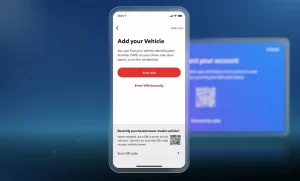
It takes up to 15 minutes and generates a QR code on screen when done. Scan it with the Toyota App to re-register your vehicle. A technician can also scan it to pull exact error codes, firmware version, and the reason for the last crash — which cuts diagnostic time significantly.
Check for Toyota Software Updates
Toyota issues both over-the-air updates and Technical Service Bulletins (TSBs) for known Android Auto bugs. Two specific bulletins matter here.
TSB T-TT-0578-19 covers Bluetooth pairing failures and steering wheel control lag. It establishes the “known good phone” test — if a dealer’s test device connects fine to your car, the hardware is fine and the problem lives in your phone settings.
TSB 23-NA-227 addresses a wider set of Multimedia system bugs, including:
- Android Auto display appearing shifted on screen
- No audio during an Android Auto session
- Bluetooth audio cutting out after pressing the voice button
- Radio resetting after a sleep cycle
All of these are fixed by a software update pushed through the dealership or via OTA on 2022+ models. If your car is showing any of these symptoms, check your system version under Settings → Software Update and compare it against the Toyota Multimedia update portal.
The 2026 RAV4 Steering Wheel Bug
If you just picked up a new RAV4 and your steering wheel track buttons skip two songs instead of one, you’re not imagining it. This is a confirmed Android Auto-specific bug where each button press sends a double command to the phone. The buttons work correctly over standard Bluetooth — it’s only Android Auto affected. Google has acknowledged the issue. A patch is in progress, but there’s no workaround yet beyond using voice commands to skip tracks.
Does Android Auto Require a Toyota Subscription?
No. Android Auto is a projected service that runs entirely on your phone’s data plan. You don’t need a Toyota Connected Services subscription to use it.
Services like Remote Connect and Drive Connect require a paid subscription — but Android Auto doesn’t. That said, if your phone’s Data Saver mode is on, or your plan is throttled, maps and music streaming inside Android Auto will suffer. Turn Data Saver off before troubleshooting anything else.
Quick-Reference Diagnostic Checklist
Before booking a dealer appointment, work through this list:
- ✅ Swap to a USB-IF certified cable under 3 feet
- ✅ Clean USB ports with compressed air
- ✅ Set Android Auto battery optimization to Unrestricted
- ✅ Set Google Play Services battery optimization to Unrestricted
- ✅ Confirm all app permissions are granted (location, mic, contacts, SMS)
- ✅ Disable all other in-car Wi-Fi devices (dashcam, OBD dongle)
- ✅ Check for pending OTA updates in Settings → Software Update
- ✅ Perform a soft reset (hold power knob 10–15 seconds)
- ✅ Reset network settings if wireless drops started after an Android update
- ✅ Manually switch User Profile if you share the car with another driver
Most Toyota Android Auto not working cases resolve within the first three steps on that list. The cable, the battery optimization setting, and interference from other devices account for the vast majority of failures — no dealership visit required.