Got a Honda and an Android phone? Getting them talking to each other should take less than five minutes. This guide covers wired setup, wireless pairing, Google Built-in, and every fix you need when things go sideways. Stick around — the troubleshooting section alone is worth it.
Does Your Honda Actually Support Android Auto?
Before you start plugging things in, check if your Honda supports it. Android Auto rolled out across the Honda lineup starting with the 2016 Accord and Civic. By 2017, it expanded to the CR-V, Pilot, and Ridgeline.
Here’s a quick look at where each model stands:
| Model | First Year | Wired Trims | Wireless Trims |
|---|---|---|---|
| Accord / Hybrid | 2016+ | EX, Sport, EX-L, Touring | 2021+ EX-L, Sport, Touring |
| Civic / Hatchback | 2016+ | EX, Sport, Touring | 2022+ Touring; 2025+ Sport |
| CR-V / Hybrid | 2017+ | EX, EX-L, Touring | 2023+ EX-L, Sport-L, Sport Touring |
| Pilot | 2017+ | EX, EX-L, Touring, Elite | 2023+ EX-L, TrailSport, Touring |
| HR-V | 2019+ | Sport, EX, EX-L | 2023+ EX-L |
| Passport | 2019+ | All Trims | 2024+ All Trims |
| Ridgeline | 2017+ | RTL-T, RTL-E, Black Edition | 2024+ All Trims |
| Odyssey | 2018+ | EX, EX-L, Touring, Elite | 2025+ EX-L, Touring, Elite |
| Prologue (EV) | 2024+ | All Trims | All Trims (Wireless) |
One important note: on older models, Android Auto was reserved for mid-to-high trims like EX and above. If you’re on an LX or base Sport, double-check your trim level before assuming it’s compatible.
What Your Phone Needs Before You Connect
Your phone does most of the heavy lifting here. Make sure it meets these requirements:
For wired Android Auto:
- Android 6.0 or higher (5.0 works, but it’s shakier)
- Android Auto app installed — phones on Android 9.0 or older need to grab it from the Play Store. Android 10+ has it built in.
For wireless Android Auto:
- Android 11.0 or newer
- 5 GHz Wi-Fi support on your phone
- Google or Samsung phones on Android 10, plus some older Samsung Galaxy models on Android 9, also qualify
Both methods need:
- An active mobile data plan for navigation, Google Assistant, and streaming
How to Connect Android Auto to Honda With a Cable
This is the easiest and most reliable method. Here’s how to do it:
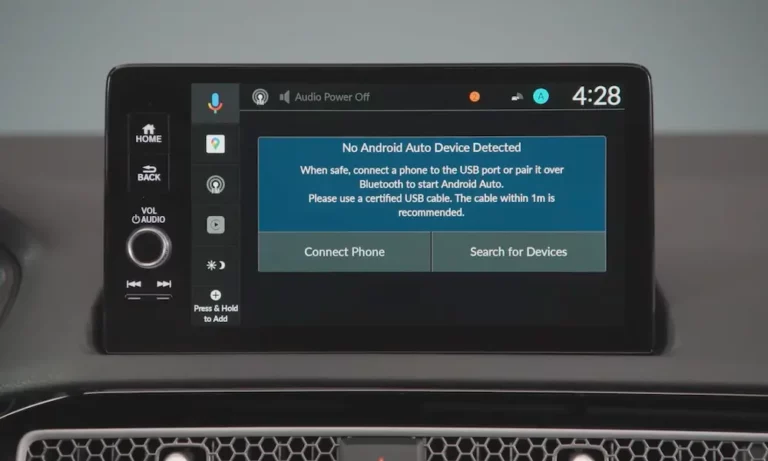
Find the Right USB Port First
Not every USB port in your Honda supports data transfer. Look for the port marked with a three-pronged symbol or a smartphone silhouette — that’s your data port. Ports tucked inside the center console or in the rear seats are power-only. Plugging into the wrong port means your phone charges but Android Auto never launches.
Step-by-Step Wired Setup
- Start your Honda and put it in Park
- Unlock your phone
- Plug your phone into the correct data USB port
- Watch for the Android Auto prompt on your Honda’s screen — tap “Yes” or “Always Enable”
- Review and accept the permissions on your phone (contacts, location, messages)
- Android Auto launches automatically
That’s it. Next time you plug in, the system recognizes your phone and skips straight to the interface.
Cable Matters More Than You Think
Use a certified data-transfer cable that’s under 3 feet long. Cheap cables labeled “charging only” don’t have the internal data conductors the system needs. If Android Auto worked before and suddenly stopped, a frayed or failing cable is almost always the culprit.
How to Set Up Wireless Android Auto in Your Honda
Wireless Android Auto uses Bluetooth to start the connection, then automatically hands off to a 5 GHz Wi-Fi Direct signal for the actual data stream. It sounds complicated, but the setup is straightforward.
Wireless Pairing Steps
- Turn on Bluetooth and Wi-Fi on your phone
- On your Honda’s touchscreen, go to Smartphone Connection or Settings
- Tap “+ Connect New Device”
- On your phone, select your Honda’s name from the Bluetooth device list
- Compare the six-digit pairing code on both screens — tap “Pair” if they match
- When prompted, select “Yes” to enable Android Auto
- Accept the permissions for contacts and messages
After this first-time setup, your phone connects automatically every time you get in the car — no cables, no tapping.
Keep this in mind: If you manually turn off Bluetooth during a wireless session, Android Auto drops immediately. Bluetooth stays active in the background to maintain the connection, even though Wi-Fi handles the data.
Google Built-In: When Your Honda Runs Android Natively
Starting with select 2024–2026 models — including the Prologue, Accord Touring, and premium Pilot trims — Honda introduced Google Built-in. This is a completely different beast from regular Android Auto.
Instead of mirroring your phone, the car itself runs on Android. Google Maps, Google Assistant, and Google Play are baked directly into the vehicle’s operating system.
| Feature | Android Auto (Mirroring) | Google Built-in (Native) |
|---|---|---|
| How it works | Mirrors your phone screen | Runs independently in the car |
| Hardware control | Audio and screen only | Climate, seat heat, vehicle settings |
| Data source | Your phone’s data plan | Car’s own cellular connection |
| Speed | Depends on your phone | Optimized for the car’s hardware |
| Works without phone | No | Yes |
Setting Up Google Built-In
- Park the car and start the engine
- Sign into your Google account on the 12.3-inch or 11.3-inch screen
- Your saved addresses, playlists, and apps sync automatically
- You’re ready to go — no phone required for core functions
Because the system lives in the car, Google Assistant can do things regular Android Auto can’t — like adjusting cabin temperature or checking tire pressure by voice.
Android Auto Not Working? Fix It Here
Most Android Auto problems fall into three categories: bad cable/port, software conflicts, or wireless interference. Here’s how to knock them out.
Physical Connection Issues
Dirty charging port: Pocket lint is the silent killer of Android Auto connections. The phone appears to charge, but data won’t flow through a clogged port. Use compressed air or a non-conductive tool to clean it out. This is the first fix recommended by most technicians.
Wrong port: Double-check you’re in the data port with the icon — not a power-only port in the console or rear seat.
Worn cable: Replace it with a short, certified data cable. Seriously — this fixes more problems than any software tweak.
Software and Settings Conflicts
Phone defaults to “Charging Only”: When you plug in, Android sometimes defaults to charge mode only. Fix it by going into Developer Options on your phone and setting the default USB configuration to “File Transfer” or “Android Auto”.
Battery optimization killing the app: Android’s power management can suspend Android Auto in the background. Go to your phone’s battery settings, find Android Auto, and set it to “Unrestricted”.
Corrupted app cache: If the interface freezes or behaves strangely, go to Settings > Apps > Android Auto on your phone and clear both Cache and Storage. This refreshes the connection logic without reinstalling the app.
Wireless Disconnections
If wireless Android Auto drops at the same spots every drive, you’re likely hitting interference from nearby radio towers or dense urban Wi-Fi networks. That’s an environmental issue, not a car defect.
Switching to a wired connection in those areas is the most reliable workaround.
How to Reboot Your Honda’s Infotainment System
Sometimes the car’s software needs a restart — just like your phone does.
Soft Reboot (Keeps Your Settings)
- Models with a volume knob: Hold the knob or power button for 5–10 seconds until a reboot prompt appears
- 9-inch Display Audio: Hold Home + Power simultaneously for several seconds
- Key-cycle reset: Some models respond to holding the volume knob and home button together to reach a diagnostic screen
A soft reboot clears temporary glitches without wiping your paired devices or saved settings.
Factory Data Reset (Last Resort)
Go to Home > Settings > System > Factory Data Reset. Confirm twice. The head unit erases everything — Bluetooth history, navigation favorites, sound profiles — and reboots clean.
After a reset, you’ll need to repeat the full Android Auto pairing process from scratch. Use this only when nothing else works.
The 2018–2022 Accord Wireless Upgrade
If you own a 2018–2022 Accord with the 8-inch Display Audio screen, Honda offers a dealer-installed wireless upgrade that covers about 631,000 vehicles.
Here’s what the program costs:
- Software license: $112
- Labor fee: Varies by dealer, typically brings the total to $150–$250
- Honda Certified Pre-Owned (CPO) vehicles: Often upgraded free of charge
The update is a pure software reflash — no hardware swap required. It modifies the head unit’s Wi-Fi module so your phone connects wirelessly from then on.
Keeping Your System Updated
Honda pushes infotainment updates two ways: over the air and via USB.
Over-the-Air (OTA): Vehicles with a built-in cellular connection or Wi-Fi receive patches automatically. You’ll see an orange circle icon or text notification on the screen. Updates install while parked and take 15–30 minutes.
Manual USB Update: For older models, visit usb.honda.com. Insert a FAT32-formatted USB drive into your data port, export your vehicle’s hardware ID, download the correct firmware file on your computer, then return the drive to the car and select “Install Now.”
Staying current with software updates is the single most effective way to prevent connection problems before they start.
Using Voice Controls the Right Way
Your steering wheel’s Talk button controls two different assistants depending on how long you press it:
- Short press: Activates Honda’s native voice control system
- Long press (3 seconds): Bypasses the car’s system and fires up Google Assistant directly
You can also say “Hey Google” or “OK Google” if hands-free wake word detection is enabled in your phone settings. The Assistant handles navigation changes, text messages, phone calls, and music — all without touching the screen.
On 9-inch and 12.3-inch displays, Android Auto supports a Split-Screen mode that keeps Google Maps front and center while media controls sit in a side panel. The 7-inch screens on base trims don’t support this layout — they use physical side buttons instead.