Your Ford SYNC is frozen, glitchy, or just acting weird. Good news — a reset usually fixes it fast. This guide covers every reset method for every SYNC version, from the oldest Gen 1 to the newest Ford Digital Experience. Stick around to the end, because the fix you need might not be the one you’d expect.
First, Figure Out Which SYNC You Have
You can’t reset what you don’t know. Each SYNC generation uses different button combos and menu paths. Trying the wrong one wastes time.
Here’s how to identify your SYNC version in about 30 seconds:
- SYNC Gen 1 / 1.1 — Small text-only LCD screen, physical buttons only. Found in 2008–2014 Ford vehicles.
- SYNC 2 (MyFord Touch) — Large touchscreen split into four color-coded quadrants (yellow, green, blue, red).
- SYNC 3 — Flat, modern touchscreen with icon tray at the bottom. Feels like a smartphone.
- SYNC 4 / 4A — Big screen (8–15.5 inches). SYNC 4A sits vertically and uses Adaptive Dash Cards.
- Ford Digital Experience — Android-based. You’ll see the Google Play Store icon on screen.
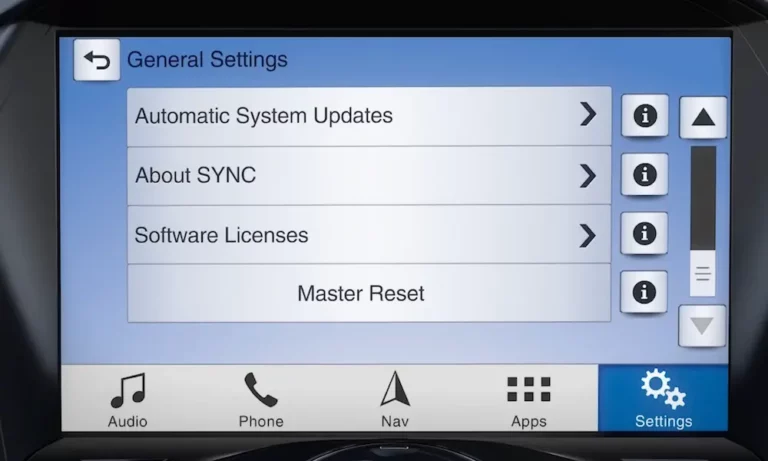
Still not sure? Press Settings → General → About SYNC on modern systems. On Gen 1, hit Menu → System Settings → Advanced → System Info.
The Three Types of Ford SYNC Resets
Not all resets are equal. Before you start pressing buttons, know what each reset actually does.
| Reset Type | Erases Data? | Use Case |
|---|---|---|
| Soft Reset (Module Restart) | No | Frozen screen, Bluetooth drop, minor glitches |
| Master Reset (Factory Reset) | Yes | Persistent bugs, selling the car, corrupted storage |
| Hard Reset (Fuse or Battery) | No | Completely unresponsive, black screen, won’t boot |
Start with the soft reset. Work your way down only if needed.
How to Reset Ford SYNC: Soft Reset Methods
A soft reset restarts the SYNC module without touching your saved data. Your radio presets, paired phones, and nav favorites all stay put. Think of it like rebooting your phone — quick and clean.
SYNC 3, SYNC 4, and SYNC 4A
This is the most common method people search for, and it’s satisfyingly simple.
- Make sure your car is on.
- Press and hold the Power button (center of the volume knob) and the Seek Right (>>|) button at the same time.
- Hold both for 10 seconds.
- The screen goes black, then the Ford logo appears.
Done. Ford confirms this works across SYNC 3, 4, and 4A models.
On some vehicles — like the Mustang Mach-E — there’s no physical power button on the console. In that case, use the steering wheel controls: hold Volume Down + Seek Right for 10 seconds instead.
Ford Digital Experience
The Android-based system works a little differently. Try these two methods:
- Method 1: Press the audio Power button five times quickly in succession.
- Method 2: Press and hold the Power button for 10 seconds.
You might hear a “pop” from the speakers when it reboots. That’s completely normal — it’s just the audio amplifier cycling back on.
SYNC 2 (MyFord Touch) and Gen 1.1
Older systems use a slightly different combo:
- Press and hold the Radio Power button and the Seek Up (>>|) button simultaneously.
- Hold for 5–10 seconds until the screen restarts.
This works reliably on most Ford and Lincoln models from the SYNC 2 era.
Here’s a quick reference table for every soft reset combo:
| SYNC Version | Button 1 | Button 2 | Hold Time |
|---|---|---|---|
| Ford Digital Experience | Power Button | (5 quick presses) | Under 5 sec |
| SYNC 4 / 4A | Power Button | Seek Right | 10 seconds |
| SYNC 3 | Power Button | Seek Right | 10 seconds |
| MyFord Touch (SYNC 2) | Power Button | Seek Up | 5–10 seconds |
| Gen 1.1 | Power Button | Seek Up | 5 seconds |
How to Do a Ford SYNC Master Reset (Factory Reset)
If the soft reset didn’t fix it, the master reset will. Just know this one wipes everything — paired phones, call history, saved nav destinations, and personalized settings. You’ll start fresh.
Before you begin:
- Put the car in Park.
- Keep the engine running the entire time. A voltage drop mid-reset can corrupt the process.
- Remove any USB drives or SD cards if you’re on SYNC 2.
Master Reset on Ford Digital Experience
- Tap Apps or the Vehicle icon.
- Go to Settings → System → Reset Options.
- Select Factory Reset and confirm.
The screen goes blank while the system reformats and reinstalls the base OS. Give it a few minutes.
Master Reset on SYNC 4 and SYNC 4A
- Tap Settings from the home screen (on 4A, tap the Home icon first).
- Select General → Reset → Factory Reset.
- Confirm the action.
Heads up: This deactivates BlueCruise and any connected navigation subscriptions. You’ll need the FordPass app to reactivate them afterward.
Master Reset on SYNC 3
SYNC 3 resets are especially helpful when Apple CarPlay or Android Auto stops working.
- Tap Settings on the bottom icon tray.
- Select General, then scroll down to Master Reset.
- Tap Continue on the confirmation popup.
After it reboots, the system asks if you want to enable Automatic Updates. Say yes. It’s the easiest way to keep the system stable long-term, and Ford’s own support team recommends it.
Master Reset on SYNC 2 (MyFord Touch)
- Remove all USB drives, SD cards (including the nav card), and unpair your phone first.
- Tap the Gear icon → Settings → System → Master Reset.
- Confirm, and wait for the four-quadrant screen to reappear.
Removing the nav SD card before the reset prevents file system conflicts during the wipe. Ford Canada’s support guide flags this as a key prep step.
Master Reset on Gen 1 and Gen 1.1
These text-menu systems need a bit more button navigation.
Gen 1:
- Press the Phone button.
- Use arrow keys to find System Settings → Advanced → Master Reset.
- Press OK and confirm.
Gen 1.1:
- Press Menu → SYNC Settings.
- Scroll to Master Reset.
- Press OK, then confirm with Yes.
Both systems display a “Reset Completed” message when it’s done.
Hard Reset: Fuse or Battery Disconnect
The screen is completely black. Nothing responds. Software commands do nothing. This is where you go physical.
Fuse-Based Reset
This method cuts power only to the infotainment system. It’s cleaner than a battery disconnect because it doesn’t affect your seat memory or other modules.
- Turn the ignition completely off.
- Open the fuse panel (usually behind a cover in the passenger footwell).
- Pull the SYNC/Radio fuse — on many F-150s, that’s Fuse #32.
- Turn the ignition on to confirm the screen has no power.
- Turn the ignition off, reinsert the fuse.
- Start the car and check if SYNC cold-boots normally.
Not sure which fuse? Check your owner’s manual or the diagram printed on the inside of the fuse panel cover.
Battery Disconnect Reset
Use this when multiple modules are frozen simultaneously — the screen, the instrument cluster, all of it.
- Disconnect the negative battery terminal.
- Wait at least 15 minutes. This lets the capacitors fully drain and clears all volatile memory.
- Reconnect the terminal.
- Start the car. SYNC will run a full hardware initialization from base firmware.
What to Do After a Master Reset
A factory reset leaves SYNC as a blank slate. Here’s how to get back up and running properly.
Re-Pairing Your Phone (Do This First)
Don’t just try to pair your phone normally — your phone’s Bluetooth memory still has the old SYNC profile, which causes conflicts.
- iPhone: Go to Settings → Bluetooth, tap the (i) next to “SYNC,” and select Forget This Device.
- Android: Tap the gear icon next to “SYNC” and select Unpair.
Once the old profile is cleared, go to Add Phone on the SYNC screen and pair fresh. When your phone asks for permission to access contacts and messages, say yes. For Android users, check “Do Not Ask Again” during those prompts so SYNC doesn’t ask every single startup.
Restoring FordPass and Connected Services
For SYNC 4 and the Digital Experience, a master reset breaks the link between your car’s modem and the FordPass cloud.
- Open the FordPass app on your phone.
- Re-add your vehicle by scanning the VIN.
- Confirm Remote Access Authorization on the vehicle touchscreen.
Features like remote start and BlueCruise come back once you accept that prompt.
| SYNC Version | App Needed | Key Post-Reset Step |
|---|---|---|
| Ford Digital Experience | Ford App / Google | Sign into Google Account; activate in Ford App |
| SYNC 4 / 4A | Ford App | Re-add VIN; authorize modem sharing |
| SYNC 3 | FordPass | Enable Wi-Fi updates; re-pair Bluetooth |
| MyFord Touch (SYNC 2) | None | Reinsert nav SD card; re-pair Bluetooth |
Why the Master Reset Button Is Grayed Out
This trips a lot of people up. If the Master Reset option is unresponsive, it means a background process is still running — often because SYNC is indexing a USB music library you just plugged in.
Fix it with a soft reset first. Press Power + Seek Right for 10 seconds to force-close all background tasks. Once the system reboots, the Master Reset button comes back to life.
When a Reset Isn’t Enough: Manual Software Update
Sometimes the issue isn’t a glitch — it’s corrupted or outdated firmware. A manual update via USB drive often solves persistent bugs that even a master reset won’t touch.
Here’s how to do it:
- Download the update file from the Ford support site.
- Format a USB drive as exFAT (SYNC 3) or FAT32 (older systems).
- Copy the update file to the USB root folder.
- Insert it into your car’s USB port with the engine running.
- Follow the on-screen prompts. The process takes about 30 minutes.
This is essentially a clean OS re-installation. For SYNC 4 and newer, Ford also pushes over-the-air updates automatically via Ford Power-Up software — no USB required.
Signs Your SYNC Hardware Has Actually Failed
If you’ve done a hard reset, a master reset, and a USB software update — and the screen still freezes, shows lines, or displays static — the problem isn’t software anymore.
The Accessory Protocol Interface Module (APIM) is the physical computer that runs SYNC. Its internal flash memory can fail over time. Common symptoms of APIM failure include:
- “Missing Bluetooth” or “Missing Navigation” errors that reappear after every reset
- Persistent visual artifacts (lines, static, partial screen)
- Screen that powers on but never loads past the logo
At this point, a dealership visit is the right call. The APIM needs replacement, not another reboot.