Your Uconnect screen is frozen, black, or acting like it’s never met your phone before. Good news — this guide covers every reset method for every Uconnect generation, plus the sneaky electrical issues that no one talks about. Stick around to the end, because the fix you need might not be what you think.
What You’re Actually Dealing With
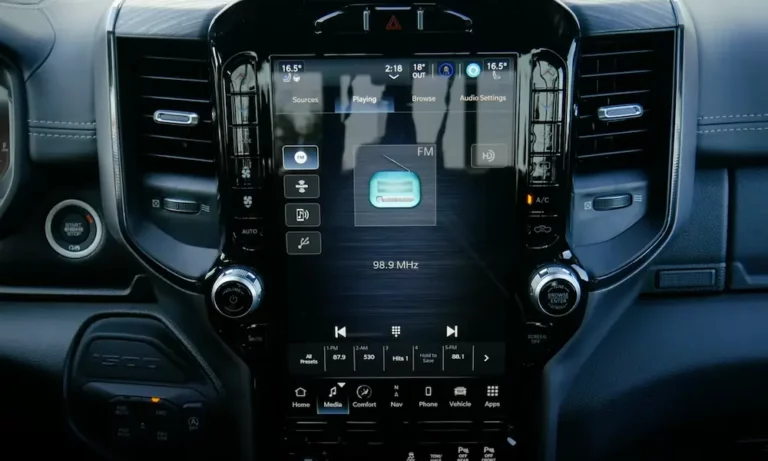
Uconnect isn’t just a fancy radio. It’s a fully networked computer module connected to your climate controls, backup camera, steering wheel buttons, and telematics system. When it glitches, it can drag other systems down with it.
The fix depends entirely on what kind of glitch you have. A frozen app? That’s a quick soft reset. Random icon resets every time you start the car? That’s probably your battery dying. A screen stuck on the legal disclaimer? That might be a dead touch layer, not a software problem at all.
Start here and work through it logically.
Soft Reset: The First Thing You Should Try
A soft reset reboots the operating system without wiping your settings. It keeps your paired phones, radio presets, and saved addresses exactly where they are. Think of it like restarting your phone — everything stays, the glitch goes away.
Use a soft reset when you’re dealing with:
- A frozen or unresponsive touchscreen
- Bluetooth or Wi-Fi pairing failures
- Audio cutting out randomly
- GPS errors or navigation freezes
One heads-up: some firmware versions can occasionally clear saved settings during a soft reset. It’s rare, but worth knowing before you start.
How to Reset Uconnect 3 (5-inch Screen)
Park the car. Turn the ignition to the Run position — engine off is fine. Then press and hold the center of the Volume knob and the center of the Tuner/Browse knob at the same time. Hold both for 10 to 15 seconds. The screen goes black, then your brand logo appears. Done.
How to Reset Uconnect 4, 4C, and 4C NAV (7-inch or 8.4-inch Screen)
Park the car and set the ignition to Run. Hold the Volume knob and the Tuner knob simultaneously for 10 to 20 seconds. The screen flashes your brand logo, goes dark, then returns to the home screen. That’s your confirmation it worked.
How to Reset Uconnect 5 and 5 NAV (8.4-inch, 10.1-inch, or 12-inch Screen)
Uconnect 5 drops the two-knob trick. Instead, press and hold the physical Power button on the center faceplate for at least 15 seconds. The screen goes dark and restarts. This works especially well for clearing failed Apple CarPlay or Android Auto connections. Some owners call it a “hard reset,” but technically it’s still a soft reboot — your data stays intact.
Factory Reset: When the Soft Reset Doesn’t Cut It
A factory reset completely wipes the head unit’s memory. Every paired phone, saved address, custom layout, and subscription config gets deleted. The system goes back to its original factory state. Use this when the system stays unstable after multiple soft resets, or when you’re selling the vehicle.
Factory Reset on Uconnect 4 (Button Shortcut)
If your touchscreen is frozen and you can’t navigate menus, there’s a physical bypass. With the ignition in Run and the car parked, press and hold the Driver-side Temperature Up and Temperature Down buttons at the same time for at least five seconds. A hidden service screen appears. Scroll to the factory reset command, select it, and wait about 30 seconds for the wipe to finish.
Factory Reset on Uconnect 5 (Menu Navigation)
On Uconnect 5, tap the Vehicle button on the touchscreen, then select the Settings tab at the top. Scroll down to find Reset/Restore Settings to Default. You’ll see four options:
- Reset App Drawer to Default Order — reshuffles icons back to factory positions
- Restore Settings to Default — resets vehicle preferences like door locks and chimes, keeps personal data
- Clear Personal Data — deletes Bluetooth devices, contacts, and saved addresses
- Factory Reset — full wipe, everything goes
Uconnect Reset Quick-Reference Table
| Uconnect Version | Screen Size | Soft Reset Method | Factory Reset Method |
|---|---|---|---|
| Uconnect 3 | 5-inch | Hold Volume + Tune/Browse knobs, 10–15 sec | Settings → Reset → Restore Settings to Default |
| Uconnect 4 / 4C | 7-inch, 8.4-inch | Hold Volume + Tuner knobs, 10–20 sec | Hold Driver Temp Up + Temp Down 5 sec, select Factory Reset |
| Uconnect 5 / 5 NAV | 8.4-inch, 10.1-inch, 12-inch | Hold Power button, 15 sec | Vehicle → Settings → Factory Reset |
| Legacy 430N | 6.5-inch | Hold Volume or Tuner knob, 10–15 sec | Settings → System → Restore Factory Defaults |
The Blue Icons Problem: What It Means and How to Fix It
After a dead battery or battery replacement, your Uconnect screen might boot up with generic blue icons instead of your normal brand-themed interface. Your menu bar favorites might also disappear. The system isn’t broken — it just lost its vehicle configuration file and is running in a default, unconfigured state.
To fix it, cycle the ignition from Lock to Run and back to Off, then open and close the driver’s door to let the modules go to sleep. Repeat this once or twice. Alternatively, a few normal drive-and-park cycles will prompt the head unit to pull the correct configuration files back from the body control module on its own. The branded theme and your saved icons will come back.
How to Reset Uconnect With a USB Update
If your system has persistent bugs, a USB software update can clear them without wiping your personal data. Download the update files to your computer, load them onto a blank USB drive, and plug it into your vehicle’s media port with the ignition in Run.
The screen will display an “Update Now” prompt and show install progress. Keep the engine running the whole time to maintain stable voltage. If the version numbers on the USB match what’s already installed, press “No” to exit. If they differ, press “Yes” to install. Once it finishes, remove the USB and cycle the ignition to complete the process.
When Your Screen Is Completely Black or Frozen Solid
If the screen doesn’t respond to any button press at all — totally black, or locked on the legal warning page — you can’t run a software reset. The module needs a full power cut.
Battery Disconnection Method
Turn off the ignition and remove the keys. Disconnect the negative terminal of the main battery and leave it disconnected for 10 to 15 minutes. This lets the capacitors inside the radio module fully drain. Reconnect the terminal and the system forces a cold boot.
Here’s the catch: vehicles with an automatic Engine Stop/Start system carry a secondary auxiliary battery. If you only disconnect the main battery, the auxiliary battery keeps feeding power to the communication network. The infotainment modules stay awake and the reset doesn’t actually happen.
Fuse Pull Method (Works on Stop/Start Vehicles)
The cleaner fix is to pull the primary radio fuse and the center stack climate fuse at the same time. This cuts both power circuits simultaneously, bypassing the auxiliary battery loop entirely. Wait 15 minutes, then reinstall both fuses at the same time. Synchronized restoration forces the head unit and climate module to boot up together and clears any communication block between them.
Fuse Location Reference by Vehicle
| Vehicle | Year | Fuse | Rating | Location |
|---|---|---|---|---|
| Jeep Wrangler / Gladiator | 2018–2026 | F97 (Head Unit) + F105 (Center Stack) | 20A + 10A | Underhood engine compartment block |
| Jeep Grand Cherokee (WL) | 2021–2026 | Fuse 53 MICRO2 | 20A | Passenger compartment interior panel |
| Jeep Grand Cherokee (WK) | 2014–2021 | 20A yellow micro fuse + F49 | 20A + 10A | Under front passenger seat (black rubber capsule, thick orange wire) + interior cabin panel |
| Ram Trucks (underhood) | 2013–2021 | Inline fuse behind battery, next to brake booster | 20A | Under small gray cover, underhood |
| Ram Trucks (cabin) | 2019–2026 | Fuse 51 + Fuse 43 | 20A + 25A | Behind driver-side lower steering wheel panel (two 7mm screws, seven retaining tabs) |
On 2021 Ram 1500 models, Fuse 51 controls the radio and Fuse 43 powers the subwoofer amp. There’s also a 30A fuse in the underhood box that feeds continuous power to the head unit and its amplifier, plus a 15A fuse for the hands-free Bluetooth module.
Is Your Battery Actually the Problem?
Before you chase software fixes, check the battery. When a battery gets weak, its voltage drops during engine cranking. It might still start the engine, but that brief voltage dip disrupts communication on the Controller Area Network bus. The result? Uconnect boots up in a default state, loses your menu bar icons, or gets stuck in a reboot loop.
If your Uconnect resets itself every time you start the car, test the battery before doing anything else. A weak battery mimics a software failure almost perfectly.
Is Your Uconnect Draining Your Battery?
This one goes the other way. A pending Uconnect software update or a mobile app running in the background can prevent the telematics module from entering sleep mode after you turn the car off. When that happens, the entire communication network stays awake — and it quietly drains your battery overnight.
If you’re waking up to a dead battery with no obvious cause, run a parasitic draw test and isolate the infotainment fuses first. The Uconnect system is a common culprit.
Your Screen Is Stuck on the Disclaimer Page — And It Won’t Tap Away
This is one of the most misdiagnosed Uconnect problems. You see the legal warning screen, it looks sharp and clear, but tapping “Accept” does absolutely nothing. Most people try reset after reset and nothing works.
That’s because the software is usually fine. The problem is physical. On Uconnect 4 and 4C 7-inch and 8.4-inch screens, cabin heat causes the liquid adhesive between the outer glass touch layer and the inner display to separate over time. This delamination causes ghost touches or kills touch registration entirely. The screen can display a perfect image, but it can no longer sense your finger.
No software reset will fix a dead digitizer. If the image is clear but the screen doesn’t respond to touch at all, the touch layer needs to be replaced.
Step-by-Step Diagnostic Checklist
Work through this in order — it’ll save you time and money:
- Check the screen physically. Look for bubbles, cracks, or delamination. If the image is clear but touch doesn’t work, it’s a hardware failure, not software.
- Run a soft reset using the correct button combo for your Uconnect version.
- Do an ignition and door cycle if the screen boots with blue icons or missing menu items. Let the system re-read the body control module’s config file.
- Test your battery if settings reset randomly at startup. A weak battery mimics software glitches almost perfectly.
- Pull the radio and center stack fuses simultaneously if the screen is black or frozen solid. Wait 15 minutes, reinstall both at the same time.
- Run a full factory reset if the system is responsive but unstable. Go to Settings → Factory Reset and let it wipe clean.