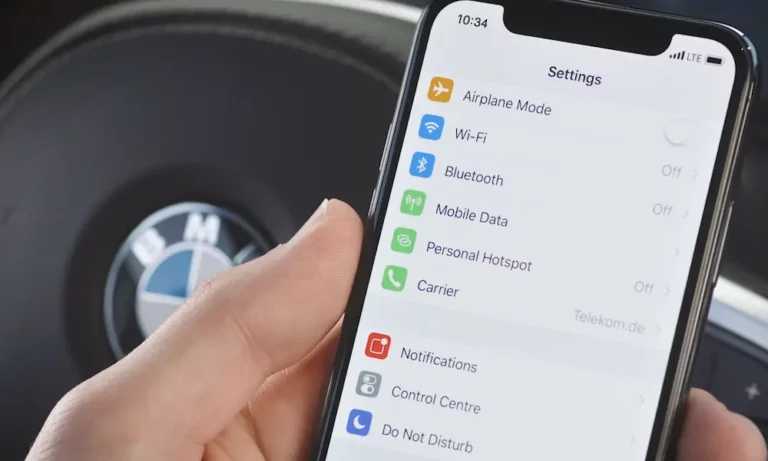
You’re cruising down the highway, ready to fire up your favorite playlist or navigation app, and… nothing. Your BMW’s CarPlay just won’t connect. Before you start Googling “nearest dealership,” take a breath. Most CarPlay issues aren’t mechanical nightmares—they’re fixable at home. Let’s walk through the real solutions that actually work.
Why Your BMW CarPlay Stops Working
CarPlay isn’t just a simple cable connection anymore. Modern BMWs use a two-step wireless handshake: Bluetooth authenticates your phone, then hands off to a private Wi-Fi network for the actual video feed. When either step fails, you’re stuck staring at a blank screen.
The most common culprits? Your iPhone’s privacy settings are blocking the connection, corrupted pairing data is creating “ghost” devices, or—in some G-Series models—water damage to the roof antenna has fried the hardware.
Here’s the thing: BMW’s iDrive system isn’t actually “dumb.” It’s waiting for your phone to pass security checks that you might’ve accidentally enabled. That VPN you turned on for work? It’s silently killing your CarPlay connection.
The Quick Fixes You Should Try First
Restart Both Devices Properly
Don’t just turn off the car and lock it. That puts the system to sleep—it doesn’t actually reboot anything.
For your BMW:
- Hold down the volume/power knob on the center console for exactly 30 seconds
- Keep holding even when the screen goes black
- Wait for the BMW logo to reappear
For your iPhone:
- Quickly press and release Volume Up
- Quickly press and release Volume Down
- Press and hold the Side button until you see the Apple logo (ignore the “slide to power off” screen)
This clears the temporary memory on both devices. It’s like rebooting your laptop when it freezes—simple, but it works about 60% of the time.
The “Clean Slate” Deletion Method
If reboots don’t work, your pairing data is probably corrupted. Here’s the right order to delete everything:
- In your BMW: Go to Mobile Devices, select your phone, press Option, then Delete Device
- On your iPhone: Settings > General > CarPlay, select your BMW, tap Forget This Car
- Still on iPhone: Settings > Bluetooth, tap the (i) next to your BMW, tap Forget This Device
- Critical step: Do the reboot process from above on both devices before trying to pair again
Skipping that last reboot is why most people fail here. The deletion doesn’t actually “stick” in permanent memory until you force a restart.
The Hidden iPhone Settings That Kill CarPlay
Turn Off Your VPN (Yes, Really)
This is the #1 silent killer of wireless CarPlay. VPNs tunnel all your network traffic through a remote server, which breaks the local Wi-Fi connection your car needs.
Go to Settings > General > VPN & Device Management. Make sure it says “Not Connected.” If you’re using NordVPN, ExpressVPN, or similar apps, disable their “auto-connect” features while driving.
Got a work phone with IT policies? Your company’s Mobile Device Management profile might force a permanent VPN. You’ll need an exemption from IT to use wireless CarPlay.
Check Screen Time Restrictions
Buried in your iPhone’s parental controls is a toggle that can completely block CarPlay—and it never tells you.
- Settings > Screen Time > Content & Privacy Restrictions
- Tap Allowed Apps
- Make sure CarPlay is toggled ON (green)
If this was off, your phone literally didn’t know it had CarPlay capabilities. No error message, no warning—just silent failure.
Disable Private Wi-Fi Address
Apple randomizes your phone’s MAC address for privacy, which is great for coffee shop Wi-Fi but confuses your BMW.
- Connect to your car and turn on the ignition
- Settings > Wi-Fi on your iPhone
- Tap the (i) next to the BMW network
- Toggle OFF “Private Wi-Fi Address”
- Toggle OFF “Limit IP Address Tracking”
Your car expects to see the same device identity every time. Random MAC addresses look like a new, unauthorized device trying to connect.
Enable Siri Completely
Apple won’t let CarPlay work without Siri (it’s a safety requirement for voice control). Go to Settings > Siri & Search and verify:
- “Listen for ‘Hey Siri'” is ON
- “Allow Siri When Locked” is ON
- “Press Side Button for Siri” is ON
Missing even one of these will cause the setup process to fail without explaining why.
Update Your Car’s Digital Permissions
Modern BMWs don’t just run local software—they check with BMW’s servers to verify you’re allowed to use CarPlay. These “entitlements” can expire or become corrupted.
For iDrive 7 (Most 2018-2022 Models)
- Press the APPS button on your controller
- Press the OPTION button (bottom right on the rotary dial)
- Select “Update Apps and Services”
- Wait for “Data transfer successful”
- Do a 30-second reset after this completes
For iDrive 8/8.5 (Curved Display Models)
- Tap “All Apps” (four squares icon)
- Select “System Settings”
- Tap “Update apps and services”
For iDrive 9 (2024+ Models)
This one’s trickier. Go to the ConnectedDrive Store app, select the “Manage” tab, and look for a refresh icon or “Update all” button. If you can’t find it, your privacy settings might be blocking it—set Data Privacy to “All Services Including Analysis.”
This process forces your car to phone home and refresh its security certificates. Think of it like renewing a digital license for CarPlay.
Fix the “No Internet Connection” Problem
You’ve got CarPlay working, but Spotify says “offline” and Maps won’t load traffic data. Your phone is connected to the car’s Wi-Fi, but that Wi-Fi doesn’t have internet access (unless you pay for BMW’s data plan).
The fix: manually tell your iPhone that the car’s Wi-Fi is only for CarPlay video, not for internet.
- Connect to CarPlay
- Settings > Wi-Fi, tap (i) next to the BMW network
- Tap “Configure IP” and change to “Manual”
- Enter IP Address: 172.16.0.1
- Subnet Mask: 255.255.0.0
- Router: LEAVE BLANK
By leaving the router field empty, you’re explicitly telling your phone “this network has no internet.” It’ll keep the Wi-Fi for screen projection but route all data through cellular.
The Hardware Problem You Need to Know About
If you’ve tried everything and your CarPlay still won’t work—especially if you also see “SOS Malfunction” warnings or your GPS shows you driving through lakes—you probably have water damage.
The Shark Fin Antenna Failure
BMW’s roof-mounted “shark fin” antenna houses critical electronics. The rubber seal degrades over time, letting water seep into the Telematics Control Unit underneath. This is a known defect affecting 2017-2023 X3, X5, X7, and 5-Series models.
Warning signs you have water damage:
- CarPlay works intermittently or not at all
- Navigation shows wildly wrong locations
- Bluetooth option is greyed out in settings
- Voice commands don’t pick up audio
- Dashboard warning: “Emergency Call System Malfunction”
This isn’t fixable at home. The repair requires dropping the headliner, replacing the corroded module, and reprogramming it with dealer software. Expect $2,000-$4,000 in costs.
Some owners prevent future damage by applying marine-grade silicone around the antenna base. It’s a band-aid, but it works.
The Nuclear Option: Deep Diagnostic Reset
Standard reboots clear the display system. But for persistent issues with GPS, connectivity, or provisioning errors, you need to force-restart the telematics module.
The 70-second deep reboot:
- Engine running, vehicle in Park
- Hold the volume knob for 70 seconds straight
- At 30 seconds the screen goes black—keep holding
- At 70 seconds it’ll cycle power again
- This forces your car to re-register with BMW’s servers and clear telematics caches
It’s the equivalent of unplugging your router for 30 seconds, but for your car’s brain.
iOS 18 Specific Issues
Recent iOS updates have introduced new bugs. If you’re on iOS 18.1 or 18.2, try these:
The Name Bug: Special characters in your iPhone’s name can break the handshake. Go to Settings > General > About > Name and change it to something simple like “DriversPhone.” Delete all pairings, reboot both devices, and re-pair.
The Update: iOS 18.4.1 reportedly includes fixes for BMW-specific wireless discovery protocols. Update if you haven’t already.
Your Step-by-Step Battle Plan
Here’s the order to tackle this:
| Step | What to Do | Why It Works |
|---|---|---|
| 1 | Check iOS settings: VPN off, Siri on, Screen Time allows CarPlay, Private Wi-Fi off | Eliminates silent blockers |
| 2 | Reboot iPhone (Vol Up/Down/Side) and BMW (30s volume hold) | Clears temporary glitches |
| 3 | Delete from car, delete from phone (Bluetooth + CarPlay), reboot both, re-pair | Removes corrupted pairing data |
| 4 | Run “Update Apps and Services” in iDrive | Refreshes digital entitlements |
| 5 | Check for SOS errors or GPS drift | Identifies hardware failure |
| 6 | 70-second deep reset or battery disconnect | Forces full system restart |
Most people fix their issue by step 3. If you make it to step 6 and still have problems, you’re looking at either a hardware failure or a BMW software bug that needs a dealer update.
What About Subscription Status?
BMW used to charge $80/year for CarPlay (they stopped in 2019, but the backend system still exists). Open the My BMW app and check your ConnectedDrive Store. Make sure “Apple CarPlay Preparation” shows as “Active” with unlimited duration.
If it says “Expired,” contact BMW Customer Care to reactivate it for free. This isn’t a money grab—it’s usually a database error.
The iDrive 9 Exception
If you’ve got a 2024+ model with the new Android-based system, the troubleshooting path is different. iDrive 9 relies heavily on cloud sync, and poor cellular coverage can lock you out.
Try the “Deep Sleep” method: lock the car, move your key fob 50+ feet away, and wait 30 minutes. This forces the system to fully suspend and clear its cache. It’s weird, but it works when volume-knob resets don’t.
When You’re Actually Stuck
If none of this works, you’re in one of three situations:
- Hardware failure (water damage, failed antenna, broken head unit)
- Corrupted firmware that needs dealer reflashing with BMW’s ISTA software
- A genuine software bug in the latest iDrive update
At this point, you need a dealer visit. But now you can walk in knowing exactly what’s been tried and what the real issue probably is. That saves you from paying diagnostic fees for a tech to just reboot your car and charge you $200.
The modern connected car is amazing when it works and maddening when it doesn’t. The good news? Most CarPlay failures are software quirks, not expensive repairs. Start with the settings audit, work through the clean slate deletion, and you’ll probably be back to wireless navigation before you finish your coffee.
And if you see that SOS warning light? Get the shark fin checked before it gets worse. Water damage doesn’t fix itself—it just spreads.