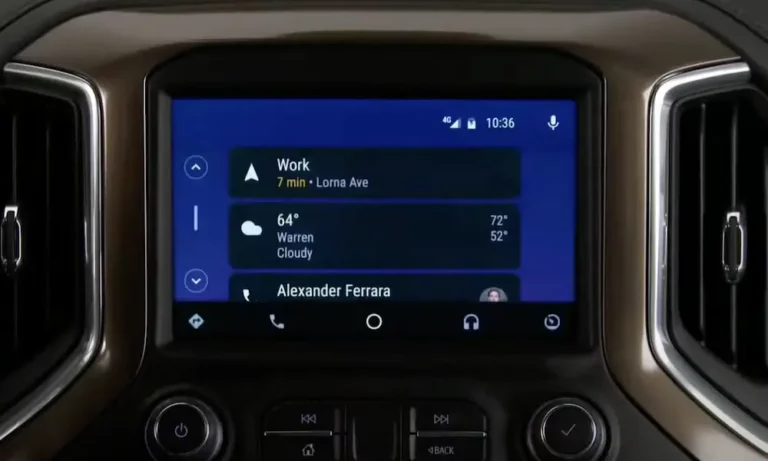
Your Chevy MyLink and Android Auto aren’t playing nice. Before you head to the dealership, most connection failures have straightforward fixes you can handle yourself. This guide walks you through every cause and solution — from bad cables to hidden Android settings. Read to the end, because the fix is often one you wouldn’t expect.
First, Check If Your Chevy Actually Supports Android Auto
Not every Chevy supports Android Auto anymore — and that’s by design.
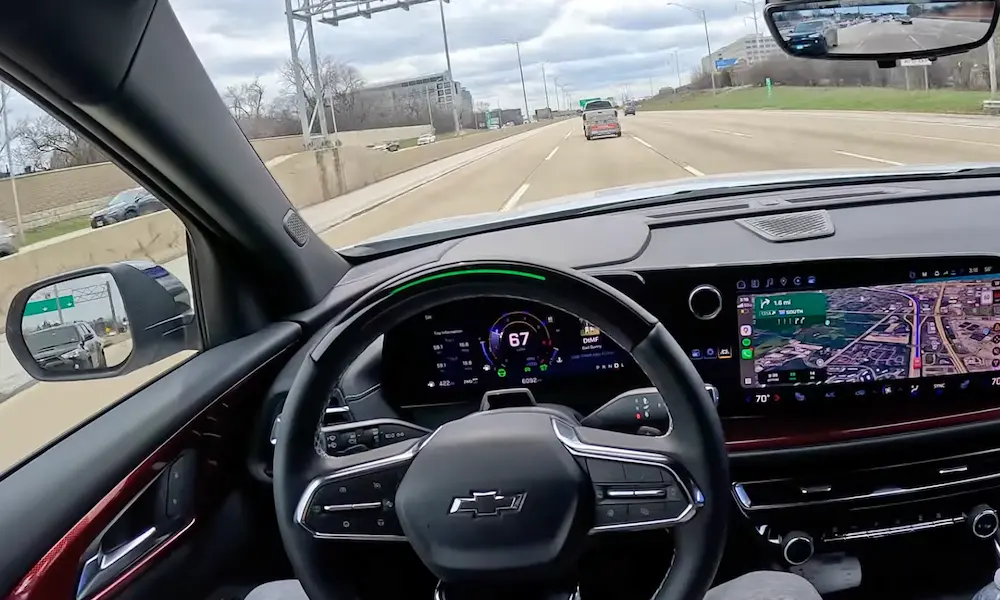
Chevrolet’s 2025-2026 EV lineup — including the Blazer EV, Equinox EV, and Silverado EV — dropped Android Auto entirely. These vehicles run Google Built-in, a native operating system baked directly into the car’s hardware. It doesn’t mirror your phone. It runs Google Maps, Spotify, and other apps directly on the screen.
If you drive a gas-powered Chevy — Silverado, Tahoe, Suburban, Traverse, Colorado, Trax, or Equinox — Android Auto is fully supported, both wired and wireless.
| Vehicle Type | Android Auto Supported? | Connection Type |
|---|---|---|
| Gas models (Silverado, Tahoe, Suburban, Traverse, Colorado) | ✅ Yes | Wired & Wireless |
| Compact/Crossover (Trax, Trailblazer, Gas Equinox) | ✅ Yes | Wired & Wireless |
| Blazer EV, Equinox EV, Silverado EV | ❌ No | Google Built-in (Native) |
| Corvette, Malibu | ✅ Yes | Wired & Wireless |
Got a gas-powered model and still can’t connect? Keep reading.
Your USB Cable Is Probably the Problem
Here’s an uncomfortable truth: most Android Auto failures trace back to a cheap cable.
Many USB cables are charge-only — meaning the manufacturer skipped the internal data wires to cut costs. Your phone charges fine, but the MyLink system never detects a data connection. The Android Auto icon stays grayed out or disappears entirely.
A proper data cable needs positive and negative data wires inside. Modern Chevy infotainment systems increasingly demand USB 3.2 Gen 2 cables as screen resolutions push toward HD and 4K. These cables contain up to 15 internal wires and shielding against the electromagnetic interference your car’s electronics constantly generate.
How to Spot the Right Cable
| Feature | What to Look For |
|---|---|
| Cable thickness | Over 4mm — thicker means more wiring and shielding |
| Connector color | Blue or teal often signals USB 3.0+ speed |
| Symbol on cable | Look for “SS” (SuperSpeed) marking |
| Symbol on port | Smartphone icon or trident symbol = data-capable |
⚠️ The USB ports in the rear console or third row of SUVs like the Suburban? Those are usually charge-only. Use the front data-enabled ports marked with a smartphone or trident symbol.
Quick test: Plug your phone into a computer with the same cable. If the computer doesn’t recognize it as a data device, the cable is your culprit. Replace it with a quality USB-A to USB-C or USB-C to USB-C data cable from a reputable brand.
Wireless Android Auto: When the Air Gets Complicated
Wireless Android Auto isn’t just Bluetooth. Bluetooth handles the initial pairing, but it lacks the bandwidth for streaming video and audio. The real connection runs through a 5GHz Wi-Fi Direct tunnel between your phone and the infotainment system.
That 5GHz tunnel is where things get messy.
Common Wireless Connection Killers
VPN apps are a frequent offender. They intercept local network traffic and block your phone from seeing the vehicle’s Wi-Fi signal. Turn off your VPN before connecting.
Adaptive Connectivity on flagship phones automatically switches between Wi-Fi and 5G to save battery. Mid-drive, it can silently kill the Android Auto tunnel. Disable it in your phone’s network settings.
Urban interference is real. In dense cities, the 5GHz spectrum gets crowded. Some phones also avoid specific DFS (Dynamic Frequency Selection) channels reserved for radar systems. If the MyLink system lands on one of those channels, your phone may refuse to connect.
Fix checklist for wireless issues:
- Turn off your VPN
- Disable Adaptive Connectivity
- Forget the vehicle in Bluetooth settings and re-pair from scratch
- Check that your phone’s Wi-Fi is turned on (not just mobile data)
- Move the car away from areas with heavy wireless interference
Android’s Power Management Is Fighting Your Connection
This one catches a lot of people off guard.
Android’s “Adaptive Battery” feature monitors how you use apps and restricts power to anything it considers non-essential. Android Auto runs as a system service — and the OS frequently tries to hibernate it during background syncs.
When the Android Auto service gets restricted mid-drive, the Wi-Fi tunnel drops. The system immediately tries to reconnect. Then drops again. Then reconnects. Pixel 10 Pro XL users know this loop well — it’s maddening.
How to Stop the Reconnection Loop
- Open Settings on your phone
- Go to Apps → Android Auto
- Tap Battery
- Set it to Unrestricted
- Disable Adaptive Battery entirely under Settings → Battery
That setting will fight you. Android sometimes resets it after OS updates, so double-check it after every major update.
The Cloned App Problem
The February 2026 security patches added advanced Secure Folder and Cloned App features. These trigger “Error 16” in Chevy infotainment systems by sending conflicting identity tokens. The head unit can’t figure out which user profile to project.
Fix: Disable any cloned apps or move navigation and media apps out of Secure Folder before connecting.
How to Reset Your Chevy MyLink System
When reconnecting doesn’t work, reset the infotainment system. There are three levels — start with the gentlest.
Soft Reset (Start Here)
A soft reset reboots the infotainment computer without deleting your settings, presets, or saved addresses.
For most MyLink and Chevrolet Infotainment 3 systems:
- Hold the Home and Fast Forward buttons simultaneously for 10 seconds
- Wait for the screen to restart
For Google Built-in models (Equinox EV, etc.):
- Shift into Park
- Hold the End Call button on the steering wheel for 20 seconds
- Wait for the welcome screen to reappear
Hard Reset (Power Cycle)
Use this if the screen freezes or the Android Auto icon won’t come back after a soft reset.
- Turn the car off
- Open and close the driver’s door
- Wait for the OnStar LED on the overhead console to go dark — this takes 5 to 15 minutes
- Restart the car
For a faster result, disconnect the negative battery terminal for 15 minutes. This drains the capacitors and forces every module into a full sleep state.
Factory Reset (Last Resort Before the Dealer)
A factory reset wipes everything — paired phones, saved addresses, all custom settings. Only do this if nothing else works.
- Go to Settings on the touchscreen
- Navigate to System → Reset Options → Factory Data Reset
- Enter PIN 0000 or 00 when prompted
Known Technical Service Bulletins for Your Chevy
General Motors officially acknowledges many of these connectivity failures through Technical Service Bulletins. If your car keeps dropping Android Auto despite all your fixes, one of these may apply.
| TSB ID | Affected System | Symptom | Fix |
|---|---|---|---|
| PIT6362 | Infotainment Module | Black screen / drops | Software reflash via SPS2 |
| PIT6471 | Audio/Amplifier | No sound from Android Auto | Hard power reset (battery disconnect) |
| 16-NA-107 | HMI Module | Grayed-out Android Auto icon | Firmware update for DTC U0184 |
| 24-NA-155 | Radio Software (RPO IVD) | General instability and lag | Update to version W38E-174.4 or higher |
Bulletin 16-NA-107 targets the Human Machine Interface (HMI) module — the brain of the MyLink system. When it stops talking to the USB ports, it throws Diagnostic Trouble Code U0184. A dealer needs the GM Service Programming System to push the firmware fix.
You can’t do this one at home. But knowing the TSB number before you walk into a dealership means they can’t brush you off as an edge case.
Check Your Phone’s Permissions and Developer Settings
Sometimes the problem isn’t the car — it’s your phone blocking the connection.
Permission check:
- Settings → Apps → Android Auto → Permissions
- Confirm Location, Nearby Devices, and Microphone are all set to Allow
Developer Options fix (for persistent “charge-only” detection issues):
- Go to Settings → About Phone
- Tap Build Number seven times to unlock Developer Options
- In Developer Options, find Default USB Configuration
- Set it to File Transfer or Android Auto
This forces a data handshake every time you plug in, instead of letting the phone default to charge-only mode.
Quick Diagnostic Path to Pinpoint the Problem
Not sure if it’s your phone, your cable, or the car? Work through this in order:
- Test a different Android phone in your car. Works? The problem is your phone’s software or battery settings — not the car.
- Test your cable on a computer. Computer doesn’t see your phone as a data device? That cable is trash.
- Check for DTC U0184 with a scan tool. If it’s present, the HMI module needs a firmware reflash at the dealer.
- Audit app permissions for Android Auto — Location, Nearby Devices, Microphone all need to be on.
- Set Default USB Configuration in Developer Options to File Transfer.
Work through these five steps and you’ll isolate the failure every time. Most people find the answer at step one or two.
A Note on Software Updates
Chevrolet’s newer models receive over-the-air software updates through a built-in 5G connection. Check for available updates under Settings → System on your touchscreen. Recent patches have addressed Android 16 compatibility issues, and skipping updates often means you’re running software the car’s engineers have already fixed.
Do the same on your phone. Android OS updates and Android Auto app updates frequently carry fixes for connectivity bugs introduced by previous releases.