Struggling to get Apple CarPlay working in your Land Rover? You’re probably hitting one of a few common snags — wrong USB port, bad cable, or a settings step you missed. This guide walks you through everything: wired setup, wireless pairing, troubleshooting, and even retrofitting older models. Read to the end before you give up on that connection.
Does Your Land Rover Actually Support Apple CarPlay?
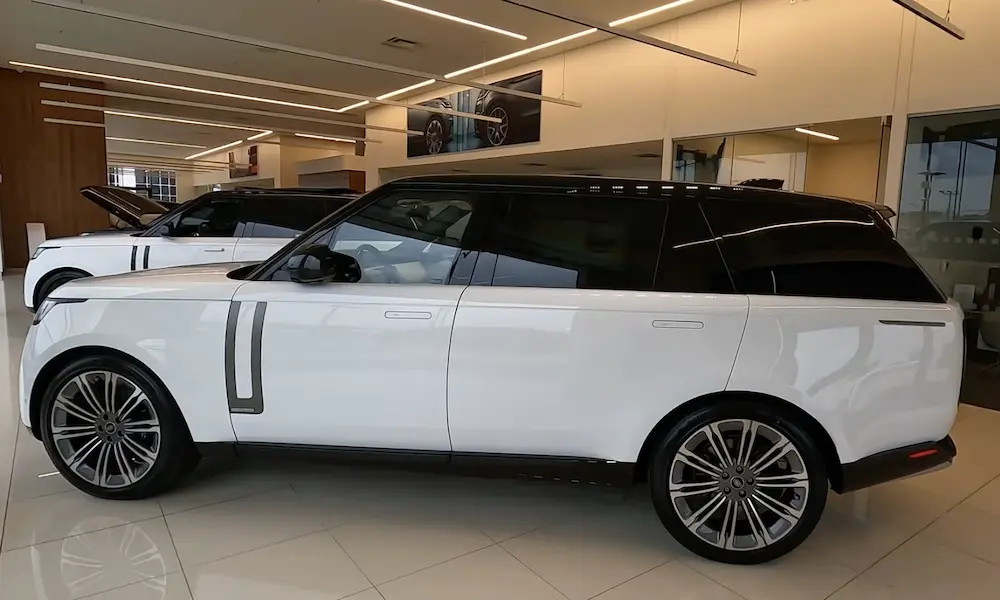
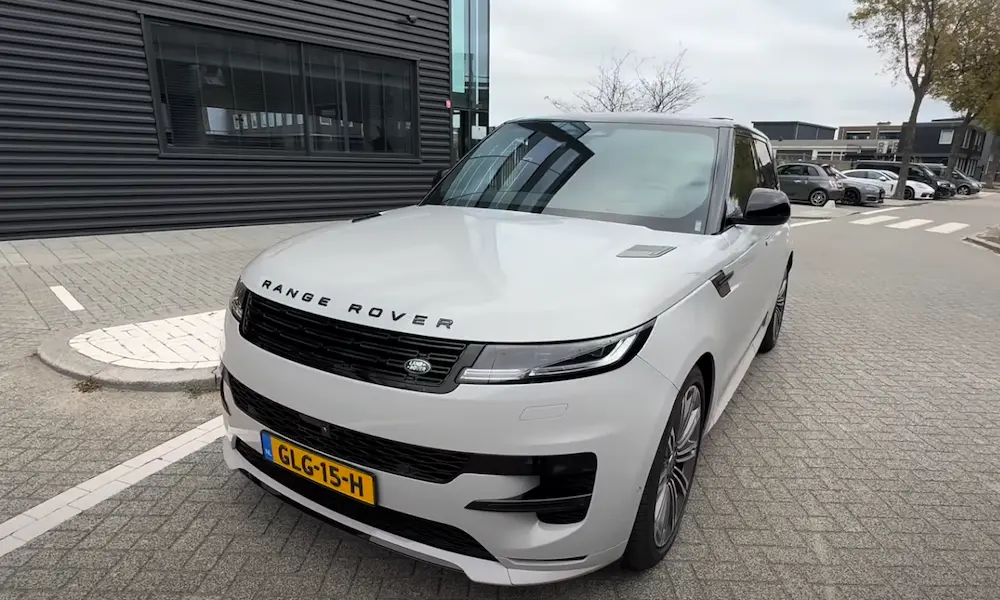
Before anything else, check if your vehicle supports CarPlay. Land Rover made CarPlay standard across most models starting with the 2019 model year. If your vehicle is older than that, you’ll need to explore a retrofit — more on that later.
Here’s a quick compatibility breakdown:
| Land Rover Model | Standard Inclusion Year | Infotainment System |
|---|---|---|
| Range Rover | 2019 – Current | Touch Pro Duo / Pivi Pro |
| Range Rover Sport | 2019 – Current | Touch Pro Duo / Pivi Pro |
| Range Rover Velar | 2019 – Current | Touch Pro Duo / Pivi Pro |
| Range Rover Evoque | 2019 – Current | Touch Pro / Pivi Pro |
| Land Rover Discovery | 2019 – Current | Touch Pro / Pivi Pro |
| Land Rover Discovery Sport | 2019 – Current | Touch Pro / Pivi Pro |
| Land Rover Defender | 2020 – Current | Pivi Pro |
The Pivi Pro system runs on a dual Qualcomm Snapdragon 820Am platform. It supports both wired and wireless CarPlay. Older InControl Touch Pro systems (2016–2020) support wired CarPlay only — and only if the Smartphone Pack was installed.
Your iPhone needs to be an iPhone 5 or later. Keep iOS updated for the best compatibility with Land Rover’s ongoing software updates.
The One Thing Most People Get Wrong: The USB Port
Here’s the most common mistake: plugging into the wrong USB port.
Land Rover cabins have multiple USB ports, but not all of them carry data. Most rear and passenger-side ports are charge-only. Plug your iPhone into one of those and nothing happens — no CarPlay prompt, just a battery top-up.
You need the front center console port, which connects to the Media Interface Module. That’s the one that actually talks to your infotainment system.
| Port Location | Function | CarPlay-Capable? |
|---|---|---|
| Front Center Console (USB-A/C) | Media Interface Module | ✅ Yes |
| Rear Center Console | Charging Only | ❌ No |
| Front Passenger Facia | Charging Only | ❌ No |
| Front Seat Backs | Charging Only | ❌ No |
| Loadspace / Trunk | Charging Only | ❌ No |
Look for a port marked with a smartphone or CarPlay icon. That’s your port.
How to Connect Apple CarPlay to Land Rover (Wired)
Wired is still the most stable connection method. It gives you better audio quality and a faster response time. Follow these steps exactly:
Step 1: Enable Siri first. Go to iPhone Settings → Siri & Search and turn Siri on. CarPlay won’t work without it — Apple requires voice control for safety reasons.
Step 2: Use a quality cable. This matters more than most people realize. Use an Apple-certified or MFi-certified (Made for iPhone) cable. Cheap third-party cables often don’t carry data — they just charge. Also inspect your cable for frays or debris in the connector. A tiny bit of pocket lint can break the connection.
Step 3: Plug into the front center console USB port. Connect the cable to your iPhone and then to the correct port.
Step 4: Respond to the screen prompt. Your Land Rover touchscreen will ask how to handle the device. Tap “Apple CarPlay.”
Step 5: Allow CarPlay on your iPhone. A popup will appear asking to “Allow CarPlay with ‘Land Rover’ while locked.” Tap Allow. This is critical — skipping this step means CarPlay drops every time your screen turns off.
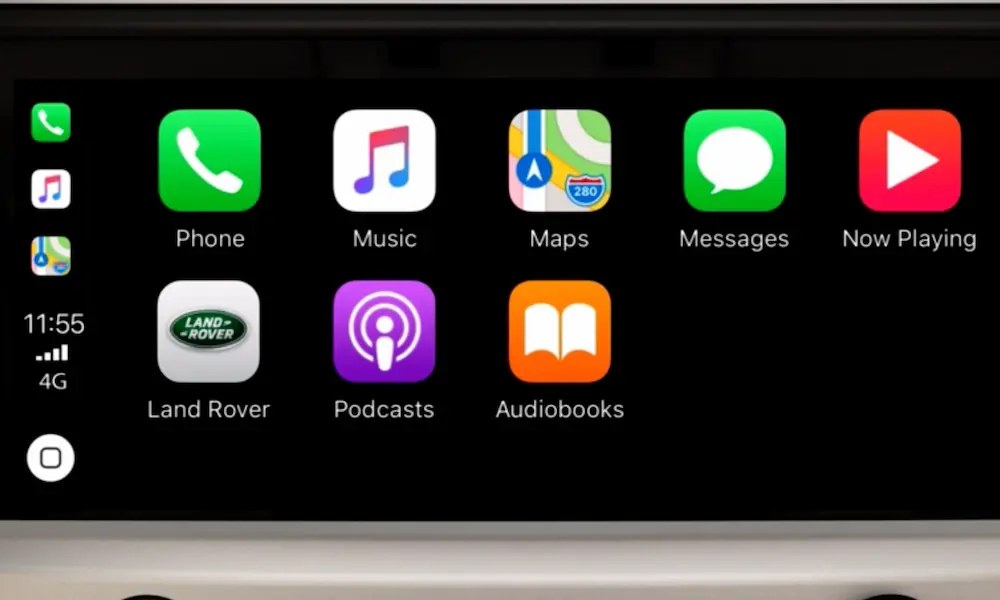
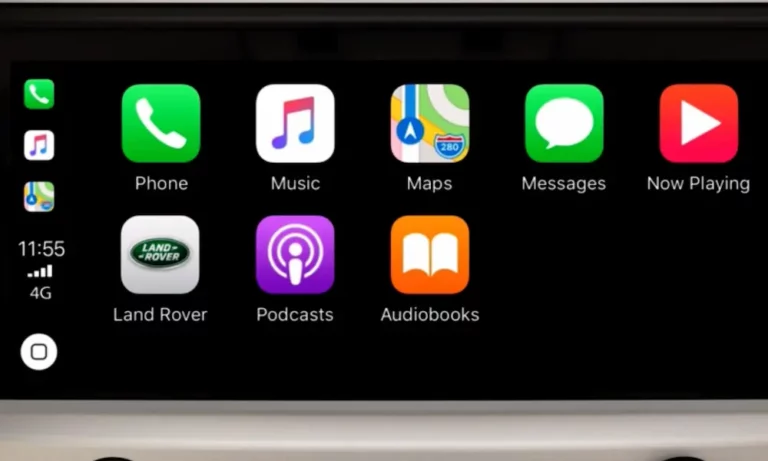
Step 6: Launch the interface. The CarPlay icon appears on your Pivi or InControl home screen. Tap it and you’re in.
One extra tip: if your iPhone battery is very low (under 10%), the phone may pull so much power for charging that it destabilizes the data connection. Pre-charge before you drive, or use a separate 12V adapter to handle power so your USB port can focus on data.
How to Set Up Wireless Apple CarPlay in Land Rover
Wireless CarPlay is available on most Land Rover vehicles from 2021 onward with the Pivi Pro system. It pairs Bluetooth for the initial handshake, then switches to a local Wi-Fi network for the actual data stream.
Here’s how to set it up:
Step 1: Turn on both Bluetooth and Wi-Fi on your iPhone. Both must be active — not just Bluetooth.
Step 2: On your Land Rover touchscreen, go to Phone → Add New Device.
Step 3: Select your iPhone from the list. A pairing code appears on both screens. Confirm the codes match, then tap to pair on your iPhone.
Step 4: When prompted, tap “Use CarPlay.” The system transitions from Bluetooth to the local Wi-Fi network automatically.
Step 5: After this first setup, your iPhone connects automatically every time you get in the car — no cable needed.
The big perk here: you can place your phone on Land Rover’s wireless charging pad while CarPlay runs. Zero cables, full functionality. One caveat — wireless connections can occasionally stutter in dense urban areas with heavy radio frequency interference.
Using Siri While Driving
Siri isn’t optional in CarPlay — it’s the safest way to interact with your phone while driving. Land Rover gives you three ways to activate it:
- Steering wheel button: Press and hold the voice command button for a few seconds. This bypasses Land Rover’s native voice system and goes straight to Siri.
- “Hey Siri”: If enabled on your iPhone, the vehicle’s microphones pick it up. Completely hands-free.
- Touchscreen: Tap the CarPlay home button to trigger Siri.
With iOS 15 and later, Siri can also read your incoming messages aloud through the car’s speakers — you respond with your voice, never touching the screen.
Keeping Your System Updated
Software updates directly affect CarPlay stability. Land Rover pushes these automatically on Pivi Pro vehicles via over-the-air (SOTA) updates using the system’s built-in cellular connection.
When an update is ready, your touchscreen will notify you. The file downloads in the background while you drive and doesn’t touch your personal data plan. To install it, park the vehicle, lock it, and set the alarm. Installation takes up to 90 minutes. Once done, the system shows release notes detailing what changed — things like improved wireless CarPlay stability or dual-screen map support.
If you own a 2016–2018 model without SOTA capability, you’ll need to update manually via USB. Log into the Land Rover navigation portal with your VIN, download the update files (sometimes over 20GB), transfer them to a FAT32/NTFS-formatted USB 3.0 drive, and install with the engine running.
Troubleshooting: When CarPlay Won’t Connect
Try a Soft Reset First
Frozen screen? “Device not recognized” error? Start here. Hold the volume/power button on your infotainment system for 15–30 seconds until the Land Rover logo appears and the system reboots. This clears any cache overflow and forces a fresh handshake with your iPhone. It fixes most temporary glitches without erasing any settings.
Check Your VPN Settings
This one catches a lot of people. If you run a VPN on your iPhone, it can interfere with the local Wi-Fi routing that wireless CarPlay depends on. Studies suggest that up to 30% of CarPlay connection failures in late 2023 were VPN-related. Don’t just pause the VPN — go to Settings → VPN & Device Management and fully disable the profile. In stubborn cases, uninstall the VPN app temporarily.
Common Symptoms and Fixes
| Symptom | Probable Cause | Fix |
|---|---|---|
| CarPlay drops when phone hits 5% | Voltage drop during fast-charge request | Pre-charge phone or use separate 12V adapter for power |
| USB port is completely dead | Blown fuse or module failure | Check TSB SSM 75708 and inspect accessory fuse |
| Intermittent “Connection Lost” | Dirty port or worn cable pins | Clean port with a non-metal pick and compressed air |
| Wireless CarPlay won’t reconnect | Corrupted pairing certificate | Forget the vehicle in iPhone CarPlay settings; forget the phone on the Land Rover screen |
Also check your iPhone settings: make sure “Allow CarPlay While Locked” is turned on. If it’s off, CarPlay disconnects the moment your phone screen dims.
If You Own a 2017–2019 Model
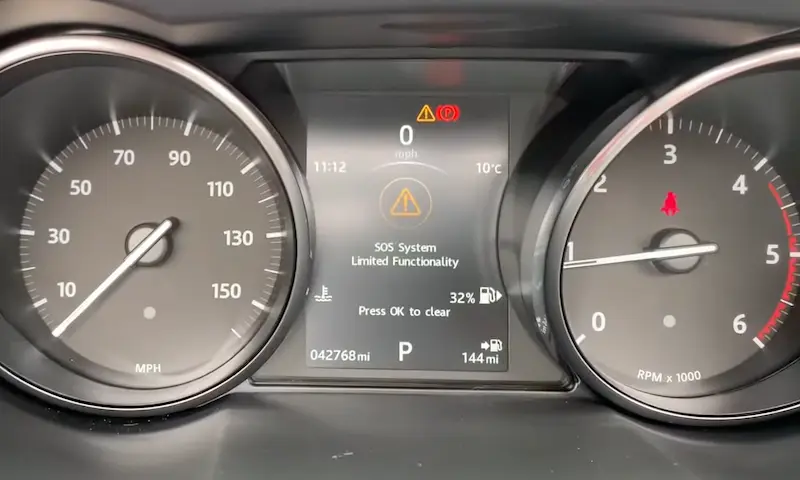
Watch for an “SOS Limited Functionality” warning. This points to a failing Telematics Control Unit (TCU) backup battery. The TCU manages your vehicle’s external data connection, and when it fails, the entire InControl system can lag or crash — taking CarPlay down with it. Per Technical Service Bulletin SSM 74189, the TCU battery (Part No. LR089861) lasts 3–5 years. Run the engine for 60 minutes first to attempt a recharge. If the warning stays, the battery needs replacing.
Adding CarPlay to Older Land Rovers (2016–2018)
Got a 2016–2018 model with a 10.2-inch screen? You may be in luck. Land Rover issued Service Bulletin LTB01108NAS to enable the Smartphone Pack on compatible older vehicles via a Phase 3.0 software update. A Land Rover retailer can perform this update if your vehicle has a Mid-Line or High-Line media console with the 10.2-inch widescreen display.
If your vehicle has an 8-inch screen with physical buttons on the sides, the official update path isn’t available. The older 8-inch hardware uses a different processing architecture that isn’t compatible with CarPlay’s data requirements. Your options are aftermarket solutions like those from RDVFL, which install a bypass module behind your dashboard and intercept the video signal. These retrofits typically cost between $500 and $1,500 and need professional installation to keep your 360-degree cameras and other systems intact.
Quick Reference: Best Practices for a Stable Connection
Keep these habits and you’ll rarely have CarPlay problems:
- Use short cables. Stick to one-meter (3-foot) Apple-certified cables. Longer cables can lose signal strength.
- Keep iOS updated. Land Rover’s SOTA updates are written to match current iOS builds.
- Reset pairings periodically. Every few months, forget the vehicle in your iPhone’s CarPlay settings and forget the iPhone on the Land Rover screen. This clears any corrupted certificates before they cause problems.
- Don’t run CarPlay navigation below 10% battery in older vehicles — the power draw can break the data link.
- Always confirm “Allow CarPlay While Locked” in your iPhone settings stays enabled.
If you follow the setup steps correctly and keep your software current, connecting Apple CarPlay to your Land Rover should be a smooth, repeatable experience every time you get in the car.