Your Chevy Tahoe’s screen just froze, went black, or is stuck on the logo. Annoying, right? The good news is that most of these issues have a simple fix you can do yourself in minutes. This guide walks you through every method—from a quick soft reset to a full factory wipe—so you can get back on the road without a dealership visit.
What Year Is Your Tahoe? (It Changes Everything)
Before you start pressing buttons, you need to know which system your Tahoe has. The reset method for a 2017 model is completely different from a 2023.
| Model Year | Infotainment System | Reset Method |
|---|---|---|
| 2015–2018 | MyLink / IntelliLink | Physical power knob |
| 2019–2020 | Infotainment 3 | Power + Home button combo |
| 2021–2023 | Infotainment 3 Plus | Steering wheel End Call button |
| 2024–2025 | Google Built-in | Steering wheel End Call button |
The older 2015–2020 Tahoes run on a traditional CAN bus network, so a frozen screen usually means a localized software glitch. The newer 2021–2025 models use high-speed Ethernet networking, meaning a freeze can sometimes point to a deeper communication failure between modules.
Step 1: Try the Soft Reset First
A soft reset is your first move. It restarts the operating system without erasing anything. Think of it like force-quitting an app on your phone.
For 2015–2020 Tahoes:
- Find the volume knob (it doubles as the power button)
- Press and hold it for 10–15 seconds
- The screen will go black, then the Chevy logo will appear
- Total time: about 30 seconds
For 2021–2025 Tahoes:
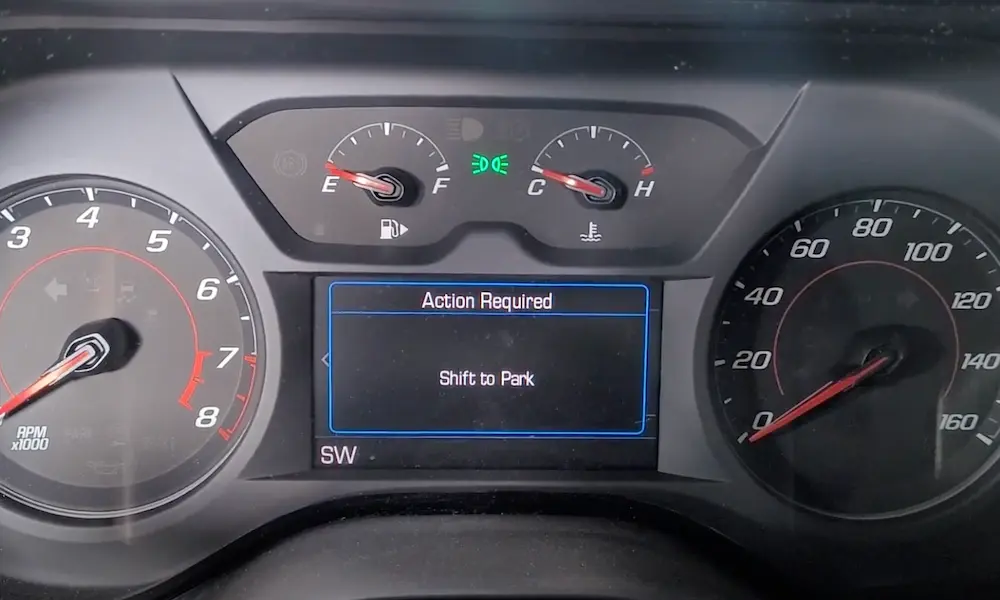
- Put your Tahoe in Park first
- Press and hold the End Call button on your steering wheel for 10–20 seconds
- The screen restarts itself
This works about 70% of the time for frozen screens and app crashes. If your Tahoe is still stuck after this, move to the next step.
Step 2: Do a Full Power Cycle
If the soft reset didn’t work, the issue might be sitting in a deeper power state. Your Tahoe uses something called Retained Accessory Power (RAP), which keeps electronics running even after you turn off the ignition. Sometimes, this system gets stuck.
Here’s how to break that cycle:
- Turn off the engine completely
- Remove the key (or step out if you have a push-start)
- Open the driver’s door and close it again — this kills the RAP cycle
- Wait at least 60 seconds (5 minutes is better for 2021+ models)
- Get back in and start the vehicle
That waiting period matters. The radio module has internal capacitors that hold a charge. Skipping the wait means the system doesn’t actually restart from zero — it just picks up from a corrupted state. This full power cycle resolves many persistent screen glitches that a simple soft reset won’t touch.
Step 3: Disconnect the Battery (Hard Reset)
When software-based resets fail, you cut the power. This is the most thorough reset available to you without special tools.
What you need: A 10mm wrench
Steps:
- Turn off the vehicle completely
- Open the hood and locate the 12V battery
- Remove the negative terminal (the black cable with the minus sign) — always remove negative first to avoid shorting against the chassis
- Wait 15–20 minutes — this is non-negotiable
- Reconnect the negative terminal and start the vehicle
The system will perform a full cold boot, reinitializing every electronic module from scratch. You’ll likely lose your radio presets, clock settings, and saved display themes. However, many 2021+ Tahoes automatically restore these through your Chevrolet account if you’re logged in.
Why 15 minutes? Modern automotive modules contain capacitors designed to hold power through brief voltage dips. A shorter wait doesn’t fully drain them, so the system doesn’t actually reset.
Step 4: Pull the Infotainment Fuse
Want a targeted reset that doesn’t affect the rest of your vehicle’s electronics? Pull the infotainment fuse instead of disconnecting the battery.
Finding the right fuse box:
| Model Year | Fuse Box Location | Key Fuse to Pull |
|---|---|---|
| 2015–2020 | Driver’s side dashboard (remove side panel) | Fuse 29 or 48 (Radio/Display) |
| 2021–2025 | Passenger side dashboard (open end-cap panel) | Fuse 26 / “MICK 3” |
| All years | Under-hood, driver’s side | High-amp Radio fuse |
For 2015–2020 models, the fuse box sits on the driver’s side of the instrument panel. Pull fuse 29 or 48 for one minute, then reinsert. You can watch a video walkthrough of the fuse locations to confirm the exact positions before you start.
For 2021–2025 models, the fuse block moves to the passenger side. Look for the fuse labeled “MICK 3” or Fuse 26. Here’s an important note: diagnostics on these newer models show that many “dead” screens in 2022–2023 Tahoes weren’t hardware failures at all — the fuses just weren’t fully seated at the factory. Before assuming anything is broken, press each fuse firmly with your thumb to make sure it’s fully connected.
Step 5: Run a Factory Data Reset
If resets haven’t fixed the problem and the screen works but behaves strangely — apps missing, persistent errors, weird glitches — a Factory Data Reset (FDR) is your next move. This wipes the internal drive and reinstalls the base software.
Important: Do this while the vehicle is in Park with the engine running.
- Tap Settings on the touchscreen
- Go to System, then Reset Options
- Choose Factory Data Reset (or “Clear All Private Data” if you only want to remove personal info)
- The system will warn you that all paired devices, saved addresses, and presets will be deleted permanently
- Confirm and wait 5–10 minutes for the process to complete
The system will prompt you for a 4-digit PIN. If you’ve never set one, try 0000 or 1234. If those don’t work, you can manage your PIN through Chevrolet’s account portal using your VIN and email address.
Is Your Screen Black or Frozen on the Logo?
Different symptoms point to different problems. Here’s a quick reference:
| What You See | Most Likely Cause | Best First Step |
|---|---|---|
| Frozen on map or app | Software memory leak | Soft reset (hold power/End Call) |
| Total black screen | Blown fuse or loose ground | Check fuse 26 / inspect ground G218 |
| Stuck on Chevy logo | Corrupted firmware | Battery disconnect for 15 minutes |
| Intermittent flickering | Loose wiring harness | Reseat connectors behind display |
| App icons missing | Failed OTA update | Check update menu or visit dealer |
| Screen says “LOCKED” | Theft-deterrent mode triggered | See section below |
Unlocking a “LOCKED” Screen
If your screen shows the word LOCKED, it’s entered a theft-deterrent mode. This usually happens after a battery disconnect or if the radio detects it’s been moved to a different vehicle.
Here’s how to fix it:
- Turn the ignition to the On position (don’t start the engine)
- Hold preset buttons 2 and 3 simultaneously for several seconds
- A code will appear on the display — write it down
- Take that code plus your VIN to a Chevrolet dealer
- They’ll give you a unique 4-digit unlock code
- Enter the unlock code using the hour and minute adjustment buttons on the dash
Heat and Cold Can Fake a System Failure
Before you panic about a broken screen, check the conditions outside.
Hot weather: Dashboard temperatures can exceed 140°F on a hot day. The infotainment processor will trigger a thermal shutdown to protect itself. The screen goes dark and won’t respond to any reset commands. The fix? Cool the cabin down with the AC running, then wait a few minutes. The screen should wake up on its own.
Cold weather: Lead-acid batteries lose significant current-delivery capacity near freezing. When you start a cold engine, the starter motor pulls so much current that system voltage can briefly dip below 9 volts. That brownout can cause your screen to restart repeatedly or get stuck on the logo. Testing your battery every fall before winter is the simplest way to prevent this entirely.
Keep Your Software Updated
A lot of Tahoe screen issues are actually known firmware bugs that GM has already fixed. If you own a 2021–2025 model, your Tahoe can receive updates automatically over its 4G/5G LTE connection. Updates like firmware version 5.4.1 specifically targeted reboot loops and corrupted cache issues.
To check for updates manually:
- Go to Settings → System → Software Information
- Connect to a Wi-Fi network if your cellular signal is weak
- Let the update run fully — interrupting it can leave the system in a non-functional state
If an update fails midway and your screen goes black permanently, that’s a job for the dealer. They’ll connect to your OBD-II port and force a fresh firmware installation using GM’s Service Programming System. That’s not a DIY fix.
One More Thing: Check Your USB Cable
A surprisingly high number of Tahoe screen freezes aren’t screen problems at all. They’re CarPlay or Android Auto connection failures caused by a bad USB cable. Aftermarket cables often lack proper shielding against electromagnetic interference from the ignition system, which causes the data connection to drop and the screen to hang.
Swap your cable for the OEM cable that came with your phone and test again before spending any more time troubleshooting the vehicle itself. It fixes the problem more often than you’d expect.
Also, clean your touchscreen with a dry microfiber cloth regularly. Oils and dust reduce the electrical conductivity your finger needs to register a tap. Never use ammonia-based glass cleaner — it damages the anti-reflective coating and causes permanent display blurring over time.