Is your GMC sending you down roads that no longer exist? Outdated maps are more than annoying — they can cost you time, fuel, and patience. This guide covers exactly how to update GMC navigation, whether you’re working with an older SD card system or a shiny new Google built-in setup. Stick around — the fix is simpler than you think.
First, Figure Out Which System You Have
Before you do anything, you need to know what you’re working with. GMC has used several different infotainment systems over the years, and the update process depends entirely on your hardware.
Here’s a quick breakdown:
| Model Year | System | Update Method |
|---|---|---|
| 2017–2021 Sierra / Yukon | Infotainment 3 / CSM | SD Card or USB |
| 2019–2021 Acadia / Terrain | Infotainment 3 | SD Card |
| 2022+ Sierra / Yukon / Canyon | Google Built-in (VCU) | Over-the-Air (OTA) |
| 2022+ Hummer EV / Sierra EV | Google Built-in (VCU) | OTA (Native) |
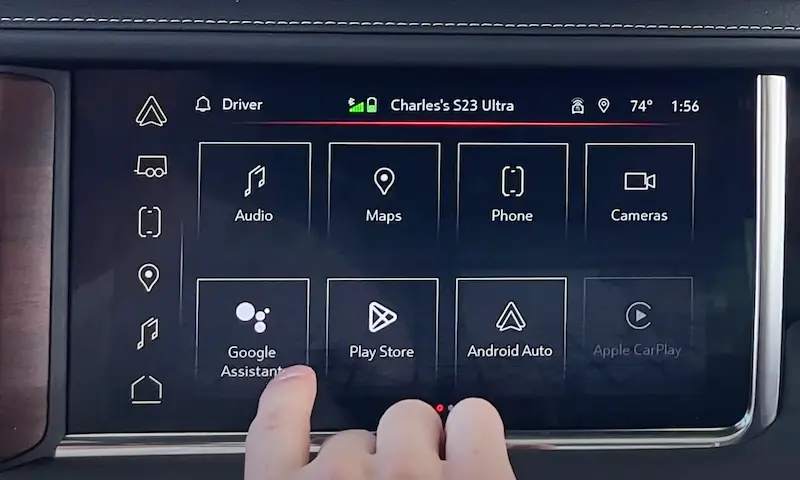
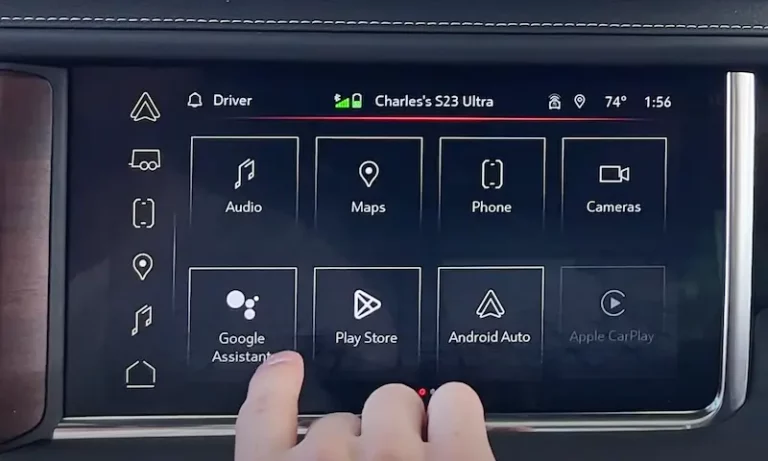
Not sure which one you have? Check your center console for an SD card slot. If there’s one there, you’re on the older system. If you see a Google Maps icon on your main screen, you’ve got Google built-in.
How to Update GMC Navigation with an SD Card
Older GMC models use a physical SD card to store map data. The maps come from HERE Technologies, GMC’s official map data partner. HERE builds its maps using LiDAR, aerial imagery, and mobile mapping units — so the data is genuinely high quality when it’s current.
Step 1: Buy the Right Map Update
Head to the GM Navigation Store. The current 2025 map update costs $149.99 plus shipping.
A few things to know before you buy:
- The SD card is VIN-locked to your specific vehicle. Once you insert it and start installation, it’s tied to your truck forever.
- It covers the USA, Canada, and Mexico.
- Always verify your vehicle’s model year and infotainment version before purchasing — an SD card for an HMI 2.5 system won’t work in a CSM-based Infotainment 3 setup.
You’ll also find third-party options on eBay for $30–$85, but these carry real risks. Some cards cause “SD Card Error” messages or flat-out fail to install. Stick with the official store if you want it done right.
Step 2: Locate the SD Card Slot
The slot is usually inside the center console or near the wireless charging compartment. It tends to sit toward the back of the console, so grab a flashlight — you’ll thank yourself later.
Step 3: Follow the “Ignition Off” Rule
This step trips up a lot of people. You must remove or insert the SD card only when the ignition is completely off and you’ve opened the driver’s door. Opening the door signals the infotainment module to fully power down.
Skip this step and you risk corrupting the card or triggering a “Navigation System Malfunction” error. It’s not worth the hassle.
Step 4: Insert the New SD Card
When you slide in the new card, make sure the small Lock/Unlock switch on the side is in the upward, unlocked position. This allows the system to read and write to the card.
Step 5: Start the Vehicle and Follow the Prompts
Start your GMC and let the system recognize the new card. It’ll walk you through a few on-screen prompts to finish the installation. Easy.
Pro tip: According to the official GM installation instructions, never force the card in. If it doesn’t slide in smoothly, double-check you’re inserting it the right way.
How to Update GMC Navigation via USB
Some GMC models accept USB-based updates, either because they don’t have an SD slot or as a backup when OTA fails.
Here’s the process:
- Download the update file from your GM Owner Center account.
- Transfer it to a FAT32-formatted USB drive.
- Put the vehicle in Park with the engine running — you need a stable 12V power supply the whole time.
- Plug in the USB and follow the on-screen instructions.
Any drop in power mid-transfer can corrupt the installation. Don’t rush it, and don’t turn the engine off until it’s done.
How to Update GMC Navigation via Over-the-Air (OTA)
If your GMC is a 2022 or newer model with Google built-in, congratulations — your navigation updates happen automatically. No SD cards, no USB drives, no trips to the dealership.
How OTA Updates Actually Work
The update runs in two stages:
Stage 1 – Download: This happens quietly in the background while you drive. Your truck uses its built-in 4G LTE or 5G connection to pull the new data. If you lose signal — say, in a parking garage — the download pauses and picks back up when you’re back in range.
Stage 2 – Installation: Once the download is complete, your center display will ask you to approve the installation. The vehicle has to be in Park, and it’ll take roughly 20 minutes to finish. You won’t be able to drive during this time, so pick a convenient moment.
You don’t need a paid data plan to receive these updates — just make sure you’ve accepted the Connected Vehicle User Terms.
How to Check for a Pending Update
Go to Settings → Vehicle → Software Information on your infotainment screen. If there’s an update waiting, you’ll see it listed there. You can also enable automatic downloads so updates happen without you lifting a finger.
What If the Update Says “Conditions Are Not Ideal”?
This message almost always means your 12V battery is low. The system won’t start an installation if it thinks the battery might die mid-update.
Fix it by driving the vehicle for 20–30 minutes. If your GMC has Auto-Stop/Start, disable it temporarily so the alternator can charge the battery more efficiently. Once the battery’s up to voltage, the update should proceed normally.
| Error / Message | Likely Cause | What to Do |
|---|---|---|
| “Conditions are not ideal” | Low 12V battery voltage | Drive for 20–30 min to recharge |
| “Update failed / Connection error” | Poor cell signal | Move to better reception area |
| “Requires an upgraded plan” | Missing data entitlement | Contact OnStar to re-provision |
| “SD Card Not Valid” | VIN mismatch or corruption | Check card SKU or re-seat the card |
| Screen frozen or unresponsive | Software glitch | Perform a soft reboot (see below) |
The Soft Reboot Fix (Works More Often Than You’d Think)
If your navigation screen freezes, shows a blank map, or just acts strange after an update, try a soft reboot before panicking.
Here’s how:
- Put the vehicle in Park.
- Hold the End Call button on your steering wheel for about 20 seconds.
- The display will cycle off and restart.
This reboots the Android operating system on your screen without wiping any settings. It clears minor software conflicts and hung processes — and it solves a surprisingly large number of nav issues.
Understanding GMC’s Google Built-In Navigation
For 2022+ GMC owners, the navigation experience is completely different from the old SD card era. Your truck runs native Google Maps, and it’s genuinely impressive.
Here’s what it can do that older systems couldn’t:
- Real-time traffic routing — Google’s global data network finds the fastest route, not just the nearest one.
- EV-specific route planning — On the Hummer EV and Sierra EV, Google Maps factors in your current battery level, predicts your charge on arrival, and flags compatible charging stations along the way.
- Super Cruise road compatibility — The system identifies hands-free driving roads and builds routes that maximize your time using Super Cruise, which now covers over 400,000 miles of US and Canadian highways.
- Trailering navigation — Enter your trailer’s height, width, and weight, and the system routes you around low bridges and weight-restricted roads automatically.
- Voice commands for vehicle controls — Say “Hey Google, set the temperature to 70” and it just happens.
You can also sign in with your personal Google Account to sync your Home and Work addresses, saved places, and recent searches directly from your phone. If you’d rather not, there’s a guest mode — but you’ll miss out on the personalized features.
What About Offline Maps?
If you drive through areas with spotty cell coverage, you can download offline maps directly to your vehicle. Go to the Privacy Center in Google Maps and turn on auto-download. Your truck stores local map data in its internal memory, so turn-by-turn directions keep working even without a signal.
This is especially useful in rural areas or near the US-Canada border where connectivity can be inconsistent.
The OnStar Subscription Factor
Here’s something worth knowing before you assume navigation is fully free forever.
For 2025 and newer GMC models, GM includes the OnStar Basics plan for 8 years at no charge. This covers:
- Automatic Crash Response
- Remote lock/unlock and remote start via the myGMC app
- Navigation connectivity for Google Maps
- Google Assistant voice commands
That’s a genuinely solid package. But here’s the catch some owners run into: features like live traffic updates and satellite view may require a higher-tier plan once the initial 30-day OnStar One trial ends. Some users have seen the message “This application requires an upgraded OnStar plan” pop up after the trial expires.
If that happens to you, you have two options:
- Upgrade to OnStar One (~$34.99–$49.99/month) for full live data features.
- Tether your vehicle to your smartphone’s personal hotspot — it works just fine.
| Plan | Monthly Cost | Navigation Features |
|---|---|---|
| OnStar Basics | Included (8 years, 2025+ vehicles) | Cloud maps, search, routing |
| OnStar Connect | ~$14.99 | Basic app connectivity |
| OnStar Connect Plus | ~$24.99 | All Connect + Wi-Fi hotspot |
| OnStar Protect | ~$19.99–$29.99 | Emergency navigation, roadside assist |
| OnStar One | ~$34.99–$49.99 | Full nav + live traffic + hotspot |
Why Keeping Your GMC Navigation Updated Actually Matters
It’s not just about finding new coffee shops. According to GMC’s own software update page, regular updates also include security patches that protect your connected vehicle from vulnerabilities.
Beyond that, HERE Technologies adds tens of thousands of miles of new roads, updated addresses, and corrected signage with every update cycle. Outdated maps mean missed turns, longer routes, and in the case of Super Cruise, the system may actually disable itself on certain highway stretches if the map data is too old.
Staying current isn’t optional if you want your truck’s tech to work the way it’s supposed to.