Staring at roads that no longer exist? Your Mazda’s navigation might be running on outdated maps. This guide walks you through exactly how to update Mazda navigation — whether you’ve got an older SD card system or a newer connected model. Stick around, because the process varies more than you’d think.
First, Figure Out Which Mazda System You Have
Before you touch anything, you need to know which infotainment system your car runs. Mazda has two main generations, and the update process is completely different for each.
First-Generation Mazda Connect (MZD Connect)
This system came in Mazda vehicles built between 2014 and 2018 — though some models used it right up to 2024. You’ll recognize it by the rotary commander knob and a 7- or 8-inch non-touch display. Navigation runs entirely off a physical SD card. No card? You’ll see a basic compass screen or an error message.
Vehicles with this system include:
- Mazda 2: 2014–2024
- Mazda 3: 2014–2018
- Mazda 6: 2015–2024
- Mazda MX-5: 2014–2024
- Mazda CX-3: 2014–2024
- Mazda CX-5: 2015–2020
Seventh-Generation Mazda Connect 2
Starting with the 2019 Mazda 3, Mazda rolled out a much more capable system. It features a wider 8.8- or 10.25-inch display and a built-in 4G/LTE telematics unit. Maps still use an SD card, but the car can now receive some updates wirelessly through Mazda Connected Services.
Models on this platform include the 2019–2024 Mazda 3, 2020–2024 CX-30, and 2021–2024 versions of the CX-5 and CX-9.
| Feature | Mazda Connect Gen 1 | Mazda Connect 2 Gen 7 |
|---|---|---|
| Update Method | Manual SD Card via Toolbox | OTA Software / SD Card for Maps |
| Connectivity | Bluetooth/USB Only | Integrated 4G/LTE |
| Display Size | 7″–8″ | 8.8″–10.25″ |
| Remote Features | None | MyMazda App Integration |
How to Update Mazda Navigation Using the Mazda Update Toolbox
For most owners with first-generation systems, this is your main method. The Mazda Update Toolbox is Mazda’s official desktop app for downloading and installing map updates onto your SD card.
What You Need Before You Start
Get these ready before you download anything:
- A Windows 10 PC or Mac running macOS 10.10 or later
- At least 30 GB of free hard drive space
- A broadband internet connection
- Your vehicle’s original navigation SD card
- A USB SD card reader (if your computer doesn’t have a built-in slot)
- Your Mazda account login — use the same email tied to any Mazda app you’ve used before
Step-by-Step: How to Update Mazda Navigation Maps
Follow these steps in order. Don’t skip the backup — it’s there for a reason.
Step 1: Download and install the Mazda Update Toolbox
Head to the official Mazda update portal and grab the installer for your region. Run the wizard and select your language.
Step 2: Log in with your Mazda account
Use the same email you registered with previously. This keeps your map license tied to the right account.
Step 3: Insert your SD card
Take the SD card out of your car and plug it into your computer. The Toolbox will recognize it and show your current map version.
Step 4: Back up your SD card first
The Toolbox will prompt you to create a backup. Do it. Your SD card holds encrypted license files — if something goes wrong during the update, a backup is the only way to recover. Check the Mazda Update Toolbox How-To Guide if you want a walkthrough of this step.
Step 5: Download the latest map data
The Toolbox connects to the update servers and pulls the newest cartographic data. Large file — give it time on a stable connection.
Step 6: Let the Toolbox write to the SD card
Don’t remove the card during this process. A failed write mid-install can corrupt the data and lock you out of navigation entirely.
Step 7: Eject the card safely, then re-insert it in your car
With the ignition off, put the SD card back in your Mazda. Start the engine and the system will recognize the updated maps automatically.
The VIN-Lock: What Every Mazda Owner Needs to Know
Here’s something that catches a lot of people off guard. After you drive roughly 63 miles (100 km) with a new SD card in your car, the card locks permanently to your vehicle’s VIN. That card won’t activate navigation in any other Mazda — ever.
This is Mazda’s digital rights management at work. It also means that if you buy a used Mazda, the previous owner’s SD card may already be locked, and the free update window might already be closed. Always check this before you buy.
Over-the-Air Updates on Newer Mazda Connect 2 Systems
If you’ve got a 2019 or newer Mazda with the seventh-generation system, you have an extra option. The car can download and install software updates wirelessly through Mazda Connected Services.
Here’s how the OTA process works in practice:
- The system checks for updates automatically if you’ve turned that setting on
- Downloads happen in the background — you can still use navigation and entertainment
- If you turn the car off mid-download, it picks back up on the next ignition cycle
- Your saved places, favorites, and paired devices stay intact throughout
One thing to note: not every update comes through OTA. Critical security patches or major architecture changes may still require a dealer visit. The system will tell you when that’s the case.
Send-to-Car: The Smarter Way to Set Destinations
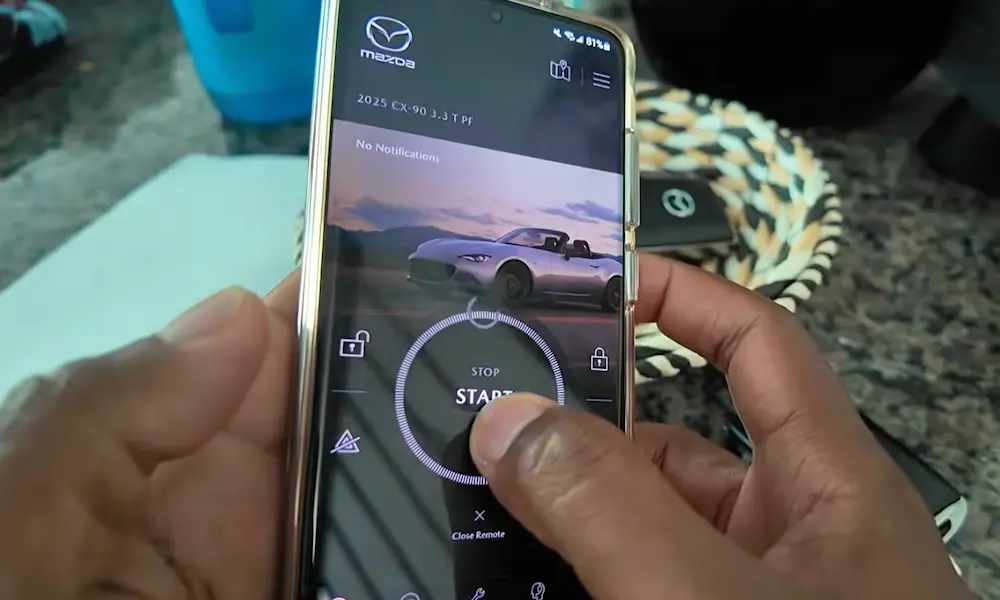
Mazda Connect 2 vehicles also support Send-to-Car through the MyMazda app. You search for a destination on your phone or computer using Google Places, then send it straight to your car’s navigation. It’s handy when your on-board map is a few months behind real-world changes.
How Much Does a Mazda Navigation Update Cost?
New Mazda vehicles get a three-year complimentary Mapcare period, which starts after you’ve driven past the 63-mile VIN-lock threshold. In some parts of Europe, that window extends to five years. During this period, you can update as many times as you want through the Toolbox — for free.
Once that window closes, you’re looking at paid options.
| Region | Single Map Update | 3-Year Subscription |
|---|---|---|
| North America | $84.70 USD | $135.75 USD |
| Europe | €74.50–€113.25 | €114.50–€183.50 |
| Australia | $124.29 USD | $216.50 USD |
The 3-year subscription gives you up to two updates per year — six total over three years. For anyone planning to keep their Mazda long-term, it’s the better deal.
For Mazda Connected Services on seventh-gen vehicles, pricing breaks down like this:
- Preferred Plan (~$10/month): Remote start/stop, lock/unlock, vehicle health reports, Send-to-Car
- Premium Plan (~$15/month): Everything in Preferred, plus Google Maps, Google Assistant, and Google Play apps (2026 models onward)
Common Problems and How to Fix Them
The Toolbox Can’t See Your SD Card
This one trips people up constantly. The Mazda Update Toolbox FAQ explains it clearly: the Toolbox only reads cards classified as “Removable Disks.” If your card reader or third-party software forces the card to show up as a “Local Disk,” the Toolbox won’t find it. Try a different USB SD card reader — it often solves the problem immediately.
Not Enough Space on Your SD Card
Older Mazda models shipped with 8 GB SD cards. Modern map databases can push past 7.5 GB, leaving no room for the update to complete. If that’s your situation, you’ll need to clone your existing card to a 16 GB or 32 GB card formatted to FAT32. Don’t go bigger than 32 GB — the vehicle’s head unit often won’t read it correctly.
Antivirus Blocking the Update
Specifically, G-Data Antivirus is a known culprit. Its “Web Protect” feature can block the Toolbox’s connection to Mazda’s update servers even when the antivirus looks like it’s off. Disable that specific sub-feature, not just the main program, and try again.
“SAML 2.0 Authentication Failed” Error
This means your login credentials don’t match what the regional server expects. Reset your password first. If that doesn’t work, reach out to the Mazda System Help Center directly.
macOS Catalina and Newer
On macOS 10.15 and later, you’ll need to manually grant the “MapUpdateGlobalAdv” tool permission to access your files. Go to System Preferences → Security & Privacy → Files and Folders, and allow access. The Toolbox won’t tell you this upfront — it’ll just fail silently.
Should You Buy a Cheap Aftermarket SD Card?
Official Mazda SD cards can cost over $400. Third-party alternatives on Amazon or eBay run $30–$60. It’s tempting, but there are real trade-offs.
Aftermarket cards are clones of official media. Many work fine for basic navigation and even enable HUD speed limits and stop sign recognition. But the problems start showing up over time:
- They won’t work with the Mazda Update Toolbox — no official updates, ever
- Some cause infotainment instability — ghost touches, random reboots, system freezes
- They go stale fast — road networks change, and without updates, you’re navigating with increasingly outdated data
Many owners end up buying a fresh $40 card every couple of years anyway, which adds up. An official card with a subscription starts making more financial sense over a five-year ownership window.
What’s Next: The 2026 Mazda CX-5 and Google Built-In
Mazda is making a significant move with the 2026 CX-5. It ditches the proprietary navigation engine entirely and runs Google Maps natively through Android Automotive OS. No SD card. No manual Toolbox updates. Maps update continuously in the background through Google’s cloud.
| Component | 2025 CX-5 | 2026 CX-5 |
|---|---|---|
| Navigation | Telenav (SD Card) | Google Maps (Cloud/OTA) |
| Screen Size | 8.8″–10.25″ | 12.9″ or 15.6″ |
| Update Method | Manual SD Card / Minor OTA | Continuous OTA via Google |
| Voice Control | Basic Mazda Commands | Google Assistant / Gemini |
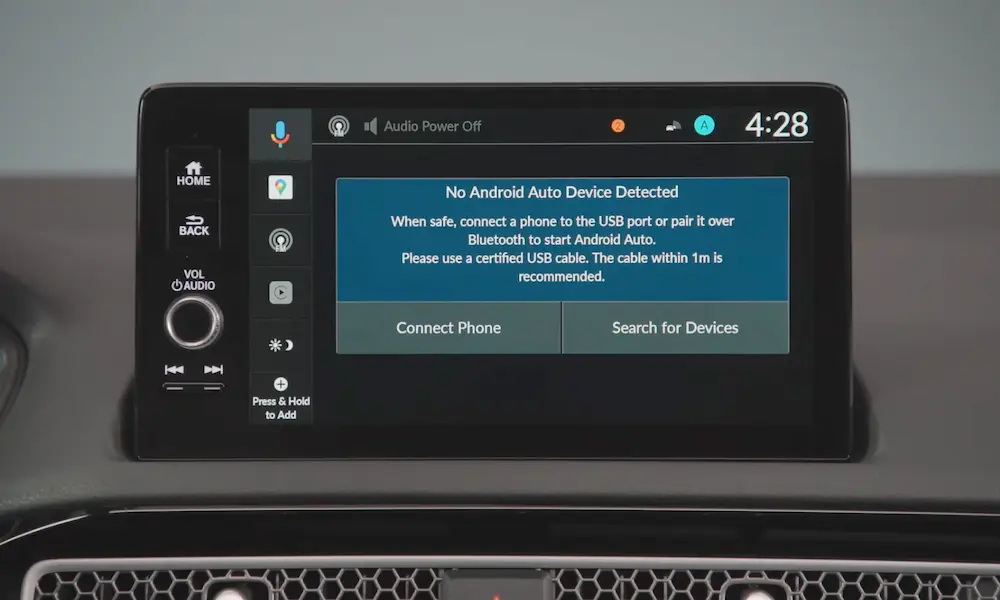
The trade-off? You’ll need an active Mazda Connected Services subscription for real-time traffic, Google Assistant, and the Play Store. The system requires a live cellular connection to function at its best. Apple CarPlay and Android Auto remain available via USB or wireless if you’d rather skip the subscription.
Apple CarPlay vs. Native Navigation: Which Should You Use?
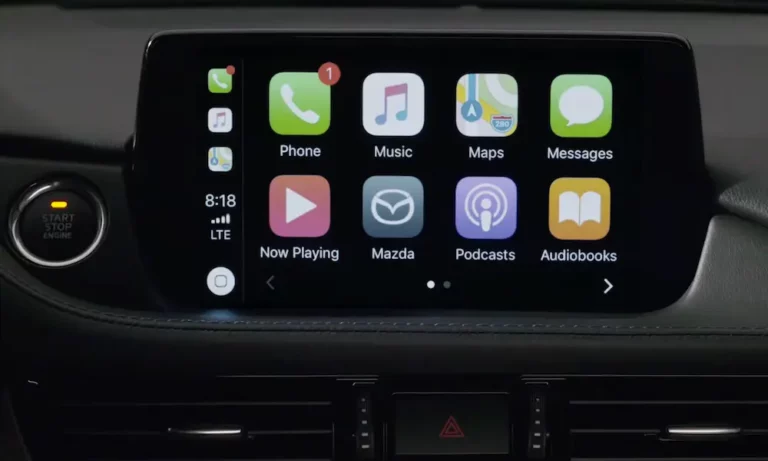
Plenty of Mazda owners just use Apple CarPlay or Android Auto and ignore the native system. That works well — you get daily-updated Google or Apple Maps for free.
But the native system still earns its keep in a few situations:
- Driving in areas with no cellular signal — the SD card works offline
- HUD integration — turn-by-turn directions on the windshield often only work through the native system on older models
- No phone dependency — the navigation runs whether your phone is charged or not
For most city driving, CarPlay or Android Auto handles it fine. For long road trips through remote areas, having working offline maps built into the car is still genuinely useful.