Staring at roads that no longer exist? Your Subaru’s nav system might be sending you on a ghost tour. This guide walks you through exactly how to update Subaru navigation — no dealership visit required. Stick around, because the method depends entirely on which system you have, and getting that wrong wastes serious time.
First, Figure Out Which Subaru Navigation System You Have
Before you touch a USB drive or SD card, you need to know your generation. Subaru has used four distinct navigation hardware setups since the early 2000s, and each one updates differently.
Here’s a quick breakdown:
| Generation | Model Years | Hardware | Update Method |
|---|---|---|---|
| Gen 1 | Pre-2015 | DVD / SD Card | Discontinued — no updates available |
| Gen 2 | 2015–2018 | Micro-SD / SD Card | Naviextras Toolbox |
| Gen 3 / 3.1 | 2017–2023 | Internal Flash | USB via subaru-maps.com |
| Gen 4 (Denso CP1) | 2020–present | Cloud / Internal Flash | USB or Wi-Fi via subaru-maps.com |
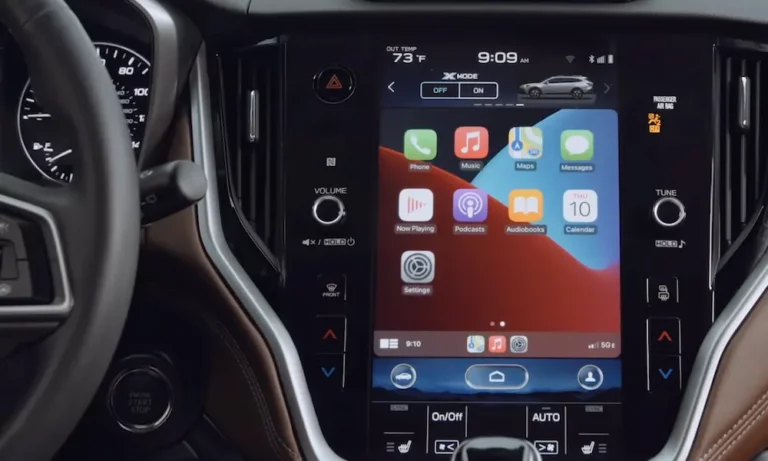
Check your head unit’s display size. Gen 3 units have a 6.5-inch or 8-inch screen. Gen 4 (found in 2020+ Legacy, Outback, and 2022+ WRX and BRZ) features an 11.6-inch portrait display. If you’re in a 2023 or newer model, your maps may already update automatically through Subaru’s cloud-connected system.
Got a pre-2015 model? Unfortunately, map updates for Gen 1 systems have been officially discontinued. Your best move is a replacement head unit.
How to Update Subaru Navigation on Gen 2 (SD Card Method)
Gen 2 systems use the Naviextras Toolbox desktop app. This works on both Windows and macOS.
What You’ll Need
- Your Subaru’s SD card (ejected with the car completely off — don’t skip this, it prevents file corruption)
- A computer with an SD card reader
- A broadband internet connection
- At least 8GB of available space on the card
Step-by-Step
- Eject the SD card while your car’s ignition is fully off
- Insert it into your computer’s card reader
- Download and open the Naviextras Toolbox
- The app auto-detects your card and prompts you to log in or create an account
- Check the “Available Updates” tab — if you’re within your 3-year Latest Map Guarantee window, updates are free
- Outside that window? Head to the “Buy Content” menu to purchase a single update or subscription
- Download and sync the map data, then reinsert the card into your vehicle
Your 3-year Latest Map Guarantee window starts from your vehicle’s purchase date, so check that first before paying for anything.
How to Update Subaru Navigation on Gen 3 and Gen 4 (USB Method)
This is where most current Subaru owners land. The Gen 3 and Gen 4 systems use USB drives for map installations, combined with optional Wi-Fi updates for smaller regional refreshes.
USB Drive Requirements — Don’t Ignore These
Subaru’s Technical Service Bulletins are strict about USB hardware. The head units are picky about controller chips, so stick with these brands: SanDisk, Kingston, Transcend, or Verbatim.
Here’s what formatting looks like per generation:
| Requirement | Gen 3 / 3.1 | Gen 4 (Denso CP1) |
|---|---|---|
| Minimum Capacity | 16GB | 64GB |
| Format | NTFS (preferred) | NTFS (required) |
| File Structure | “update” folder in root | 3 folders / 2 files in root |
| Download Tool | Map Downloader App | Map Downloader App |
Why NTFS? Standard FAT32 can’t handle files over 4GB. Modern Subaru map databases come in massive chunks that blow past that limit. As confirmed in Subaru’s own service bulletins, NTFS is non-negotiable for Gen 4 installs.
Step-by-Step: USB Navigation Update
- Go to subaru-maps.com and log in or create an account
- Enter your VIN (17 characters) to verify hardware compatibility and unlock your available updates
- Download the Map Downloader App and follow the prompts to load the map files onto your formatted USB drive
- Get in your car, start the engine — don’t just turn the key to accessory mode. The engine needs to run so the alternator keeps voltage stable. A power dip mid-install can brick the head unit
- Disconnect all other USB devices and Bluetooth-paired phones before inserting the update drive
- For Gen 3 (Harman) units: The screen shows a “Request Code.” Enter that at subaru-maps.com to get an “Activation Code.” This two-factor step prevents map data from being copied to other vehicles
- Insert your USB into the front multimedia port
- For Gen 4: Navigate to Settings → Navigation → Map Update → USB → Install Now
- Wait 15 to 60 minutes. Don’t remove the USB or turn off the car. When it’s done, the system reboots to the “I Agree” screen
That’s it. Your maps are updated.
How to Update Subaru Navigation via Wi-Fi (Gen 3.1 and Gen 4)
Wi-Fi updates are a solid option if you only need to refresh a specific region rather than a full continental map. You can select up to eight individual states or regions for background downloads.
A few important caveats:
- Use a strong home Wi-Fi signal or a dedicated mobile hotspot
- The system won’t work with captive portals — those hotel or coffee shop networks that make you click “agree” in a browser first
- Don’t use Wi-Fi updates for a full continental refresh. The automotive antenna isn’t fast enough for that job, and you’ll be waiting forever
Wi-Fi updates run in the background while you drive, which makes them genuinely convenient for keeping regional data fresh between full USB updates.
What Does a Subaru Navigation Update Actually Cost?
Here’s the part most people want to skip to. Once your free update window expires, you’re looking at these pricing tiers in North America:
- Single annual update: ~$150 at standard pricing, often drops to $70–$80 during promotions
- 36-month subscription: Better value if you plan to keep the car long-term
Australian owners benefit from the MapCare program, which gives three years of free updates for Gen 3.0, 3.1, and 4.0 units. The clock starts the moment your vehicle travels 20km from its first GPS satellite fix.
Should You Buy a Cheap SD Card on eBay or AliExpress?
You’ll find Gen 2 SD cards listed for $15–$170 on grey-market platforms. Here’s the risk table:
| Source | Estimated Price | Risk Level |
|---|---|---|
| Official Subaru Dealer | $150–$500 | Zero — full OEM support |
| eBay / Marketplace | $30–$170 | High — may be VIN-locked or cloned |
| AliExpress / Grey Market | $15–$40 | Very High — potential wrong region data or malware |
The biggest trap? Most Subaru SD cards marry to your vehicle’s VIN on first use. A card pulled from a different car simply won’t work in yours. Grey-market cards sometimes carry European map data marketed to North American buyers. Save yourself the headache and buy through official channels.
Common Problems When Updating Subaru Navigation (And How to Fix Them)
Things go wrong. Here’s a quick reference for the most common issues:
| Error / Symptom | Likely Cause | Fix |
|---|---|---|
| USB not recognized | FAT32 format instead of NTFS | Reformat to NTFS, use a 64GB drive |
| “Conditions Not Correct” message | Battery voltage below 12V | Run the engine or connect a charger |
| Progress bar frozen | Corrupted download or bad media | Re-download via Map Downloader App |
| Black screen / won’t boot | Power cut during installation | Requires dealer recovery or head unit replacement |
| PROV-A error code | Starlink can’t verify your subscription | Contact Subaru customer support to resync your account |
The PROV-A provisioning error is especially common on 2025 and 2026 models fresh off the lot. It doesn’t affect driving, but it kills connected features like remote start. A quick call to Subaru usually sorts it out.
One more tip: if your dashboard warning lights are active — like the Check Engine or AWD light — certain Starlink features may be automatically disabled as a fail-safe. Clear those fault codes first before troubleshooting navigation separately.
Will You Ever Need to Manually Update Subaru Navigation Again?
Honestly? Probably not for much longer. The 2023+ models running Gen 4 Denso CP1 systems use cloud-native navigation that streams real-time map data continuously. There’s nothing to download, no USB drive to format, and no activation codes to juggle.
The trade-off is a live Subaru Starlink subscription to keep that data flowing. Think of it like switching from buying map books to using Google Maps — way more current, but it needs a connection to function.
For EV owners, Subaru’s Solterra takes this further. Its 14-inch navigation hub incorporates real-time charging station data, weather conditions, and route topography to manage range anxiety intelligently. That level of accuracy requires a permanent data link — a manual update schedule simply can’t keep pace.
If you’re still manually updating today, the official Subaru navigation update portal is your home base. Bookmark it, enter your VIN, and you’ll see exactly what’s available for your specific vehicle. No guesswork needed.