Outdated Ford SYNC software can cause Bluetooth drops, laggy screens, and missing features. The good news? Updating it is easier than you think. This guide walks you through every method — USB, Wi-Fi, and OTA — so you get it right the first time. Stick around to the end, because the error-code section alone could save you hours of frustration.
First Things First: Which SYNC Version Do You Have?
You can’t update what you haven’t identified. Before anything else, check which SYNC version is installed in your vehicle.
Here’s a quick visual cheat sheet:
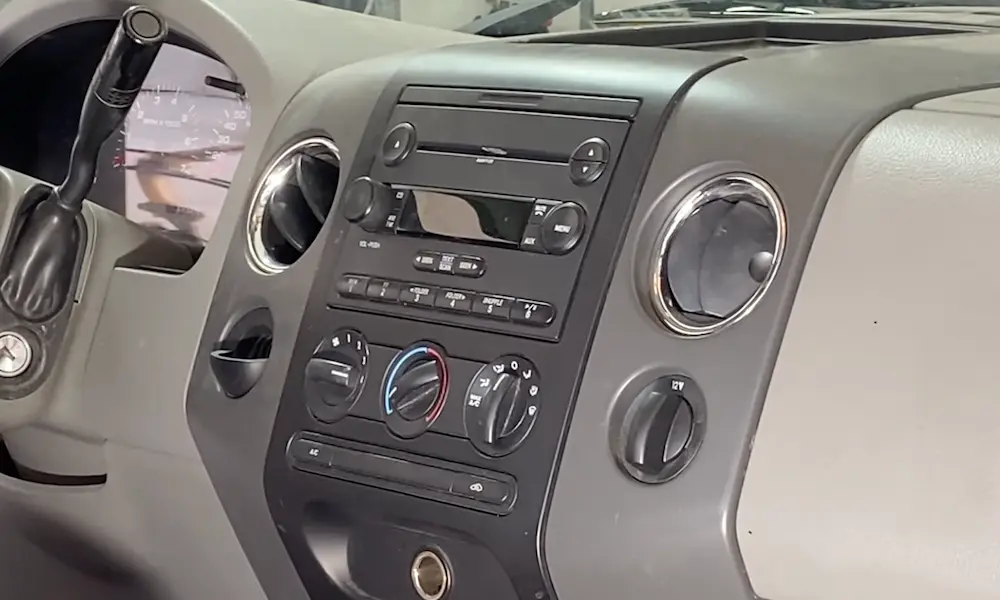
| SYNC Version | Screen Type | Dead Giveaway |
|---|---|---|
| Gen 1 / 1.1 | 2-line or 4.2″ non-touch | Physical buttons only |
| Gen 2 (MyFord Touch) | 8″ resistive touch | Color quadrant layout |
| SYNC 2.5 | 6.5″ or 8″ capacitive | 4-icon bottom bar, no “SYNC 3” label |
| SYNC 3 | 6.5″ or 8″ capacitive | 5-icon bottom bar, Apple CarPlay/Android Auto |
| SYNC 4 / 4A | 8″ to 15.5″ | Vertical or horizontal dash cards, wireless CarPlay |
SYNC 4 and 4A, found in vehicles like the Mustang Mach-E and F-150 Lightning, use cloud-based voice processing and over-the-air updates. SYNC 3 and older versions rely more heavily on USB or Wi-Fi.
Not sure where to look? Go to Settings → About SYNC on your touchscreen. If it says “SYNC 3,” you’ve got SYNC 3. If it just says “SYNC,” you’re likely on SYNC 2.5.
How to Update My Ford SYNC via USB (SYNC 3 and Older)
This is the most reliable method for Gen 1, Gen 2, and SYNC 3 owners. It takes some prep work, but it’s straightforward once you know the steps.
Step 1: Prepare Your USB Drive Correctly
This is where most people go wrong. The wrong format = a failed update. Every time.
Here’s exactly what your USB drive needs:
- Capacity: 16–32 GB for SYNC 3; 8 GB minimum for older systems
- File system: exFAT for SYNC 3, FAT32 for Gen 1/2
- Partition scheme: MBR (Master Boot Record) — not GPT
- No encryption, no password protection
- Completely empty before you start
Why does MBR matter? Modern Windows computers default to GPT formatting on larger drives. But SYNC hardware requires MBR to read the drive at all. If you skip this step, you’ll hit a “USB Device Not Recognized” error and wonder what went wrong.
To format correctly on Windows:
- Open Disk Management
- Delete existing partitions on the USB
- Create a new Simple Volume → choose MBR → format as exFAT (SYNC 3) or FAT32 (Gen 1/2)
| Parameter | Gen 1 / Gen 2 | SYNC 3 |
|---|---|---|
| File System | FAT32 | exFAT |
| Partition Scheme | MBR | MBR |
| Minimum Capacity | 8 GB | 16–32 GB |
| USB Version | 2.0 | 2.0 or 3.0 |
Step 2: Download the Update from Ford’s Website
Head to Ford’s official SYNC update page and enter your VIN. This pulls the exact update package for your vehicle.
Download it to your computer first, then extract the files using Windows Explorer or Mac’s built-in extractor. Don’t use third-party tools — they sometimes alter file structures.
Step 3: Set Up the Correct Folder Structure
For SYNC 3, your USB root directory must contain exactly three things:
- A folder named SyncMyRide
- A file named autoinstall.lst
- A file named DONTINDX.MSA
The DONTINDX.MSA file tells your car not to index the update files as music. Without it, your system may slow to a crawl during installation. Don’t skip it.
Step 4: Run the Update in Your Vehicle
Now the real work begins — in your car.
- Start the engine. Don’t use accessory mode. The update can take 30–60 minutes (up to 2 hours for maps), and you need stable power throughout. Voltage drops mid-update can permanently brick your APIM module.
- Park somewhere ventilated. The engine needs to run the whole time.
- Disable Automatic Engine Idle Shutdown if your vehicle has it (check vehicle settings).
- Insert the USB into the front data port — not a rear charge-only port.
- Wait up to five minutes. The screen may go dark or show nothing. Don’t pull the drive out. The system is verifying cryptographic signatures on your files.
- A banner reading “Updating System Software” will appear at the top of the screen.
- Expect a few reboots. That’s normal.
- When you see “Installation Complete,” you can safely remove the drive.
Step 5: Report the Successful Installation
This step surprises a lot of people — but it matters. After the update, your SYNC writes an XML log file to the USB drive. You need to upload that file back to Ford’s website.
Skip this, and Ford’s servers still think you’re running the old software. That means you could be blocked from future updates that require your current version as a prerequisite.
How to Update Ford SYNC via Wi-Fi (SYNC 3)
If you’d rather skip the USB prep, SYNC 3 lets you pull updates over your home Wi-Fi network.
- Connect your vehicle to your home Wi-Fi through Settings → SYNC Connect
- Go to Settings → General → SYNC Updates
- Tap “Scan for Updates Now”
The system downloads in the background. If you leave Wi-Fi range, it pauses and resumes when you reconnect. Depending on your connection speed, the full download can take several hours — sometimes spreading across multiple sessions. Park close to your router for the best results.
How SYNC 4 Updates Work (OTA / Ford Power-Up)
If you drive a newer Ford with SYNC 4 or 4A, the process is almost entirely hands-off. Ford’s Power-Up OTA framework handles most updates automatically.
There are two types of updates:
Background updates — happen while you drive. Minor tweaks, UI changes, AppLink improvements. You probably won’t even notice.
Non-drivable updates — these are serious. They touch powertrain, safety modules, or battery management firmware. During these updates, your vehicle is completely inoperable for up to 45 minutes. Some features, like the front trunk release on electric models, temporarily stop working.
For non-drivable updates, you’ll schedule an overnight window through your FordPass app. The system only runs the update when all these conditions are met:
| Precondition | Why It’s Required |
|---|---|
| Transmission in Park | Prevents movement during module flashing |
| Ignition OFF | Required for writing to engine/battery controllers |
| Battery fully charged | Prevents power failure mid-write |
| Doors, hood, trunk closed | Safety protocol |
| Automatic Updates turned ON | Enables Ford cloud server handshake |
| Lights and accessories OFF | Minimizes 12V battery draw |
Miss any one of these, and the update cancels and reschedules. You’ll get a notification in FordPass.
To check for SYNC 4 updates manually, go to Settings → Software Updates on your touchscreen.
Fixing Common Ford SYNC Update Errors
Sometimes the update doesn’t go smoothly. Here’s what the error codes actually mean — and how to fix them.
MEM_003 — The most common error. It means the USB was removed too early, or the system cache is full. Fix it by doing a Master Reset (Settings → General → Master Reset), then try again.
LST_ERR05 — A navigation map license file is missing or was renamed. Check your SyncMyRide folder — for SYNC 3 v3.4, there should be exactly 15 files present.
PKG_ERR03 — A file got corrupted during download or transfer. Delete everything, reformat the USB using MBR/exFAT, and re-download over a stable wired connection.
VER_ERR06 — A version mismatch, usually after an APIM replacement. The new hardware doesn’t match the software build. This one typically needs a dealer visit to update the vehicle’s As-Built configuration data.
The Key Cycle Reset
If SYNC freezes, loops, or won’t recognize your USB after a failed attempt, do a key cycle:
- Turn the vehicle off
- Open the driver’s door (this triggers RAP shutdown)
- Lock the vehicle
- Wait at least two full minutes — long enough for the CAN-bus to enter sleep mode
- Restart and try again
This forces the infotainment module to fully discharge and reload its core operating kernel. It’s surprisingly effective.
Why Keeping Ford SYNC Updated Actually Matters
It’s easy to put this off. But keeping your SYNC software current isn’t just about new features. Updates have delivered critical safety tools like 911 Assist (automatic emergency calls after airbag deployment) and improved Bluetooth stability that prevents hands-free call drops.
For SYNC 4 owners, updates have introduced BlueCruise hands-free highway driving and optimized EV charging curves — meaning your battery charges faster at public stations after a software push. That’s not a minor perk. That’s real value.
Think of SYNC updates the same way you think about oil changes. Skip them long enough, and something breaks. Stay current, and your vehicle keeps getting better.