Got a Ford, Lincoln, Mercury, or Mazda? FORScan gives you dealership-level access to your vehicle’s brain — without the dealership bill. This guide walks you through everything: hardware, setup, backups, and the best mods you can actually do yourself. Stick around — the good stuff’s in the middle.
What Is FORScan and Why Should You Care?
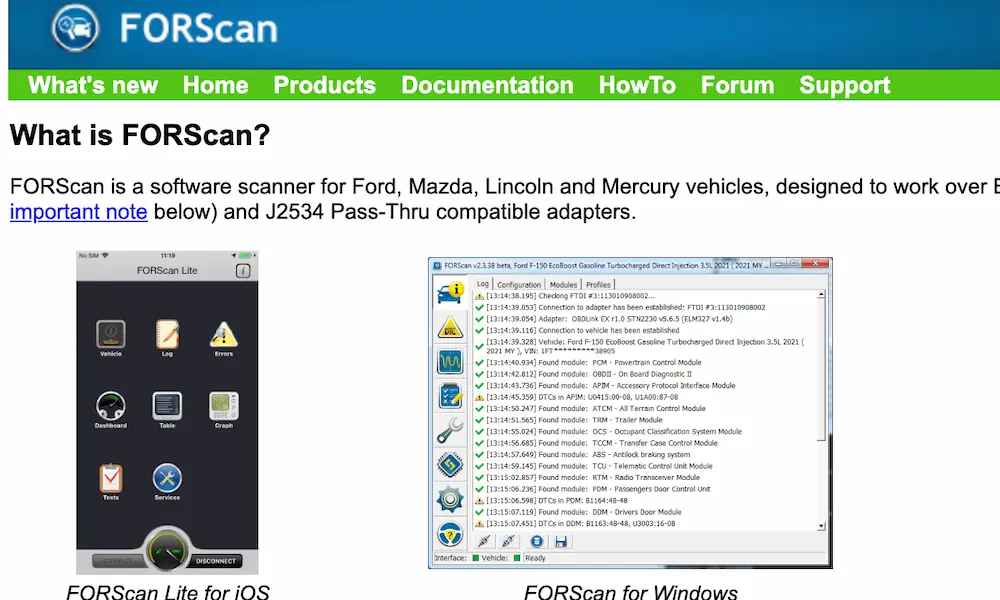
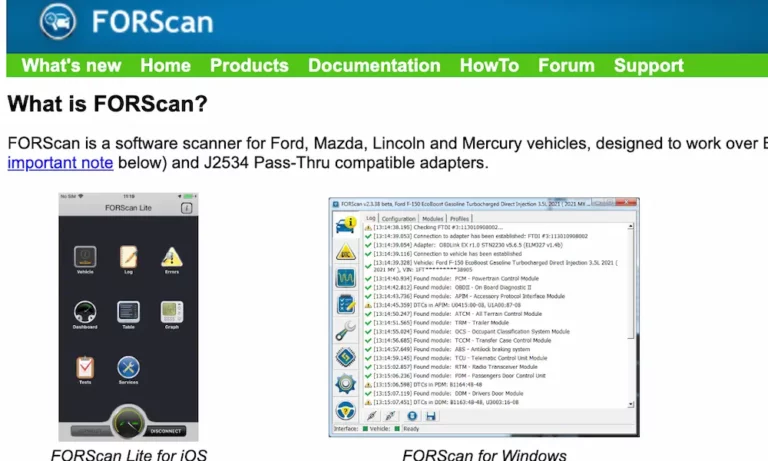
FORScan is diagnostic software built specifically for Ford, Lincoln, Mercury, and Mazda vehicles. Unlike generic OBD2 scanners, it talks to every module in your car — not just the engine.
Think of it like this: a basic scanner reads your check engine light. FORScan reads your check engine light and your body control module, transmission, ABS, PATS security system, and about 20 other systems most scanners can’t even see.
Here’s what you can actually do with it:
- Read and clear fault codes across all modules
- Monitor live sensor data in real time
- Change factory settings (lighting, alerts, drive modes)
- Run service procedures like brake bleeding and battery resets
- Program transponder keys
- Fix tire size calibration after a lift kit
It’s genuinely powerful software. But power means responsibility — more on that shortly.
What Hardware You Actually Need
This is where most people get tripped up. Your adapter choice makes or breaks your FORScan experience.
HS-CAN vs. MS-CAN: Why This Matters
Your Ford uses two separate communication networks inside the OBD2 port:
- High-Speed CAN (HS-CAN): Engine, transmission, ABS — pins 6 and 14
- Medium-Speed CAN (MS-CAN): Body control, infotainment, cabin modules — pins 3 and 11
Cheap generic adapters only read the high-speed network. That leaves half your car’s modules completely invisible to the software.
Some people buy modified clone adapters with a physical toggle switch to manually flip between networks. This works, technically — but it’s clunky, error-prone, and actively discouraged for any module programming work.
The Right Adapters for FORScan
| Adapter | Connection | Network Switching | Best For |
|---|---|---|---|
| OBDLink EX | Wired USB | Automatic | Module programming, config changes, firmware |
| vLinker FS (USB) | Wired USB | Automatic | Advanced programming, high-speed diagnostics |
| vLinker FS (Bluetooth) | Wireless | Automatic | Live data logging, reading/clearing codes |
| Cheap clone adapters | Varies | Manual toggle | Basic reading only — don’t program with these |
For anything involving writing data to a module, use a wired connection. Bluetooth drops. Wi-Fi drops. A dropped connection mid-write corrupts the module. Wired USB stays connected.
After plugging in your wired adapter, you may need to install virtual COM port drivers manually so your computer recognizes it properly. OHP Tools has a clean setup walkthrough if you get stuck.
How to Get Your FORScan Extended License
The free version of FORScan handles basic scanning. But to access configuration menus, run service procedures, or program keys, you need an Extended License.
Here’s the good news: there’s a free two-month trial of the Extended License that’s fully functional.
To get the free license:
- Register an account on the official FORScan forum
- Wait for admin approval
- Use the license generator portal
- Enter your hardware ID string (generated by FORScan itself — copy it, don’t type it manually)
- Download your license file tied to your specific machine
Paid licenses come in 1-year, 3-year, 5-year, and lifetime options. They use a simple activation code instead of a hardware-locked file, plus you get access to advanced security functions and direct support forums.
One important note: FORScan updated its protection system recently, which means license files are now digitally code-signed. This fixed the issue where antivirus software would flag FORScan as suspicious. If you move to a new laptop, paid license holders can revoke their activation remotely and transfer it without losing their license slot.
Safety Rules Before You Touch Anything
Seriously — read this section. A bad programming session can brick a module. Here’s how to avoid that.
Keep Your Battery Voltage Stable
Your vehicle’s battery must stay between 12.5V and 14V during any programming session. If voltage drops while FORScan is writing data, the module fails mid-write — and that’s a very expensive paperweight.
Before you start any configuration session:
- Turn the ignition to ON — not start, just ON
- Keep the engine OFF (running the engine causes voltage spikes from the alternator)
- Turn off the climate control, stereo, interior lights, and headlights
- Close all doors
- For sessions longer than a few minutes, connect a battery tender or power supply to the battery terminals
Protect Your Laptop Too
Your diagnostic laptop needs the same attention:
- Fully charge it, or keep it plugged into a wall outlet
- Disable Windows Update, sleep mode, hibernation, and screensavers
- Don’t place it on your car seat — soft surfaces block ventilation and cause thermal shutdowns
- Ground yourself by touching bare metal on the vehicle chassis before handling cables
- If your laptop battery is swollen or leaking, get it out of the garage immediately — lithium-ion thermal runaway is no joke
Back Everything Up First — No Exceptions
Before you change a single setting, back up your As-Built data. Every module. All of them.
What Is As-Built Data?
As-Built data is the raw factory configuration stored in each of your vehicle’s modules — written in hexadecimal code, tied specifically to your VIN. It’s your car’s DNA. Loading As-Built data from a different vehicle, even the same model with a different trim, can cause widespread module failures.
How to Back Up Your Modules
- Connect FORScan and let it scan all available modules
- Look for modules labeled “AS-BUILT format”
- Open each one, click “Save All”, and store the .ABT file somewhere safe (cloud backup is smart)
- Repeat for every module that shows AS-BUILT format
If you ever write a wrong value, you just reload the .ABT file and restore perfect factory settings instantly.
No backup saved? FORScan has a “Load Factory AB” function that pulls original configuration data directly from Ford’s servers using your VIN — but only if your computer has an active internet connection at the time.
Making Configuration Changes: Two Ways to Do It
FORScan gives you two interfaces for changing module settings.
As-Built (Raw Hex) Mode
This shows you the actual hexadecimal memory blocks. You change specific characters in a data string to enable or disable features. It’s precise, powerful, and requires you to reference community-built spreadsheets that map which hex characters control which features for your model year.
One thing worth knowing: when you change a hex value manually, the existing checksum becomes invalid. FORScan automatically recalculates and corrects it when you write the change — you’ll see a warning prompt that’s safe to accept.
Easy Mode (Plain-Text Interface)
This is FORScan’s user-friendly layer. Instead of hex strings, you see plain English descriptions with dropdown menus. Select “Enabled” or “Disabled,” and FORScan handles the hex math in the background.
Easy Mode covers the most popular modifications and is far less risky for beginners. Occasionally, Easy Mode won’t write a change correctly for very specific firmware versions — in those cases, you’ll need to use the raw As-Built method.
Popular FORScan Modifications Worth Doing
Here’s what Ford and Mazda owners actually use FORScan for most:
| Modification | Module | What It Does |
|---|---|---|
| Disable Double Honk | Body Control Module | Stops the double horn blast when you close the door with the engine running |
| Global Window Control | BCM + Door Modules | Hold lock/unlock on the fob to roll all windows up or down |
| Custom Daytime Running Lights | Body Control Module | Choose which lights act as DRLs — fog lights, halos, or turn signals |
| Bambi Mode (Fog + High Beam) | Body Control Module | Keeps fog lights on when high beams activate for better peripheral visibility |
| Panic Alarm Change | Body Control Module | Require two presses to trigger the alarm, or silence the horn entirely |
| Drive Mode Expansion | ABS Module | Unlock hidden terrain modes (Sport, Sand, Mud, Eco) on lower trims |
| Fake Engine Sound Off | Audio Control Module | Kills the synthesized engine noise pumped through the speakers |
| Climate Shortcut Buttons | APIM | Adds heated seat and steering wheel buttons to the touchscreen |
How to Fix Your Speedometer After a Lift Kit
Installing bigger tires throws off your speedometer and messes up your transmission shift timing. FORScan fixes this properly.
The fix has two parts:
Step 1 — Update the Body Control Module
Navigate to the BCM in FORScan and find the Tire Circumference parameter. Enter your new tire’s outer circumference in millimeters. Use an online tire calculator to convert your tire’s aspect ratio — then reduce the number slightly to account for how the tire compresses under the vehicle’s weight.
Step 2 — Run the Powertrain Relearn
Changing the BCM value creates a data mismatch between modules. Your Powertrain Control Module and Transmission Control Module still have the old tire data. This triggers a wrench warning light and fault codes P160A, P0610, and U0422.
Go to FORScan’s Service Procedures menu and run “Module Initialization/Relearn Vehicle Data” for both the PCM and TCM. This forces both modules to sync with the new BCM data. The warning lights clear, shifting returns to normal, and your speedometer reads accurately again.
Running Service Procedures Through FORScan
FORScan’s Service Procedures menu handles maintenance tasks that used to require dealership equipment.
Battery Management System Reset
When you install a new battery, your vehicle doesn’t know the old one was replaced. The Battery Management System keeps charging the new battery with an aggressive profile designed for the degraded old one — which overcharges it and kills it within months, often triggering a U3003 charging fault code.
Run “Battery Monitor System Reset” in Service Procedures. It clears the old degradation data and resets the alternator’s charging profile to the gentle baseline a new battery needs.
ABS Brake Bleeding
Standard brake bleeding can’t purge air trapped inside the ABS module’s internal valve body. Trapped air gives you a dangerously soft pedal that sinks to the floor.
FORScan’s “ABS Service Bleed” function takes electronic control of the ABS module, activates the internal pump, and cycles the valves in a specific sequence to push trapped air into the main brake lines. It then pauses and prompts you to manually open the bleeder valves in the correct order to complete the purge. It’s the only reliable way to fully bleed the system after a major brake repair.
Diesel Particulate Filter Regeneration
City driving and frequent idling prevent your DPF from reaching the temperatures needed for passive soot burn-off. FORScan can force a static regeneration — commanding late fuel injection to ignite soot inside the filter at extreme temperatures.
Before you run this:
- Park outdoors on concrete, away from dry brush and structures
- Check your regen zone score (0-5 scale) in live data — a fully saturated filter can melt the ceramic core during a forced regen
- Make sure there are no faults on the EGR valve or differential pressure sensors — FORScan will block the command if it detects issues
Transponder Key Programming
Lost a key? Need a spare? FORScan handles transponder key programming through the PATS security module.
Access requires passing a security gateway first — either a coded challenge/response exchange, or a mandatory 10-minute timed wait with the ignition on and FORScan connected.
Once you’re in, you erase all existing keys and program new ones. Critical warning: the moment you erase the key registry, the engine immobilizes completely. You must program at least two valid transponder keys before the car will start again. Make sure your replacement blanks contain the correct transponder chip frequency for your model year before you erase anything.
Reading and Clearing Fault Codes
FORScan scans every module simultaneously and categorizes codes by type:
- B codes — Body systems (cabin, BCM)
- C codes — Chassis (steering, brakes)
- P codes — Powertrain (engine, transmission)
- U codes — Network communication failures between modules
It also differentiates between active faults (happening right now) and historical faults (happened before but not currently active). After a repair, use FORScan to clear codes and reset warning lights across all modules at once — something generic scanners simply can’t do.
If you see a U2100 code after installing a new module, it means the module lacks its initial configuration data. Load your saved .ABT backup (or pull factory data via “Load Factory AB”), write it to the module, then run a module reset followed by a Gateway Module reset. This reboots the network and integrates the new module cleanly.
FORScan also correctly identifies proprietary codes that confuse generic scanners — like the B3000 code on Mazda platforms that generic tools misread entirely.