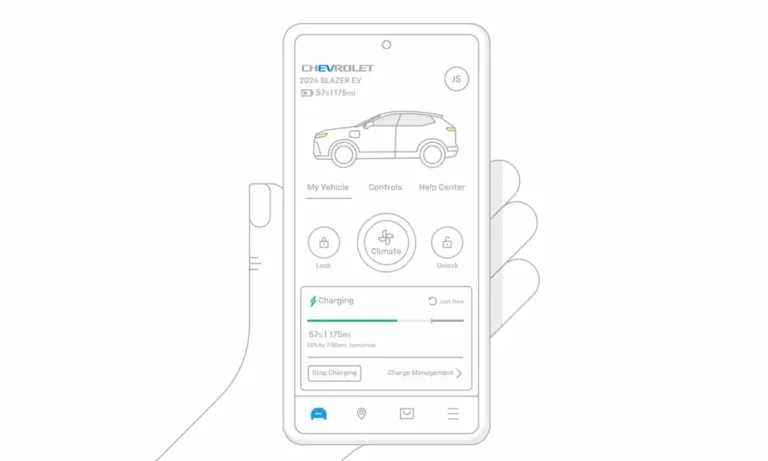
You grabbed your phone to warm up your Chevy on a frosty morning, but the MyChevrolet app isn’t cooperating. Frustrating, right? You’re not alone. Many Chevy owners find themselves tapping uselessly at an app that should simplify their lives, not complicate them.
This guide will walk you through the most common MyChevrolet app problems and how to solve them. Whether you’re dealing with remote start failures, login issues, or connection problems, you’ll find practical solutions here.
Most Common MyChevrolet App Problems
The MyChevrolet app should be your vehicle’s digital sidekick, but sometimes it feels more like a digital headache. Let’s look at what’s likely going wrong.
Remote Start and Control Failures
Picture this: it’s freezing outside, you tap “remote start” on your app, and… nothing happens. No feedback, no engine turning over, just silence.
This is one of the most frequently reported issues with the MyChevrolet app. Users often find the remote start button completely unresponsive or appearing already pressed when they open the app.
The problem isn’t limited to just starting your vehicle. Many users report issues with:
- Door locking/unlocking commands
- Horn and light functions
- Vehicle location services
Login and Authentication Problems
Can’t get past the login screen? You might see error messages like “Service unavailable” or get stuck in an endless loading loop. Some users have reported being trapped in the PIN setup screen during installation with no way to continue.
These authentication issues can be particularly maddening because they prevent you from using any app features at all.
Vehicle Data Not Updating
“My app shows my Bolt at 50% charge, but I fully charged it yesterday!”
If this sounds familiar, you’re experiencing the common data synchronization issue. The app might:
- Show outdated fuel levels or charge status
- Display incorrect location information
- Fail to update diagnostic information
- Not reflect recent trips or driving statistics
Connection Issues After Updates
Many problems seem to emerge immediately after app updates or phone operating system upgrades. The connection between updates and new problems is so strong that some users avoid updating their app altogether.
Android 14 users have been particularly affected, with many reporting that the app stopped functioning entirely after upgrading their phone’s operating system.
Why Your MyChevrolet App Isn’t Working
Before jumping into solutions, it helps to understand what’s causing these problems. The issues typically stem from four main sources:
1. OnStar System Dependencies
The MyChevrolet app isn’t a standalone product—it relies heavily on GM’s OnStar infrastructure. This dependency creates a potential point of failure outside your control.
When the OnStar servers are overloaded or experiencing technical problems, your app suffers. One user humorously suggested that “the OnStar server is an old PC sitting under someone’s desk at GM” that can’t handle peak usage times.
2. Software Compatibility Issues
The app needs to work across:
- Multiple phone operating systems (iOS and Android)
- Various OS versions
- Different device manufacturers
- Various Chevrolet vehicle models and years
This complex compatibility matrix means updates might fix problems for some users while creating new ones for others.
3. Vehicle Hardware Problems
Sometimes the issue isn’t with the app at all, but with the hardware in your vehicle. The OnStar module in your Chevy can fail, preventing any app connection regardless of what troubleshooting you try on your phone.
4. Network Connection Problems
The app requires a stable internet connection for both your phone and your vehicle’s OnStar system. Issues with either can prevent proper functionality.
How to Fix Your MyChevrolet App
Let’s get your app working again. Try these solutions in order, from simplest to most involved:
Quick Fixes to Try First
- Force close and restart the app
Simply swipe the app away from your recent apps list and reopen it. - Check your vehicle status
- Ensure your vehicle’s ignition is off
- Verify doors are locked (remote start often won’t work with unlocked doors)
- Make sure you’re within cellular service range
- Check your phone’s connection
Switch between Wi-Fi and cellular data to see if one connection works better than the other. - Verify your OnStar subscription is active
Your app features are tied to your OnStar service level. Log in to the OnStar website to check your subscription status.
Clear App Cache and Data
This step forces the app to refresh its connection to OnStar:
For Android:
- Go to Settings > Apps > MyChevrolet
- Tap “Storage”
- Tap “Clear Cache” and then “Clear Data”
- Restart your phone and open the app again
For iOS:
- Offload the app: Settings > General > iPhone Storage > MyChevrolet > Offload App
- Reinstall the app and sign in again
Uninstall and Reinstall the App
A complete fresh start often resolves persistent issues:
- Delete the app from your device
- Restart your phone completely
- Download the app again from your app store
- Sign in with your credentials
Try the Alternate Device Workaround
Some users have found success with this creative solution for installation problems:
- Find an old smartphone (can be without cellular service, just needs Wi-Fi)
- Install the MyChevrolet app on that device
- Complete the full setup process including PIN creation
- Uninstall the app from the temporary device
- Install the app on your main phone and sign in
This unusual approach has helped several users who were stuck during initial setup.
Update Your Phone’s Operating System
Ensure your phone has the latest OS updates, as Chevrolet may have released compatibility fixes:
For Android:
Settings > System > System update > Check for update
For iOS:
Settings > General > Software Update
Check for Vehicle-Side Issues
If none of the above solutions work, the problem might be with your vehicle:
- Test the key fob – If physical remote controls aren’t working either, this suggests a vehicle issue rather than an app problem
- Check for OnStar module issues – A flashing red light on your OnStar controls or error messages when pressing the blue OnStar button may indicate hardware failure
- Visit your dealer – They can diagnose potential hardware issues with your vehicle’s OnStar module
What Other Chevy Owners Are Saying
User experiences with the MyChevrolet app vary dramatically across the community. Here’s what real owners are reporting:
Frustration Levels Are High
Many users express significant disappointment with the app’s performance:
“The MyChevrolet app is literally the most frustrating thing about my vehicle ownership experience.”
“How does this app have 5 stars? It boggles the mind.”
“It’s a dumpster fire of a product.”
These sentiments appear consistently across forums and are especially common among owners of electric vehicles like the Bolt, who rely heavily on the app for charging information.
Comparing with Competitors
Users who have experienced other manufacturers’ apps often note a significant gap in quality:
“I borrowed a friend’s Tesla for a weekend and the app worked 100% of the time. Why can’t GM figure this out?”
This comparison highlights the challenge GM faces as vehicles become increasingly connected and software-dependent.
Some Report Perfect Experiences
Interestingly, some owners report no issues whatsoever:
“Mine works flawlessly every time. 2022 Bolt EUV on iPhone 13.”
This inconsistency in experiences makes troubleshooting particularly challenging and suggests that specific combinations of vehicles, phones, and usage patterns may produce better results than others.
When to Contact GM Support
If you’ve tried all the troubleshooting steps and still can’t get your app working, it’s time to reach out for official help:
Official Support Channels
- Chevrolet Customer Support: 1-800-222-1020
- OnStar Support: 1-888-4ONSTAR (1-888-466-7827)
- Chevrolet App Support Website: Visit the official support page for additional guidance
What Information to Have Ready
Before calling, gather these details to help support assist you more efficiently:
- Your vehicle’s VIN number
- Your OnStar account email address
- Your phone model and operating system version
- Specific error messages you’re receiving
- List of troubleshooting steps you’ve already tried
Dealership Assistance
Your local Chevrolet dealer can help diagnose vehicle-side issues:
- They can check your vehicle’s OnStar module for failures
- They might be able to update your vehicle’s software
- They can verify your account is properly linked to your vehicle
MyChevrolet App Alternatives
If you’re fed up with the official app, consider these alternatives:
Third-Party Options
While no third-party app can fully replace all MyChevrolet features (due to GM’s closed system), some apps provide supplementary functions for specific models:
For Chevy Bolt owners:
- MyChevy Stats (community-developed app for tracking battery statistics)
Using Web Version Instead of App
Some users report better success using the web version through a browser:
- Visit my.chevrolet.com on your phone browser
- Bookmark the page for quick access
- Use this instead of the app for more reliable connections
Final Thoughts
The MyChevrolet app can be a powerful tool for managing your vehicle when it works properly, but it’s clear from widespread user experiences that improvement is needed. As cars become increasingly connected, the quality of their companion apps becomes a more significant part of the ownership experience.
While GM continues to work on improving the app, the troubleshooting steps in this guide should help you resolve most common issues. And remember—sometimes the simplest solution (clearing cache or reinstalling) can fix the most frustrating problems.