Your OnStar system’s acting up again. Maybe the screen’s frozen, the blue button’s dead, or you’re staring at a mysterious red light that won’t quit. Don’t worry—you can fix most of these issues yourself in under 10 minutes. Let’s walk through exactly how to reset OnStar and get your GM vehicle’s tech working again.
What Exactly Does Resetting OnStar Do?
Think of resetting OnStar like rebooting your smartphone. It clears temporary glitches, refreshes the software, and forces the system to restart from scratch.
Here’s what you’re actually fixing:
- Frozen touchscreens that won’t respond
- Dead OnStar buttons with no lights
- WiFi that connects but won’t load anything
- Bluetooth that randomly stops working
- Navigation that can’t find GPS satellites
The reset process varies depending on your vehicle’s year and model. GM changed their tech significantly around 2022, so what works for a 2019 Silverado won’t necessarily work for a 2023.
The Quick Fix: Soft Reset for Google Built-In Systems (2022+)
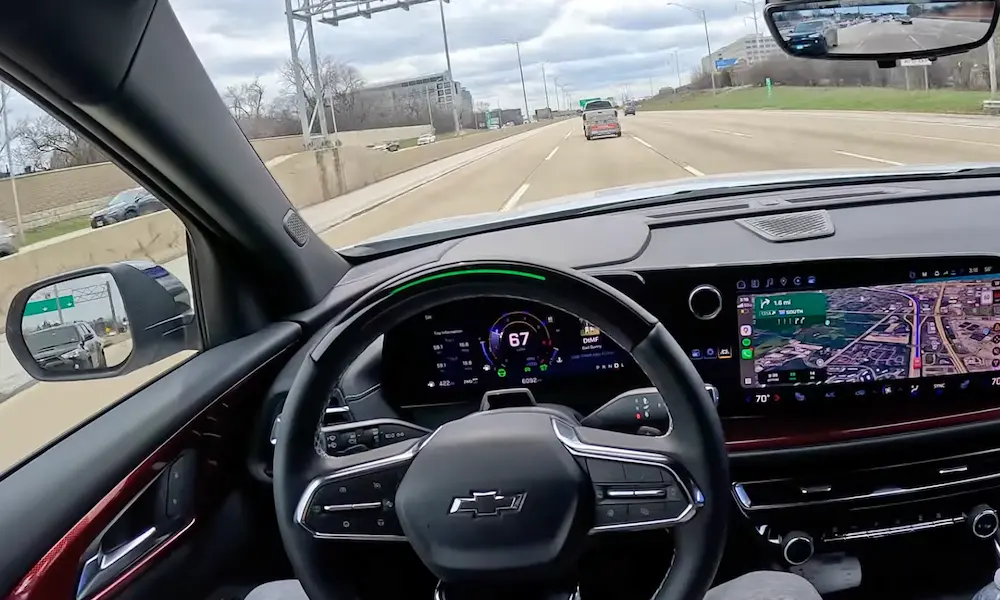
If you’ve got a newer GM vehicle with that big horizontal touchscreen and Google Maps built right in, this method’s for you. It works on the refreshed Silverado, Sierra, Colorado, Canyon, Traverse, and most 2022+ Chevrolet and GMC models.
Here’s the step-by-step:
- Put your vehicle in Park and come to a complete stop
- Find the red “End Call” button on your steering wheel (right side, looks like a phone hanging up)
- Press and hold it for 10-15 seconds straight
- Don’t let go when the screen goes black—that’s supposed to happen
- Release the button and wait about 60 seconds
The screen will stay dark for a bit, then you’ll see the Chevy bowtie or GMC logo pop up. That’s your sign it’s working. This steering wheel reset method forces the Android system to restart without losing your radio presets or phone connections.
The Classic Method: Soft Reset for Older Systems (2017-2021)
Got an older GM vehicle without Google built-in? You’ll need a different approach.
The OnStar Button Trick:
This works great for 2017-2019 models when your screen’s frozen but the OnStar button still lights up.
- Press the blue OnStar button on your rearview mirror
- Wait for the “Connecting to OnStar” voice
- Immediately hang up using the red button
- Check if your screen’s responding again
Why does this work? OnStar has priority access to your vehicle’s audio system. Starting a call forces the whole infotainment system to wake up and pay attention.
The Ignition Cycle Reset:
If the button trick doesn’t work, try this:
- Turn off your engine completely
- Open the driver’s door (this is critical—it cuts power to accessories)
- Leave the door open for 30-60 seconds
- Watch for the dashboard to go completely dark
- Close the door and restart
Opening the door tells your vehicle’s computer to actually shut down the radio. Just turning off the ignition isn’t enough because of something called “Retained Accessory Power” that keeps systems running.
The MyLink/IntelliLink Reset (2012-2016 Vehicles)
Older Chevy and GMC models with physical buttons on the center console? You’ve got it easy.
Press and hold the “Home” button and “Fast Forward” (>>) button at the same time for 10 seconds. The screen will flicker and reboot. This button combination triggers a hardware interrupt that forces the system to restart.
Cadillac CUE: The Faceplate Reset
Cadillac’s CUE system is notoriously finicky. If you’ve got an ATS, CTS, SRX, or Escalade with the motorized storage cubby behind the climate controls, here’s your special reset:
- Start the engine
- Open the CUE faceplate (slide the silver bar)
- Turn off the engine with the faceplate still open
- Open the driver’s door
- Leave both the faceplate and door open for 60 seconds
- Close everything and restart
This creates a conflict in the system’s sleep mode that forces a deeper reset than a normal shutdown.
When Soft Resets Don’t Work: The Hard Reset Options
If your OnStar light’s completely dark or stuck on red, software resets won’t help. You need to cut power to force a complete reboot.
The 15-Minute Sleep Cycle
Before you grab tools, try this:
- Park and turn off your vehicle
- Open the driver’s door, then close it
- Take your key fob at least 20 feet away from the vehicle
- Wait 15 full minutes
Why move the key fob away? Modern fobs constantly talk to your vehicle. If it senses the fob nearby, it keeps certain systems in standby mode instead of fully shutting down. This method fixes about half of all OnStar connectivity issues without touching anything.
The Battery Disconnect Method
This is the nuclear option. It resets every computer in your vehicle.
Important warnings first:
- You’ll lose radio presets and clock settings
- Your power windows won’t auto-up until you reset them
- Don’t do this before an emissions test—it clears the engine’s readiness monitors
The procedure:
- Pop the hood and locate your battery
- Use a 10mm wrench on the negative (black) terminal only
- Loosen it and lift the cable completely off the post
- Wait 15-30 minutes
- Reconnect the negative cable (you might see a small spark—that’s normal)
Always disconnect the negative terminal first. If you start with the positive and your wrench touches metal, you’ll create a dangerous short circuit.
After reconnecting, your windows need relearning. Roll each window all the way down, hold the switch for 2 seconds. Roll it all the way up, hold for 2 seconds. Repeat for all windows.
The Surgical Option: Pulling the OnStar Fuse
Want to reset just the OnStar system without messing with anything else? Pull its specific fuse.
The tricky part? GM changes fuse locations constantly. Here’s where to look:
2022+ Silverado/Sierra (Refreshed):
- Open the passenger door
- Find the fuse panel on the end of the dashboard (hidden when door’s closed)
- Look for Fuse F38 (red, 5-amp)
- Pull it, wait 60 seconds, put it back
2018-2024 Equinox/Terrain:
- Get on the floorboard (seriously)
- Look under the driver’s dash, left of the brake pedal
- Find the fuse labeled “Telematics” or F38
- Pull it, wait 60 seconds, reinstall
2014-2018 Silverado/Sierra:
- Check the driver’s side dash panel
- Look for “Info” or “Display” fuse
- It’s usually 10A or 15A
After reinserting the fuse, give the system up to 5 minutes to boot and connect to the cellular network. The green light should appear once it’s registered.
Understanding the OnStar Status Lights
That little LED next to your OnStar button tells you what’s happening:
| Light Status | What It Means | What to Do |
|---|---|---|
| Solid Green | Everything’s working perfectly | Nothing—you’re good |
| Flashing Green | Active call or downloading data | Normal—system’s in use |
| Solid Red | Hardware problem or registration failure | Try the 15-minute sleep cycle first, then fuse pull |
| Completely Dark | No power or system crash | Check the fuse, then consider battery disconnect |
Privacy Reset: Stopping Data Collection
Here’s something most people don’t know—your GM vehicle might be sharing your driving data with insurance companies through a program called “Smart Driver.”
In 2025, the FTC took action against GM for sharing driver location and behavior data without clear consent. If you want to stop this, here’s how:
Disable Smart Driver:
- Open your myChevrolet, myGMC, or myCadillac app
- Tap “More” then find “Smart Driver” or “Driving Activity”
- Hit the settings gear icon
- Toggle OFF “Allow Data Collection” or select “Unenroll”
This stops future tracking, but doesn’t delete what’s already been collected. For that, you’ll need to contact LexisNexis directly and request your consumer disclosure report.
Full Privacy Reset:
Call 1-866-MYPRIVACY (1-866-697-7482) to request deletion of your personal data from GM’s servers. This works best if you’re in California or another state with strong privacy laws.
Selling Your Vehicle? Don’t Forget This Reset
Factory resetting your screen isn’t enough when selling. The previous owner can still unlock, start, and track your vehicle through their app if they don’t properly disconnect.
Required steps when selling:
- Press the blue OnStar button
- Tell the advisor: “I sold this vehicle. Remove it from my account and mark this VIN as sold.”
- Delete the vehicle from your mobile app
Skip this, and the old owner keeps remote access to your vehicle. That’s a massive security problem.
If you bought a used GM vehicle, call OnStar immediately to ensure the previous owner’s access is completely removed.
What If Nothing Works?
Sometimes the hardware’s actually dead. Common failure points:
Water damage to the roof antenna: If your OnStar fuse blows immediately after you replace it, water probably got into the shark fin antenna on your roof and shorted the system.
Failed telematics module: The TCICM (the brain of OnStar) can fail, especially in 2022-2024 models. Many owners report months-long waits for replacement parts.
Loose connections: If someone recently worked on your dashboard, the OnStar module’s connectors might’ve come loose. The module’s usually buried deep—in sedans, check the trunk area behind panels. In SUVs, it’s often above the accelerator pedal or behind the glovebox.
The Bottom Line
Start with the simplest reset for your vehicle’s year and work your way up. Most OnStar problems get fixed with a steering wheel button hold or a quick fuse pull. Save the battery disconnect for stubborn cases.
And don’t forget about the privacy side of things. Resetting the hardware’s only half the job—you need to manage your data settings too, especially with GM’s recent data-sharing controversies.
Got a persistent red light even after trying everything? That’s usually a hardware failure requiring dealer service. But you’ll have saved yourself a diagnostic fee by ruling out the simple fixes first.