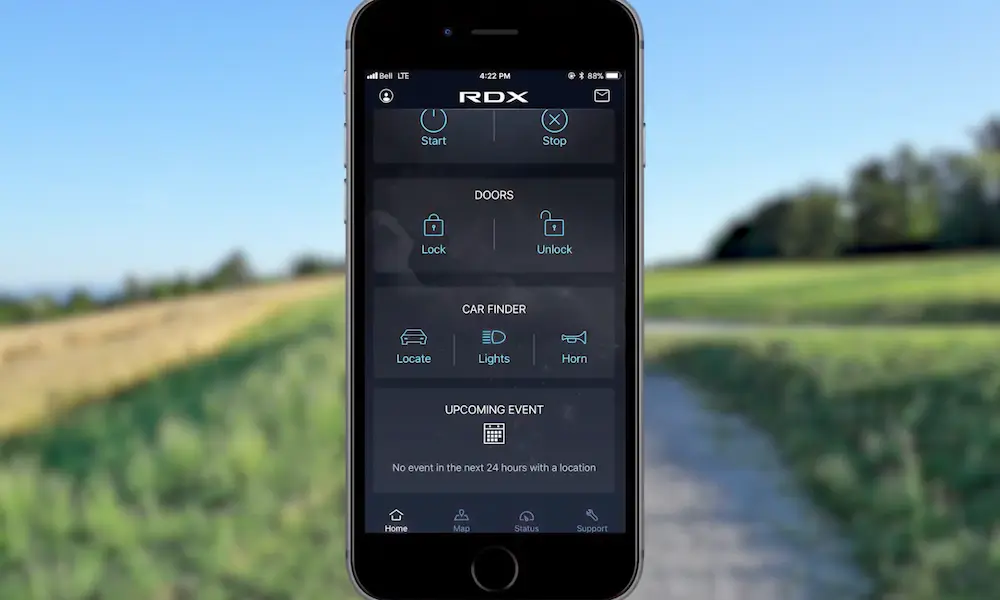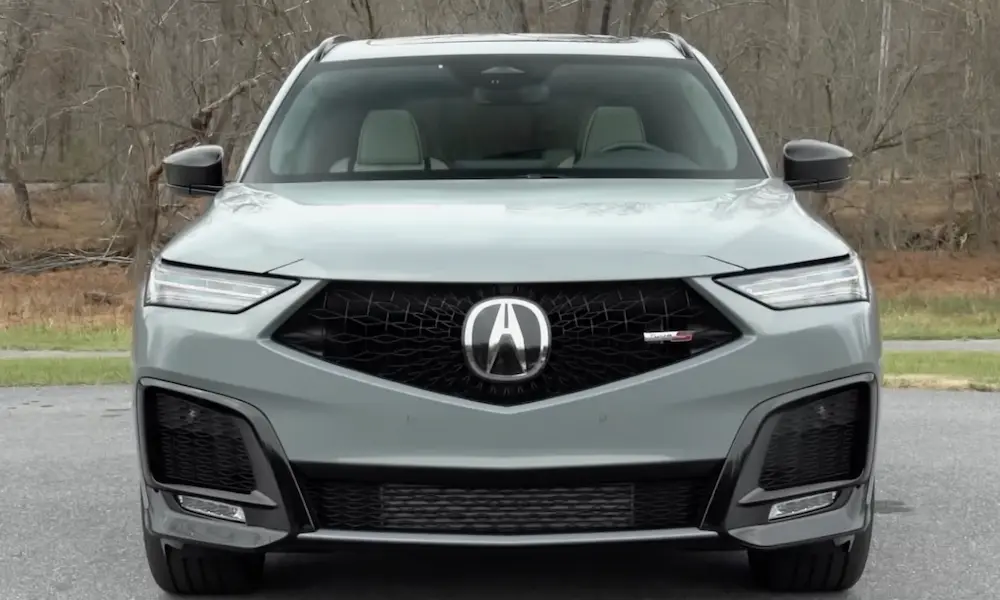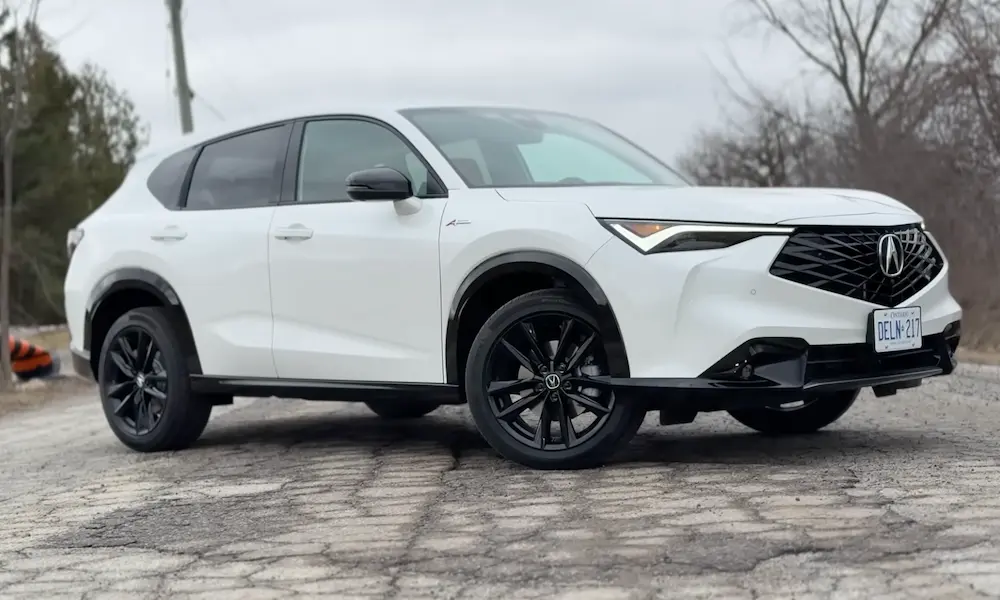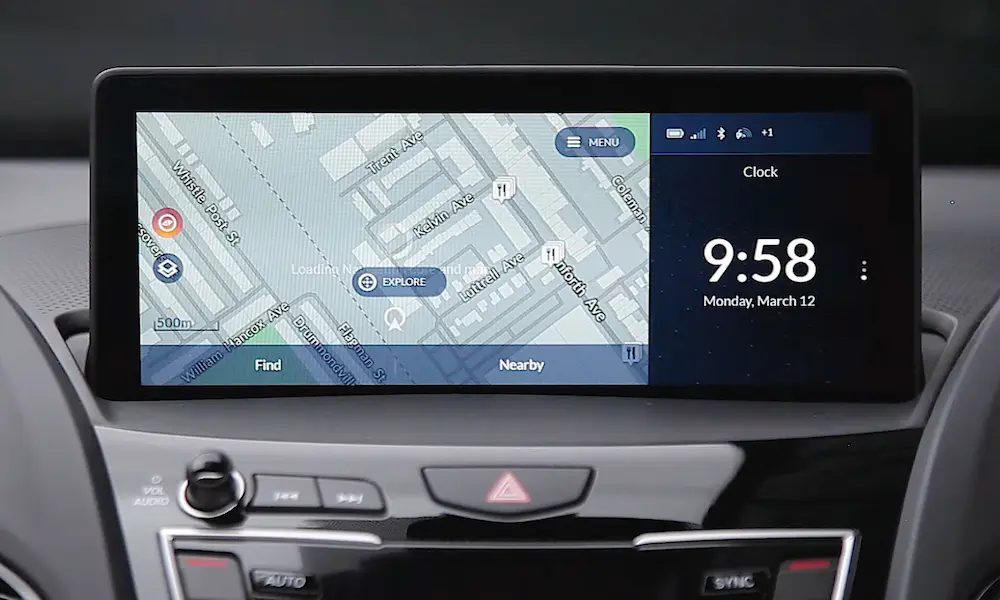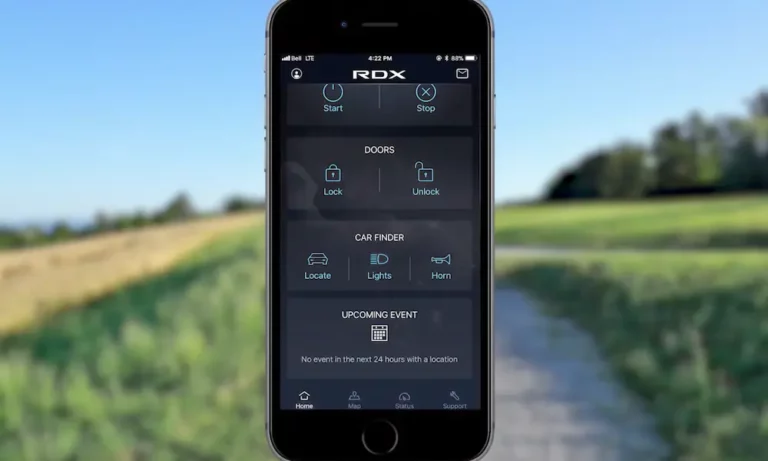
If your AcuraLink stopped working out of nowhere, you’re probably frustrated — and confused. The good news? Most issues have a clear cause and a real fix. This guide breaks down every major reason AcuraLink fails, from deliberate shutdowns to app bugs and hardware glitches, so you can stop guessing and start fixing.
First, Check If Your Car Was Officially Cut Off
Before you spend an hour troubleshooting, confirm your vehicle isn’t on Acura’s discontinued list.
Acura permanently shut down AcuraLink services for a significant chunk of its fleet on July 21, 2025. If your car is on this list, no reset or reinstall will bring it back.
Affected models and years:
| Model | Affected Years |
|---|---|
| Acura MDX | 2014–2020 |
| Acura RDX | 2016–2018 |
| Acura TLX | 2015–2020 |
| Acura RLX | 2014–2020 |
| Acura ILX | 2016–2022 |
| Acura NSX | 2017–2022 |
The full shutdown timeline rolled out in stages:
- June 17, 2025 — Final day to upgrade a trial to a paid plan
- June 18, 2025 — No new subscriptions or renewals accepted
- July 21, 2025 — Complete service shutdown, app access removed
- August 4, 2025 — Deadline for pro-rated refunds on unused subscriptions
It’s worth noting: SiriusXM satellite radio kept working because it uses a broadcast-only signal. But every two-way feature — remote start, emergency call, collision notification — went dark permanently.
If your car isn’t on that list, keep reading. Your fix is ahead.
The May 2026 Android App Meltdown
In May 2026, a critical bug hit the AcuraLink Android app hard. It created a “forced update loop” — the app demands an update, but when you tap the link, the Play Store shows you’re already on the latest version. You can’t get past the prompt. You can’t log in. The app is essentially bricked until Acura pushes a server-side fix.
iOS users reported some connectivity issues too, but the loop problem hits Android users the hardest. The likely cause? A versioning mismatch between the app’s internal logic and Google Play’s distribution servers.
What You Can Try Right Now
None of these are guaranteed fixes — the real solution requires Acura’s developers to patch the server. But these workarounds have helped some users break the loop:
| Workaround | How It Works | Success Rate |
|---|---|---|
| Log out, log back in | Resets your session token | Works for some iOS users; hard on Android due to overlay |
| Clear app storage | Wipes local cache and data in phone settings | Clears minor glitches, rarely breaks the loop |
| Full reinstall + phone reboot | Delete app, restart phone, fresh download | Most recommended by support, mixed results |
| Bluetooth sync first | Pair phone to car before opening the app | Can force a data sync that bypasses the version check |
If none of these work, you’re waiting on Acura. Check the AcuraLink subreddit for real-time updates from other owners.
The 2026 Integra Type S Feature Cuts
Own a 2024–2026 Integra Type S? You lost features too — but through a different mechanism.
Effective March 5, 2026, Acura removed several monitoring features from the free Basic tier for this model. These weren’t glitches — Acura quietly dropped them:
- Vehicle Notifications — No more remote alerts for warning lights or Maintenance Minders
- Fuel and Oil Life Tracking — Real-time fuel level and oil life percentage gone
- Odometer Sync — The app now only updates mileage when your phone connects via Bluetooth in person
Acura’s official explanation was a “strategic pivot” to retire older tech stacks. The result? A premium performance car now offers fewer connected features than a base RDX. There’s currently no hardware upgrade or software patch to restore these specific features.
Your Car’s Hardware: The Telematics Control Unit
The Telematics Control Unit, or TCU, is the physical brain behind AcuraLink. It’s an embedded cellular modem with its own SIM card that communicates over LTE. When it fails or falls out of sync, the whole system goes dark.
Check the LED in Your Overhead Console
The TCU has a status light that tells you exactly what’s happening:
- Solid green — Powered up, subscribed, connected to the network
- Solid red — System error detected. This often means Diagnostic Trouble Code 81403, pointing to a GPS receiver fault or intermittent hardware failure
- LED off — No power or no network handshake at all
If the LED is off and you’re in a spot with strong cell coverage, the unit is likely frozen. Disconnect its electrical connectors for at least one minute to clear the volatile memory and force a hardware reset.
The 3G Sunset Problem (Pre-2018 Models)
If you drive a pre-2018 Acura and AcuraLink hasn’t worked since around 2022, here’s why. U.S. carriers decommissioned 3G networks in 2022. Many older Acuras ran 3G-only modems. Acura pushed an OTA update to migrate vehicles to VoLTE, but if your car missed that update window, the only fix is physically replacing the TCU with an LTE-compatible unit.
Target software versions to confirm your TCU is current:
| Component | Target Version |
|---|---|
| Infotainment Main Software | D.1.6.2 or newer |
| Telematics Software (SW VER) | 17.07.007 or 200.0.9a00 |
| Visteon Part Revision (MDX/RLX) | Revision 13 or higher |
| Visteon Part Revision (TLX) | Revision 11 or higher |
Reboot the System: Soft and Hard Options
Sometimes AcuraLink isn’t working because the infotainment system itself is stuck. Here’s how to shake it loose.
Soft Reboot
Hold the power/volume knob for 10–15 seconds until the screen shuts off and restarts. This clears the app cache without wiping your settings. It often resolves laggy menus and failed CarPlay handshakes that interfere with AcuraLink in the background.
Access the Hidden Diagnostic Menu
Depending on your model, you can access deeper system tools:
- RDX, TLX, MDX 2019+ (True Touchpad Interface): Hold the Back, Home, and Cards buttons simultaneously for five seconds. Select “Hardware Auto Detect” then tap “Apply.” This soft-reboots all connected modules including the telematics modem.
- RLX, ILX, older MDX: Hold NAV + BACK + MENU for five seconds
- Older TLX models: Try INFO + SETTINGS + BACK
Factory Data Reset
This is the nuclear option. It clears all personal data, paired phones, and saved destinations. It’s worth doing if a previous owner’s account is stuck on the system and preventing you from registering your VIN. Find it in the standard system settings menu.
Physical Battery Disconnect
For persistent TCU failures, disconnect the negative battery terminal for 10 minutes. This forces a full hardware reset across all electronic control units and often breaks stubborn frozen states.
Account Issues: The “Ghost State” Problem
You’re logged in, but the app shows no vehicle. No remote options. Nothing. This is a common enrollment ghost state where your car is registered but not fully activated server-side.
To fix it:
- Sit inside the vehicle in a location with strong cellular signal
- Follow the in-app prompts to verify your VIN
- If needed, press the Link button in the overhead console to connect with a live agent who can manually complete activation
Connecting the vehicle to your home Wi-Fi network also dramatically improves the success rate of the initial registration handshake. Once your VIN is confirmed and linked, you don’t need Wi-Fi for the ongoing remote features — LTE handles that.
CarPlay, Android Auto, and Signal Conflicts
AcuraLink shares radio bandwidth with your other connected features. That competition creates real problems.
When wireless CarPlay or Android Auto is active, your phone’s Bluetooth and Wi-Fi radios prioritize that connection. AcuraLink’s background sync gets squeezed out. If your app dashboard won’t refresh, try this: forget the car from your phone’s Bluetooth and Wi-Fi settings, disable wireless CarPlay, then re-pair strictly as a classic Bluetooth device. This often forces a clean data refresh to AcuraLink’s servers.
Physical signal blockers are real too. Concrete underground garages and multi-level steel parking structures can completely block the cellular signal your TCU depends on. High-power lines and certain gas station monitoring systems can also introduce interference. Check the signal bars on your infotainment screen — if it shows zero or one bar, remote commands won’t work reliably regardless of what else you try.
Manual USB System Update: The Last Resort for Software Stuck Cars
If your TCU can’t receive over-the-air updates — either due to a weak connection or corrupted local files — Acura has a manual path via USB.
Here’s the process:
- Format a USB drive as FAT32 (NTFS and APFS won’t work)
- Insert it into your car’s USB port, go to System Updates → via USB — the vehicle writes its hardware profile to the drive
- Connect the drive to your computer and visit usb.acura.com — the portal reads your VIN and serves the correct update files
- Return the drive to the car and keep the engine running or connect a battery charger — a power interruption mid-install can brick the infotainment unit (the process takes about 30 minutes)
- After installation, the drive receives a report file — upload it to the portal to confirm your vehicle is now on the new software
Why This Keeps Happening: The Bigger Picture
AcuraLink’s troubles between 2024 and 2026 reveal an uncomfortable truth about connected cars. The 2022 NSX — a supercar — lost its telematics features within three years of its last model year. The car works perfectly. The software doesn’t.
Your car’s mechanical life and its digital life are on completely different clocks now. AcuraLink runs on AT&T’s LTE network and Acura’s proprietary cloud. When either changes, features you paid for can disappear. That’s the trade-off with today’s connected vehicles — and knowing it means you can troubleshoot smarter instead of chasing ghosts.
Start with the subscription check. Then the app. Then the hardware. That order will save you hours.