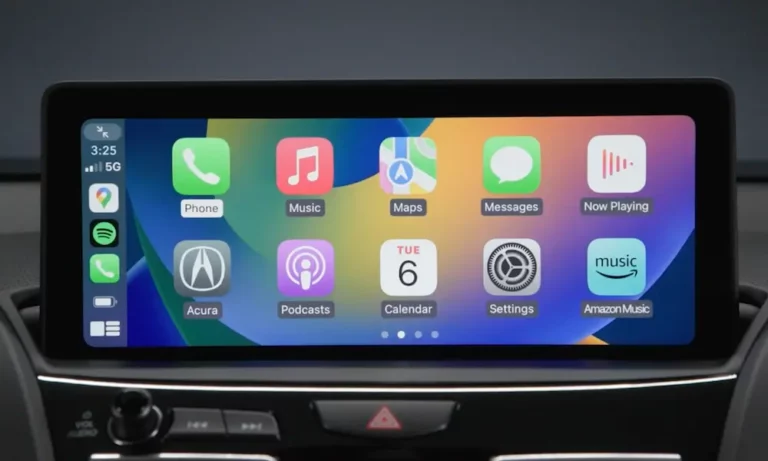
Getting Apple CarPlay working in your Acura shouldn’t feel like defusing a bomb. Whether you’ve got a wired setup or a newer wireless model, this guide walks you through every step — plus fixes for when things go sideways. Stick around to the end — there are a few iPhone settings that quietly break CarPlay without any warning.
Does Your Acura Actually Support Apple CarPlay?
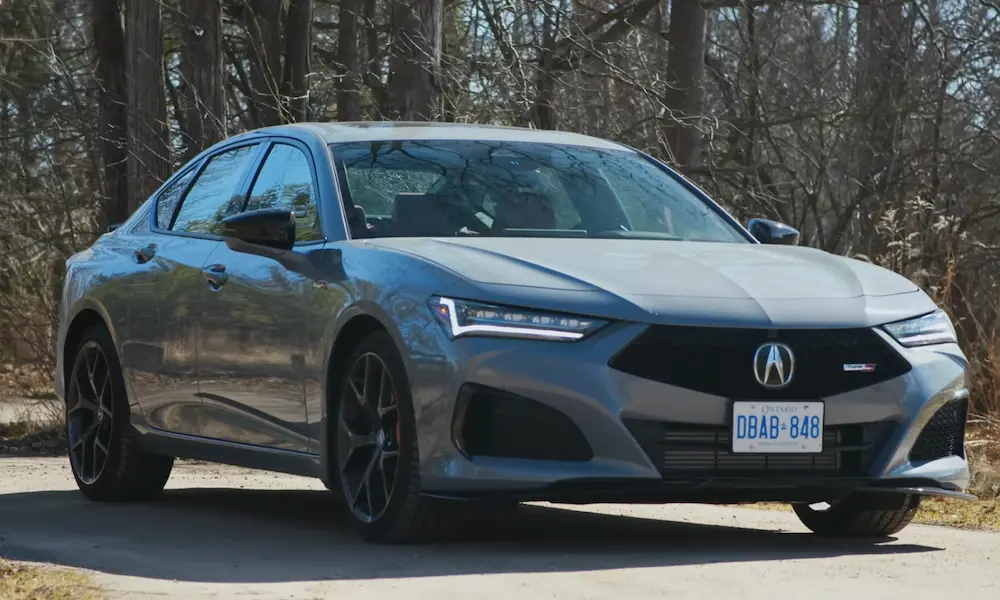
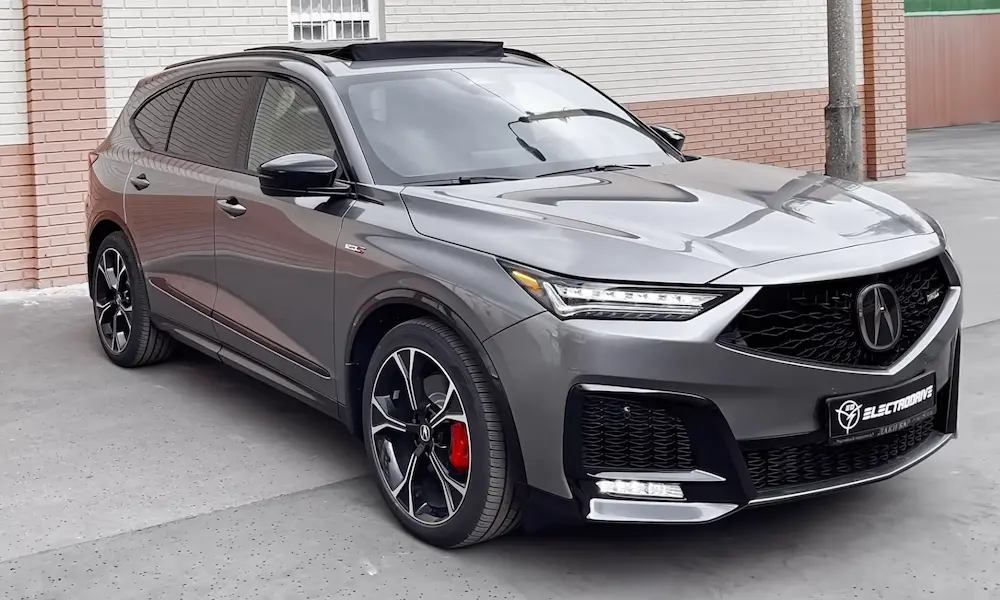
Before anything else, check that your model is compatible. Acura first introduced CarPlay in the 2017 NSX and rolled it out across the lineup from there. By 2019, it was standard on nearly every trim.
Here’s the full breakdown:
| Model | Years | Connection Type |
|---|---|---|
| Acura NSX | 2017–2023 | Wired |
| Acura MDX | 2018–2021 | Wired |
| Acura MDX | 2022–2024 | Wireless |
| Acura MDX | 2025–2026 | Wireless (Touchscreen) |
| Acura RDX | 2019–2021 | Wired |
| Acura RDX | 2022–2026 | Wireless |
| Acura TLX | 2018–2021 | Wired |
| Acura TLX | 2022–2025 | Wireless |
| Acura ILX | 2019–2022 | Wired |
| Acura Integra | 2023–2026 | Wired + Wireless |
| Acura ZDX | 2024–2025 | Wireless |
| Acura ADX | 2025–2026 | Wireless |
If your Acura falls in the 2017–2021 range, you’re working with a wired connection. From 2022 onward, most models support wireless CarPlay.
How to Connect Apple CarPlay to Acura via USB Cable
Wired CarPlay is still the most reliable method — and it’s the only option on older models.
Find the Right USB Port First
Not every USB port in your Acura supports CarPlay. Charge-only ports (like those in the rear seats) won’t work. You need the data-enabled CarPlay port, which is usually marked with a small smartphone icon or a white border.
- RDX and MDX: Inside the center console compartment, often behind a sliding cover
- ILX and older TLX: In a small storage bin at the base of the center stack
- 2025+ models: USB-C port (earlier models use USB-A)
Use the Right Cable
This one trips up a lot of people. You must use an MFi-certified (Made for iPhone) Lightning or USB-C cable. Cheap, uncertified cables lack the shielding needed for CarPlay’s data sync and cause drops or failed connections. If CarPlay isn’t showing up, swap the cable first — it fixes the problem more often than you’d think.
Step-by-Step: Wired Connection
- Plug your iPhone into the CarPlay USB port using a certified cable
- Your Acura’s screen will ask you to enable Apple CarPlay
- Select “Always Enable” to skip this prompt on future drives
- On your iPhone, tap “Allow CarPlay with ‘Acura’ while locked”
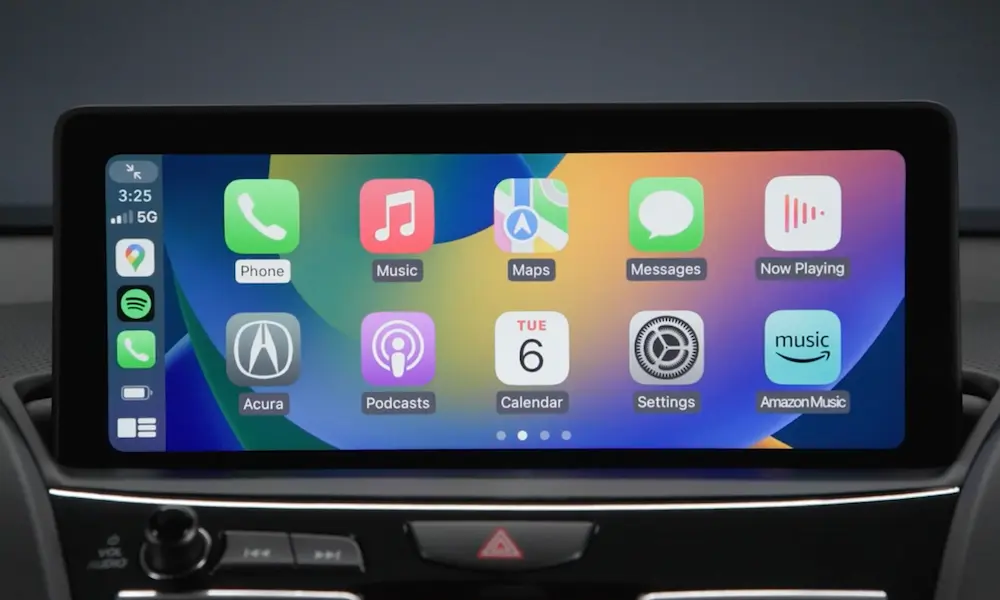
- CarPlay launches automatically on the dashboard display
That iPhone prompt in step 4 is critical. If you skip it or tap “Don’t Allow,” CarPlay drops the moment your screen locks. Always grant that permission.
How to Connect Apple CarPlay to Acura Wirelessly
If you drive a 2022 or newer Acura MDX, RDX, TLX, Integra, ZDX, or ADX, you’ve got wireless CarPlay. Here’s how it works.
What’s Actually Happening Behind the Scenes
Wireless CarPlay uses two connections at once. Bluetooth handles the initial “discovery” phase — the car and phone find each other and exchange credentials. Then your Acura tells your iPhone to switch to Wi-Fi, which carries the actual video and audio data.
That means both Bluetooth AND Wi-Fi must be on for this to work. If you turn Wi-Fi off to save battery, wireless CarPlay won’t start. Airplane Mode kills it too.
Step-by-Step: Wireless Connection
- On your Acura’s home screen, tap the Apple CarPlay icon (or find it under the Phone tab)
- Select “Connect New Device” or “Add Phone”
- On your iPhone, go to Settings > Bluetooth and look for your vehicle name (e.g., “Acura MDX”)
- Tap the vehicle name — both your phone and car display a 6-digit code. Confirm they match
- Tap “Pair” on your iPhone
- A prompt asks if you want to “Use CarPlay” — tap yes
- The car may ask you to set this phone as a Priority Device — do it
After this, your Acura detects your phone when you get in and launches CarPlay automatically — often before you’ve even buckled your seatbelt.
Using Acura’s True Touchpad Interface with CarPlay
If you drive a 2019–2024 RDX, TLX, or MDX, you’re dealing with Acura’s True Touchpad Interface (TTI). It’s different from a regular touchscreen — here’s what you need to know.
How the Touchpad Works
In Acura’s native menus, the TTI uses absolute positioning — the pad surface maps 1:1 to the screen. Touch the top-left corner of the pad, and the top-left item on screen highlights instantly. It’s designed so your eyes stay on the road, not the dashboard.
Inside CarPlay, the behavior shifts slightly. Instead of 1:1 mapping, you swipe to move a highlight box between icons — similar to navigating a smart TV with a remote.
Touchpad Inputs in CarPlay
| Touchpad Gesture | What It Does |
|---|---|
| Light click | Selects or opens an app |
| Swipe / flick | Moves between icons or scrolls lists |
| Two-finger swipe | Pans the map in Apple Maps or Waze |
| Digital handwriting | Lets you trace letters to search contacts or destinations |
| Long press | Enters icon edit/rearrange mode |
Most people need one to two weeks of regular use before the TTI feels natural. Stick with it.
The A-Zone and B-Zone Split Screen
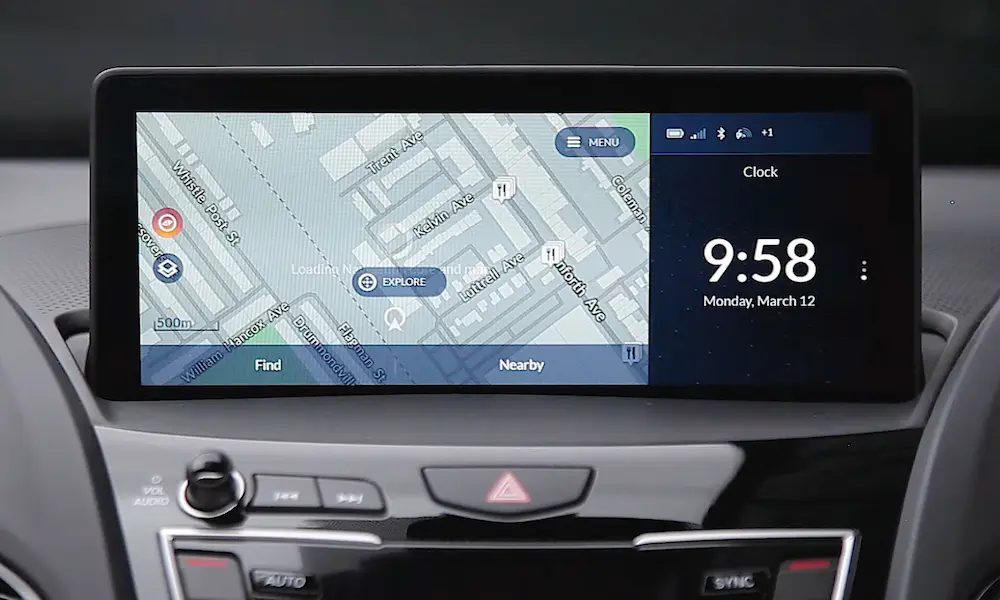
Acura’s widescreen display splits into two sections:
- A-Zone: The main area where CarPlay lives, controlled by the primary touchpad surface
- B-Zone: A narrower strip on the right side of the screen, controlled by the right edge of the pad
You can run CarPlay navigation in the A-Zone while the B-Zone shows the clock, audio info, or compass. Click the smaller touchpad strip to swap the zones. On 2025 RDX and MDX models, a new Widescreen Mode lets CarPlay take over the entire display.
The 2025+ Touchscreen Transition
The 2025 MDX dropped the touchpad entirely in favor of a direct-touch high-definition screen — a change that Car and Driver confirmed replaces the “fickle” TTI with something far more immediate.
The new setup combines 22 inches of total display space, with an 11.3-inch center screen that supports wireless CarPlay as standard. You tap directly on the icon you want — no swipe-to-highlight, no learning curve.
For ZDX drivers specifically, the integration goes deeper. The car’s Google Built-in system communicates with CarPlay — so if you’re navigating to a charging station via Apple Maps, the ZDX can start preconditioning the battery before you arrive, ensuring the fastest possible charge.
iPhone Settings That Silently Break CarPlay
Your car setup can be perfect and CarPlay still won’t work if your iPhone isn’t configured correctly.
Turn Siri On — No Exceptions
CarPlay requires Siri to be active. Without it, your iPhone refuses to project to the car’s screen. Go to Settings > Siri & Search and confirm all three of these are on:
- “Listen for ‘Hey Siri'” — toggled on
- “Allow Siri When Locked” — enabled
- Side/Home Button for Siri — active
Check Screen Time Restrictions
Screen Time can silently block CarPlay — even if you didn’t set it up intentionally. Go to:
Settings > Screen Time > Content & Privacy Restrictions > Allowed Apps
Make sure the CarPlay toggle is green. If it’s off, your iPhone hides itself from every car trying to connect.
Set Up Driving Focus Mode
When CarPlay connects, your iPhone can automatically activate Driving Focus mode, which silences non-essential notifications. You can customize it to let specific contacts — like family — break through while blocking social media. Set this up in Settings > Focus > Driving.
Managing Multiple iPhones in One Acura
Shared Acura? Here’s how to keep the right phone connected.
Set a Priority Device
In Settings > Connections > Apple CarPlay on your Acura’s screen, select your phone and mark it as the Priority Device. The car always tries to connect to that phone first when you start the engine. It only moves to other paired devices if yours isn’t detected.
How to Manually Switch Phones
If the car grabbed the wrong phone, fix it in four steps:
- Press the Home button on your Acura dash or touchpad
- Go to the Phone or Connections tab
- Select “Change Connected Phone” or “Manage Devices”
- Pick your phone and tap “Connect”
The car drops the current session and starts a fresh handshake with your device. Only one phone can run CarPlay at a time — Bluetooth calls can be split between two phones, but CarPlay can’t.
Fix CarPlay When It Stops Working
Run through these fixes in order — from easiest to most involved.
1. Check the cable (wired only)
Inspect for frayed cables or debris in the connector. Test with a different Apple-certified cable.
2. Soft reboot
Restart your iPhone and cycle the ignition. Make sure the dashboard fully powers down — open the driver’s door after shutting the engine off.
3. Forget and re-pair the device
This fixes most persistent connection problems. On your iPhone: Settings > General > CarPlay > [Your Acura] > Forget This Car. On the car’s screen: delete your phone from the Connections menu. Re-pair from scratch to clear corrupted handshake data. Apple Support confirms this as the most effective fix.
4. Factory reset the infotainment system
If the screen is frozen or won’t recognize any device, go to Settings > System > Reset All Settings on your Acura’s screen. This erases saved presets, navigation favorites, and seat memory — use it as a last resort.
5. Check for firmware updates
From 2022 models onward, Acura pushes over-the-air software updates over your home Wi-Fi. Connect your car to Wi-Fi while parked and check System > Wireless Update. In 2024, firmware version 1.4.1 specifically improved widescreen CarPlay support and TTI responsiveness — if you haven’t installed it, do it now.
Use Siri Eyes Free to Keep Your Hands Off the Screen
Every Acura with CarPlay supports Siri Eyes Free. Long-press the voice command button on your steering wheel — the one that usually triggers the car’s built-in voice recognition — and you go straight to Siri instead.
From there, you can:
- Send and dictate text messages
- Set reminders or alarms
- Request specific songs or artists
- Get turn-by-turn directions
You don’t touch the screen. Your eyes don’t leave the road. That’s the point.
Interface Comparison: Which Acura Setup Gives You the Best CarPlay Experience?
| Feature | Interface Dial (Legacy) | True Touchpad (2019–2024) | Touchscreen (2025+) |
|---|---|---|---|
| Input method | Rotary knob + buttons | Precision touchpad | Direct finger touch |
| Learning curve | Low | Moderate | Low |
| Eye-off-road time | Moderate | Low | Moderate |
| Screen size | Standard def | 10.2–12.3 inch Full HD | 22-inch combined HD |
| Fingerprints | None | Minimal | Yes |
| Handwriting input | No | Yes (A-Zone) | On-screen keyboard |
The TTI was engineered for safety — keeping your hands low and your eyes forward. But US buyers consistently prefer touchscreens, which is exactly why Acura made the swap in the 2025 MDX. If you’re still on a TTI model, give it two weeks. Most drivers come around once the muscle memory kicks in.