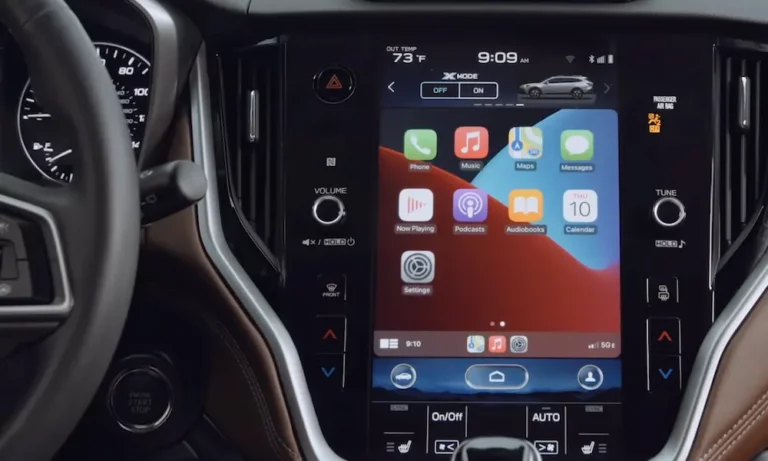
Getting Apple CarPlay to work in your Subaru shouldn’t feel like defusing a bomb. Whether you’re dealing with a stubborn wired connection or wrestling with wireless pairing, this guide walks you through every step — plus how to fix the most common problems fast. Stick around to the end for the fixes that most people miss.
Does Your Subaru Actually Support Apple CarPlay?
Before you start poking around your dashboard, confirm your car supports it.
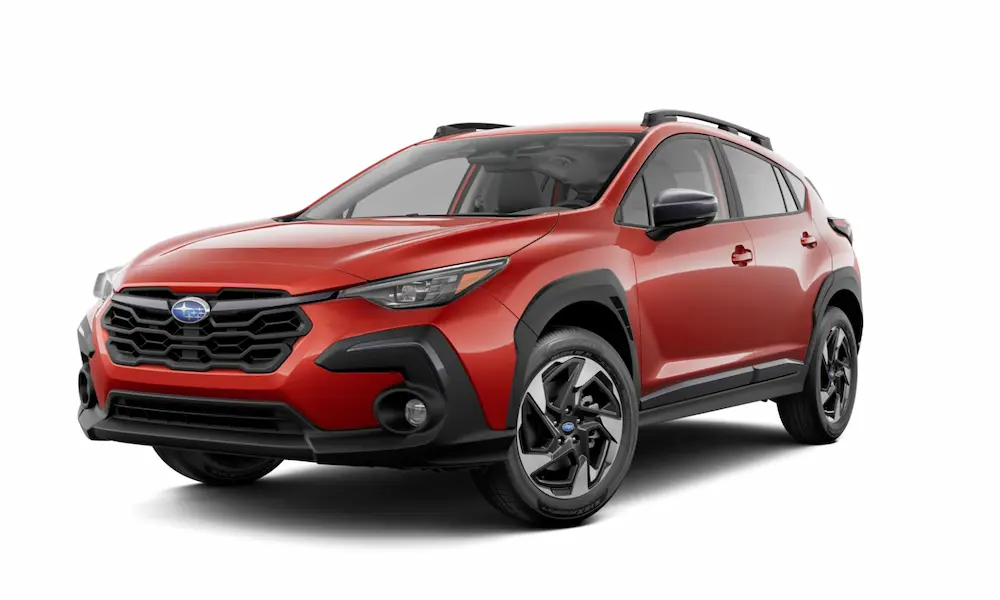
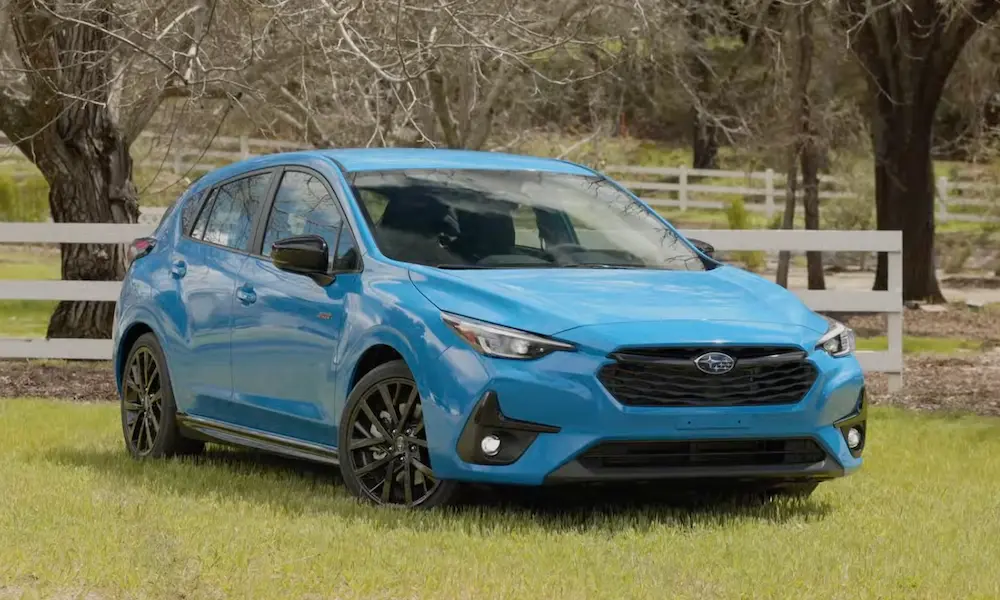
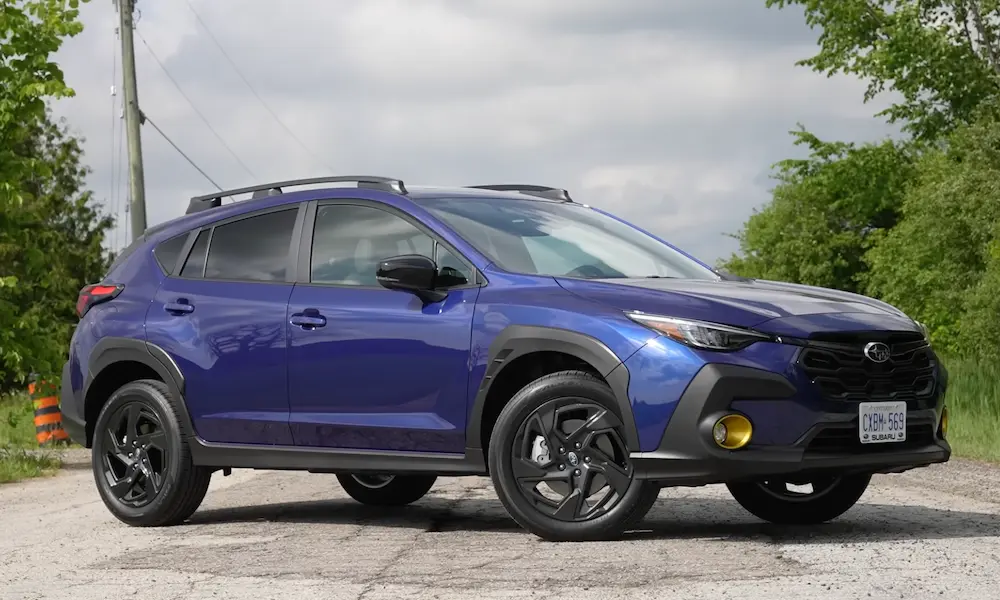
Every new Subaru sold in the U.S. has included Apple CarPlay as standard equipment since 2019 — even base trims. If you’re driving a 2019 or newer Subaru, you’re covered. The Impreza got it first back in 2017, followed by the Legacy, Outback, Crosstrek, and BRZ in 2018.
Here’s how the rollout looked:
| Model Year | What Changed | Connection Type |
|---|---|---|
| 2017 | Impreza gets CarPlay first | Wired only |
| 2018 | Legacy, Outback, Crosstrek, BRZ join | Wired only |
| 2019 | Full fleet standardization | Wired only |
| 2023 | Outback & Legacy refresh | Wireless added (select trims) |
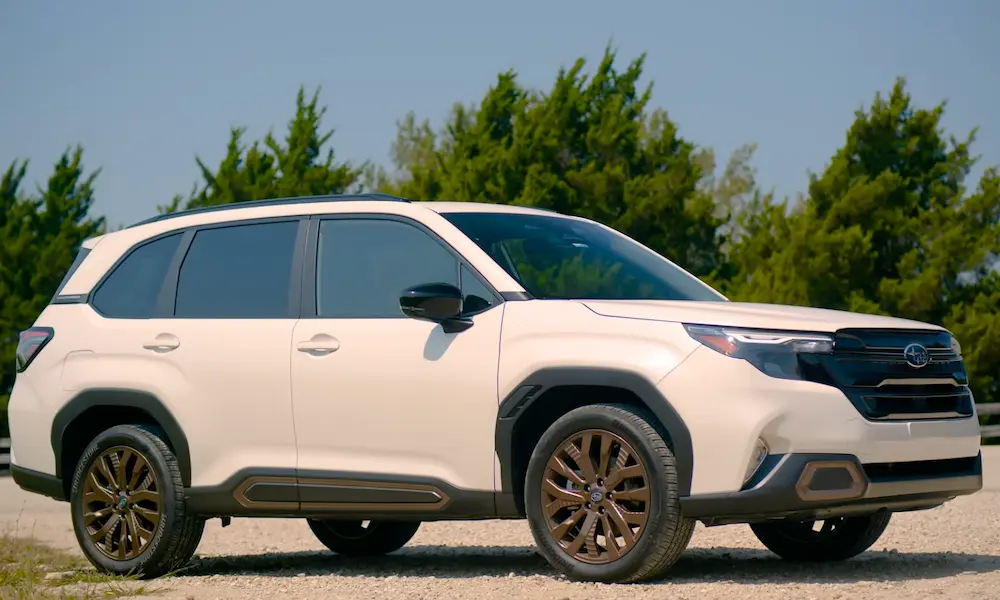
| 2024 | Crosstrek & Forester join | Wireless (select trims) |
| 2026 | Uncharted & Trailseeker EVs | Wireless standard |
Whether your car does wired or wireless CarPlay depends on your screen size and trim level — more on that below.
How to Connect Apple CarPlay to Subaru via USB Cable
Wired CarPlay is the most reliable method and works on every CarPlay-equipped Subaru.
What You Need First
Check two things before plugging anything in:
- The right port: Older Subaru models have USB-A ports (the rectangular ones) in the center cubby below the screen. Newer models with the 11.6-inch screen also include USB-C. Either works — just grab the correct cable.
- An MFi-certified cable: This is non-negotiable. Subaru and Apple both recommend using “Made for iPhone” (MFi) certified cables because they contain a verified chip that authenticates the connection. Cheap knockoff cables skip that chip, and your Subaru’s head unit won’t trust them — you’ll get a blank screen or a dropped connection every few minutes.
Step-by-Step Wired Setup
- Start your Subaru and let the Starlink screen fully load.
- Plug your MFi cable into the USB port in your center console.
- Connect the other end to your iPhone.
- Your iPhone will ask: “Allow CarPlay While Locked?” — tap Allow.
- The Starlink screen will ask if you want to enable Apple CarPlay — select Yes or Always.
- CarPlay launches. Done.
After that first approval, CarPlay often launches automatically the moment you plug in. If it doesn’t, just tap the CarPlay icon on the Starlink home screen — it’ll be lit up instead of grayed out.
One thing that trips people up: If your iPhone port has lint or debris packed in it, the cable’s data pins can’t make full contact. A quick clean with a dry toothpick or non-conductive tool fixes this more often than you’d think.
How to Connect Apple CarPlay to Subaru Wirelessly
Wireless CarPlay skips the cable entirely. Subaru started rolling out wireless support with the 2023 Outback and Legacy, and it’s now available on select trims of the 2024–2025 Crosstrek and Forester.
How Wireless CarPlay Actually Works
A lot of people assume it runs on Bluetooth. It doesn’t — not fully. Bluetooth handles only the initial handshake to verify your phone and car recognize each other. Once that’s done, your car and iPhone create a private Wi-Fi link on the 5GHz band. That Wi-Fi connection carries all the actual CarPlay data — maps, audio, messages — because Bluetooth is nowhere near fast enough for that.
Step-by-Step Wireless Setup
Follow Subaru’s official wireless pairing instructions in this exact order:
- On the Starlink screen, go to Settings → Phone → Add Device.
- On your iPhone, open Settings → Bluetooth and select “Subaru BT” (or your car’s listed name).
- Confirm the six-digit PIN matches on both screens.
- When your iPhone asks “Use CarPlay?” — tap it.
- The Starlink screen asks for one final confirmation — accept it.
- CarPlay loads. Your car saves this iPhone as the default and connects automatically from now on.
Once paired, your Subaru remembers your phone as its “favorite” device and connects wirelessly every time you get in.
Watch Out for VPN Conflicts
If you use a VPN on your iPhone, wireless CarPlay might fail to connect. The VPN can block the local Wi-Fi handshake your car and phone need to communicate. If wireless CarPlay stops working after you added a VPN app, disable it temporarily to test. If that fixes it, adjust your VPN’s settings to allow local network access.
Which Screen Does Your Subaru Have?
How CarPlay looks — and whether you get wireless — depends on your specific screen setup.
| Screen Type | Models | Wired or Wireless |
|---|---|---|
| Dual 7-inch screens | Outback Base, Legacy Base, Crosstrek Base | Wired only |
| 11.6-inch portrait | Outback/Legacy Premium+, Crosstrek Premium+, Forester, Ascent, WRX | Wireless (2023+) |
| 8.0-inch landscape | BRZ, older Forester/Impreza | Wired only |
| 14-inch (upcoming) | 2026 Uncharted, Trailseeker EVs | Wireless standard |
The dual 7-inch setup splits things up: the top screen handles CarPlay and audio, while the bottom manages climate and EyeSight settings. You’ll never lose your nav view because you turned up the heat.
The 11.6-inch portrait screen keeps native Subaru controls at the bottom — so you can adjust temperature or go to home without exiting CarPlay.
Trim-by-Trim Breakdown: Wired vs. Wireless
Not sure which connection type your Subaru uses? Here’s the quick answer by model:
Crosstrek (2024–2025)
- Base (dual 7-inch): Wired via USB-A
- Premium, Sport, Limited, Wilderness (11.6-inch): Wireless CarPlay standard
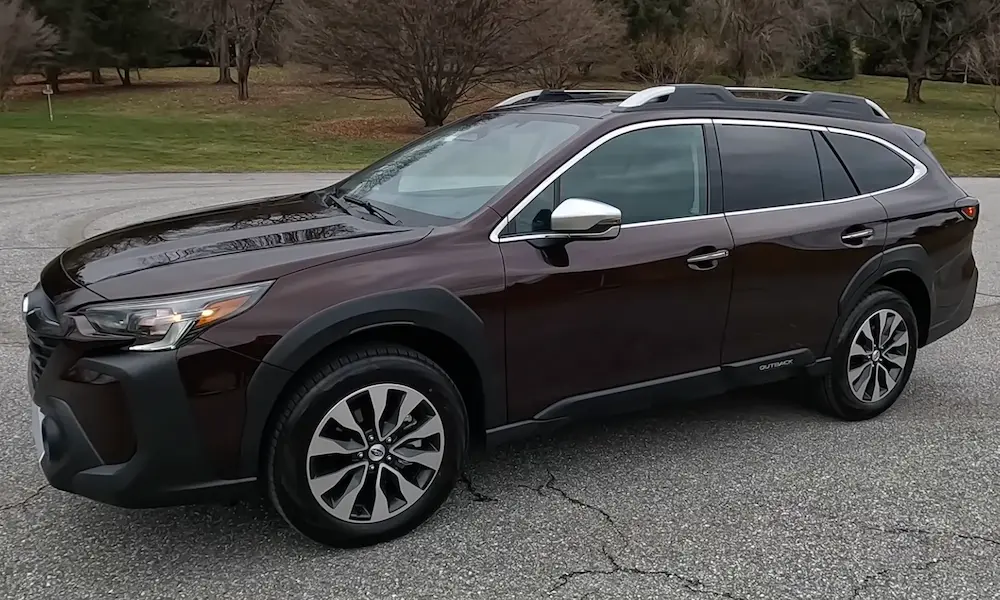
Outback & Legacy (2024–2025)
- Base: Wired
- Premium, Onyx Edition, Limited, Touring, Wilderness: Wireless
Forester (2025)
- Nearly every trim now has the 11.6-inch screen and wireless CarPlay
Ascent (2024–2025)
- All trims: 11.6-inch screen with wireless CarPlay
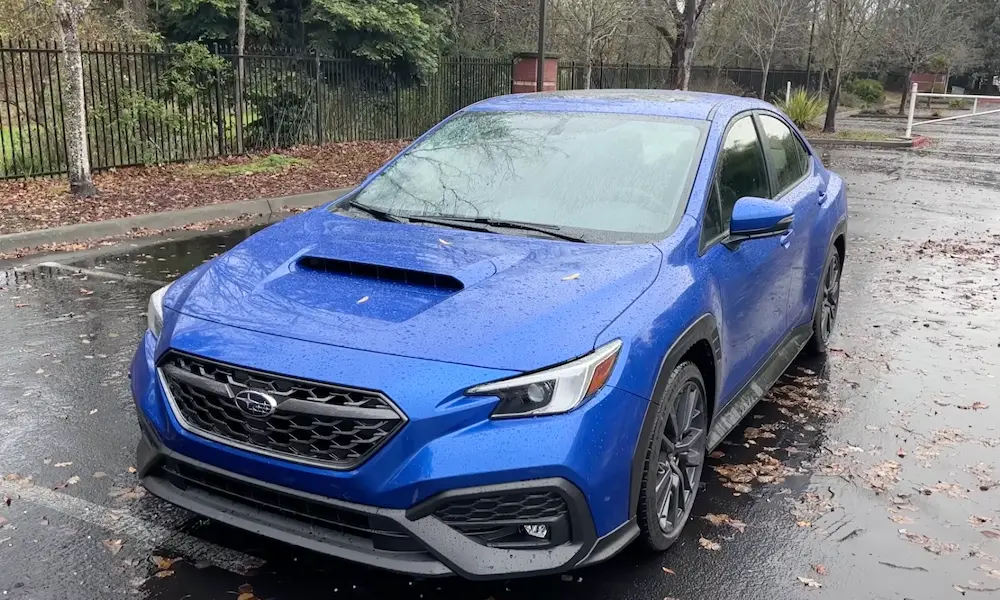
BRZ & WRX
- CarPlay is standard, but confirm your trim for wireless availability
CarPlay Won’t Connect? Fix It Here
Try a Soft Reboot First
If your Starlink screen freezes or refuses to recognize your phone, press and hold the volume/power knob for 10–30 seconds. The system forces a restart without wiping your settings. This clears most glitches in under a minute.
Do a Factory Reset (Last Resort)
If nothing else works, go to General Settings and select Factory Data Reset. Fair warning: this wipes all paired phones, saved navigation spots, and audio presets. But it also clears any corrupted files causing the issue.
Fix Drops During Driving
If your wired connection drops while you’re moving, two things are likely:
- Lint in your iPhone’s charging port (clean it out)
- A loose USB port inside the center stack (this needs a dealer look)
Fix App-Specific Problems
If CarPlay connects but Spotify crashes or Apple Maps has no audio, it’s usually a software conflict — not a car issue. Update your iPhone to the latest iOS and update all CarPlay apps via the App Store. Also confirm Siri is enabled in your iPhone settings — CarPlay won’t function properly without it.
Keep Your Starlink System Updated
Outdated Starlink firmware causes lag, audio stuttering, and CarPlay connection failures. Run updates regularly.
Over-the-Air Updates
- Park outside with the engine running — power loss mid-update can brick your head unit.
- Go to Settings → General → Wi-Fi, connect to your home network or a hotspot.
- Select Check for Updates and follow the prompts.
- Downloads take up to 30 minutes; installation takes up to 40 more. Stay with the vehicle.
USB Updates
For bigger updates or no reliable Wi-Fi, download the Map Downloader tool from Subaru’s official site, load it onto a USB 2.0 or 3.0 drive (16GB minimum), and plug it into your Subaru’s media port. The system walks you through the rest.
Steering Wheel Shortcuts You Should Know
Your Subaru’s steering wheel “Talk” button works differently with CarPlay:
- Quick press: Activates Subaru’s native voice control for climate or radio
- Long press (2 seconds): Bypasses Subaru’s system and launches Siri directly
Use that long press when you want to set a navigation destination, send a message, or skip a track without touching the screen.
Managing Multiple iPhones
Got a family car with multiple iPhone users? Your Subaru handles this.
In the “Manage Devices” menu, set a connection order so the car prioritizes the driver’s phone. This stops the system from defaulting to a passenger’s device when both are in range.
If you’re selling your Subaru, do both of these:
- On your iPhone: Settings → General → CarPlay → [Your Car] → Forget This Car
- On the Starlink screen: Delete your phone from Manage Devices
That removes your personal data from the system completely.
What’s Coming in 2026 and Beyond
Subaru’s going bigger. The 2026 Trailseeker and Uncharted EVs both launch with 14-inch touchscreens and wireless CarPlay as standard across every trim. They’ll also feature 7-inch digital gauge clusters that can show CarPlay navigation data directly in your line of sight — no glancing over at the main screen.
| Model | Launch Year | Screen | Key Feature |
|---|---|---|---|
| Uncharted EV | 2026 | 14-inch + 7-inch gauge | Wireless CarPlay, EV preconditioning |
| Trailseeker EV | 2026 | 14-inch + 7-inch gauge | 3,500 lb towing, advanced X-MODE |
| WRX Series.Yellow | 2026 | 11.6-inch | Performance telemetry via CarPlay |
| Getaway | 2027 | 11.6-inch or larger | 3-row EV, multi-zone CarPlay audio |
As Subaru pushes toward its electrification goals for 2030, the Starlink system’s ability to run Apple CarPlay smoothly will stay at the center of its tech strategy — getting bigger screens, faster processors, and tighter iPhone integration along the way.