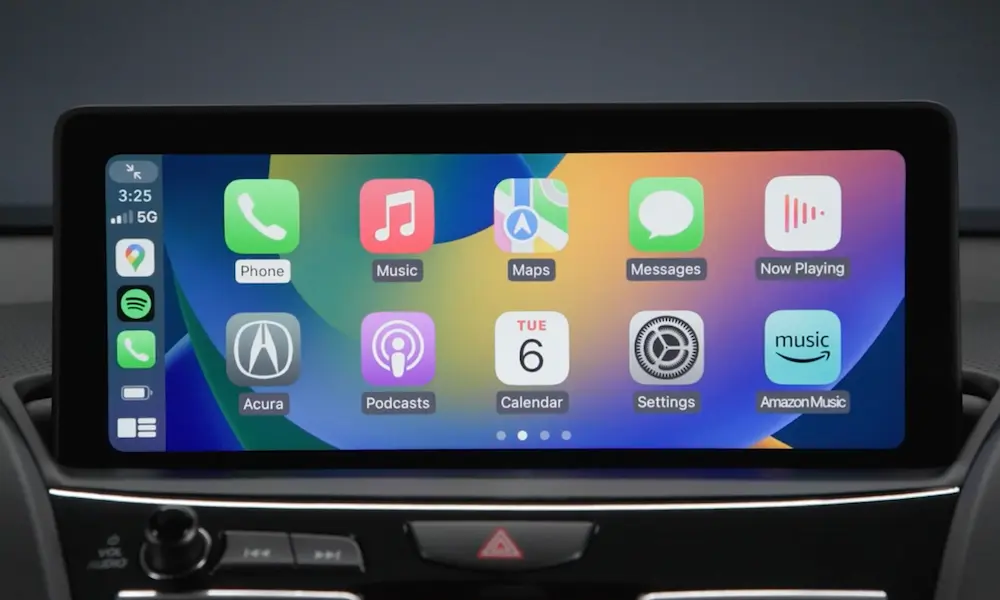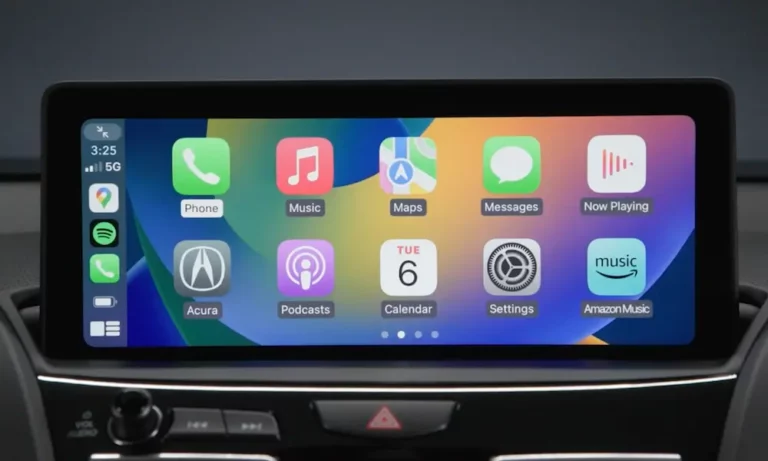
Acura CarPlay not working is one of those problems that hits at the worst time — you’re running late, you plug in your phone, and nothing happens. Before you drive to the dealership, read this. Most fixes take under five minutes and cost nothing.
Why Acura CarPlay Stops Working
Acura CarPlay failures fall into three buckets: bad cables, wrong iPhone settings, or a hardware defect inside the car. The tricky part? A bad cable still charges your phone, so it looks fine. Same with settings — everything looks normal until you know what to check.
Here’s a quick breakdown of the most common causes:
- Dead or low-quality USB cable
- Siri turned off on your iPhone
- Screen Time blocking CarPlay
- A known FAKRA connector defect in 2019–2023 models
- A frozen infotainment system that needs a reboot
Let’s work through each one.
Start Here: Check Your USB Cable First
This is the most common reason Acura CarPlay stops working — and the most ignored.
A cable that charges your phone doesn’t mean it transfers data. CarPlay needs a 4-wire USB 2.0 cable running at 480 Mbps minimum. Cheap cables skip the two data wires (D+ and D-) entirely. They power your phone just fine but can’t carry the CarPlay signal.
What to look for in a cable:
- MFi-certified (Made for iPhone) printed on the packaging
- USB 2.0 data-rated — not a “charging cable”
- 3–6 feet long — longer cables lose signal quality
- Braided shielding — protects against interference from the alternator
In-car cables also wear out faster than you think. Frequent bending, heat, and vibration crack the internal wires while the outer casing still looks fine. If your CarPlay drops every time you hit a bump, the cable is almost certainly the problem.
Also, plug into the correct USB port. Some Acura models have a charge-only port and a data port. The data port is usually marked with a smartphone icon. Using the wrong one gives you charging but zero CarPlay.
USB Cable Quick Reference
| Feature | What You Need | What Fails |
|---|---|---|
| Wire count | 4-wire (VCC, GND, D+, D-) | 2-wire charge-only cables |
| Data speed | USB 2.0 (480 Mbps) | Slow or no data transfer |
| Certification | MFi-certified | Generic / uncertified cables |
| Shielding | Braided outer layer | Unshielded — drops signal mid-drive |
| Length | 3–6 feet | Over 6 feet causes latency |
Fix iPhone Settings That Block Acura CarPlay
Even with a perfect cable, wrong iPhone settings will stop CarPlay cold. After an iOS update, some settings reset without warning. These are the ones to check first.
Siri must be on. Apple requires Siri to be active for CarPlay to work. It’s a safety requirement for hands-free operation. Go to Settings > Siri & Search and make sure every toggle is green.
Screen Time might be blocking it. This catches a lot of people off guard. Go to Settings > Screen Time > Content & Privacy Restrictions > Allowed Apps. If CarPlay is toggled off, your phone treats the car like a plain USB charger. Flip it back on.
Allow CarPlay While Locked. Without this setting, CarPlay disconnects the moment your phone screen goes dark. Go to Settings > General > CarPlay, tap your vehicle name, and enable “Allow CarPlay While Locked.”
USB Accessories must be allowed. Go to Settings > Face ID & Passcode (or Touch ID). Under “Allow Access When Locked,” make sure USB Accessories is on. If it’s off, your phone blocks data transfer through the port after one minute.
iOS Settings Checklist
| Setting Path | What to Set | Why It Matters |
|---|---|---|
| Settings > Siri & Search | All toggles ON | CarPlay won’t launch without Siri |
| Settings > Screen Time > Allowed Apps | CarPlay: ON | OS-level block if switched off |
| Settings > General > CarPlay > [Vehicle] | Allow CarPlay While Locked: ON | Stops disconnects when screen sleeps |
| Settings > Face/Touch ID & Passcode | USB Accessories: ON | Enables data transfer through the port |
| Settings > VPN | VPN: OFF | VPNs break wireless CarPlay handshakes |
Reboot the Acura Infotainment System
Sometimes the system just freezes. The Acura head unit runs an embedded Android OS, and like any computer, it occasionally needs a proper restart to clear stuck processes.
Soft reboot (True Touchpad Interface — 2019+ RDX, TLX, MDX):
Press and hold the power/volume knob for 10–15 seconds. The screen goes black, the Acura logo comes back, and the system reloads fresh. This clears the RAM without wiping your saved settings.
Older models (2017–2020 MDX, ILX):
Turn the car fully off, then open and close the driver’s door. This forces a complete power-down of the dashboard electronics.
If the soft reboot doesn’t fix it, try the hidden diagnostic menu. Hold the Home, Power, and Skip Back buttons simultaneously for several seconds. Inside the menu, run “Hardware Auto Detect” and apply the results. This forces the head unit to re-check all connected modules — and often clears “MOST NET LOSS” errors and blank screen issues without a dealer visit.
System Recovery Options
| Method | How To Do It | Best For |
|---|---|---|
| Standard power cycle | Car off + open driver’s door | Minor glitches, slow response |
| Soft reboot | Hold power knob 15 seconds | System freeze, CarPlay won’t load |
| Hardware Auto Detect | Three-button hold > Diagnostic menu | Blank screen, audio popping errors |
| Network Settings Reset (iPhone) | Settings > General > Transfer or Reset > Reset > Reset Network Settings | Wireless drops, handshake failures |
| Factory data reset | Infotainment > Settings > System | Deep software corruption only |
The FAKRA Connector Problem: A Known Acura Defect
If you drive a 2019–2023 RDX, TLX, or MDX and nothing above fixes your Acura CarPlay issue — you might be dealing with a known hardware defect that Acura has officially acknowledged.
The FAKRA connectors are small coaxial plugs that link modules inside the MOST bus network — the high-speed digital ring that connects the head unit, amplifier, and telematics system. A manufacturing defect from TE Connectivity causes these connectors to fail or come loose over time.
When one connector fails, the entire ring breaks. The results are hard to miss:
- Loud popping or crackling through the speakers
- Completely blank display
- “Network Connection Lost” message
- System stuck on the Acura logo in a reboot loop
Acura responded with several Technical Service Bulletins. TSB 23-030 and B21-009 authorize dealers to install new FAKRA splice repair cables that replace the faulty connectors with a vibration-resistant splice mechanism. TSB B21-009 specifically covers the 2019–2020 RDX.
The best part: Acura extended the warranty on these components to 8 years or 100,000 miles for affected models. If your car qualifies, the repair is free.
Documented TSBs for Infotainment Faults
| TSB Number | Models Covered | Problem | Fix |
|---|---|---|---|
| 23-030 | 2021–23 TLX, 2022+ MDX | MOST network loss, blank screen | FAKRA splice repair cables |
| B21-009 | 2019–20 RDX | Audio popping, system freezing | Replace MOST bus connectors |
| B23-033 | 2022 MDX | Crackling, blank display | Splice box + service cable install |
| 24-045 | 2022–24 RDX | Intermittent screen blanking | FAKRA connector warranty extension |
| Recall 23V-431 | Various Honda/Acura | Backup camera failure risk | Full FAKRA service cable replacement |
Wireless CarPlay Problems on Newer Acura Models
The 2022+ MDX and 2023+ Integra added wireless CarPlay. It works by pairing over Bluetooth first, then switching to a peer-to-peer Wi-Fi connection for the actual data stream.
Two things kill wireless CarPlay most often:
Your VPN is on. A VPN encrypts your data into a tunnel that hides the car’s local Wi-Fi from your iPhone. Turn off VPN before you get in the car.
Your phone is fighting your home Wi-Fi. If you’re sitting in the driveway and your iPhone is still connected to your home network, it won’t hand off to the car’s local Wi-Fi properly. The fix is to reset network settings on your iPhone (Settings > General > Transfer or Reset > Reset > Reset Network Settings). You’ll need to re-enter your Wi-Fi passwords, but it clears all the cached network conflicts.
Multiple phones in the car also cause issues. If two paired iPhones enter the car, the system may grab the wrong one — or fail to connect to either. Set a priority device in Acura’s Bluetooth settings so the car always connects to your phone first.
Reset the Pairing and Start Fresh
If CarPlay worked before and stopped after an iOS update, a corrupted pairing is likely the cause. Firmware updates sometimes break the stored handshake between your phone and the car.
Fix it by wiping both sides clean:
- On your iPhone: Go to Settings > General > CarPlay, tap your vehicle, tap “Forget This Car”
- On your Acura: Go to Phone > Bluetooth Settings, find your iPhone, delete it
- Restart both your phone and the car
- Re-pair from scratch — the devices negotiate a fresh security handshake
This clears errors introduced by the update and usually restores CarPlay immediately.
Keep CarPlay Working Long-Term
A few simple habits prevent most Acura CarPlay issues from coming back.
Check for system updates monthly. Go to Settings > System > Updates in your Acura infotainment menu. Most newer Acura models support over-the-air updates. If your connection is weak, download the update package from Acura’s website onto a USB drive and install it manually.
Clean your USB ports every six months. Lint and dust block the data pins while the power pins still work — making the car look like it’s charging but not connecting. Use compressed air or a non-metallic toothpick. Never use metal tools inside a USB port.
Inspect your cable regularly. Look for fraying near the connectors and test for loose fitment at the car’s port. A port that wobbles when you touch the cable will drop CarPlay on every pothole.
Do a “forget and re-pair” once a year. It only takes two minutes and prevents pairing cache buildup from corrupting your connection over time.
Long-Term Maintenance Checklist
| Task | How Often | How To Do It |
|---|---|---|
| Acura software update check | Monthly | Infotainment > Settings > System > Updates |
| iOS update | Every release | Settings > General > Software Update |
| Cable inspection | Every 6 months | Check for frays, bends, loose fit |
| USB port cleaning | Every 6 months | Compressed air, non-metallic tools |
| Forget and re-pair | Once a year | Delete on iPhone + Acura, re-pair fresh |
One more thing worth knowing: some Acura CarPlay bugs come from user habits, not broken hardware. Shifting into reverse right after startup can interrupt the CarPlay handshake because the backup camera takes system priority during boot. If this happens to you, shift to Park, disconnect and reconnect your phone, and let CarPlay load before reversing.
Work through this list in order — cable first, then settings, then a system reboot, then the FAKRA warranty check — and you’ll find the fix without wasting a trip to the dealership.