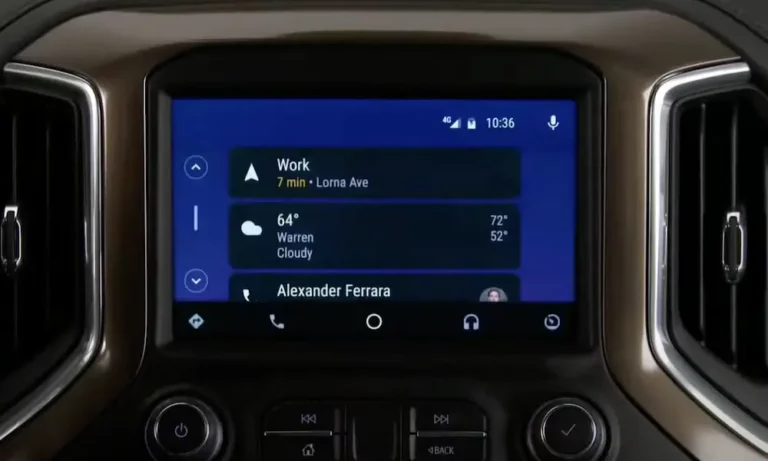
Is your Chevy’s touchscreen frozen? Radio not responding? Backup camera showing a black screen? You’re not alone.
MyLink issues are frustrating but fixable. Whether you’re dealing with a completely dead screen or just glitchy features, this guide walks you through every troubleshooting step – from simple resets to understanding when it’s time to visit the dealership.
Let’s get your infotainment system back up and running.
What is Chevy MyLink and How Does it Work?
Chevy MyLink is GM’s infotainment system that connects your smartphone, handles navigation, plays media, and controls various vehicle settings. Introduced in 2013, it’s the tech centerpiece in your dashboard.
The system has two main components:
- Head Unit: The touchscreen display you interact with
- HMI Module: The “brain” that runs the MyLink software
This distinction matters when troubleshooting because problems can originate in either component but show similar symptoms.
Most Common MyLink Problems (And What They Mean)
Before attempting fixes, identify exactly what’s happening with your system:
- Black/Blank Screen: The display won’t turn on at all
- Frozen Screen: Display works but doesn’t respond to touches
- Audio Issues: No sound or intermittent audio cutouts
- System Crashes: MyLink boots up but freezes during operation
- Connectivity Problems: Won’t pair with phones or connect to apps
- Camera Failure: Backup camera shows black screen or doesn’t appear
Each symptom points to different potential causes. For example, a completely blank screen with functioning audio suggests display connection issues, while a system that boots but crashes repeatedly likely has software problems.
Quick Fixes: Reset Methods That Often Work
OnStar Button Reset (30 Seconds)
This is the easiest fix that resolves many common glitches:
- Locate the OnStar button near your rearview mirror
- Press it until you hear “OnStar ready”
- Press it again to hear “thank you goodbye”
This simple reset procedure often fixes audio lockups and minor freezes without even stopping your vehicle.
Home + Fast Forward Reset (1 Minute)
For more stubborn issues:
- Press and hold both the Home button and Fast Forward button
- Keep holding for about 10 seconds
- Wait for the system to restart
This works especially well for unresponsive screens and Bluetooth pairing problems.
Factory Settings Reset (2 Minutes)
If the quick resets don’t work:
- Go to your MyLink home screen
- Select “Settings”
- Find “Return to Factory Settings”
- Choose from:
- “Restore Vehicle Settings”
- “Clear All Private Data”
- “Restore Radio Settings”
This factory reset approach clears corrupted settings that might be causing problems.
Power Cycling: The Battery Disconnect Method
When software resets don’t fix the issue, a complete power cycle often works:
- Turn off your vehicle completely
- Disconnect the negative battery terminal (usually requires a 10mm socket)
- Wait 15 minutes for complete power drain
- Reconnect the battery
Important note for vehicles with trunk batteries: Don’t close the trunk while the battery is disconnected, or you’ll be locked out!
This battery disconnection method forces a complete system restart and clears all temporary memory issues.
Checking Electrical Components
Fuse Inspection
If your MyLink still isn’t working:
- Locate your vehicle’s fuse box (check owner’s manual for location)
- Find the F16 fuse that powers the MyLink system
- Even if it looks intact, try replacing it
Intermittent issues can be caused by partially damaged fuses that haven’t completely failed.
Connection Problems
Loose connections commonly cause MyLink failures:
- Check connections at the back of the head unit (requires removing trim pieces)
- Inspect the HMI module under the glove box for secure connections
According to owner forums, simply reseating these connections can solve persistent issues.
Understanding Why MyLink Systems Fail
MyLink problems typically stem from four main causes:
1. Software Errors
Modern infotainment systems run complex software that can develop:
- Corrupted files
- Memory leaks
- Conflicts between components
These issues often appear as unresponsive interfaces or crashes.
2. Electrical Problems
Power-related issues are extremely common:
- Weak batteries cause system glitches and flickering
- Blown fuses cut power to MyLink components
- Power surges during jump starts can damage electronics
Auto specialists confirm that many MyLink problems trace back to electrical system issues.
3. Hardware Failures
Physical component problems include:
- Damaged touchscreens from impact or pressure
- Internal component failures due to heat or age
- Failing HMI modules that require replacement
These typically require professional repair.
4. Network/Connectivity Issues
Newer MyLink systems rely heavily on network connections:
- Server communication problems
- Outdated software incompatible with current networks
- Connectivity hardware failures
User reports show that many app connectivity issues stem from problems between the vehicle and GM servers.
When DIY Won’t Work: Professional Solutions
Some MyLink issues require dealer intervention:
HMI Module Replacement
When hardware fails completely, module replacement becomes necessary:
- Costs typically range from $800-1500 including labor
- Requires programming to your vehicle’s VIN
- Can’t be done with used modules without proper tools
Software Updates
Software updates often fix known issues but can be challenging:
- Official update channels are sometimes unavailable
- Some updates require dealer-level programming tools
- Technical Service Bulletins like TSB 16-NA-042 address specific MyLink problems
As discussed in Reddit forums, attempting certain programming without proper tools risks “bricking” your system completely.
Preventative Maintenance to Avoid Future Problems
Keep your MyLink running smoothly with these preventative measures:
Battery Health
- Test your battery regularly
- Replace aging batteries before they cause electrical fluctuations
- Be especially vigilant in extreme temperature regions
Software Currency
- Ask about available updates during dealer visits
- Check for Technical Service Bulletins for your model
- Consider professional updates to prevent future failures
Usage Patterns
- Avoid running multiple demanding apps simultaneously
- Establish consistent device pairing procedures
- Perform occasional soft resets through the settings menu
Environmental Protection
- Park in shaded areas when possible
- Use windshield sunshades to reduce dashboard heat
- Keep the touchscreen clean and free from liquids
MyLink Troubleshooting Table: Issues and Solutions
| Problem | First Try | If That Fails | Professional Help Needed If |
|---|---|---|---|
| Black Screen | OnStar Button Reset | Battery Disconnect | No response to power cycling |
| Frozen/Unresponsive | Home+FF Button Reset | Factory Reset | System repeatedly freezes after reset |
| No Audio | Check volume/mute | Restore Radio Settings | Audio hardware failure detected |
| Apps Won’t Load | Check internet connection | Factory Reset | Account authentication issues persist |
| Backup Camera Failure | Vehicle power cycle | Check camera connections | Camera shows static or distorted image |
| Bluetooth Won’t Connect | Remove and re-pair devices | Clear All Private Data | No Bluetooth devices detected by system |
Is Your MyLink Problem Part of a Known Issue?
Certain Chevy models have documented MyLink problems:
- 2013-2014 Models: First-generation systems prone to freezing and black screens
- 2015-2016 Vehicles: App connectivity and software stability issues
- 2017+ Systems: Occasional update compatibility problems
Check if your specific issue matches known problems by searching your vehicle’s model and year along with “MyLink TSB” (Technical Service Bulletin).
For example, some 2016 Malibu owners benefit from specific updates covered under TSB 16-NA-042 that address screen freezing problems.
Final Thoughts on MyLink Troubleshooting
Most MyLink problems can be solved with patient troubleshooting. The simple OnStar reset fixes a surprising number of issues without any technical knowledge.
For persistent problems, work through the solutions methodically:
- Try software resets first (easiest and safest)
- Move to power cycling methods (more involved but highly effective)
- Check electrical components (requires basic tools)
- Seek professional help when DIY methods fail
Remember that while modern infotainment systems offer amazing features, they’re essentially computers in harsh automotive environments. Regular maintenance and prompt attention to minor glitches will help keep your MyLink running smoothly for years.