Ever tried to connect your phone to your Honda Civic only to wade through a list of old devices? Whether you’re clearing out your ex’s phone connection or just decluttering your car’s Bluetooth menu, removing old devices keeps your Honda Civic’s connection system running smoothly.
Why You Need to Delete Bluetooth Devices Regularly
Your Honda Civic’s Bluetooth system has limits. Most models can only store up to six paired devices at once. Once you hit that cap, you’ll need to delete old connections before adding new ones.
Regular Bluetooth maintenance also:
- Improves connection speed and reliability
- Reduces confusion when multiple devices try to connect
- Enhances your car’s overall infotainment performance
Honda Civic Bluetooth System Basics
Honda’s Bluetooth® HandsFreeLink® (HFL) system lets you make hands-free calls and stream audio wirelessly. The system differs slightly between model years, with newer Civics featuring touchscreen interfaces and older models using dial controls.
Some key limitations to know:
- Most Honda Civic models can only pair with 6 devices maximum
- You can only delete devices when the car is in Park
- Different model years require slightly different deletion steps
How to Delete Bluetooth Device from Honda Civic (2016-2025 Models)
The process is straightforward on newer Civic models with touchscreen interfaces:
- Start your car (or turn to ACCESSORY mode)
- Press the PHONE button on the dashboard
- Select Settings (usually in the corner of the touchscreen)
- Tap Bluetooth Settings
- Choose Delete Device
- Select the device you want to remove
- Confirm deletion by tapping Yes
Here’s a quick reference table for touchscreen models:
| Step | Action | What You’ll See |
|---|---|---|
| 1 | Turn ignition to ON or ACCESSORY | Dashboard lights up |
| 2 | Press PHONE button | Phone menu appears |
| 3-4 | Navigate to Bluetooth Settings | List of connected devices |
| 5-7 | Select and delete device | Confirmation message |
If your device doesn’t immediately disappear, try restarting your car’s infotainment system by turning the car off and back on.
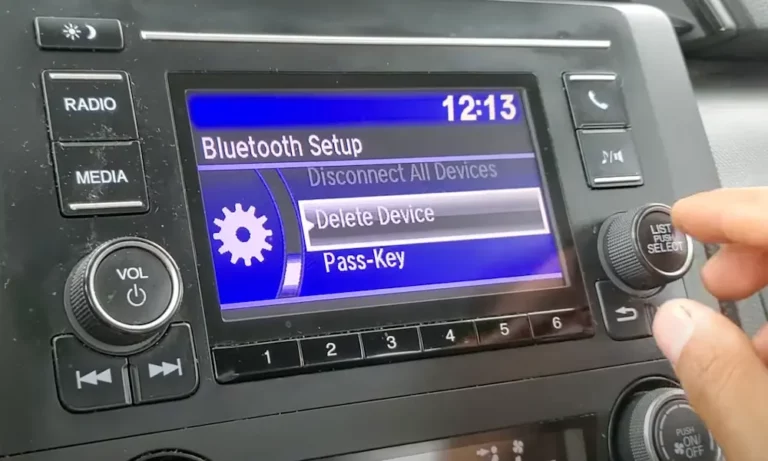
How to Delete Bluetooth Device from Honda Civic (2013-2015 Models)
Older Honda Civic models use physical controls instead of touchscreens:
- Start your car
- Press the PHONE button
- Use the selector dial to scroll to Phone Setup
- Select Bluetooth Setup
- Choose Delete Device
- Rotate the dial to highlight the device you want to remove
- Press the selector dial to confirm
- Select Yes to complete deletion
The older interface requires more scrolling than newer touchscreen models, so take your time to find the right device in the list.
Model-Specific Bluetooth Deletion Instructions
2022-2025 Honda Civic Hatchback and Sedan
The latest Civic models have enhanced Bluetooth connectivity features and offer voice commands for device management:
- Press the voice command button on your steering wheel
- Say “Delete [device name]” clearly
- Confirm when prompted
These newer models also separate Bluetooth connections from wireless Apple CarPlay and Android Auto, so deleting a Bluetooth device won’t affect these separate connections.
2016-2021 Honda Civic LX and EX
Mid-generation Civics might have either touchscreen or button-and-dial interfaces:
For touchscreen models:
- Follow the 2022-2025 instructions above
For non-touchscreen units:
- Use the TUNE knob to scroll through menu options
- Press the knob to select items
- Follow the on-screen prompts to delete devices
You may need to be more patient with these models as the system can be slower to respond.
Troubleshooting Bluetooth Deletion Issues
Device Won’t Delete
If you’re having trouble removing a device, try these solutions:
- Make sure your car is in Park – The Bluetooth deletion function won’t work if your car is in motion or in any gear other than Park
- Check for system updates – Outdated firmware can cause Bluetooth issues
- Try a system reset – Hold down radio preset buttons 1 and 6 plus the power button until you see “Manual Diag.” then select “Bluetooth Reflash”
- Battery disconnect – As a last resort, disconnect your car battery for about 10 minutes to completely reset the infotainment system
Already at Maximum Device Limit
If you’ve hit the six-device limit and can’t add a new phone:
- Go to Bluetooth Settings using the steps above
- Check which devices are currently paired
- Delete devices you no longer use
- Delete the oldest devices if you’re unsure which ones are inactive
Many Honda owners on Reddit forums recommend doing a full Bluetooth cleanup at least once a year.
Complete System Reset (When Nothing Else Works)
If individual device deletion isn’t working or you want to remove all paired devices at once:
- Press the PHONE button
- Navigate to Settings or Phone Setup
- Select System Clear or Hands-Free System Clear
- Confirm the reset when prompted
This nuclear option removes all paired devices and call history from your Honda Civic’s system. It’s perfect for:
- When selling or transferring ownership of your car
- After renting or lending your vehicle
- Fixing persistent Bluetooth connection issues
Managing Multiple User Connections
If several people regularly drive your Civic, prioritize devices to avoid connection conflicts:
- Access Bluetooth Settings as described earlier
- Select a device from the list
- Choose “Set Priority Device” or similar option
- Assign a priority level
The device with the highest priority will automatically connect when multiple paired phones are in range of your Honda Civic.
Tips for Better Bluetooth Performance
After removing unwanted devices, maximize your Honda Civic’s Bluetooth performance:
- Keep your phone’s Bluetooth firmware updated
- Position your phone closer to the dashboard for stronger connections
- Turn off Bluetooth on devices you don’t want connecting to prevent automatic pairing
- Regularly restart both your phone and car’s infotainment system
- Check for Honda system updates that may improve Bluetooth stability
Preparing to Pair a New Device
After successfully deleting old Bluetooth connections, you’re ready to pair a new device:
- On your phone, turn on Bluetooth and make it discoverable
- In your Honda Civic, press the PHONE button
- Select Add Bluetooth Device
- Select your phone when it appears in the list
- Confirm the pairing code matches on both devices
- Allow access to contacts and call history when prompted
Remember that pairing only needs to be done once per device. After initial setup, your phone should connect automatically when you enter your vehicle.
Keeping Your Honda Civic’s Bluetooth System Updated
Honda occasionally releases software updates that can improve Bluetooth functionality. To check for updates:
- Visit the official Honda owner portal
- Enter your VIN number
- Check the “Updates” section
- Follow instructions for any available updates
Some updates require dealer installation, while others can be downloaded to USB and installed yourself.
When to Consider a Dealer Visit
If you’ve tried everything above and still can’t delete devices from your Honda Civic’s Bluetooth system, it might be time to visit your local Honda dealer. They can:
- Run diagnostic tests on your infotainment system
- Apply any pending software updates
- Check for hardware issues affecting Bluetooth functionality
- Reset the system using dealer-specific tools
Most Bluetooth issues can be resolved without a dealer visit, but persistent problems might indicate a deeper issue with your car’s communication systems.
By following these steps, you should be able to successfully delete any unwanted Bluetooth device from your Honda Civic. Regular maintenance of your Bluetooth connections ensures your in-car technology works smoothly whenever you need it.