You plug in your phone, nothing happens. Or it connects for five minutes, then dies. Maybe your screen’s doing its own thing, tapping buttons you didn’t touch. If you’re dealing with Subaru Android Auto not working, you’re not imagining the frustration—there’s real hardware and software weirdness going on. Let’s cut through the noise and get you back to using Google Maps without wanting to toss your phone out the window.
The Real Culprits Behind Connection Failures
Ghost Touch Is a Hardware Problem, Not Your Phone
Here’s the thing nobody tells you upfront: if your Subaru’s screen is acting possessed—randomly switching from navigation to the radio, dialing contacts, or beeping at nothing—you’ve got a hardware defect called “Ghost Touch.”
The touchscreen has multiple layers glued together. In affected units (mostly 2018–2022 models), that adhesive breaks down from heat and UV exposure. Air bubbles form between the digitizer and the LCD. Your car thinks these bubbles are your fingers.
The smoking gun: Park your car, disconnect your phone entirely, and just watch the screen for 10 minutes. If it beeps, changes menus, or you see moisture-like spots under the glass, the hardware’s toast. No software update will fix this—you need a replacement unit.
The good news? Subaru issued warranty extensions covering this exact issue. Models from 2018–2022 now get 8 years or 150,000 miles of coverage for screen defects. Mention TSB 15-322-25 at your dealer. If you already paid for a repair, you can get reimbursed.
Your Cable Is Probably Garbage
I know, it sounds too simple. But cheap cables kill Android Auto connections more than anything else.
Android Auto streams HD video from your phone to the car while simultaneously sending back touch data and audio. That’s a lot of bandwidth. Gas station cables and those flat “noodle” cables? They use thin wires that can’t handle the current load. Your phone starts charging, but the data connection drops because the voltage sags below the threshold.
What actually works:
- Cables under 3 feet long (less resistance)
- USB-IF certified brands (Anker PowerLine, Cable Matters, OEM cables from Google/Samsung)
- Avoid retractable cables—they’re universally terrible for data
Also, dig the lint out of your phone’s charging port. Use a wooden toothpick and compressed air. That compacted pocket fuzz prevents the cable from clicking in fully, which breaks the data connection.
Firmware Updates Matter More Than You Think
The 2020–2022 Head Units Were Rushed to Market
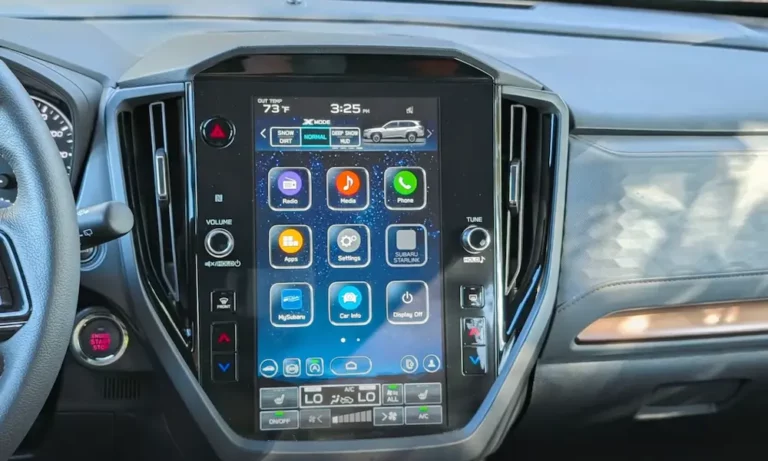
If you’ve got a 2020–2022 Outback, Legacy, or WRX with the big 11.6-inch portrait screen (called the CP1 system), early firmware versions were buggy disasters. Severe input lag, random reboots, and Android Auto timing out during the handshake were standard.
Subaru’s pushed out multiple critical updates addressing these exact problems. Recent versions (F91WMM183 and newer) fixed:
- Microphone muting during calls
- Wireless Android Auto connection timeouts
- The system crashing when you got a text while navigating
Check your version: Settings > General > System Information. If it starts with F11GHM040 or F11GHM060, you’re running ancient 2020 software and need an update immediately.
The Update Trap Nobody Warns You About
Here’s where it gets weird. You can’t just jump from 2020 firmware to 2024 firmware. Old head units need “gatekeeper” updates that repartition the internal memory before they’ll accept new files.
If you try updating over Wi-Fi (FOTA) on an old system, you’ll hit the “Software Update Initializing” infinite loop. The screen just says “Initializing” forever because it’s trying to install a file format it can’t process.
The fix: These units need a full USB update at the dealer. It’s not something you can bypass—the memory architecture physically changed between generations.
Your Phone’s Settings Are Sabotaging the Connection
Battery Optimization Kills Background Processes
Android’s battery-saving features aggressively shut down apps it thinks are draining power. Problem is, Android Auto runs background services to maintain the connection. If your phone decides those services are “wasteful,” it’ll kill them mid-drive.
Samsung phones are the worst offenders. You need to manually exempt Android Auto:
Settings > Apps > Android Auto > Battery > Set to “Unrestricted”
Also check Settings > Battery and device care > Battery > Background usage limits. Make sure Android Auto isn’t in the “Deep sleeping apps” list.
For Pixel and stock Android:
Settings > Apps > Android Auto > App battery usage > “Unrestricted”
If problems persist, turn off “Adaptive Battery” entirely under Settings > Battery > Battery Saver.
USB File Transfer Mode Gets Locked to Charging
Some phones default to “charging only” when you plug in for security reasons. Android Auto needs file transfer mode to work.
The developer workaround:
- Enable Developer Options (tap “Build number” 7 times in About Phone)
- Go to System > Developer Options > Default USB Configuration
- Force it to “File Transfer / Android Auto”
Warning: this setting sometimes reverts after updates, so you might need to redo it.
The Nuclear Option: Dealership Mode Reset
When everything else fails, there’s a hidden diagnostic mode that can wipe the system’s corrupted memory. This isn’t a standard factory reset—it’s a complete memory rebuild.
How to Access Dealer Mode (11.6-inch CP1 screens)
- Engine running or Accessory mode ON
- Hold down both temperature buttons (red and blue) on the driver’s side
- While holding them, press the Volume/Tune knob exactly six times fast
- Screen should show a white diagnostic menu
Memory Initialization Process
Once you’re in Dealer Mode:
- Navigate to Settings or Function Check
- Select Memory Initialization
- Confirm—the system will shut down and reboot (takes 10–15 minutes)
- Critical step: After it restarts, turn the engine OFF, open the driver’s door, close it, lock the car, and wait at least 3 minutes
That final step forces the CAN bus modules into a deep sleep cycle, which finalizes the reset. Skip it and you’ll still have corrupted cache files.
This procedure fixes the “Initializing” loop and clears the system’s “blocked devices” list if it’s refusing to recognize your phone.
Wireless Android Auto Has Its Own Problems
Native Wireless (2023+ Models)
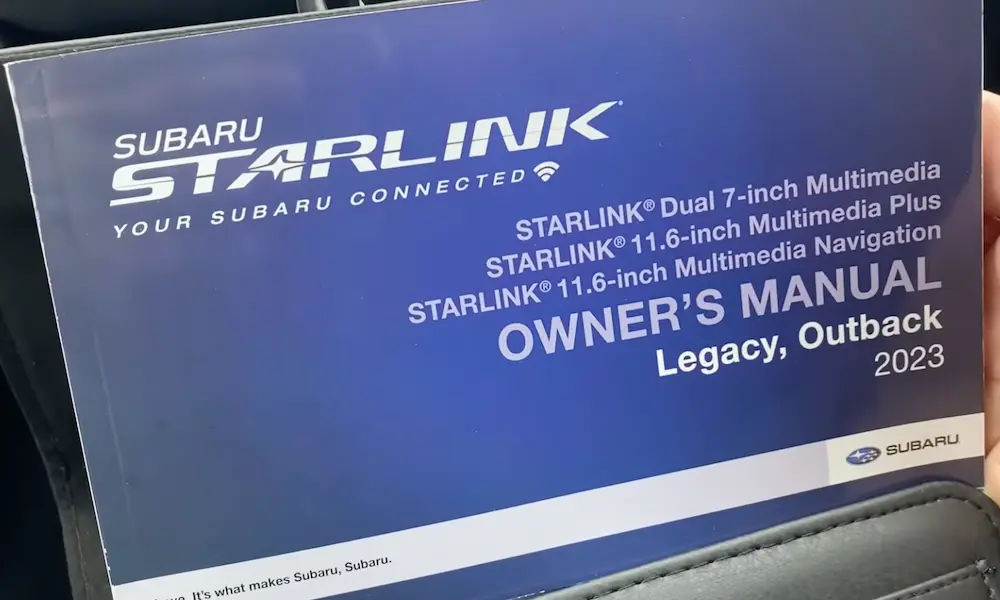
If you’ve got a 2023+ Outback, Legacy, or Crosstrek with built-in wireless Android Auto, connection failures often come from Wi-Fi conflicts.
The car creates a 5GHz Wi-Fi network for Android Auto projection. But Subaru’s Starlink Hotspot (the AT&T-powered passenger internet) broadcasts on the same spectrum. Your phone gets confused trying to connect to both.
Simple fix: Turn off the Wi-Fi Hotspot feature in Settings. Also make sure your phone isn’t set to “auto-connect” to the car’s hotspot network.
Aftermarket Dongles (Motorola MA1, AAWireless)
For older cars, wireless dongles are popular but finicky.
Motorola MA1: It’s plug-and-forget, but it can’t be updated. If it overheats (common in direct sun) or conflicts with a new Android version, you’re stuck. Factory reset it by holding the side button for 35+ seconds until the LED blinks green.
AAWireless: More configurable. Subaru head units are picky about USB timing, so use the AAWireless app to adjust “USB Mode” and enable “Passthrough” settings. Check for firmware updates—they specifically release fixes for Subaru compatibility issues.
The Step-by-Step Troubleshooting Path
Start Here (The Basics)
- Swap your cable for a short (<3 ft), certified one
- Clean your phone’s charging port with a toothpick and compressed air
- Update Android Auto and Google Maps in the Play Store
- Forget all cars in Android Auto settings, then unpair Bluetooth from both phone and car
- Set Android Auto to “Unrestricted” battery usage
If That Doesn’t Work
- Check for screen defects: Do the 10-minute idle observation test
- Verify firmware version: Settings > General > System Information
- Soft reset the head unit: Hold Volume/Power knob for 15 seconds until it reboots
Last Resort
- Enter Dealership Mode (Temp buttons + Tune knob × 6)
- Run Memory Initialization
- Turn off car, lock doors, wait 3+ minutes
- Restart and test
Why Cold Weather Makes Everything Worse
Multiple users report that Android Auto fails more in winter. The theory: cold temperatures increase your phone battery’s internal resistance and contract the metal USB contacts. If you’re already using a marginal cable, that extra resistance on a 20°F morning can be just enough to prevent the initial handshake. As the cabin warms up, connectivity often returns.
Generation Matters: Know Your Hardware
| Generation | Screen Size | Years | Main Issue |
|---|---|---|---|
| Gen 3.1 (Harman) | 6.5″ / 8.0″ | 2018–2019 | Ghost Touch / Screen delamination |
| Gen 4.0 (Denso CP1) | 11.6″ portrait | 2020–2022 | Firmware bugs / Connection timeouts |
| Gen 4.5 (Denso) | 11.6″ updated | 2023+ | Wireless interference (mostly fixed) |
The Gen 3.1 Harman units in 2018–2019 models are the most prone to the physical screen defect. The early CP1 units struggled with software. Newer 2023+ models have the most stable firmware but can have wireless conflicts.
Battery Settings by Phone Brand
| Phone | Path to Fix |
|---|---|
| Samsung (OneUI) | Settings > Apps > Android Auto > Battery > Unrestricted |
| Google Pixel | Settings > Apps > Android Auto > App battery usage > Unrestricted |
| Generic Android 12+ | Settings > Battery > Adaptive Battery > Off |
What About the “Update Available” Notification?
If you’re seeing update prompts but they won’t install, it’s usually one of two things:
- Weak Wi-Fi signal: FOTA updates are large files. If the signal drops mid-download, the file corrupts. Park near your house and use your home Wi-Fi.
- Your firmware is too old: As mentioned, you can’t jump generations without a gatekeeper update. If you’re stuck in the “Initializing” loop, you need dealer intervention.
The Lint Problem Is Real
This sounds ridiculous, but it’s shockingly common. Every time you put your phone in your pocket, microscopic fibers work their way into the USB-C port. Over months, they compact into a felt-like barrier at the bottom of the port.
The cable clicks in, but it’s not making full contact with the data pins. The “wiggle test” proves it—if gently moving the cable head causes an instant disconnect, lint is your problem.
Fix: Use a wooden toothpick (not metal—you’ll short the contacts). Scrape gently at the bottom of the port. You’ll be surprised how much crud comes out. Follow up with compressed air.
Why Subaru’s USB Ports Are Pickier Than Other Cars
Subaru head units have stricter timing requirements for the USB enumeration handshake. If your phone takes more than a few seconds to recognize it’s plugged into Android Auto (common with budget phones or phones running lots of background apps), the head unit times out and gives up.
This is why aftermarket dongles need special “Subaru compatibility modes”—they have to fake a faster handshake to trick the head unit into waiting longer.
Android 14 and 15 Introduced New Bugs
Recent Android OS updates broke the “Start Wireless Early” feature, which let your phone begin the Android Auto handshake as soon as it detected the car’s Bluetooth. Without it, you get a deadlock: the phone waits for the car, the car waits for the phone, and nobody connects.
Google’s working on it, but for now, wired connections are more reliable on the latest Android versions.
The Bottom Line
Subaru Android Auto not working usually boils down to three things: failed hardware (ghost touch screens), outdated firmware (especially 2020–2022 CP1 units), or phone-side settings (battery optimization and USB mode).
Start with the simple stuff—new cable, clean ports, update apps. If you’re seeing phantom screen touches, it’s hardware and you need warranty service. If your firmware version starts with F11, you desperately need an update. And if your phone’s killing background processes, exempting Android Auto from battery optimization usually fixes it.
The Dealership Mode reset is your ace in the hole for software problems that won’t quit. It’s saved countless connections that were totally unresponsive to normal troubleshooting.
Most importantly: don’t let the dealer tell you “it’s your phone” if you’ve got visible screen bubbles or random beeping. That’s documented hardware failure covered under extended warranty. You’re entitled to a replacement.