You’re sitting in your Subaru, plugging in your iPhone, and… nothing. The screen stays blank, or CarPlay disconnects the second you hit a bump. You’ve tried different cables, restarted everything twice, and you’re ready to throw your phone out the window. Don’t worry—this isn’t just you being tech-cursed. It’s a known issue with specific fixes that actually work.
Why Your Subaru CarPlay Keeps Failing
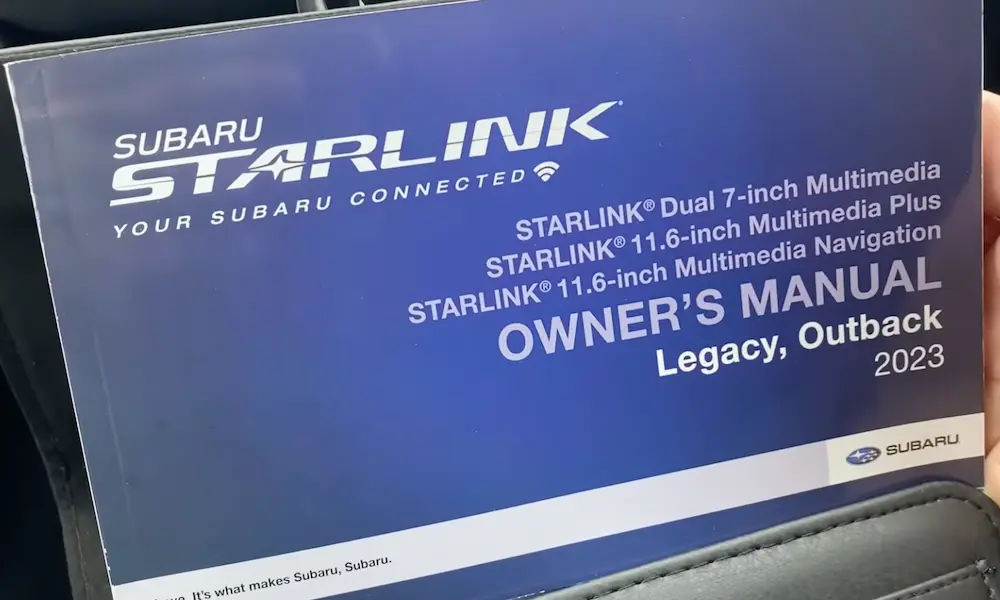
Before you start randomly unplugging things, you need to understand what’s causing the problem. Subaru’s STARLINK system isn’t just a radio—it’s a full computer running complex software that talks to your iPhone. When that conversation breaks down, it’s usually one of three culprits: a bad cable, a confused phone setting, or outdated car software.
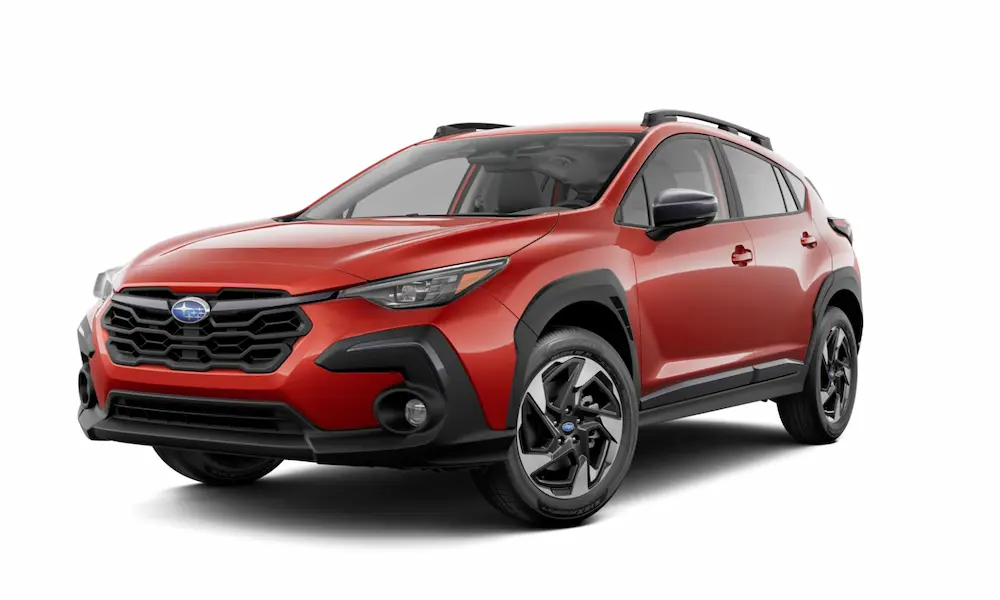
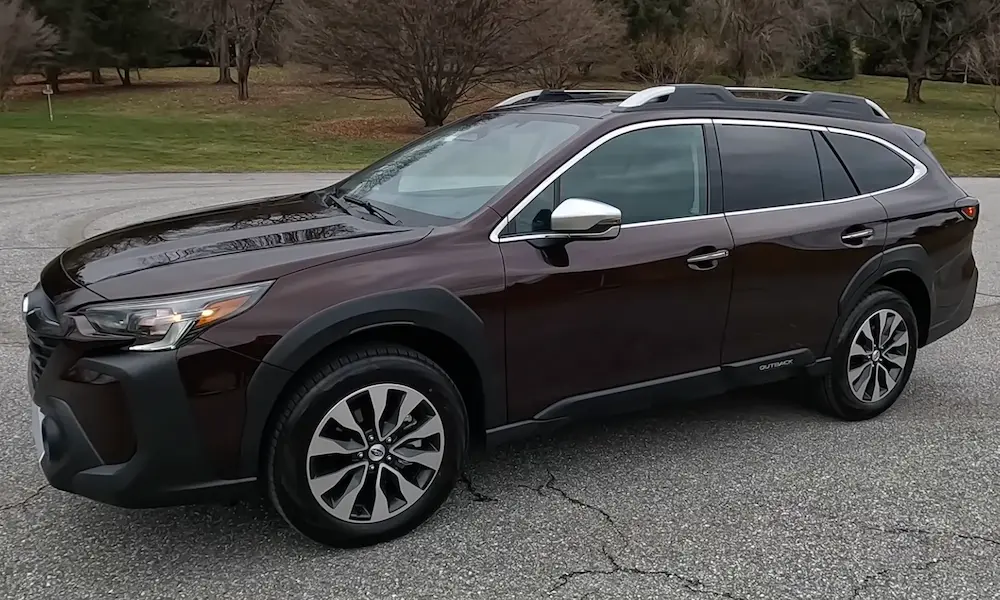
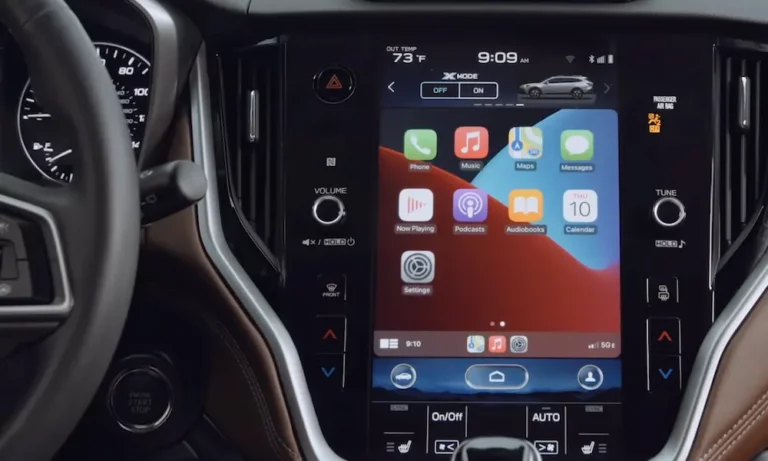
The generation of your STARLINK system matters big time here. A 2019 Forester with the 8-inch screen has completely different guts than a 2024 Outback with that massive vertical tablet. They fail in different ways, and they need different fixes.
Check Your Cable First (Seriously)
This sounds stupidly simple, but most CarPlay failures start with the cable. Not all USB cables are created equal. That gas station cable you grabbed for $5? It’s probably charging-only, meaning it physically can’t transfer data.
Your cable needs to be MFi Certified (Made for iPhone). Look for that tiny certification logo on the packaging. Cables like Anker PowerLine are tested to handle the high-speed video stream CarPlay needs.
Here’s the thing: CarPlay isn’t just audio. It’s streaming live H.264 video from your phone to your car while sending touch commands back. A degraded cable causes packet loss, and your car’s head unit will kill the connection rather than risk a system crash.
Cable length matters too. Anything over 3 feet starts losing signal strength, especially in a car where your alternator is pumping electrical noise into every wire. Stick with cables under 3 feet, and avoid the coiled “spring” cables—they act like antennas for interference.
The Loose USB Port Problem
If your Subaru CarPlay works fine when the car is parked but disconnects the instant you go over a speed bump, you’ve got a hardware issue. Specifically, the USB port’s solder joints are cracked.
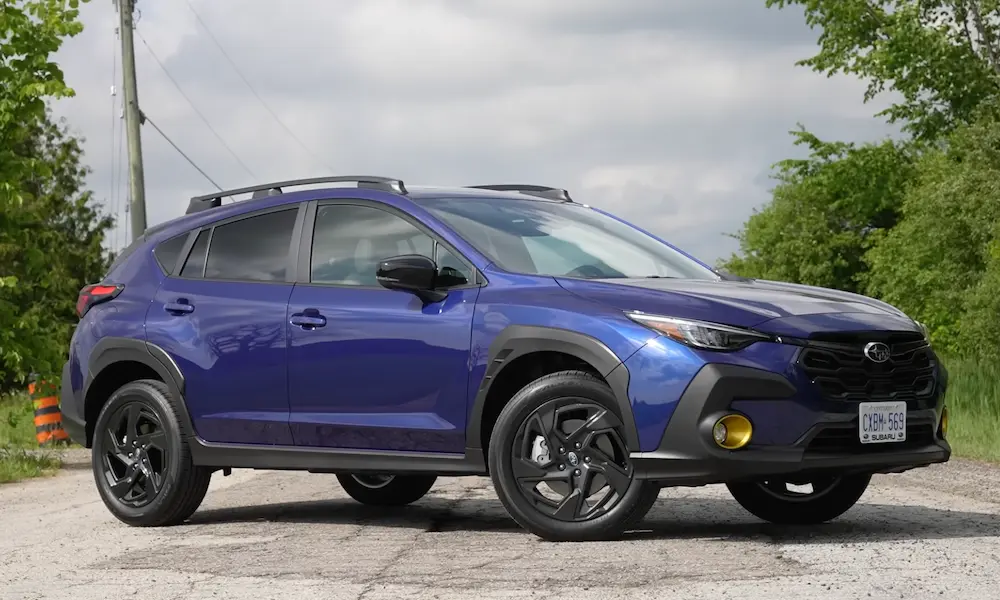
This is stupidly common in Crosstrek and Outback models. The USB module in the center console cubby takes physical abuse every time you shove something in there. Over time, the solder connecting the port to the circuit board fractures.
Do the wiggle test: with CarPlay running, gently wiggle the cable at the car’s port (not your phone). If it disconnects immediately, the port is toast. You can’t fix this yourself—the entire USB module needs replacement at the dealer.
Before you schedule that appointment, clean the port with compressed air. Lint and debris can mimic the same symptoms, and sometimes that’s all it takes.
iPhone Settings That Kill CarPlay
Your iPhone has hidden settings that block CarPlay completely, and Apple doesn’t exactly advertise them.
Screen Time Restrictions
Go to Settings > Screen Time > Content & Privacy Restrictions > Allowed Apps. Scroll down to CarPlay and make sure the toggle is green (enabled).
If Screen Time restrictions are on—either because you set them up or a corporate IT policy forced them on you—CarPlay gets blocked before it even tries to connect. Your car sees nothing, your phone charges, but the handshake never happens. No error message, no explanation.
The VPN Disaster (Wireless CarPlay Only)
If you’ve got a 2023+ Subaru with wireless CarPlay, running a VPN on your iPhone will completely break the connection. Here’s why.
Wireless CarPlay doesn’t actually run over Bluetooth. Bluetooth is only used for the initial handshake. After that, your iPhone joins a private Wi-Fi network hosted by your car. That’s how it streams the video—Bluetooth is way too slow.
When you’ve got NordVPN, ExpressVPN, or any other VPN active, your iPhone tries to route all traffic through the VPN tunnel—including the local video stream to your car. The VPN server on the internet can’t route packets to your car’s offline internal network at 192.168.x.x. The connection times out and dies.
The fix? Turn off your VPN before you start driving. Some people report success switching their VPN protocol from IKEv2 to WireGuard, but the cleanest solution is just disabling it in the car.
iOS 18 made this worse due to stricter network sandboxing, so if you recently updated and wireless CarPlay suddenly stopped working, your VPN is probably the culprit.
USB-A vs. USB-C: Which Port to Use
If you’ve got a 2023+ Subaru, you’ve got both USB-A and USB-C ports. This creates a new problem: port priority confusion.
The car’s software prioritizes the first device it detects during boot-up. If you left an old charging cable plugged into the USB-A port, the system latches onto that port and ignores your iPhone in the USB-C port.
For iPhone 15 and newer (USB-C phones): Use a USB-C to USB-C cable directly. Don’t use a USB-A to USB-C adapter on your old cable—adapters fail to pass the “role switch” command that tells your iPhone to act as a USB host for CarPlay.
For older iPhones (Lightning): Use the front illuminated USB-A port with a proper MFi cable. The rear USB ports are often lower-power and designed for charging passengers’ devices, not data transfer.
| Subaru Generation | Screen Size | Connection Type | Models | Common Issue |
|---|---|---|---|---|
| Gen 3.0/3.1 | 6.5″ / 8.0″ Landscape | Wired USB-A only | Forester (’19-’24), Crosstrek (’18-’23) | Ghost touches, cable sensitivity |
| Gen 4.0 (CP1) | 11.6″ Vertical | Wired USB-A only | Outback/Legacy (’20-’22) | Black screen on startup, slow response |
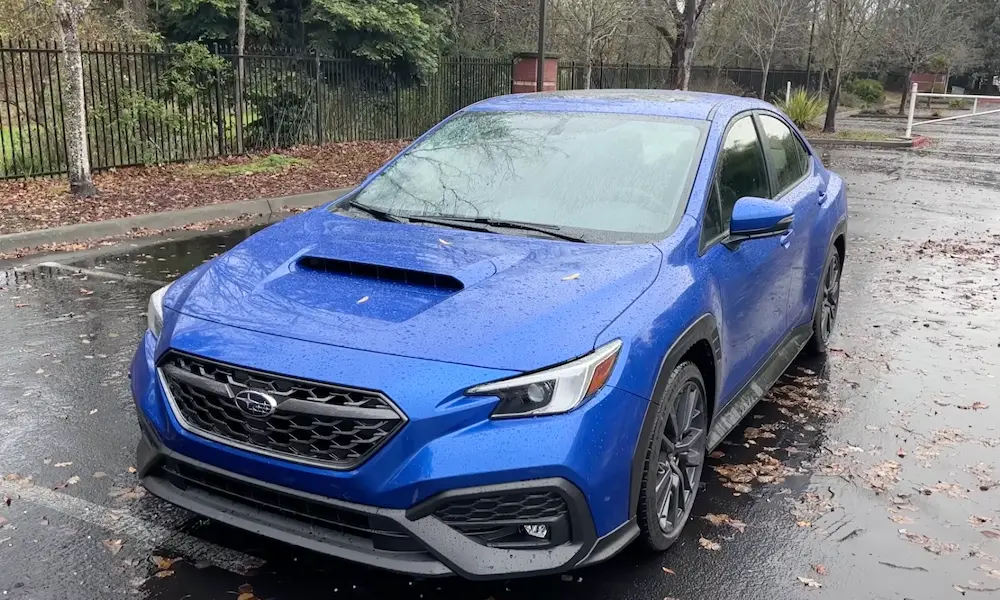
| Gen 4.5 (CP1.5) | 11.6″ Vertical | Wireless + USB-C | Outback (’23+), Crosstrek (’24+), WRX | VPN conflicts, wireless dropout, audio echo |
The Forget-and-Reset Nuclear Option
Sometimes the encryption keys exchanged between your iPhone and your car get corrupted. This happens after iOS updates or car software updates. The devices try to use old mismatched keys, and the connection silently fails.
A regular “reconnect” won’t fix this. You need to completely forget the pairing on both sides.
Step-by-step reset:
- On your iPhone: Settings > General > CarPlay > [Your Car] > Forget This Car
- Still on your iPhone: Settings > Bluetooth > [Your Car] > Forget This Device
- In your Subaru: Settings > Phone > Manage Devices > Delete your iPhone
- Critical step: On your iPhone, go to Settings > General > Transfer or Reset > Reset > Reset Network Settings
That last step clears your iPhone’s Wi-Fi cache, which is essential for wireless CarPlay. Your phone might be remembering the wrong Wi-Fi channel or encryption type for your car’s hotspot.
After the network reset, reconnect via USB first. Let the “Use CarPlay?” prompt appear. Accept it. If you want wireless, the “Enable Wireless CarPlay?” prompt should appear next—accept that too.
Your Subaru’s Software Is Probably Outdated
Here’s what Subaru doesn’t tell you: your car runs on software that needs regular updates, just like your phone. And unlike your phone, it doesn’t auto-update in the background.
Subaru has released multiple Technical Service Bulletins (TSBs) specifically addressing CarPlay failures. These aren’t recalls—they’re basically bug-fix patches that you have to manually install.
The Big Updates You Need to Know About
For 2020-2022 Outback/Legacy (TSB 15-261-20R):
Early versions of the giant vertical screen had serious memory management problems. The system would freeze, touch inputs would lag, and CarPlay would randomly crash while driving. The fix rewrites the memory allocation logic and updates the touch driver. If your 2020-2022 vertical screen feels sluggish, this update is mandatory.
For 2023+ Models (TSB 15-305-22R / 15-311-23R):
This patch fixes the infamous “echo” issue where callers hear themselves during phone calls. It also stabilizes wireless CarPlay connections with newer iPhones. The problem was in the Acoustic Echo Cancellation (AEC) algorithm—the car’s processor wasn’t fast enough to subtract the speaker output from the microphone input. The update optimizes the entire audio pipeline.
The target firmware version for Gen 4.5 cars is F91W*M053-880 (the asterisk varies by model). If you’re running anything older, you’re probably dealing with bugs that have already been fixed.
How to Check Your Version
Go to Settings > General > System Information on your STARLINK screen. Look for the software version number. If it doesn’t match the latest release in the TSB, you need an update.
You’ve got two options:
Option 1: Over-the-Air Update (FOTA)
Go to Settings > General > Software Update > Check for Update. This is safe and easy, but Subaru rolls these out slowly. Major TSB fixes can lag months behind dealer availability.
Option 2: Dealer USB Update
This gets you the latest fixes immediately, including map updates. The downside? It takes 20-40 minutes, and if your engine turns off during the process, you can brick the head unit. That’s a $1,000+ repair. Dealers connect a battery charger during the update to prevent voltage drops that corrupt the flash memory.
The Soft Reset That Actually Works
Before you schedule a dealer visit, try this: a proper head unit reset that clears the temporary memory cache.
With the engine running, press and hold the Volume/Power knob for 15-20 seconds. The screen will turn off. Keep holding. Eventually, the STARLINK logo will reappear. This restarts the entire system kernel, clearing hung CarPlay processes and resetting the USB controller.
This isn’t the same as just turning the car off and on. The system stays partially powered between ignition cycles to preserve settings. A forced reboot from the button fully clears the RAM.
The Dealership Hidden Menu
There’s a secret diagnostic mode that Subaru technicians use, and you can access it yourself.
How to enter Dealership Mode (Gen 4/4.5):
- Turn ignition to ON (engine running or accessory mode)
- Press and hold the Home button on the touchscreen
- While holding Home, press the Tune/Scroll knob six times consecutively
- Release everything
You should see a white diagnostic menu. This lets you force USB updates, test microphone input levels, and see the detailed firmware version number.
If the standard update menu is grayed out, Dealership Mode can bypass that restriction. It’s also useful for checking if audio echo issues are hardware (dead microphone) or software (DSP bug).
Model-Specific Quirks You Should Know
2020-2022 Outback/Legacy Black Screen Issue
These cars have a known bug where shifting into Reverse immediately after starting triggers a black screen. The system tries to load the rear camera overlay before the operating system fully boots, and everything crashes.
Workaround: Wait 10-15 seconds after starting the engine before shifting gears. This gives the system time to finish loading. The TSB update fixes this permanently.
2024+ Crosstrek/Impreza Wireless Lag
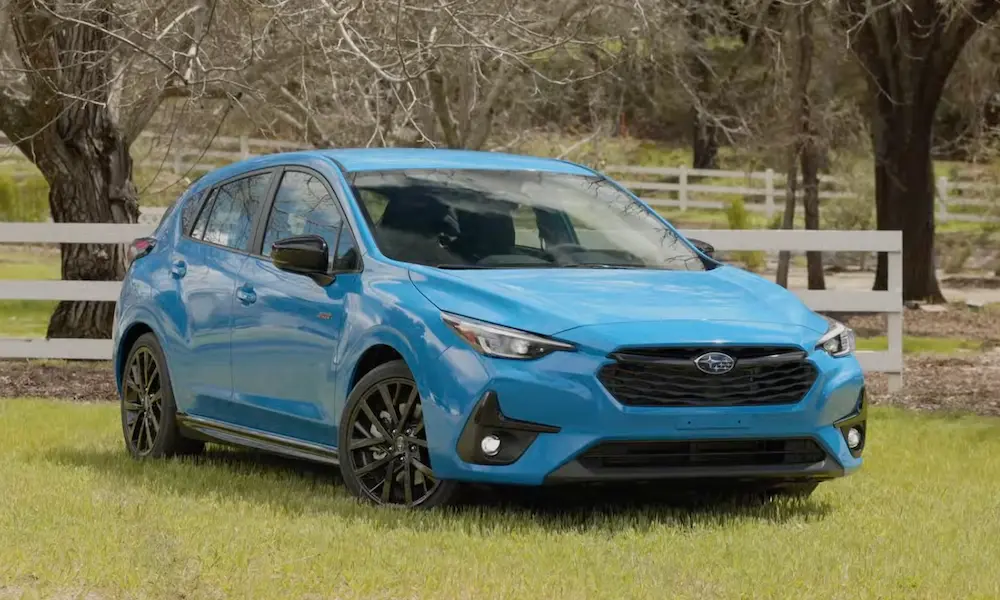
These entry-level models now have the flagship 11.6-inch screen, but owners report higher latency in wireless CarPlay compared to the Outback. This might be due to processor differences or antenna placement in the smaller chassis.
For these models, wired USB-C connection is still the gold standard—it offers higher audio bitrate and zero wireless lag.
2024 vs. 2025 Forester
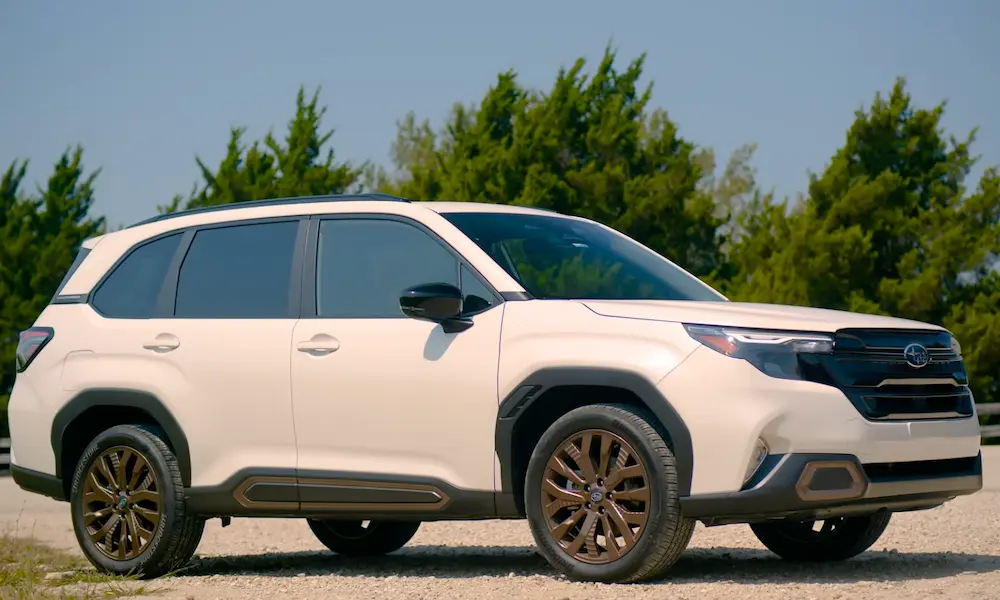
The 2024 Forester is the last model with the old Gen 3 system. While it lacks the fancy vertical screen, its stability is way higher because the firmware has been refined over years. The 2025 switched to the wireless-capable Gen 4.5 system, which is more feature-rich but also more prone to bugs.
If you’re buying used and you prioritize reliability over features, the 2024’s wired-only, physical-button setup might actually be better than the 2025’s touch-centric interface.
Your Step-by-Step Fix Checklist
Here’s the exact order to troubleshoot Subaru CarPlay issues:
Phase 1: Quick fixes (5 minutes)
- Try a different MFi-certified cable (under 3 feet)
- Use the front illuminated USB port only
- Soft reset the head unit (hold Volume knob 15-20 seconds)
- Turn off any active VPN on your iPhone
Phase 2: Settings check (10 minutes)
- Verify Screen Time isn’t blocking CarPlay
- Delete car from iPhone’s CarPlay and Bluetooth settings
- Delete phone from car’s Manage Devices menu
- Reset iPhone’s Network Settings
Phase 3: Firmware check (dealer visit)
- Check software version against TSB requirements
- Request specific TSB update if available (15-261-20R for 2020-2022, 15-305-22R for 2023+)
- If physical wiggling disconnects CarPlay, USB port needs replacement
The three pillars of a working STARLINK CarPlay setup are simple: verified cable, cleared VPN, updated firmware. Get those three right, and you’ll finally get reliable CarPlay in your Subaru.