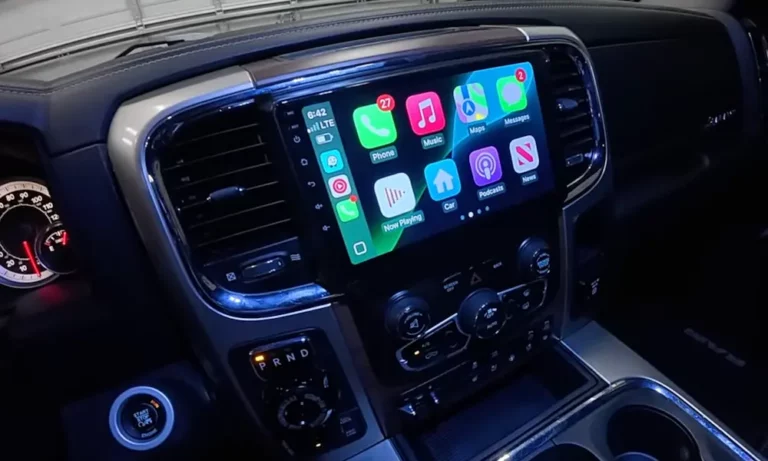
You’ve plugged in your iPhone, but your Ram 1500’s screen just sits there mocking you. No CarPlay. No navigation. Just frustration. The good news? Most CarPlay failures aren’t your truck’s fault—they’re configuration hiccups you can fix yourself in under 10 minutes. Let’s get you back on the road.
Why Your Ram 1500 CarPlay Stopped Working
The issue typically isn’t one catastrophic failure. It’s a weak link in a chain that includes your iPhone, the cable (or wireless connection), the USB port in your truck, and the Uconnect system itself.
Here’s what breaks that chain most often:
Your iPhone’s security settings might be blocking the connection. USB Restricted Mode, introduced to stop law enforcement cracking tools, disables data transfer if your phone’s been locked for an hour. You unlock it, suddenly CarPlay works again.
VPNs are CarPlay killers on wireless setups. Your iPhone can’t “see” your truck’s network when a VPN is routing all traffic through a remote server. iOS 18.1 and newer versions made this worse by tightening network security.
Your cable might be lying to you. Those cheap gas station cables? They charge your phone but lack the authentication chip Apple requires for data transfer. Your truck sees it and says “nope.”
The Media Hub is surprisingly fragile. Spilled coffee or soda can corrode the USB port’s tiny data pins while leaving the larger power pins functional. Your phone charges but won’t connect.
Check Your iPhone Settings First
Before you start yanking cables or rebooting your truck, fix these iPhone settings. They’re the most common culprits.
Disable USB Restricted Mode
Go to Settings > Face ID & Passcode. Scroll down to Allow Access When Locked. Toggle Accessories to ON. This tells your iPhone to trust USB connections even when locked.
Kill Your VPN (Really Kill It)
If you’re using wireless CarPlay on a 2022+ Ram with Uconnect 5, turn off your VPN. But here’s the trick—just disabling it in the app isn’t enough.
Go to Settings > General > VPN & Device Management. Delete the VPN profile entirely. The configuration files can interfere even when the VPN shows as “off.”
Enable CarPlay in Screen Time
Parents and corporate phone managers love locking down features. Make sure yours isn’t blocking CarPlay.
Settings > Screen Time > Content & Privacy Restrictions > Allowed Apps. Make sure CarPlay is toggled ON.
The Cable Situation (For Wired Connections)
Your 2018–2021 Ram uses Uconnect 4, which only supports wired CarPlay. The cable is your entire connection.
Use an Apple-certified cable. Look for “Made for iPhone” (MFi) on the packaging. The authentication chip inside talks to your truck’s Media Hub. Without it, you get “Device Not Supported.”
Keep it short. Cables over 3 feet suffer from signal degradation. Stick with a 1-meter cable—ideally the one that came with your iPhone or a quality Anker PowerLine.
Inspect the port. Shine a flashlight into your truck’s USB port. Look for:
- Bent or pushed-back pins
- Green corrosion (dried soda is a common killer)
- Debris or lint
If you see damage, the Media Hub might need replacement. More on that later.
Reset Your Uconnect System
Think of this as turning your truck’s brain off and back on. It clears memory leaks and stuck processes that freeze CarPlay.
Soft Reset for Uconnect 4 (2018–2021)
On the 8.4-inch or 12-inch screen, hold the Volume knob (center button) and the Tuner knob (browse/enter button) simultaneously for 10–20 seconds. The screen goes black, then reboots with the Ram logo.
Unplug all USB devices before doing this so the controller initializes clean.
Soft Reset for Uconnect 5 (2022–2025)
Hold the Power/Volume button (usually the center of the volume knob) for 10+ seconds until the system restarts.
Important: Your truck needs to be in RUN mode (engine on or ignition in accessory position). The reset won’t work in OFF mode.
Forget and Re-Pair Your Phone
Corrupted pairing data is shockingly common. You need to wipe it from both your iPhone and your truck.
On Your Ram
Navigate to Phone > Device Manager (or Paired Phones). Find your iPhone. Tap the gear icon next to the name. Select Delete Device. Confirm it.
On Your iPhone
This is a three-step wipe:
- Settings > General > CarPlay → Find your Ram → Forget This Car
- Settings > Bluetooth → Find your Ram → Forget This Device
- Settings > Wi-Fi → Find your Ram’s network (usually starts with “Ram” or “Uconnect”) → Forget This Network (critical for wireless)
Reconnect
For Uconnect 4 (Wired): Plug in your phone. You’ll see “Enable CarPlay?” on your iPhone. Tap it.
For Uconnect 5 (Wireless): Turn on Bluetooth. Pair your phone like you’re connecting a speaker. Watch for “Use CarPlay?” on your iPhone and “Enable Wireless CarPlay?” on your Uconnect screen. Accept both.
Check Your Truck’s Fuses
A blown fuse kills your USB ports. But here’s the weird part—sometimes a fuse with high resistance from corrosion will charge your phone but crash data transfer.
Your Ram has two fuse boxes: the Power Distribution Center (PDC) under the hood and an interior panel near the parking brake.
Critical fuses for CarPlay:
| Fuse ID | Amperage | What It Powers | Location |
|---|---|---|---|
| F99 | 10 Amp (Red) | Media Hub / Climate Control | PDC (Under Hood) |
| F90/F91 | 20 Amp (Yellow) | Power Outlets / Console Hub | PDC or Interior |
| F43 | Varies | Front/Rear USB | Interior (2022+) |
Pull these fuses and inspect them. Look for:
- A broken filament inside the transparent plastic
- Corrosion on the metal contact points
- A loose fit in the socket
Replace any suspect fuses with the exact same amperage. Using the wrong rating can fry your electrical system.
The Black Screen Problem (Uconnect 5)
CarPlay audio works. Siri responds. But the screen is black. This is a rendering failure between iOS and Uconnect 5’s Android-based system.
The Quick Fix
Shift your truck into Reverse, then back to Drive. This forces the video layer to refresh. It’s temporary but works 80% of the time.
The Permanent Fix
Go to your Uconnect home screen. Tap Edit Pages at the bottom. Add the widget called CarPlay Split Screen Projection to a new page.
Open CarPlay settings on the screen itself (not your phone). Disable Smart Display Zoom and any custom Wallpaper options. These tax the rendering engine on older iPhones.
When Your Media Hub Is Dead
If your phone charges but never connects—and you’ve tried everything above—the Media Hub is likely toast.
The Media Hub isn’t just a USB port. It’s an active device on your truck’s computer network that manages power delivery and authenticates your phone.
Common failure modes:
- Liquid damage. Coffee, soda, or water seeps into the console and corrodes the circuit board. Sugar residue bridges the microscopic data pins while power pins still work.
- Wear and tear. Constant plugging and unplugging loosens the internal solder joints on the USB port.
- Part mismatch. If someone swapped your head unit to Uconnect 5 but left the old Uconnect 4 Media Hub, they won’t talk to each other. The authentication handshake fails.
Replacing the Media Hub requires removing the center console trim. It’s a 30-minute job if you’re handy with trim tools. OEM part numbers vary by year—check your VIN with a Ram dealer to get the right one.
Update Your Uconnect Software
Outdated firmware causes bizarre bugs. Ram releases updates quarterly to fix them.
Uconnect 5 (Wireless Updates)
Connect your truck to strong Wi-Fi. Go to Settings > System > Software Update. If an update is available, download and install it. Don’t turn off your truck during installation.
If an update gets stuck with “Update Failed” or “Error 20,” disconnect your battery’s negative terminal for 30 minutes. This forces the telematics module to reset and retry the download.
Uconnect 4 (USB Updates)
Visit driveuconnect.com and download the firmware file for your specific truck. You’ll need your VIN.
Format a USB drive as FAT32 (not exFAT or NTFS). Copy the update file to the root directory—don’t put it in a folder.
Plug the drive into your truck while it’s in RUN mode. The system should detect it and prompt you to install. This takes 20–30 minutes. Don’t turn off your truck.
The VPN Problem on iOS 18+
Wireless CarPlay on newer iPhones has a nasty conflict with VPN apps. Your iPhone needs to see your truck as a local network device, but the VPN intercepts all traffic and tunnels it elsewhere.
Symptoms: Bluetooth pairs fine. The Uconnect screen shows a spinning wheel. Then it gives up with “Connection Failed.”
The fix: Don’t just turn off the VPN in the app. Go to Settings > General > VPN & Device Management and delete the profile. Configuration files linger and block the connection even when the VPN shows as inactive.
This is especially bad on iOS 18.1 and newer due to tightened network security.
When Auto-Stop Kills CarPlay
If your CarPlay disconnects when the engine auto-stops at a red light, you’ve got a voltage problem—not a CarPlay problem.
Your truck’s Body Control Module (BCM) monitors battery voltage. When it dips below 11.5 volts during an auto-stop or cold start, the BCM cuts power to “non-essential” systems. The USB Media Hub is on that list.
Culprits:
- Aging 12V battery (especially on eTorque models with start/stop)
- Loose battery terminal connections
- Corroded ground strap
Have your battery tested at an auto parts store. If it’s over 3 years old and showing weak voltage, replace it. This also fixes weird electrical gremlins like flickering dash lights.
Factory Reset (Last Resort)
If nothing else works, a factory reset wipes Uconnect’s memory and restores the operating system.
Navigation > Vehicle > Settings > Reset > Restore Settings to Default.
Or use the button combo: Hold Temperature Up and Temperature Down for 5+ seconds to enter the engineering menu. Select Reset Radio or Factory Reset.
Warning: This will trigger your radio’s anti-theft system. You’ll need a 4-digit code to unlock it. This code is on a card in your glovebox or requires a dealer lookup using your VIN. Entering the wrong code three times locks the radio for 30 minutes.
The Dealer Mode Shortcut
Hidden diagnostic menus show firmware versions and active errors. Here’s how to access them.
Uconnect 4 (8.4″ & 12″)
Press and hold Driver Temp Up + Driver Temp Down + Front Defrost simultaneously for 5–7 seconds. A gray menu appears. Navigate to System Information > Radio Part Information to see your firmware version.
Uconnect 5 (10.1″ & 12″)
Press and hold the bottom left corner and bottom right corner of the touchscreen simultaneously for 10–15 seconds. You need to hit the very edge of the active display—not any rendered buttons.
This menu shows GPS status, cellular signal (for over-the-air updates), and software partition details.
Keep Your System Updated
Here’s the thing about modern trucks: they’re computers on wheels. The “set it and forget it” days are over.
Ram releases firmware updates roughly every 90 days to squash bugs. Check monthly.
Apple drops major iOS updates every September. These frequently break CarPlay in vehicles that haven’t received matching firmware from Ram. Don’t install iOS updates on your primary phone until you’ve seen stability reports on forums—or be ready to troubleshoot immediately.
Final Thoughts
Most Ram 1500 CarPlay failures aren’t hardware catastrophes. They’re configuration conflicts—USB Restricted Mode blocking wired connections, VPNs blocking wireless discovery, or corrupted pairing data gumming up the works.
Start with the simple stuff: check your iPhone settings, swap your cable, reboot Uconnect. That fixes 80% of issues in under 10 minutes.
If you’ve worked through this guide and you’re still stuck, the Media Hub or head unit likely has physical damage. At that point, you’re looking at dealer diagnostics or a replacement part.
But for most people reading this? You’ll be streaming Spotify through CarPlay again before you finish your coffee.