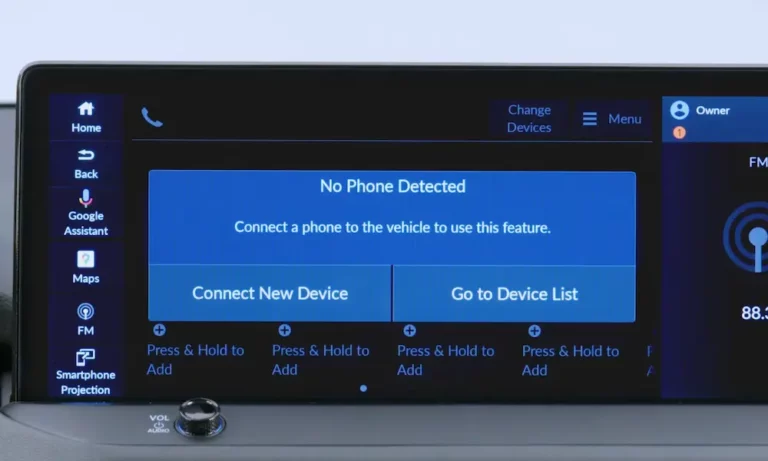
Is your car refusing to connect to your phone? That frustrating moment when you press the call button and nothing happens can turn your commute into a headache. Bluetooth connectivity issues between phones and vehicles are incredibly common, affecting everything from Honda’s HandsFreeLink system to virtually every make and model on the road. Let’s dive into why your hands-free link isn’t working and how to fix it without a trip to the dealership.
Why Your Hands-Free Link Stopped Working
Connection Basics Gone Wrong
When your hands-free link isn’t working, the culprit is almost always a disrupted Bluetooth connection. This happens for a few key reasons:
- Your phone and car have “forgotten” each other
- Software updates changed how they communicate
- Signal interference is blocking the connection
- Permissions settings have changed on your phone
Before diving into complex solutions, try these quick fixes that solve about 80% of hands-free connection problems:
- Restart both devices completely (turn off your car and phone, then restart both)
- Make sure Bluetooth is turned on in both your phone and car settings
- Check if your car still appears in your phone’s paired devices list
These simple steps can often restore your connection without further hassle. According to Samsung support, most connection issues resolve with a simple restart.
Phone Calls Not Working (But Music Works)
Profile Connection Problems
Have you noticed your car plays music just fine but won’t handle calls? This points to a specific Bluetooth profile issue.
Bluetooth uses different “profiles” for different functions – one for audio streaming and another for hands-free calling. When only one works, it means:
- Your phone hasn’t granted the car system access to calls and contacts
- The hands-free profile didn’t connect properly during pairing
- Your phone’s operating system has restricted background permissions
To fix this common problem:
- Go to your phone’s Bluetooth settings
- Find your car in the paired devices list
- Tap on the settings icon (often looks like a gear)
- Make sure “Phone calls” or “Hands-free profile” is enabled
- Check that contact access permissions are granted
Different Bluetooth profiles handle different functions, and both need to be properly connected for all features to work.
The Clean Slate Approach: Reset Everything
When Basic Fixes Aren’t Enough
If quick fixes aren’t solving your hands-free link problems, it’s time for a more thorough approach. The “clean slate” method removes all potential software conflicts:
- Delete your car from your phone’s Bluetooth paired devices
- Remove your phone from your car’s system memory
- Completely power down both devices
- Turn everything back on and pair from scratch
This process forces both devices to create a fresh connection without any lingering settings issues. The National Highway Traffic Safety Administration recommends this approach for resolving persistent Bluetooth pairing problems in vehicles.
For particularly stubborn cases, try:
- Clearing your phone’s Bluetooth cache (in Android: Settings > Apps > Show system apps > Bluetooth > Storage > Clear cache)
- Performing a factory reset on your car’s infotainment system
- Updating your phone’s operating system
- Checking for car infotainment system updates
Honda HandsFreeLink Specific Troubleshooting
Honda System Solutions
Honda vehicles have their own unique HandsFreeLink system with specific troubleshooting methods:
For Honda Accord and similar models with touchscreen systems:
- Press and hold the HOME button until the system menu appears (about 10 seconds)
- Select “System” then “Factory Data Reset” or “Safe Mode”
- This resets the Bluetooth connection without affecting other settings
This reset method has proven effective for many Honda owners experiencing Bluetooth issues, according to user reports and tutorials.
For proper Honda HandsFreeLink pairing:
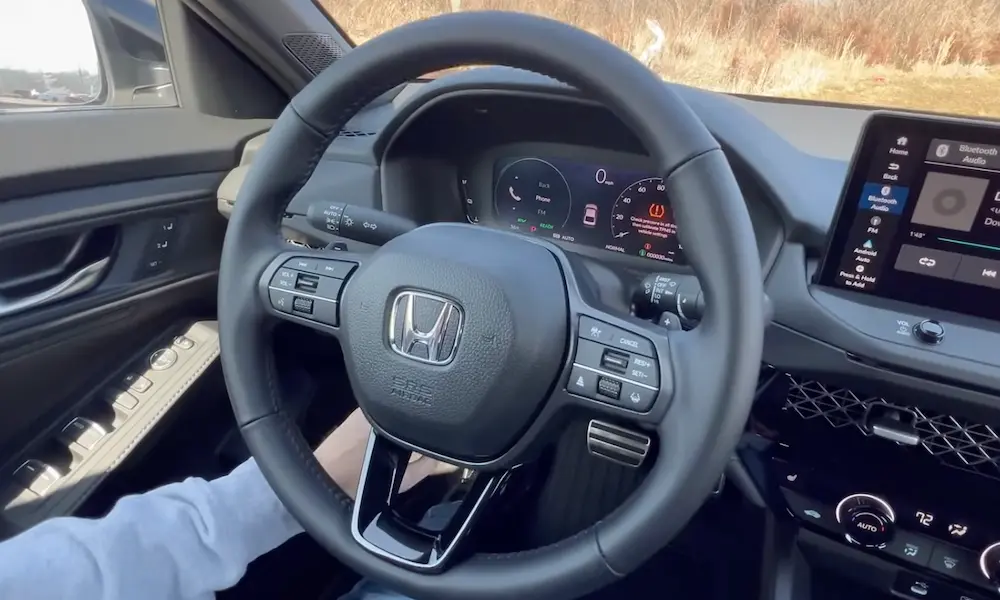
- Press the Phone button on your steering wheel
- When prompted to add a new phone, select “Yes”
- Put your phone in discoverable mode
- Select “HandsFreeLink” from your phone’s available devices list
- Verify the pairing code matches on both your phone and dashboard
The official Honda owner’s manual recommends this exact sequence for proper pairing.
Understanding Common Error Messages
Decoding Connection Problems
Error messages can actually help you pinpoint the exact issue with your hands-free system:
| Error Message | Most Likely Cause | Quick Fix |
|---|---|---|
| “Cannot connect to phone via Bluetooth” | Profile switching issue | Toggle Bluetooth off/on and reconnect |
| “Device not found” | Discovery timeout | Reset network settings on phone |
| “Invalid PIN or passcode” | Pairing conflict | Clear all previous pairings and restart |
| “Connection unsuccessful” | Signal interference | Remove other connected devices |
| “Phone not supported” | Compatibility issue | Check for system updates |
When you see “Invalid PIN or passcode,” this typically means there’s a conflict with previous pairing information. Multiple user forum discussions highlight this as a common issue, especially when switching between different phones.
Call Quality Issues Once Connected
Fixing Poor Audio and Dropped Calls
Even when connected, you might experience:
- Calls dropping mid-conversation
- Echo or distorted audio
- One-way audio (they can’t hear you)
- Delayed audio or robotic sound
These quality issues are often caused by:
- Poor signal strength: Weak cellular reception is the most common reason for dropped calls.
- Microphone interference: Check if your car’s microphone is:
- Blocked by objects or phone mounts
- Set to the proper volume level
- Free from excessive wind or road noise
- Device positioning: Keep your phone:
- Within 3 feet of the car’s Bluetooth receiver
- Away from metal objects that block signals
- Out of direct sunlight to prevent overheating
- Competing connections: Disable other Bluetooth devices that might be causing interference.
Software Update Solutions
Keeping Everything Current
Outdated software is a leading cause of hands-free link failures. Both your phone and car need regular updates to maintain compatibility:
Phone updates:
- iOS: Settings > General > Software Update
- Android: Settings > System > System Update
Car infotainment updates:
- Check your vehicle manufacturer’s website
- Ask about updates during regular service
- Some newer cars can update wirelessly
Software updates often include specific fixes for Bluetooth connectivity issues and should be your first step when troubleshooting persistent problems.
Battery and Power Considerations
The Hidden Connection Killer
Low battery levels on your phone can severely impact Bluetooth performance. This happens because:
- Bluetooth requires consistent power to maintain connections
- Many phones throttle Bluetooth when battery savings mode is active
- Connection strength weakens as battery depletes
To prevent battery-related Bluetooth issues:
- Keep your phone charged above 20% during drives
- Use a car charger on longer trips
- Disable battery optimization for Bluetooth if available
- Consider a dedicated charging mount
Multiple technical forums identify battery level as a critical factor in Bluetooth stability.
Preventing Future Connection Problems
Maintenance Habits for Reliable Connectivity
You can avoid most hands-free link issues by following these preventative practices:
- Limit paired devices: Most car systems can only remember 5-7 devices. Delete old phones you no longer use.
- Use quality cables: For wired connections and charging, use manufacturer-certified cables to prevent interference.
- Regular cleanup: Periodically delete and re-pair your phone to prevent corruption of saved connection data.
- Update everything: Keep both your phone and vehicle software current with the latest updates.
- Check compatibility: Before upgrading your phone, verify it works with your vehicle’s Bluetooth version.
Many auto manufacturers, including Honda, maintain lists of compatible devices on their websites.
Hardware Issues to Consider
When Software Fixes Aren’t Working
If you’ve tried everything and your hands-free link still isn’t working, you might be facing a hardware problem:
In your vehicle:
- Faulty Bluetooth module (common in 2004-2008 Honda/Acura models)
- Damaged microphone or wiring
- Overheating infotainment system
- Battery voltage problems affecting the electronics
On your phone:
- Damaged Bluetooth antenna
- Hardware conflicts from case or accessories
- Overheating issues
- Physical damage to internal components
The HandsFreeLink module failure is a known issue in certain Honda models that can cause not only Bluetooth problems but also battery drain.
Making Hands-Free Connections More Reliable
The majority of hands-free link problems stem from software conflicts or pairing issues rather than actual hardware failures. By following these systematic troubleshooting steps, you can resolve most connectivity issues without expensive repairs:
- Start with the basics: restart, check settings, verify pairing
- Try the clean slate approach: delete and re-pair everything
- Update software on both devices
- Check for specific error messages and their solutions
- Consider hardware issues only after exhausting software fixes
With these approaches, you’ll be back to hands-free calling and enjoying your drive without the frustration of disconnected calls or silent buttons.